How to Replace Any Object in a Video With AI (2026 Guide)
Swap a person, product, vehicle or prop in footage you already have, no masking needed. Write a precise instruction, test at 480p and avoid common traps.
 Emmanuel Greyco Tulabut

On this page
You searched for how to replace an object in a video with AI, which usually means you have a clip that almost works. The product is wrong, the prop looks cheap, or a person needs to be someone else. Until recently that meant masking and tracking every frame by hand.
In November 2026, prompt-based video editing tools can do the swap from a photo and one sentence, and searches for this kind of edit keep climbing. This guide shows you how to replace an object in a video with AI step by step, how to write an instruction the model follows, where swaps still break, and the rights rules to respect.
Executive summary: This guide covers AI object replacement in video: how it differs from masking and rotoscoping, what you can swap, how to write a precise instruction, and a step-by-step workflow in Clippie's Genjutsu Object Swap. It also compares Runway, Adobe, CapCut and Pika fairly. It is for creators, ecommerce sellers and ad teams who want to reuse footage that already performs instead of reshooting it.
Table of Contents
What AI Object Replacement Is (vs Masking and Rotoscoping)
What You Can Swap in a Video With AI
How to Write an Object Swap Instruction That Works
How to Replace an Object in a Video With Clippie (Step-by-Step)
5 Use Cases for AI Video Object Replacement
Other Ways to Replace Objects in Video in 2026
Where AI Object Swaps Still Break
Rights, Consent and Trademarks
Mistakes to Avoid When You Swap Objects in Video
FAQs
What to Do Next

What AI Object Replacement Is (vs Masking and Rotoscoping)
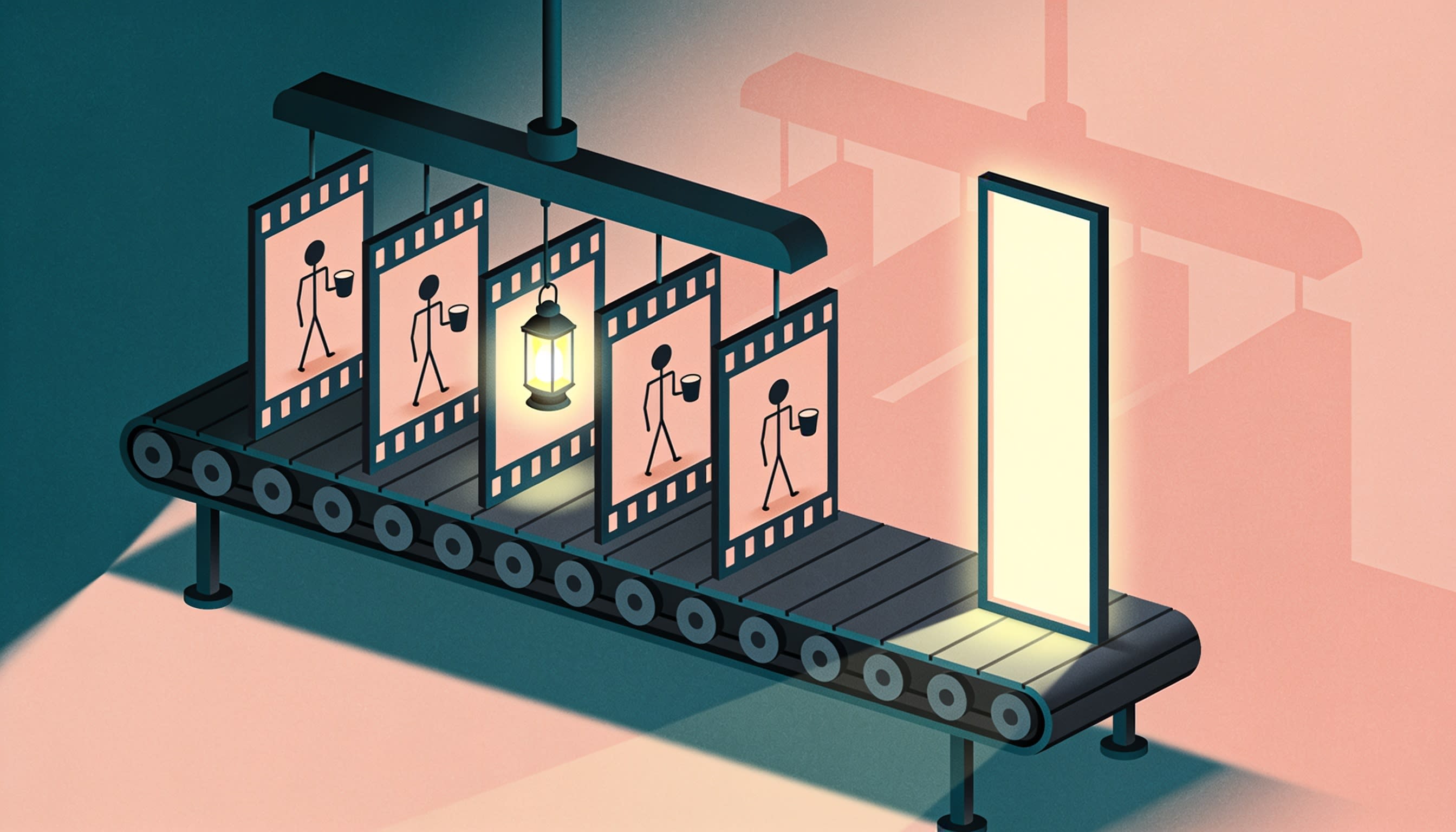
AI object replacement is a video edit where a model finds the thing you name, such as a bottle, a car or a person, and redraws it as your replacement in every frame. You supply a reference image and an instruction. The model handles tracking, lighting and perspective without you drawing a mask.
The traditional route: mask the object, track it frame by frame (rotoscoping), composite the new element, then match light and motion blur. A few seconds can take hours.
The AI route: the model works out which pixels belong to "the man in the red shirt" and generates the swap in one pass.
Why it matters: fixing a clip drops from a VFX job to a test render, so proven footage gets a new product or presenter without a reshoot. The trade-off is less frame-level control.

What You Can Swap in a Video With AI
Most AI object swap tools handle the same core categories: people (face and outfit), products, vehicles, pets, props and clothing. Results are strongest when the target is clearly visible, reasonably large in frame, and not hidden behind other objects for long stretches of the clip.
People: swap a person in a video with AI, face and outfit, from your photo (with consent).
Products: change a product in a video with AI, such as a bottle or sneaker.
Vehicles: turn a grey sedan into a vintage red convertible.
Pets and props: replace a stock dog, or a mug with a competitor's logo.
Outfits: change a jacket while the person stays the same.
Backgrounds Are a Different Job
To change a video background with AI, skip the object swap: the background fills most of the frame.
Green screen footage: use a green screen replacement tool (Clippie's AI Tools tab and most editors have one).
Ordinary footage: Runway's Aleph and Adobe Firefly's prompt edits both list background replacement.

How to Write an Object Swap Instruction That Works
A good swap instruction names one target precisely, says where it is and what it looks like, and states the single change you want. "Replace the blue water bottle on the left of the desk with the bottle in my photo" beats "swap the product" every time.
The model has to pick one thing out of a busy frame. Vague instructions make it guess, and a wrong guess wastes a render.
The instruction formula:
Action verb: replace, swap or change.
Precise target: "the man in the red shirt", not "the person".
Position or color: "on the left", "the white mug".
The replacement: "with the person in my photo".
Rules that save renders: make one change at a time, match the reference photo's angle to the original, and skip camera directions because the framing is kept.
Example: "Swap the silver laptop on the kitchen counter for the black laptop in my photo. Keep everything else the same."
Runway's Aleph prompting guide gives similar advice: an action verb plus targeted language so only the requested element changes.
How to Replace an Object in a Video With Clippie (Step-by-Step)
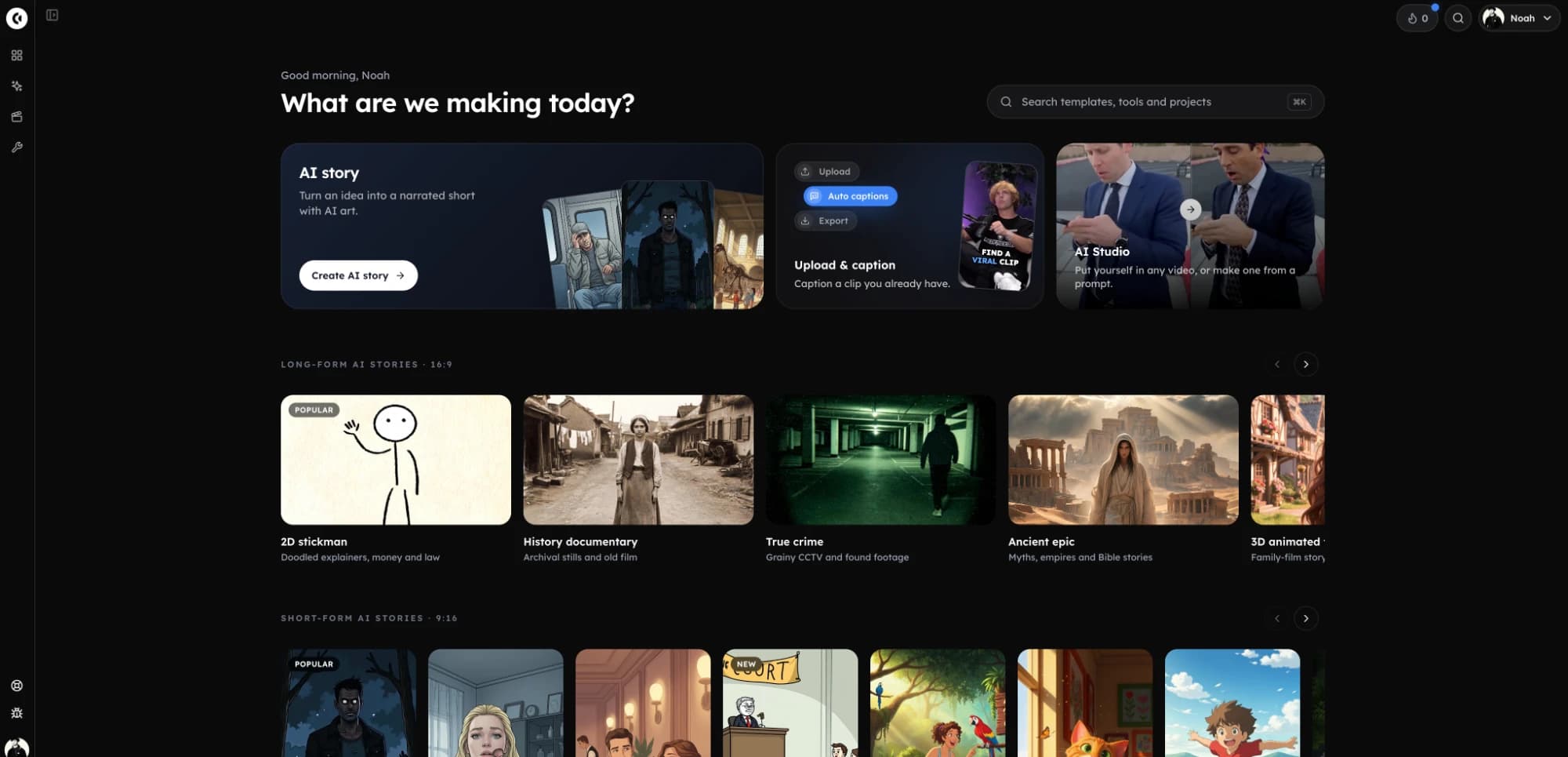
In Clippie, object replacement runs through Genjutsu Object Swap in AI Studio's Edit tab. You upload a 4–30 second clip, add one to eight replacement images, describe the change in plain language, test at 480p, then render at 720p or 1080p. The output keeps the original framing and length.
Step 1: Open Object Swap in AI Studio
Go to AI Studio, open the Edit tab and pick Object Swap. Motion Transfer and Restyle sit in the same tab.
Step 2: Upload a 4–30 Second Clip
Longer uploads are cut to the first 30 seconds, so trim to the exact moment first. Pick a steady clip where the target is visible most of the time.
Step 3: Add One to Eight Replacement Images
Upload the person, product or object to insert. Add extra angles when the target turns during the clip.
Step 4: Describe the Change
Type your instruction using the formula above. There's no masking or tracking step, so the instruction does the selecting.
Step 5: Test at 480p, Then Render at 1080p
Genjutsu tools are priced per second, higher resolutions cost more, and the price is shown before you generate. At November 2026 Genjutsu rates, a 10-second clip costs about 438 credits at 480p, 937 at 720p and 2,244 at 1080p.
On the Lite plan's 800 monthly AI credits, one 10-second 1080p render needs a top-up, so confirm the swap at 480p first.
Step 6: Download or Save to Assets
Download the clip, or save it to your assets and drop it into any Clippie template to add captions or a voiceover. The Genjutsu Object Swap feature page lists current limits and supported swap types.
Where it falls short: clips cap at 30 seconds, there's no manual mask to fix one bad frame, 1080p uses credits fast, and Clippie isn't a timeline editor.
Object Swap vs Motion Transfer: Object Swap changes only what you describe. Motion Transfer reuses a clip's movement with your characters replacing the people in it.

5 Use Cases for AI Video Object Replacement
AI video object replacement pays off most when the footage is already proven. Use it to put a new product into a clip that performs, localize packaging, build ad variants for testing, fix a single bad prop, or swap in a mascot, all without reshooting anything.
Use Case #1: Product Placement in Clips That Already Perform
Swap your product into a clip with strong watch time and keep the hook that works. Pair this with our guide to AI video tools for ecommerce product videos.
Use Case #2: Localizing Products
Swap in a regional pack or label, keep the footage, and add local-language captions.
Use Case #3: A/B Testing Ad Creatives
Run one ad with three product colors. Only one variable changes, so the result means something.
Use Case #4: Fixing a Prop
Replace a competitor logo or dented product instead of reshooting.
Use Case #5: Mascot Swaps
Swap a stock animal for your brand mascot or an AI character you created.
Other Ways to Replace Objects in Video in 2026
Several tools handle AI object replacement in late 2026, each with a different scope. Runway's Aleph and Adobe Firefly edit footage by prompt, Pika offers Pikaswaps for playful swaps, and CapCut focuses on removal. Choose based on clip length, output quality and whether you need professional finishing.
Alternative #1: Runway Aleph
Runway's in-context video model edits footage by prompt: add, remove, replace, relight and restyle. Aleph 2.0 lets you edit one frame and carries the change through the clip.
Best for: cinematic shots and lighting changes.
Where it falls short: Runway's help center lists Aleph generations at 1–5 seconds and 15 credits per second, on Standard plans and up, with 720p-class output. Check current Aleph 2.0 limits.
Alternative #2: Adobe Premiere Pro, After Effects and Firefly
Firefly's Prompt to Edit, built on Runway's Aleph and launched in beta in December 2025, adds or removes objects and replaces backgrounds. Premiere's Object Masking isolates and tracks subjects for effects, and After Effects' Content-Aware Fill removes objects.
Best for: professional finishing with masks, color and a real timeline.
Where it falls short: the job is split across apps, Premiere's masking selects rather than generates, and it all assumes Adobe subscriptions plus editing skill.
Alternative #3: CapCut
CapCut's AI object remover is free: brush over an item and it fills the gap. The editor also removes video backgrounds.
Best for: quick cleanup.
Where it falls short: we couldn't find a dedicated prompt-based video object replacement on CapCut's own pages, so swaps mean removing first and overlaying by hand.
Alternative #4: Pika (Pikaswaps)
Pikaswaps replaces an object in footage from a text description or reference image.
Best for: fun, stylized social clips.
Where it falls short: Pika's plans change often, so confirm on pika.art which tier includes Pikaswaps and commercial use.
When a competitor wins: Adobe for frame-accurate VFX, Runway for short relit cinematic shots.
Where AI Object Swaps Still Break
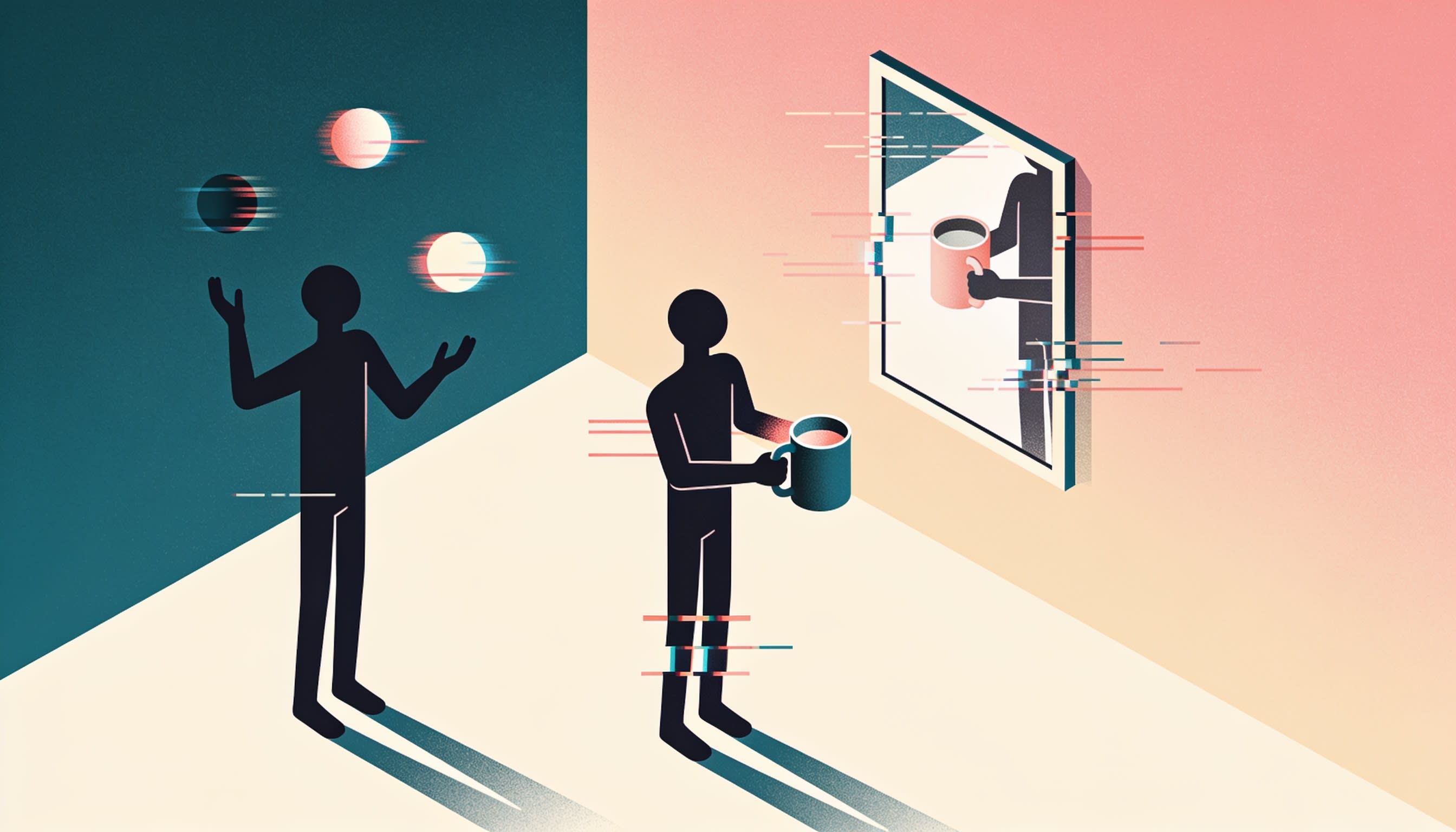
AI swaps fail most often with fast motion, objects that disappear behind other things, hands gripping the target, and readable text on products. Knowing these limits before you upload saves credits, because the fix is usually choosing a better clip rather than rewriting the instruction.
Fast motion: quick pans cause flicker or drift.
Occlusion: a target that vanishes behind a person may come back wrong.
Hands: fingers around a product often merge with it.
Text on products: labels and small print come out garbled.
Workarounds: choose shots where the target is large and steady, turn text-heavy labels away or add the text as a caption, and if no clip works, generate a fresh shot. Our Veo 3.1 walkthrough on YouTube covers prompting with reference images.
Rights, Consent and Trademarks
Only swap in your own face, a character you created, or a person who has consented, and never use a public figure in an ad or to mislead. Trademarks matter too: placing a brand's logo or product into an ad can imply an endorsement you don't have.
Consent: get written permission before swapping a real person in or out.
AI labels: YouTube asks you to disclose realistic altered content, such as making a real person seem to do something they didn't. TikTok and Meta have their own labels.
Footage: a swap doesn't make someone else's clip yours. Use footage you own or license.
This isn't legal advice. For paid campaigns, see our guide to high-converting AI video ads.

Mistakes to Avoid When You Swap Objects in Video
The most common object swap mistakes are vague instructions, stacking several changes in one render, testing straight at 1080p, using reference images at the wrong angle, and skipping a frame-by-frame review. Each one wastes credits or ships a clip with visible errors that viewers notice.
Mistake #1: Naming the Target Vaguely
"Change the product" in a frame with three products is a coin flip. Name color and position.
Mistake #2: Changing Several Things at Once
Product, person and prop in one pass multiplies failure points.
Mistake #3: Testing at 1080p
At about 2,244 credits for 10 seconds, a wrong guess is expensive.
Mistake #4: Mismatched Reference Images
A front-on photo struggles to replace a product held at an angle.
Mistake #5: Not Checking Frame by Frame
A swap can look perfect at full speed and break for three frames when a hand passes.
FAQs
Can AI replace an object in a video automatically?
Yes. Prompt-based tools find the object you name and redraw it as the replacement across the clip, with no manual masking. You supply a reference image and an instruction. Results are best on steady clips where the target stays visible, and you should still review the output frame by frame before publishing.
How do I swap a person in a video with AI?
Upload the clip, add a clear photo of the new person, and write an instruction such as "swap the man in the red shirt for the person in my photo." Only use your own likeness, a character you made, or someone who has consented, and label realistic results where platforms require it.
Can I change a product in an existing video ad?
Yes, and it's one of the strongest uses. Swap the product into a clip that already performs, keep the hook and timing, and test variants against each other. Avoid placing another brand's logo or product without permission, and check that small label text renders correctly before running the ad.
How do I change a video background with AI?
For green screen footage, use a green screen replacement tool. For ordinary footage, prompt-based editors such as Runway's Aleph and Adobe Firefly list background replacement. Object swap tools work best on distinct items like products or people, so a full background change is usually a separate scene edit or restyle.
How long can the video be for an AI object swap?
It depends on the tool. Clippie's Object Swap takes 4 to 30 seconds and uses the first 30 seconds of longer uploads. Runway's help center lists Aleph generations at 1 to 5 seconds. For longer videos, cut out the exact segment that needs fixing and swap only that part.
Is it legal to replace people or logos in videos with AI?
It depends on consent, ownership and use. Swapping your own products into footage you own is low risk. Using someone's likeness without consent, a public figure in an ad, or another brand's trademark can create legal problems. Get permission first, and ask a lawyer before running paid campaigns.
What to Do Next
Pick one proven clip of 4–30 seconds where the target is large and steady.
Write one instruction: verb, precise target, position or color, replacement.
Test at 480p, review every frame, then render at 1080p.
Run one variant test with two product colors or presenters.
Need footage you don't have? This short Seedance 2.0 demo on Clippie's channel shows the kind of fresh clip you can generate first.
Start with the smallest change that fixes your clip.
Try it in Clippie
Make faceless videos with Clippie
Type an idea or paste a script. Clippie writes, voices, illustrates and captions a video you never have to appear in.
See the faceless video formats