How to Turn Video Into Anime With AI (2026 Step-by-Step)
Restyle a 4–30 second clip as anime, 3D, pixel art or stop motion and keep every movement. Clip picks, credit costs, rival tools, copyright and labels.
 Emmanuel Greyco Tulabut
On this page
If you searched for how to turn video into anime with AI, you want a real clip you filmed (a dance, a skit, a walk to camera) redrawn as anime without losing the movement. That is now practical. Video-to-video restyle models released through 2026 keep motion, timing and cuts, so the output reads as animation rather than a flickering filter.
The catch is that results depend heavily on the source clip, and high-resolution renders cost real credits. This guide shows which clips restyle well, the step-by-step workflow, style-specific tips, fair alternatives and the copyright limits you need to know.
Executive summary: A practical guide to AI video restyle (video style transfer) for short-form creators: how restyling keeps motion, choosing source footage, a step-by-step Clippie workflow, anime, 3D, pixel art and stop motion tips, credit costs, four alternatives, copyright and labeling, and common mistakes. You will know how to get a clean restyle within one or two attempts.
Table of Contents
What AI Video Restyle Is and How It Keeps the Motion
How to Pick a Source Clip That Restyles Well
How to Turn a Video Into Anime With AI in Clippie (Step-by-Step)
What a Restyle Costs in Credits
Style-by-Style Tips: Anime, 3D, Pixel Art and Stop Motion
4 Ways Creators Use AI Video Restyle
Video to Anime AI Alternatives in 2026
Copyright and AI Labels: What a New Style Does Not Change
5 Mistakes That Ruin an AI Anime Restyle
FAQs
What to Do Next

What AI Video Restyle Is and How It Keeps the Motion
AI video restyle redraws every frame of an existing clip in a new visual style, such as anime, 3D cartoon or pixel art, while keeping the original movement, framing, timing and cuts. You supply the performance; the model supplies the look. It edits footage rather than generating video from a prompt.
How it differs from an anime filter
A classic AI anime filter for video styles each frame separately, so lines and colors shift between frames and outlines "boil." A video-to-video restyle model reads the clip as a sequence and keeps:
Pose and movement, so a hand wave stays the same wave
Camera motion and framing, so a pan stays a pan
Cuts and timing, so your edit points land where they did
Why it matters for creators
Filming 15 seconds takes minutes; hand-animating it takes days. Restyling keeps a real performance (timing, expression, comedic beats) in a look that stands out.
How to Pick a Source Clip That Restyles Well
The best source clips run 4–30 seconds with one clear subject, even lighting, a plain background and moderate movement. The model can only redraw what it can read, so a sharp, well-lit clip restyles cleanly, while a dark or cluttered one produces smeared faces and drifting details.
The checklist
Length: 4–30 seconds. In Clippie, only the first 30 seconds of a longer upload are used, so trim first.
File size: under 200MB; export at 1080p rather than 4K.
Subject: one or two people, clearly separated from the background, faces not tiny in frame.
Light: daylight or a soft key light; avoid backlit windows and night clubs.
Motion: natural movement is fine; fast spins and motion blur break details.
Background: simple; crowds, foliage and signage warp.
Example: a 12-second walk toward a tripod on an overcast day is ideal; the same walk at night in traffic is not.
How to Turn a Video Into Anime With AI in Clippie (Step-by-Step)
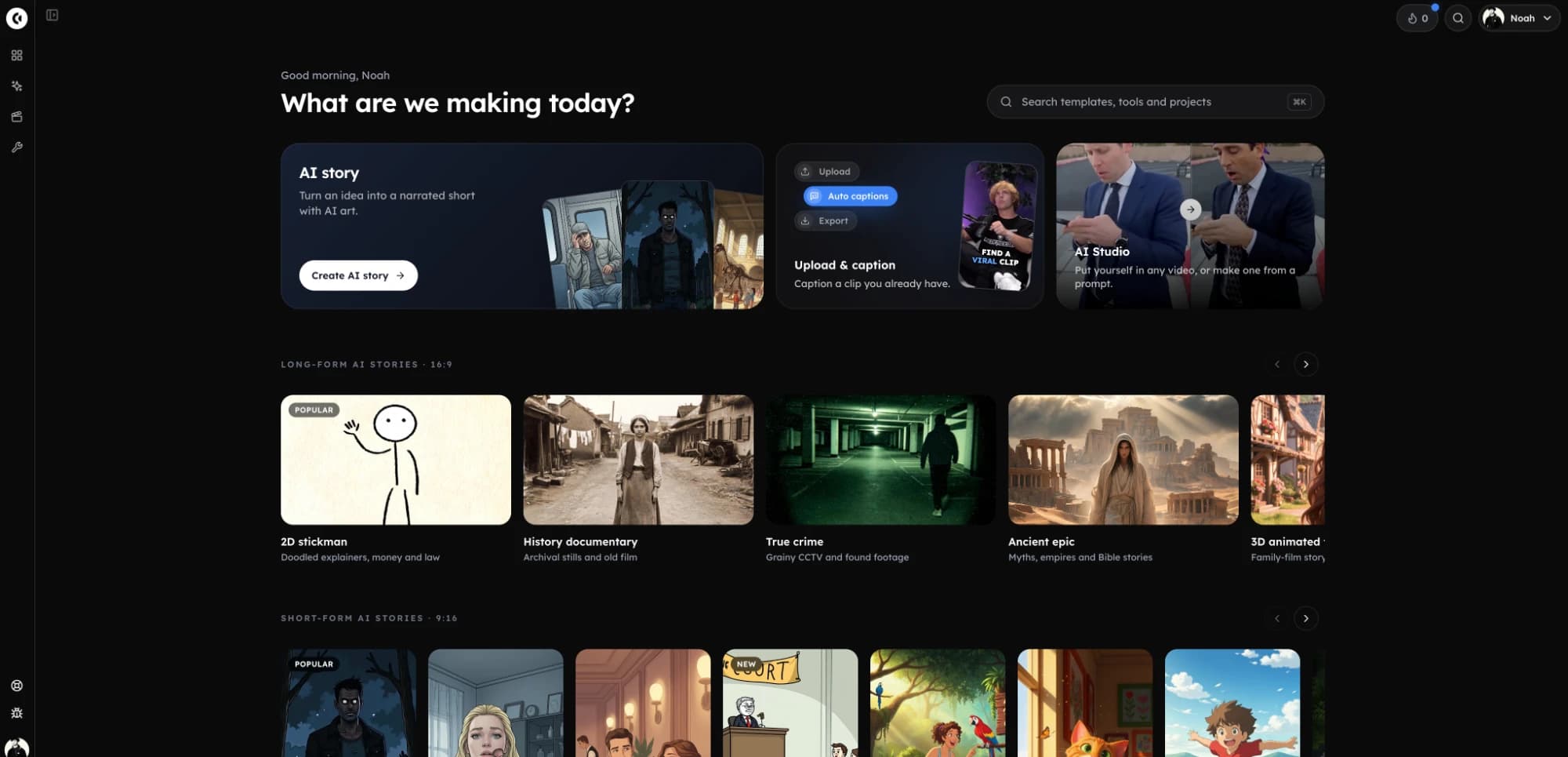
In Clippie, restyling lives in AI Studio under the Edit tab as Genjutsu Restyle. You upload a clip, pick a style preset, optionally add character images and a short text direction, test at 480p, then render the keeper at 1080p. The price is shown before you generate.
Restyle launched on October 13, 2026; preset examples are on the AI video restyle feature page.
Step 1: Open Restyle in AI Studio
Go to AI Studio, open the Edit tab and choose Restyle (Motion Transfer and Object Swap, beside it, swap people or objects instead).
Step 2: Upload your clip
Upload a trimmed 4–30 second video under 200MB.
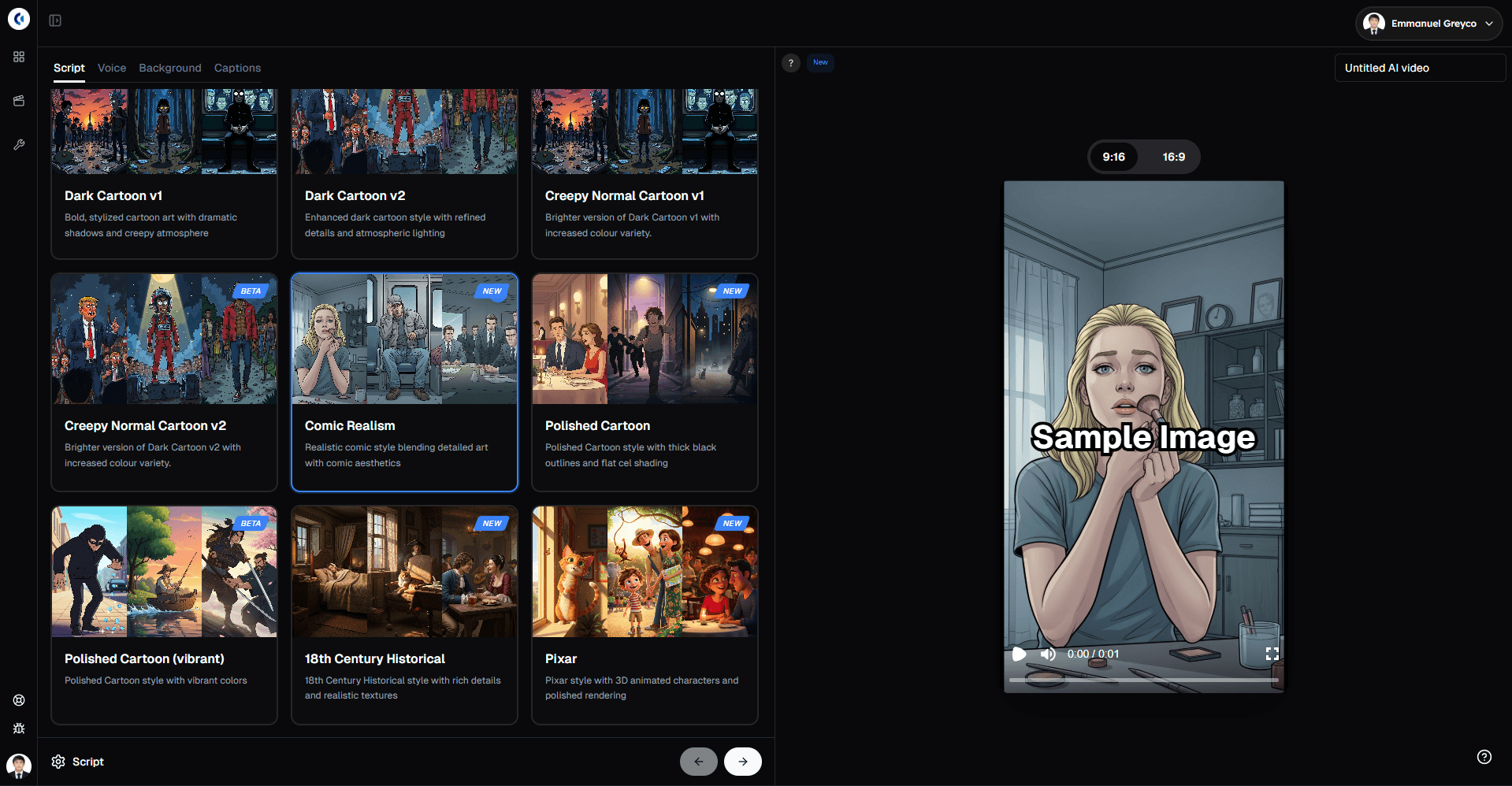
Step 3: Pick a style preset
Choose a preset such as Anime, 3D, Pixel art or Stop motion. The full list loads live in AI Studio, where new styles appear first.
Step 4: Add character images (optional)
Add up to 5 character images to control how specific people look. They map left to right, so the first image applies to the person on the left.
Step 5: Add a text direction (optional)
Write one short instruction, such as "keep the sky bright and sunny." One or two changes work; long wish lists dilute the result.
Step 6: Test at 480p, then render at 1080p
Generate at 480p to check faces, hands and background, then rerun the same settings at 720p or 1080p. For captions, run the download through Auto-Captions.
What a Restyle Costs in Credits
Restyle is priced per second of output and per resolution, from 175 credits for a 4-second 480p test up to 2,244 credits for 10 seconds at 1080p. Testing at 480p first is the single biggest saving, because 1080p costs roughly five times as much.
Genjutsu Restyle pricing listed in Clippie's model catalog (November 2026):
480p: 4s = 175 credits, 5s = 219, 10s = 438
720p: 4s = 375 credits, 5s = 469, 10s = 937
1080p: 4s = 898 credits, 5s = 1,123, 10s = 2,244
How that maps to plans:
Lite (800 AI credits a month) covers a 480p test plus a short 720p render.
Creator has 1,500; Pro has 3,000, enough for one 10-second 1080p restyle.
Credit top-ups never expire.
Plans start at $19.99 a month, with discounts on longer billing — check the pricing page.
Style-by-Style Tips: Anime, 3D, Pixel Art and Stop Motion
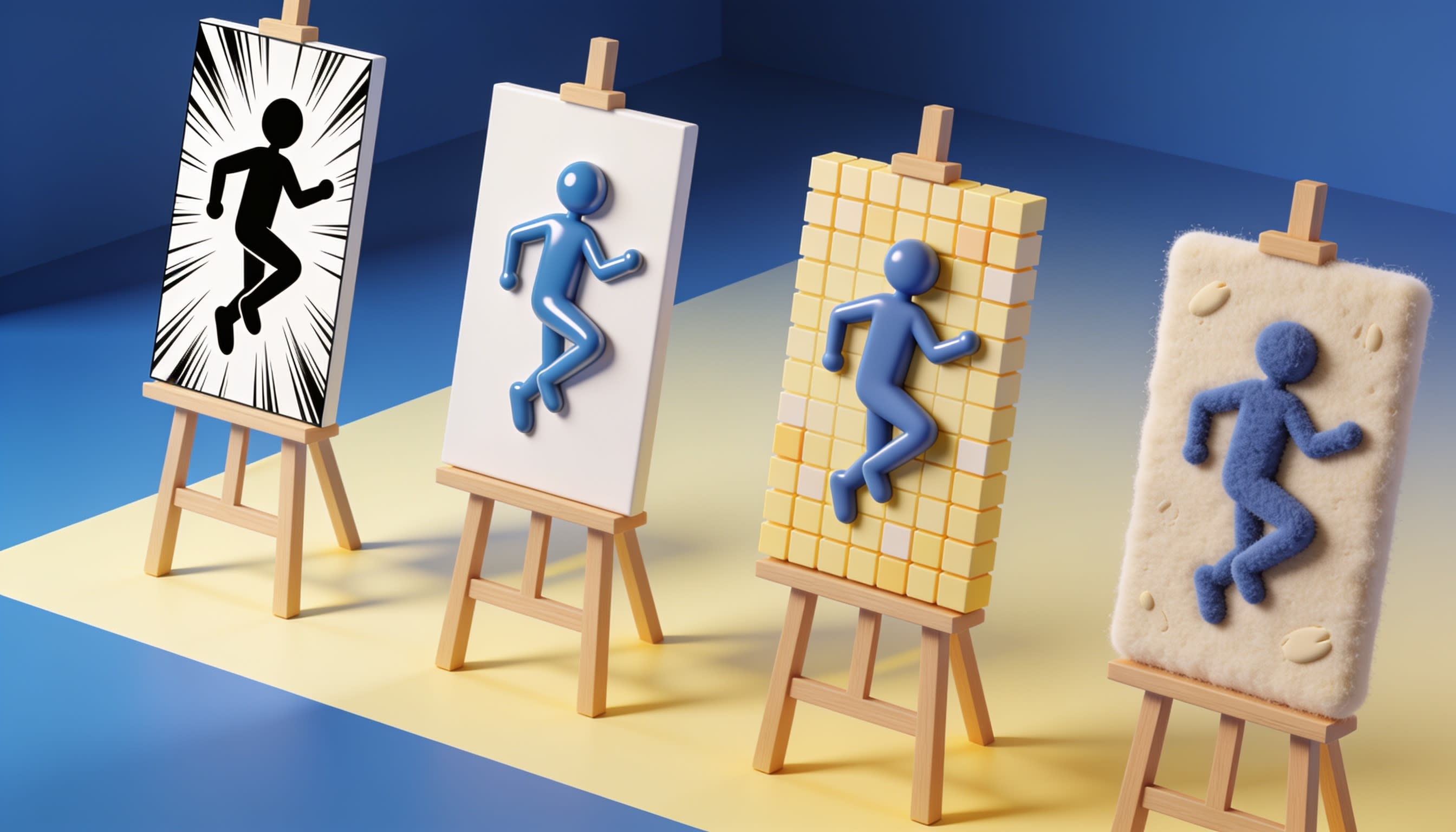
Each style rewards different source footage. Anime favors clear faces and expressive movement, 3D favors simple shapes and good light, pixel art favors bold silhouettes, and stop motion favors slower, deliberate motion. Match the clip to the style and you will need fewer retries.
Style #1: Anime
Best for: dance clips, reactions, skits
Film for it: medium shots with the face clearly visible; anime exaggerates eyes and expressions
Style #2: 3D cartoon
To turn video into 3D cartoon footage, give the model simple outfits and even front light; harsh shadows become odd lumps on 3D faces.
Best for: family-friendly skits, pets, product demos
No footage? Generating 3D cartoon scenes from a script is a separate workflow; see Clippie's short on making 3D cartoon-style videos
Style #3: Pixel art
Best for: gaming edits, retro music clips
Film for it: strong silhouettes on plain backgrounds; jewelry, text and tiny gestures vanish in chunky pixels
Style #4: Stop motion
Best for: tabletop scenes, cooking clips, slow stories
Film for it: slower, deliberate movement and textured props (fabric, wood, food); fast action undermines the stepped, handmade feel

4 Ways Creators Use AI Video Restyle
The strongest uses keep one real performance and multiply its value: several channel looks from one take, a series locked to a consistent style, music and dance edits, and faceless storytelling where you never appear as yourself. Each relies on restyle preserving your motion and timing.
Use Case #1: One performance, several channel looks
Film once, then restyle the take as anime for one account and 3D for another, the footage version of repurposing one script into 10 video styles.
Use Case #2: A series in one consistent style
Reuse one preset, text direction and set of character images for every episode so viewers recognize the look instantly.
Use Case #3: Music and dance edits
Dance clips restyle well because movement is the content. Cut on the beat first; restyle keeps those cuts.
Use Case #4: Faceless storytelling
Act out a scene, then restyle it so a stylized character appears instead of your face. Character images keep that character consistent across clips.
Video to Anime AI Alternatives in 2026
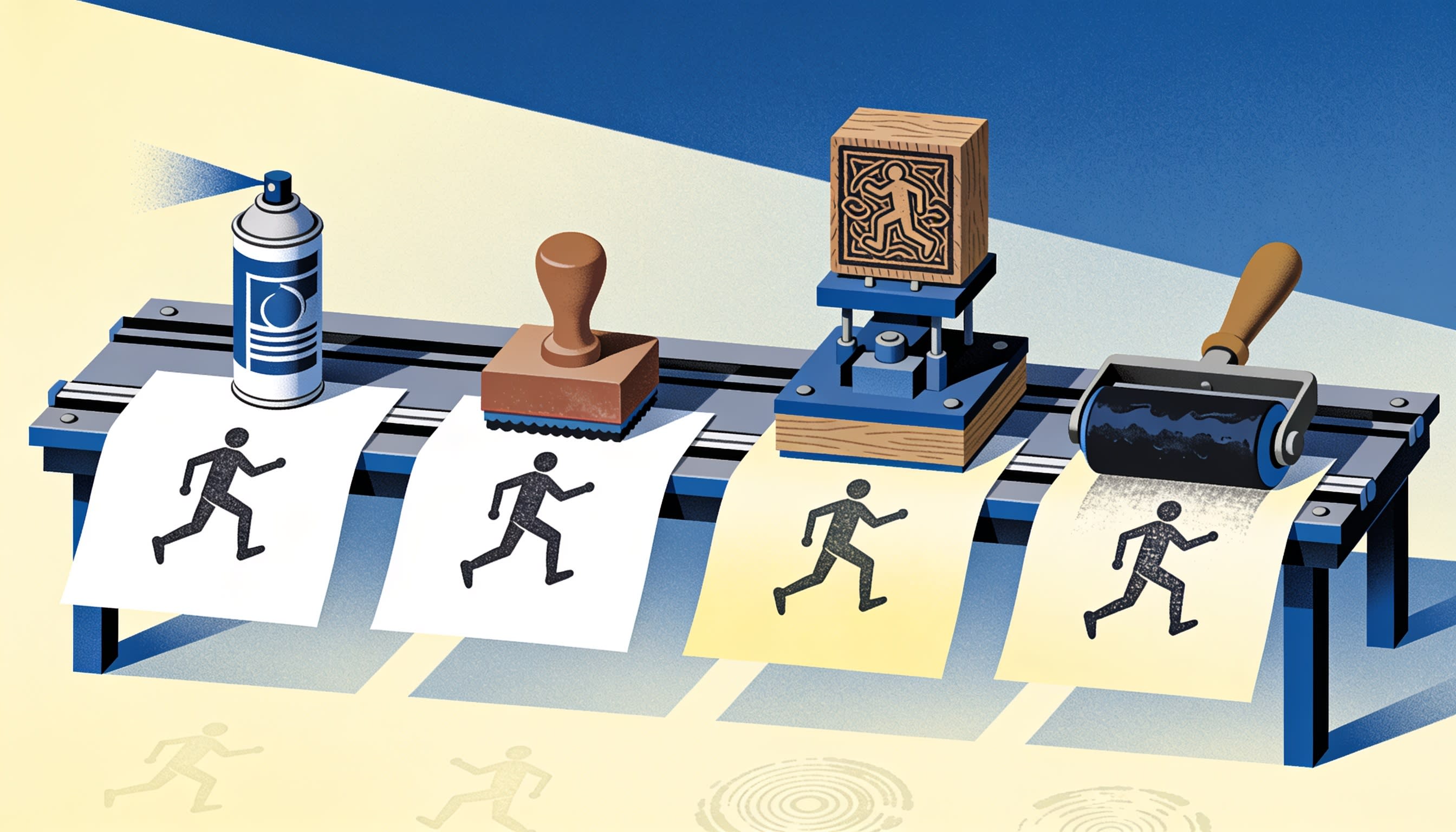
Runway, Kling, DomoAI and CapCut all offer some form of video-to-anime or video style transfer. Runway and Kling give more prompt control, DomoAI is anime-focused, and CapCut's tools are the quickest way to try the look. Clippie suits creators who want preset styles inside a short-form workflow.
For broader picks, see the best AI video tools for faceless content in 2026.
Alternative #1: Runway (Aleph 2.0)
What it offers: Runway's video-to-video model for editing and stylizing footage with text or image guidance, listed at 28 credits per second.
Free tier: a one-time 125 credits; Aleph isn't among the Free plan's listed models, and free outputs are watermarked.
Where it falls short: Standard's 625 monthly credits cover only about 22 seconds of Aleph 2.0.
Better choice when: you want edits beyond style, such as objects or lighting.
Alternative #2: Kling 4.0
What it offers: a "Change the Style" edit type. Uploads run 3–30 seconds (30 seconds combined, 300MB per file), and prompts start with "Edit @Video1".
Free tier: Kling cites limited free access for eligible accounts, with restricted credits and editing options.
Where it falls short: style comes from your prompt, not a fixed preset, so series consistency depends on reusing exact wording.
Alternative #3: DomoAI
What it offers: a video-to-video tool with 14+ anime styles and a Fusion option guided by a prompt or reference image; it advertises free credits on sign-up.
Where it falls short: its tool page doesn't state clip limits, and it is narrower outside anime.
Better choice when: anime is your only style and you want many variations.
Alternative #4: CapCut and Dreamina
What it offers: CapCut's browser "Video to Anime" tool and anime effect templates; sister app Dreamina offers prompt-based style transfer on Seedance 2.0 with free daily credits for new users.
Where it falls short: CapCut describes its tool as image-based processing, and neither page states length limits or watermark rules.
Better choice when: you want to try the look before paying anything.
Where Clippie falls short
Each restyle covers 30 seconds at most; longer videos need several generations.
10 seconds at 1080p costs more credits than Lite or Creator include in a month.
It is not a timeline editor, and there is no way to experiment before subscribing.
Copyright and AI Labels: What a New Style Does Not Change
Restyling changes how footage looks, not who owns it. A movie scene, music video or another creator's TikTok redrawn as anime is still their footage, so restyle your own clips, licensed stock or footage you have permission to use. Label realistic results where platforms require it.
Copyright basics
Your own footage: safe ground; you own the performance.
Someone else's footage: a new style does not make it yours. Ask permission or skip it.
Music: restyling the picture doesn't change audio rights; a copyrighted song can still be flagged.
This is general guidance, not legal advice.
Labeling
YouTube requires disclosure for realistic AI-altered content; its help page says clearly unrealistic or animated content doesn't need it.
TikTok asks creators to clearly label realistic AI-generated or edited content.
Flat anime reads as obviously animated. A near-photoreal 3D restyle of a real person may not, so label it when in doubt.
Never restyle a real person into a scene they did not agree to.
5 Mistakes That Ruin an AI Anime Restyle
Most failed restyles trace back to the source clip or the settings rather than the model. Dark or cluttered footage, skipping the 480p test, overloaded text directions, misordered character images and restyling footage you don't own account for most wasted credits and claims.
Mistake #1: Uploading dark or busy footage
Low light and clutter give the model too little to read. Reshoot in daylight.
Mistake #2: Rendering at 1080p first
A 1080p render costs about five times a 480p test. Test first.
Mistake #3: Writing an essay in the text direction
One or two short instructions work; ten competing ones muddle the frames.
Mistake #4: Ordering character images wrong
Images apply left to right. If the wrong face lands on someone, reorder the images.
Mistake #5: Restyling clips you don't own
A restyled viral clip or film scene is still someone else's and can still draw claims.
FAQs
Can AI turn any video into anime?
Most videos can be restyled, but quality varies. Clips with one clear subject, good light, simple backgrounds and moderate motion convert best; dark footage, tiny faces, crowds and fast spins tend to warp. In Clippie, clips must be 4–30 seconds and under 200MB, and only the first 30 seconds are used.
Is AI video restyle the same as an anime filter?
No. A filter styles each frame separately, which often causes flicker and shifting lines. A video-to-video restyle model reads the clip as a sequence, keeping pose, camera movement, timing and cuts consistent, so the result looks like animation of your performance rather than a painted effect.
How long can a restyled video be?
Clippie's Restyle accepts 4–30 seconds per generation, and Kling 4.0's editing also caps combined input at 30 seconds. For longer videos, split the footage into segments under 30 seconds, restyle each with identical settings, then join them on natural scene breaks to hide small style shifts.
Which styles can I turn a video into?
Clippie's Restyle presets include anime, 3D, pixel art and stop motion, with the full list loading live in AI Studio, where new styles appear first. Other tools differ: DomoAI lists 14+ anime styles, while Runway and Kling rely mainly on text prompts to describe the look.
Do I need to label restyled AI videos?
It depends on realism. YouTube requires disclosure for AI-altered content that seems realistic, but says clearly unrealistic or animated content does not need it. TikTok asks for clear labels on realistic AI content. Obvious anime usually falls outside those rules; photoreal results of real people should be labeled.
Can I restyle movie clips or other creators' videos?
A new visual style does not transfer ownership. The footage and any music remain the original owner's, and platforms can still remove or claim the result. Restyle your own clips, licensed stock or footage you have written permission to use. This is general guidance, not legal advice.
What to Do Next
Film one test clip: 10–15 seconds, daylight, plain background, one person, phone on a tripod.
Run a 480p anime test, then try 3D or stop motion on the same clip and render the keeper at 1080p.
Lock in a series look: reuse the same preset, direction and character images.
No footage yet? Generate scenes from a script instead; Clippie's full AI Story video tutorial walks through that route.
Build the story step by step
How to storyboard a Stickman survival video
Build a Stickman survival story around one difficult choice, with an original six-scene script, visual instructions and a practical production checklist.
How to make talking fruit videos: script, voices and captions
Make a talking fruit drama from an original script: set up the cast, assign voices, review the scene images, animate the dialogue and finish the captions.
Try it in Clippie
Make an AI story video
Write a script or let AI write one, pick a look, and Clippie turns it into a narrated video with captions.
Pick a story style