AI Motion Transfer in 2026: Put Any Character Into Any Video
Copy the moves from a dance or meme clip onto your own character: driving clip rules, photo prep, credit costs, motion control options and AI labels too.
 Emmanuel Greyco Tulabut
On this page
If you searched for AI motion transfer, you want one thing: take the moves from a real clip, like a dance trend or a meme, and have your own character perform them. That is now a single generation, not a motion-capture job.
YouTube searches for motion control AI have risen sharply this autumn, and several tools launched new motion models in 2026. This guide explains how motion transfer works, how to pick a driving clip and character photos that transfer cleanly, a step-by-step workflow, which tools have no-cost tiers, and the consent and labeling rules to follow.
Executive summary: This guide is for faceless creators who want their own characters, mascots or AI influencers to perform trending dances, duets and memes. It covers how motion transfer differs from face swap and object swap, choosing clips and photos, a six-step workflow with real credit costs, four other tools with honest trade-offs, ethics and labels, and common mistakes.
Table of Contents
What AI Motion Transfer Is and How It Works
Motion Transfer vs Face Swap, Recast and Object Swap
How to Choose a Driving Video and Character Photos
How to Make a Motion Transfer Video Step-by-Step
Other Motion Control AI Tools, Including Free Options
Best Use Cases for AI Motion Transfer
Consent, Copyright and AI Labels
AI Motion Transfer Mistakes to Avoid
FAQs
What to Do Next
What AI Motion Transfer Is and How It Works
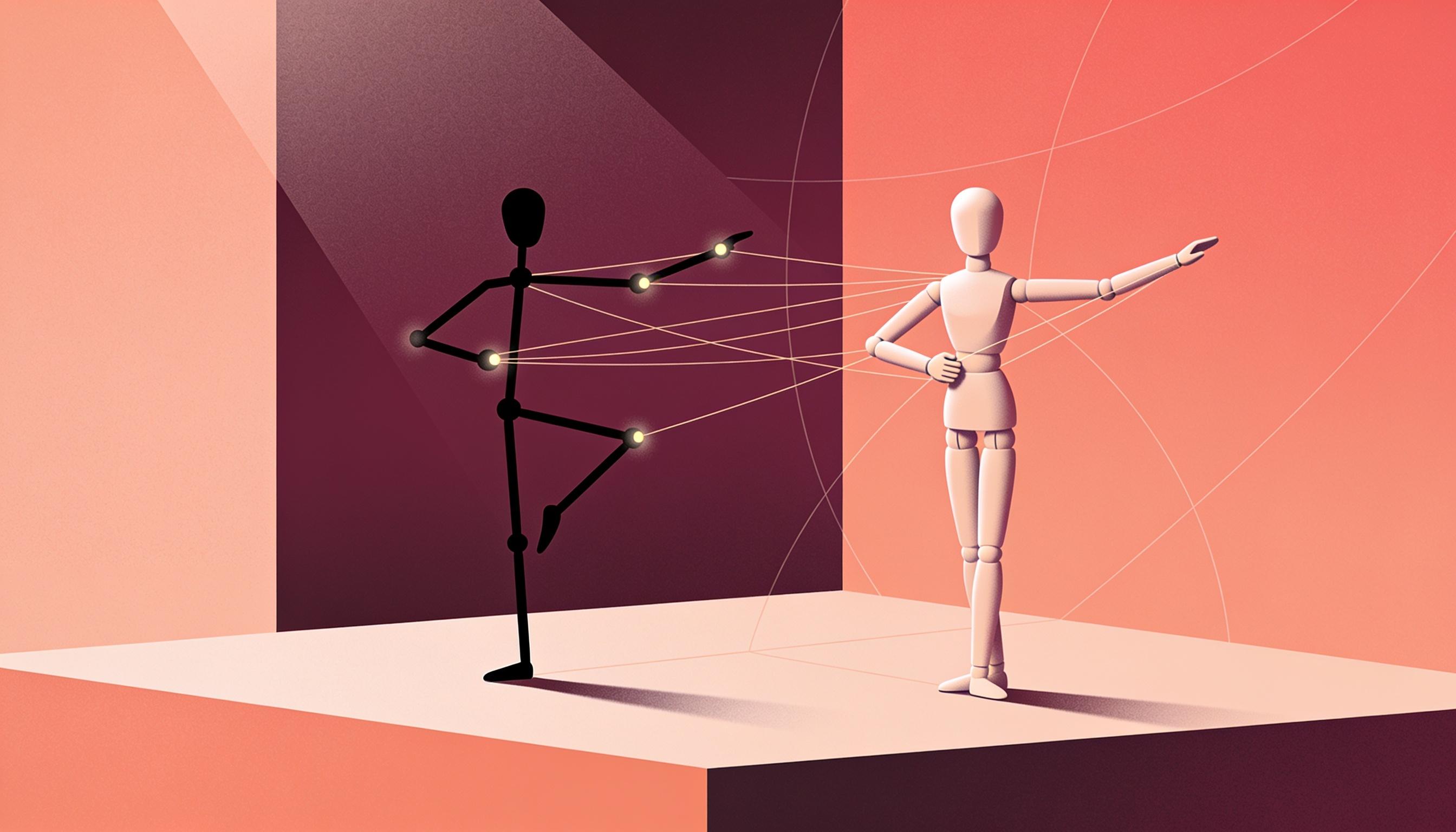
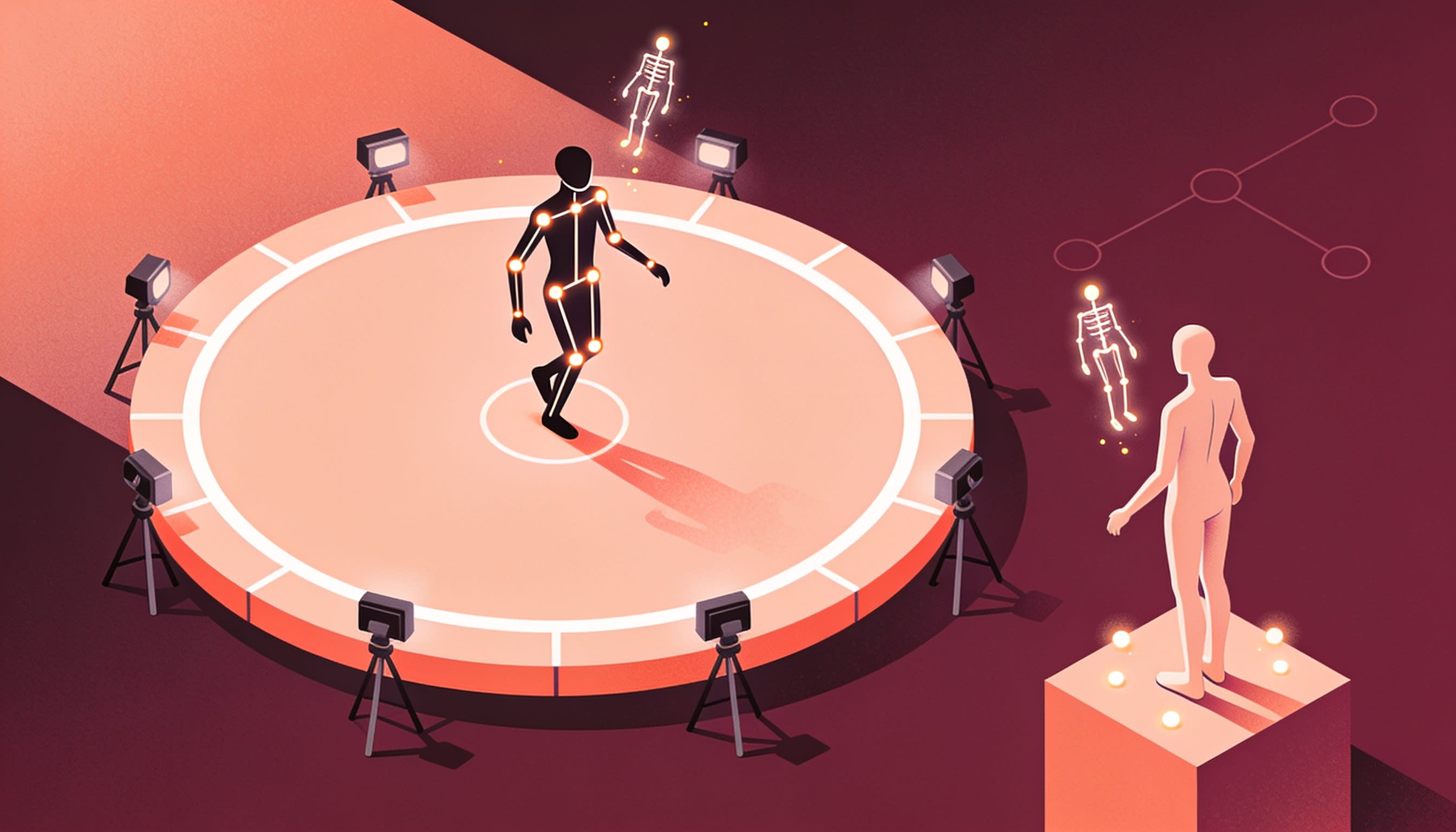
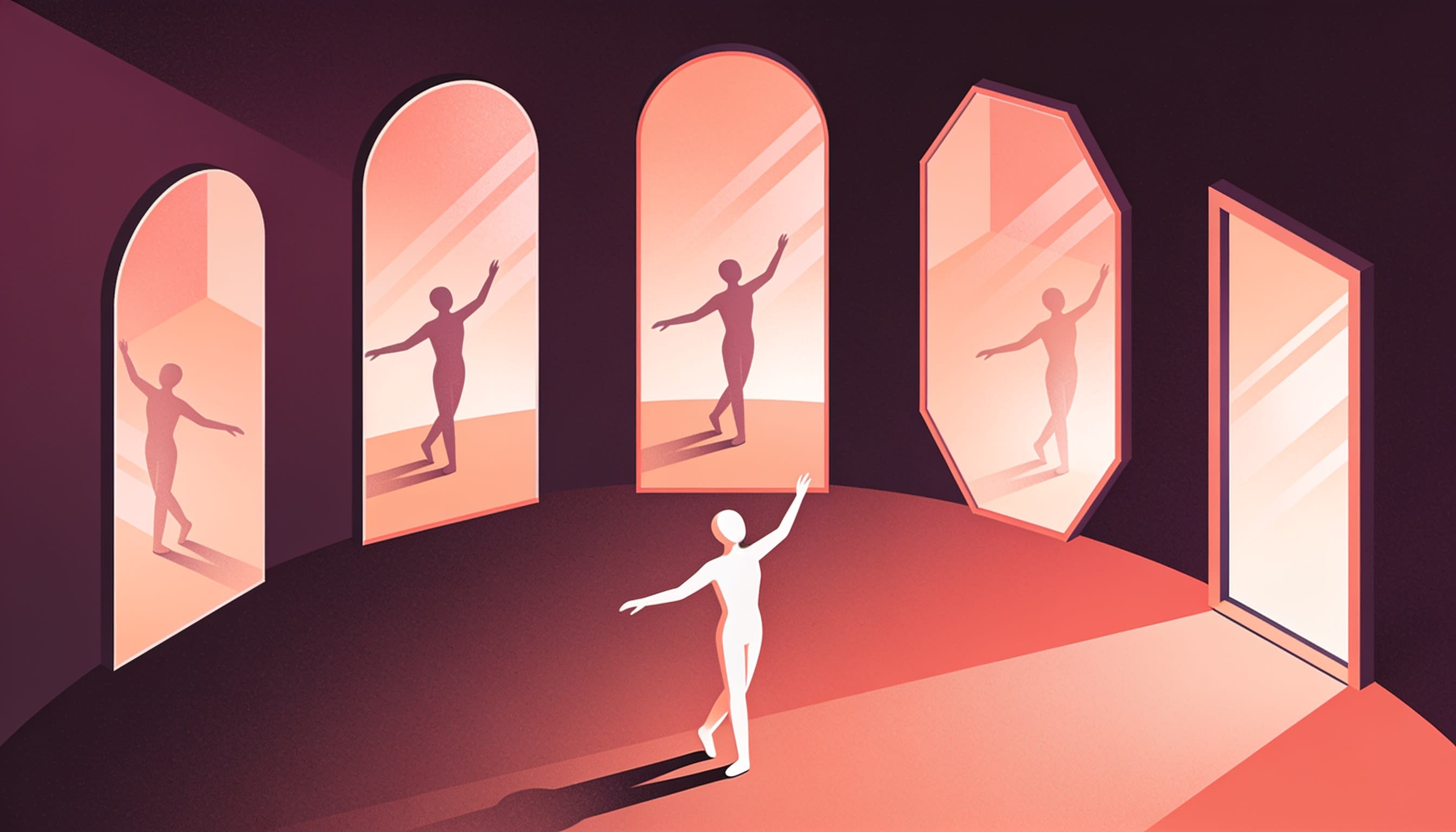
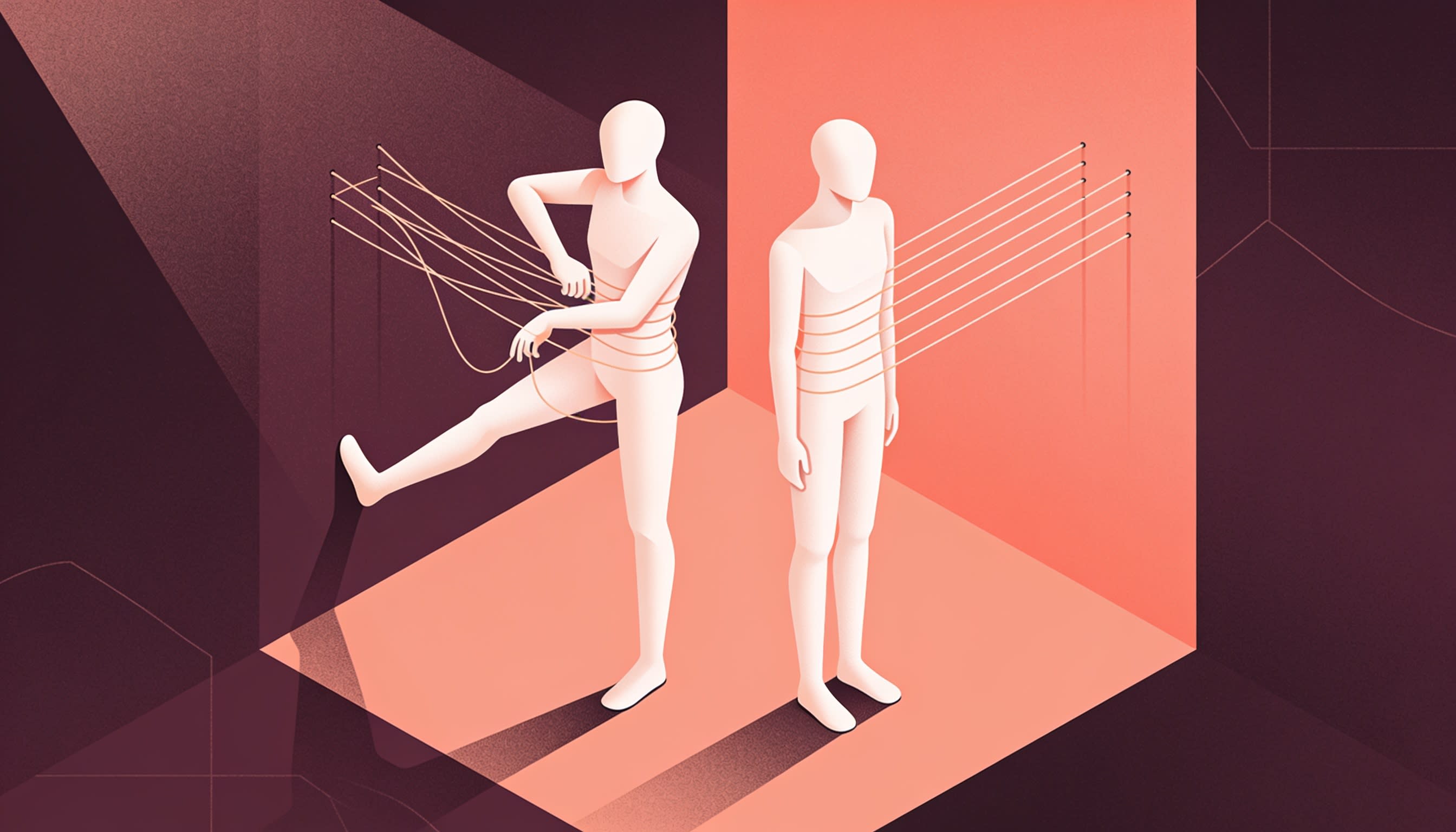
AI motion transfer takes the movement from one video, called the driving video, and applies it to a character from a still image. The model reads the poses, timing and camera in the clip, then redraws every frame so your character performs the same moves in the same shot.
What happens in plain terms:
Motion is extracted. The model tracks pose, head turns, hands and camera movement frame by frame.
Identity comes from your photo. Face, body, outfit and style come from the character image.
Frames are rebuilt. The output keeps the clip's length and framing, so it lines up with the original audio.
Why it matters: one photo of a mascot or AI influencer can join any dance trend without anyone filming.
Motion Transfer vs Face Swap, Recast and Object Swap
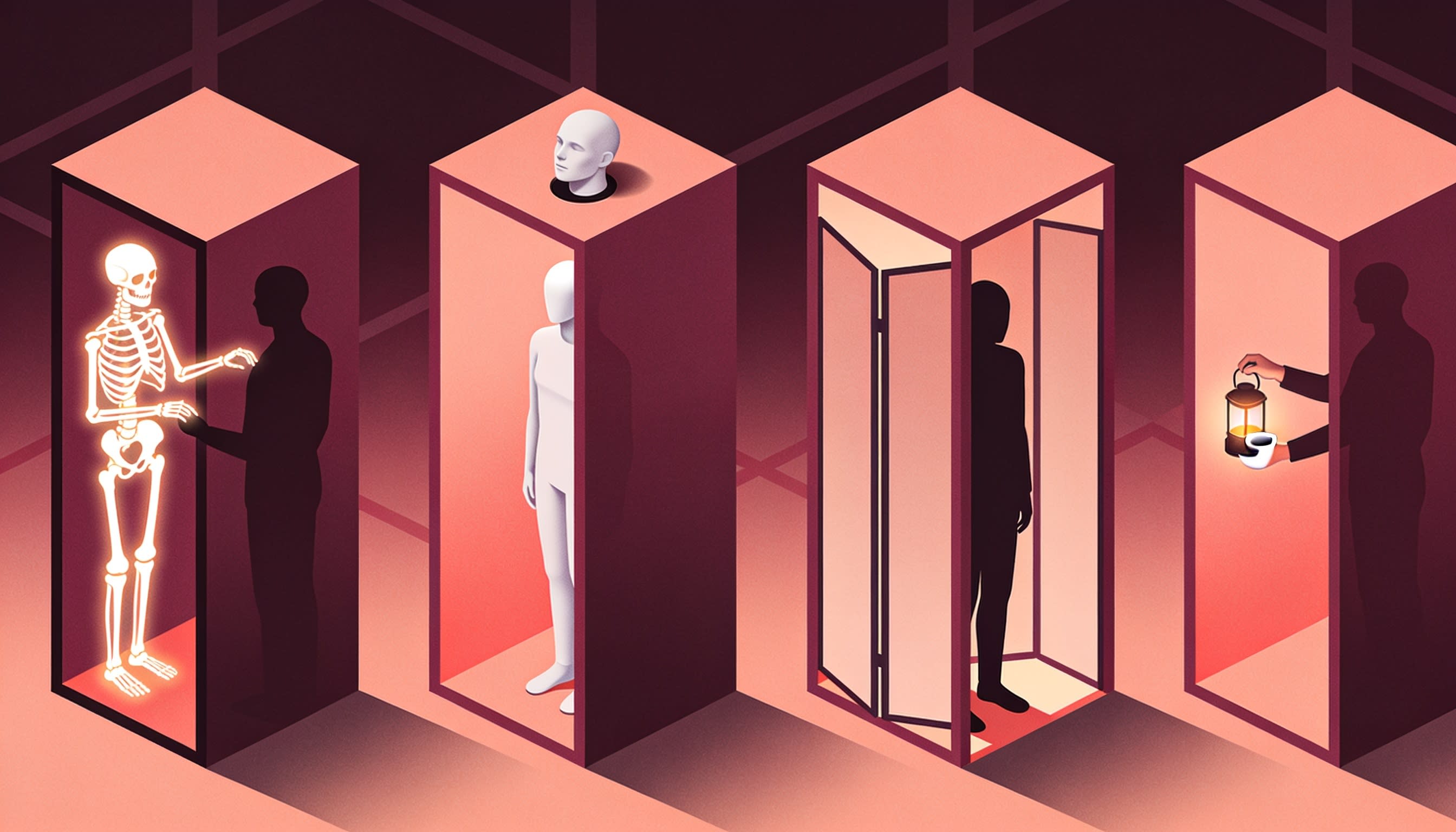
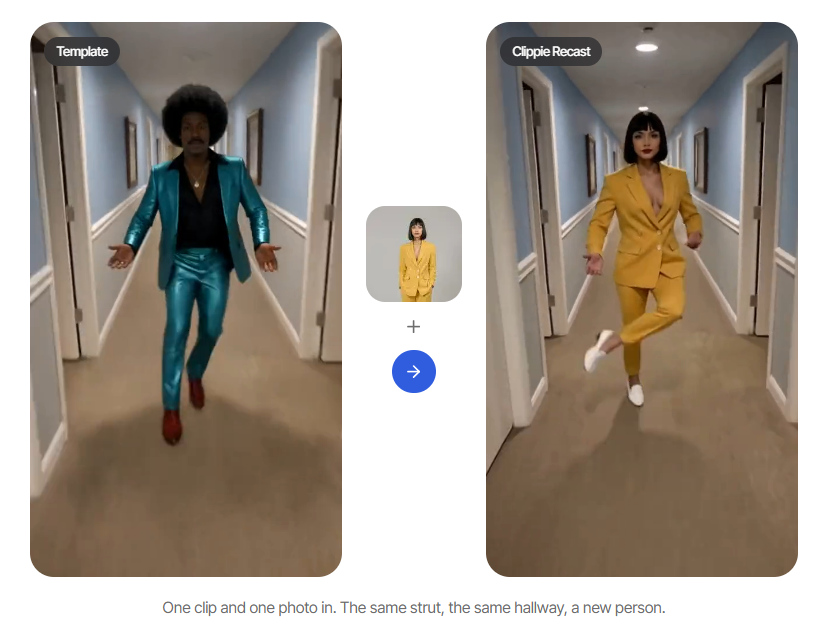
Motion transfer rebuilds the whole person from your photo while reusing the clip's movement. Face swap only replaces the face. Recast-style tools swap a person into a clip while keeping the original scene and sound almost untouched. Object swap changes one described element and leaves everything else.
Pick the technique by what should change:
Face swap: new face, same body, outfit and scene. Most prone to misuse, because it looks like a real person.
Motion transfer: new body, face, outfit and style; same moves and framing. Best for cartoons, mascots and groups.
Recast: a realistic person swapped into a clip, with scene and sound kept exactly.
Object swap: change only what you describe, such as a product or one person in a crowd.
When to Use Recast Instead
In Clippie, use Recast (AI Studio → Motion tab) when realism matters most and the clip has up to 4 people: it keeps the scene, camera and sound exactly. Use Genjutsu Motion Transfer for up to 8 people, stylized characters, or cheap 480p tests before you commit.
For scenes you can't film at all, compare the best text-to-video AI tools for faceless videos.
How to Choose a Driving Video and Character Photos
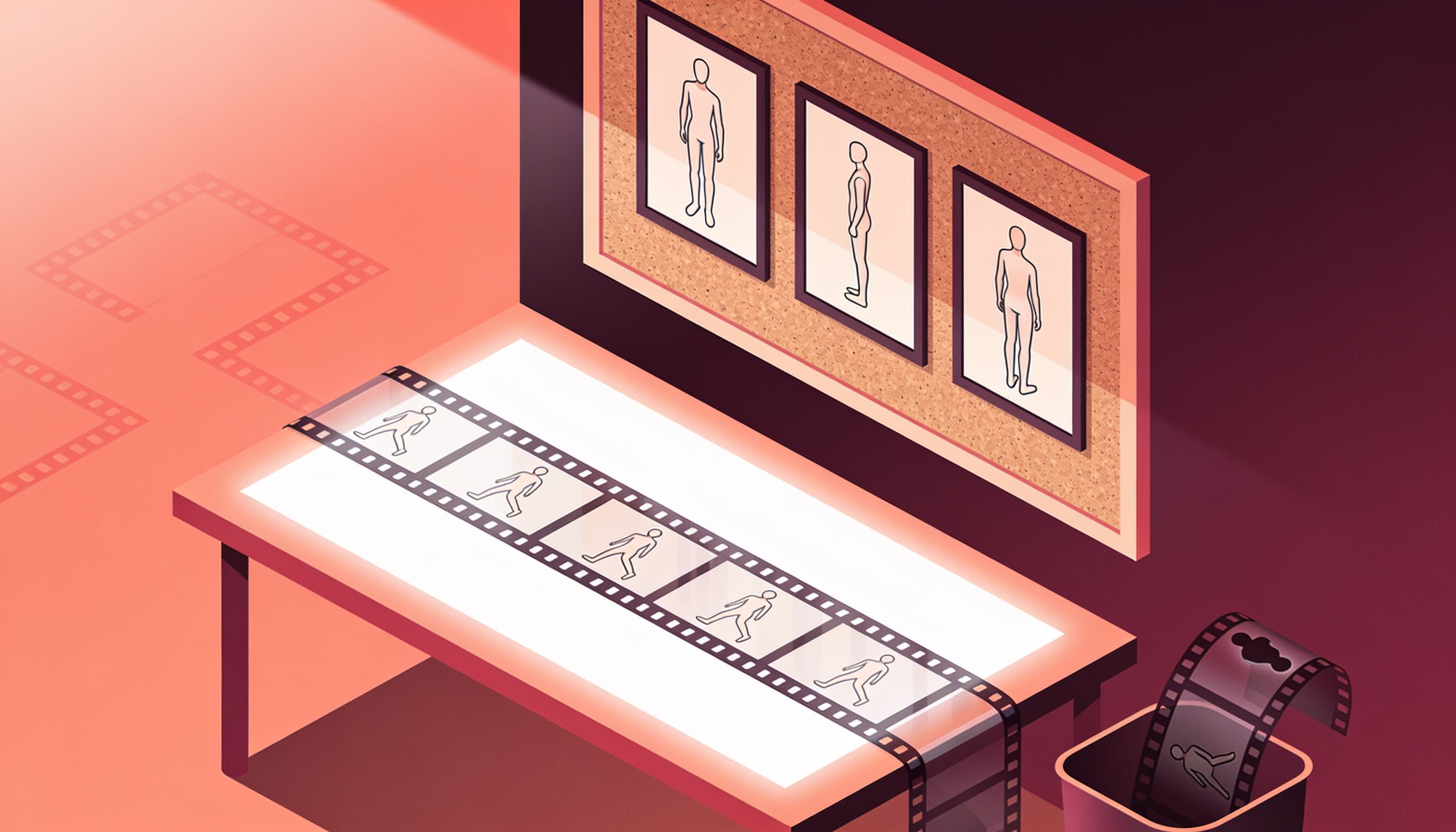
Good motion transfer starts with inputs. Choose a driving clip with clear full-body movement, a steady camera and one to a few people who stay in frame, between 4 and 30 seconds long, that you have the right to use. Then give each character one clear, well-lit, full-body photo.
Driving Video Checklist
Full body in frame. Feet and hands cut off by the edge produce melted limbs.
Stable camera. A locked-off shot transfers far better than shaky handheld footage.
Separated people. Dancers who overlap or swap places confuse which photo goes where.
4 to 30 seconds. Clippie uses only the first 30 seconds of longer uploads.
Even lighting. Flicker and busy patterns can bleed into the character.
Rights to use it. Your own footage is safest; a trend's song and choreography belong to someone else.
No clip of your own? Film yourself doing the moves, or generate an original driving clip with a video model. This Veo 3.1 tutorial in Clippie shows text-to-video and frames-to-video generation.
Character Photo Checklist
Face and body visible. Clippie's own guidance says this works best.
Framing that matches the clip. Full-body for a dance; waist-up for a talking meme.
The outfit you want. Clothing usually comes from the photo.
One fixed reference per character. Reuse it so a recurring character stays consistent.
How to Make a Motion Transfer Video Step-by-Step
To make a motion transfer video in Clippie, open AI Studio → Edit → Genjutsu Motion Transfer, upload a 4 to 30 second clip or pick a trending template, add one photo per person from left to right, test at 480p, then render at 720p or 1080p.
Step 1: Open Motion Transfer
Go to AI Studio → Edit → Motion Transfer. You can also start from the Genjutsu Motion Transfer page, which links straight to the tool and its trending moves.
Step 2: Pick the Motion
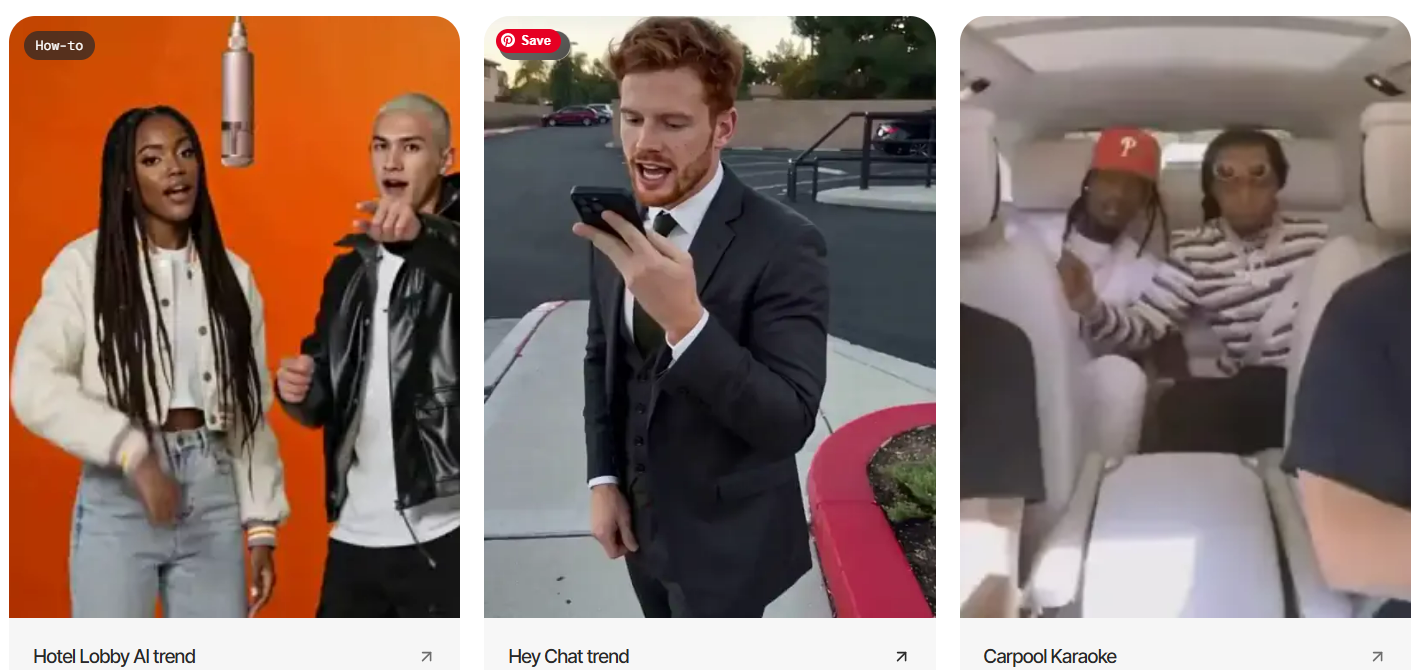
Upload your driving clip (4 to 30 seconds) or choose a trending dance or meme from the template library.
Step 3: Cast Your Characters, Left to Right
Enter how many people are in the clip (1 to 8), then add one photo for each, in left-to-right order as they appear on screen.
Step 4: Add Text Direction (Optional)
Use a short instruction, for example:
"same moves on a rooftop at night"
"keep the original outfits"
Step 5: Test at 480p, Then Render
Credits are charged per second of clip length, and the price is shown before you generate:
480p: 4s = 175 credits, 5s = 219, 10s = 438
720p: 5s = 469 credits, 10s = 937
1080p: 5s = 1,123 credits, 10s = 2,244
A 10-second 1080p render costs more than the Lite plan's 800 monthly AI credits, so test at 480p, trim to the moment you need, and render only the winner at full quality. Plans start at $19.99 a month, with discounts on longer billing (check the pricing page).
Step 6: Finish the Video
Watch with sound on to check the moves land on the beat, then add captions or a voiceover with a Clippie template such as Auto-Captions (captions don't use plan minutes).
Other Motion Control AI Tools, Including Free Options
Several tools now offer motion control AI. Kling's Motion Control is strong for single realistic characters, Higgsfield sells Genjutsu directly with more reference images, Viggle is quick for memes, and Wan 2.2 Animate is open source. Prices were checked in November 2026 and change often.
Alternative #1: Kling Motion Control
What it does: applies a driving video's motion to a character image. Motion Control 3.0 (March 2026) improved face consistency and reportedly accepts multiple character references.
Pricing: reported plans run roughly $7 to $180 a month; a no-cost tier gives limited daily credits with a watermark, for personal use.
Best for: one realistic character with expressive face and body motion.
Where it falls short: built around a single character, so group dances take extra work.
Alternative #2: Higgsfield Genjutsu
What it does: Higgsfield launched Genjutsu at the end of August 2026 with Motion Transfer and Object Swap modes, 4 to 30 second clips, up to 30 reference images and up to 1080p.
Pricing: Higgsfield's blog lists a 15-second 480p clip at about 40 credits; plans reportedly run about $15 to $129 a month.
Best for: creators who only need motion transfer clips with many references. It is likely the better value if that is all you need.
Where it falls short: you get clips, so voiceover, captions and story assembly happen elsewhere. See these Higgsfield alternatives for cinematic AI video for the trade-offs.
Alternative #3: Viggle
What it does: Mix puts a character image into a motion video, and Multi handles several characters at once.
Pricing: a paid plan at $9.99 a month for 80 credits (each credit covers 15 seconds); a no-cost tier with a small daily allowance and a watermark.
Best for: fast meme and dance edits with cartoon characters.
Where it falls short: less polished than the newest models for realistic people.
Alternative #4: Wan 2.2 Animate
What it does: Alibaba's open-source model (Apache 2.0) has an Animate mode (your image performs the clip's motion) and a Replace mode (swap the subject, keep the scene).
Pricing: no license fee to run it yourself, for example in ComfyUI; hosted versions charge per clip.
Best for: technical creators who want a genuinely free route.
Where it falls short: needs a capable GPU, setup time, and offers limited text control.
Clippie: Genjutsu Motion Transfer
Best for: group clips of up to 8 people and finishing the result with voices and captions in the same place.
Pricing: paid plans only, from $19.99 a month.
Where it falls short: per-second credit costs are high at 1080p, and it isn't a timeline editor.
Best Use Cases for AI Motion Transfer
Motion transfer works best when the original movement is the hook: dance trends, duets, meme recreations and brand mascots. Your character supplies the novelty and the clip supplies a structure viewers already recognize, so the video is quick to make and easy to understand.
Idea #1: AI Dance Videos
Put your recurring character into a trending dance. Film your own version of the routine rather than reusing someone's footage.
Idea #2: Duets and Group Dances
Cast two to eight characters, such as a fruit cast, into one routine. This is where an 8-person limit matters.
Idea #3: Meme Recreations
Recreate a reaction meme with your mascot. Keep it to 4 to 8 seconds to hold attention and cut costs.
Idea #4: Brand Mascots
Have a mascot perform the same signature move every week. Repetition builds recognition.
Consent, Copyright and AI Labels
Only use your own face, a character you created, or someone who gave permission, and label realistic results. The song and choreography in a trend clip belong to someone else, so treat those edits as personal posts, not monetized content, and credit the original where you can.
Consent: never put a real person, including a public figure, into a video without permission. Clippie's page says the same.
Platform rules (checked November 2026):
YouTube requires disclosure of realistic altered or synthetic content. Since May 2026 it can label undisclosed photorealistic AI automatically, shown as an overlay on Shorts.
TikTok requires a label on realistic-looking AI content and prohibits AI likenesses of anyone under 18, adult private figures without permission, and fake public-figure endorsements.
Meta adds an "AI info" label on Facebook and Instagram using industry signals and creator disclosure.
Copyright: a trend's audio can draw claims even if every person on screen is replaced. No tool makes output copyright safe by default. This isn't legal advice.
AI Motion Transfer Mistakes to Avoid
Most failed motion transfer videos come from avoidable input and workflow errors: shaky or cropped driving clips, photos in the wrong order, borrowed likenesses, realistic results posted without a label, and expensive renders made before a cheap test. Fix these before you spend credits.
Mistake #1: Using a Shaky or Cropped Driving Clip
Cut-off feet and handheld shake become warped limbs. Use a steady, full-body clip.
Mistake #2: Adding Photos in the Wrong Order
Photos map left to right, so the wrong order puts characters in the wrong spots. Check the first frame.
Mistake #3: Rendering at 1080p First
Test the shortest useful section at 480p first.
Mistake #4: Using Someone Else's Likeness
A classmate or celebrity is not a character. Get consent or use an original design.
Mistake #5: Skipping the AI Label
Photoreal characters need the platform label.
FAQs
What is AI motion transfer?
AI motion transfer copies the movement, timing and camera from a driving video onto a character from a still image. The output keeps the original clip's framing and length, so it still lines up with the audio. It is often marketed as motion control AI and is popular for AI dance videos and memes.
Is there a free motion control AI?
Yes, with limits. Kling and Viggle both offer no-cost tiers with small daily allowances and watermarks, usually for personal use only. Wan 2.2 Animate is open source and has no license fee if you run it on your own hardware. Paid tools add higher resolution, no watermark and commercial terms.
How long can the driving video be?
Most current tools accept clips of roughly 4 to 30 seconds. Genjutsu Motion Transfer takes 4 to 30 seconds and uses only the first 30 seconds of longer uploads. Shorter clips cost fewer credits and usually transfer more cleanly, so trim to the exact moment you need before generating.
Can I put myself into a dance trend video?
Yes, using your own photo is fine. Use a clear, well-lit, full-body photo in a similar pose to the dancer. If the trend uses a copyrighted song or someone's original footage, treat the result as a personal post and expect possible audio claims if you try to monetize it.
What is the difference between motion transfer and face swap?
Face swap replaces only the face and keeps the original body, outfit and scene. Motion transfer rebuilds the whole person from your photo, including body, clothing and style, while keeping the clip's movement and camera. That makes motion transfer better suited to cartoon characters, mascots and stylized AI influencers.
Do I need to label AI motion transfer videos?
If the result looks realistic, yes. YouTube requires disclosure of realistic synthetic content and can now label undisclosed videos automatically. TikTok requires labels on realistic-looking AI content. Clearly cartoon results get lighter treatment on YouTube, but labeling anything that could pass as a real person is the safest habit.
What to Do Next
Start with one short test before building a series.
Today: film a 5-second full-body clip of yourself doing a simple move.
Next: test it at 480p with one character photo.
This week: try a two-person duet and render the best version at 720p or 1080p.
Need original motion? Watch this short clip on Seedance 2.0 video generation for a way to create footage you own.
Before posting: label anything realistic.
If you want group motion transfer plus voices and captions in one workflow, Genjutsu Motion Transfer in Clippie AI Studio is a practical place to start.
Try it in Clippie
Recast anyone into a video
Pick a clip, add a photo of each new person, and Recast swaps them in. Same scene, same moves, same camera.
Try Recast