AI Lip Sync Video: How to Make a Character Talk (2026)
Turn a cartoon picture into a speaking character: art that syncs cleanly, short lines, voice picks, two-character scenes, consent rules and AI labels.
 Emmanuel Greyco Tulabut
On this page
If you searched for an AI lip sync video tool or how to make a character talk with AI, you want a picture that speaks your lines with a mouth that matches the words. That is now a few clicks, not an animation job.
Talking-character formats like fruit dramas are popular with faceless creators this autumn, and YouTube searches for photo to video AI are rising fast. This guide explains how lip sync works, then gives two step-by-step workflows: one character speaking a single line, and several characters talking in a story. It ends with the consent and labeling rules to follow.
Executive summary: This guide is for faceless creators who want cartoon or stylized characters to speak on camera. It covers how AI lip sync works, how to prepare art and lines that sync cleanly, a single-clip workflow and a multi-character story workflow, three alternative tools with honest trade-offs, the consent and AI-label rules on YouTube, TikTok and Meta, and the mistakes that make talking characters look cheap.
Table of Contents
What AI Lip Sync Is and How It Works
Single Talking Clip or Multi-Character Story
How to Make One Character Talk (AI Studio Talking)
How to Make Characters Talk to Each Other (AI Story)
How to Get Clean Lip Sync Results
Other AI Lip Sync Tools Worth Knowing
Consent, Deepfakes and AI Labels
AI Lip Sync Mistakes to Avoid
FAQs
What to Do Next
What AI Lip Sync Is and How It Works
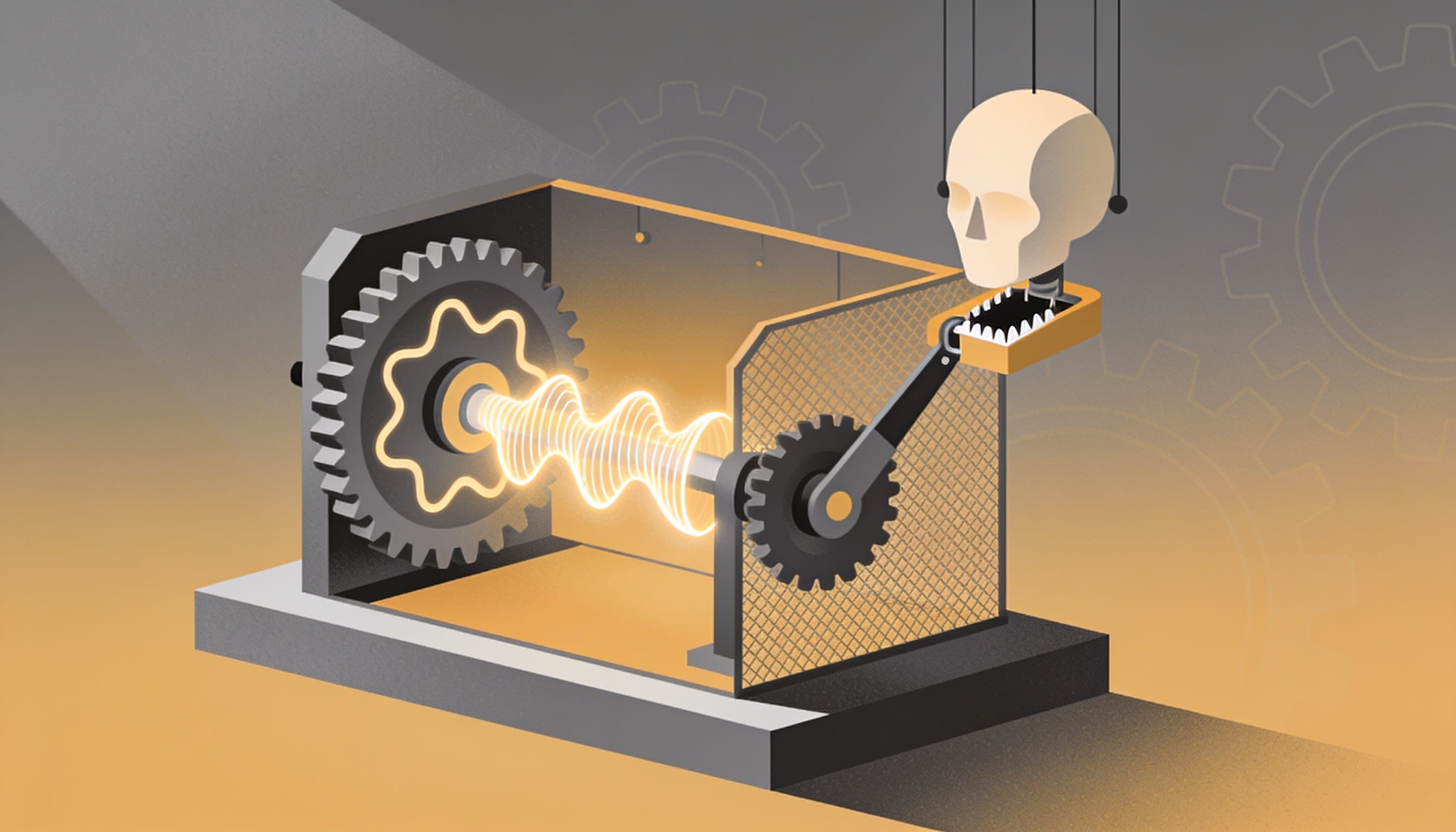
AI lip sync animates a still image so its mouth, jaw and face move in time with a voice track. You supply a character picture plus text (spoken by an AI voice) or your own recording, and the model maps each sound to a mouth shape.
What happens under the hood, in plain terms:
Audio first. Text becomes speech, or your recording is used as is. Syllable timing comes from that audio.
Sounds to mouth shapes. The model predicts lip and jaw positions per sound, such as closed lips on "m" and an open mouth on "ah".
Face animation. It redraws the mouth frame by frame, usually adding blinks and small head movement.
Why it matters: a talking character gives a faceless channel a host, a cast or a mascot from a single drawing, with nobody on camera.
Scope: this guide covers cartoon and stylized characters you own. For realistic human presenters, see our guide to AI avatar talking head videos.
Single Talking Clip or Multi-Character Story
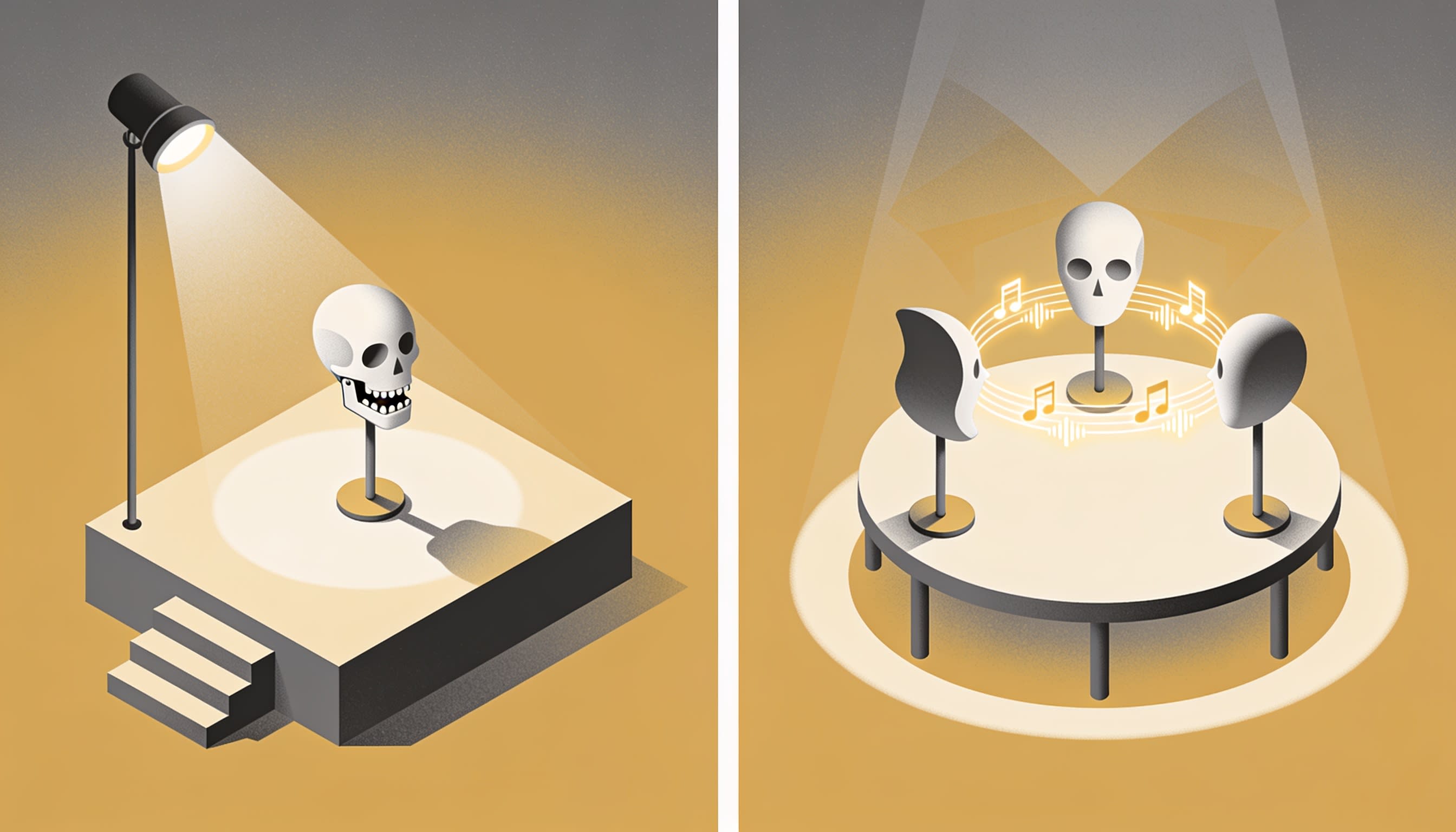
Pick the workflow by the video's shape. If one character delivers one line, joke or hook, use a single talking clip. If two or more characters hold a conversation across scenes, use a story workflow where each scene is one character speaking in their own voice.
Use a single talking clip when:
You need a mascot hook for the first two seconds
One character reacts to a trend or product
You want a talking insert for a video you edit elsewhere
Use a multi-character story when:
Characters argue or play out a drama (the fruit drama format)
You want no narrator, only characters speaking on camera
In Clippie, these map to two features released a day apart: Talking in AI Studio (October 31, 2026) for single clips, and Characters talk mode in AI Story (November 1, 2026) for multi-character scenes.
How to Make One Character Talk (AI Studio Talking)
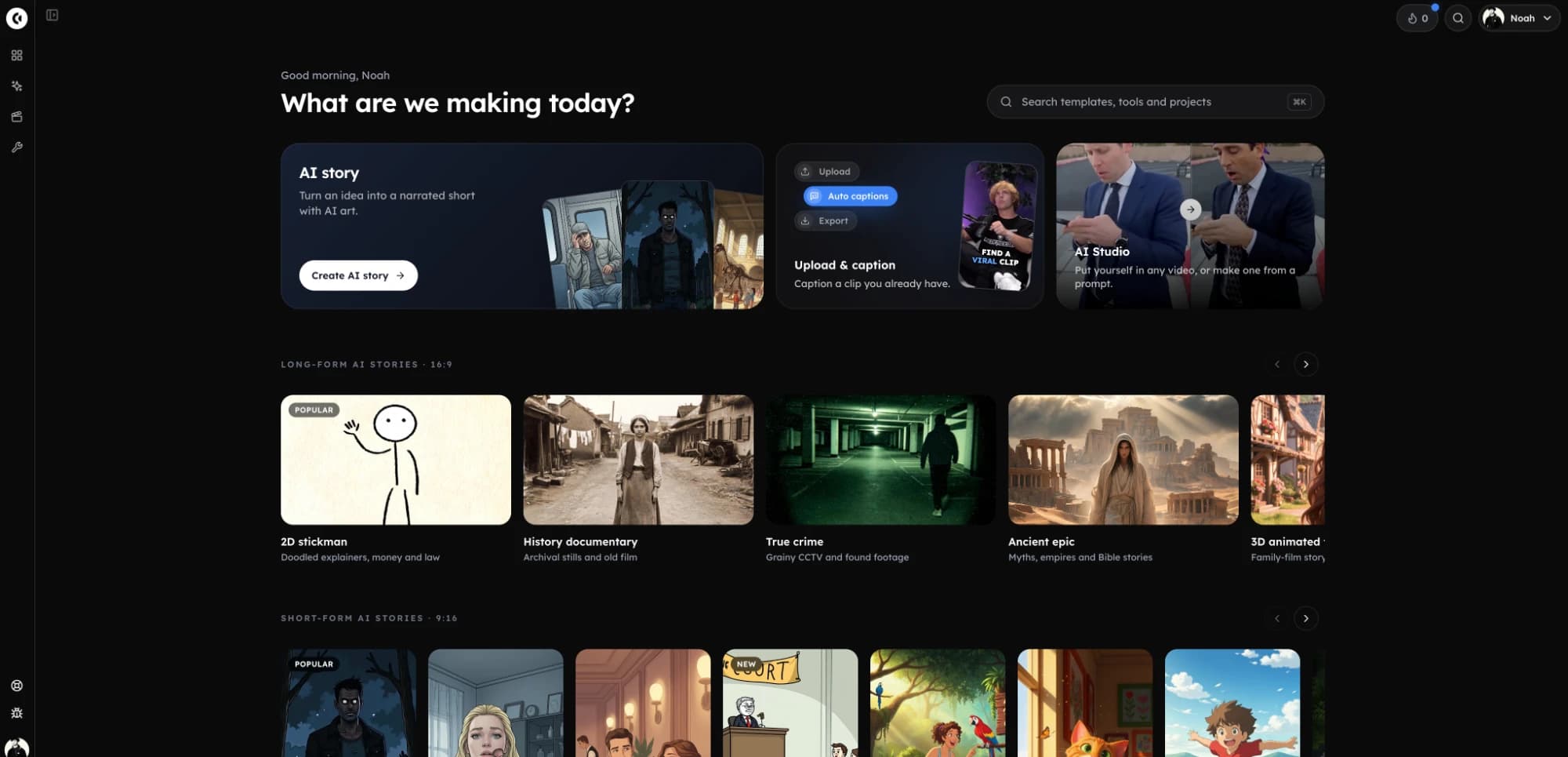
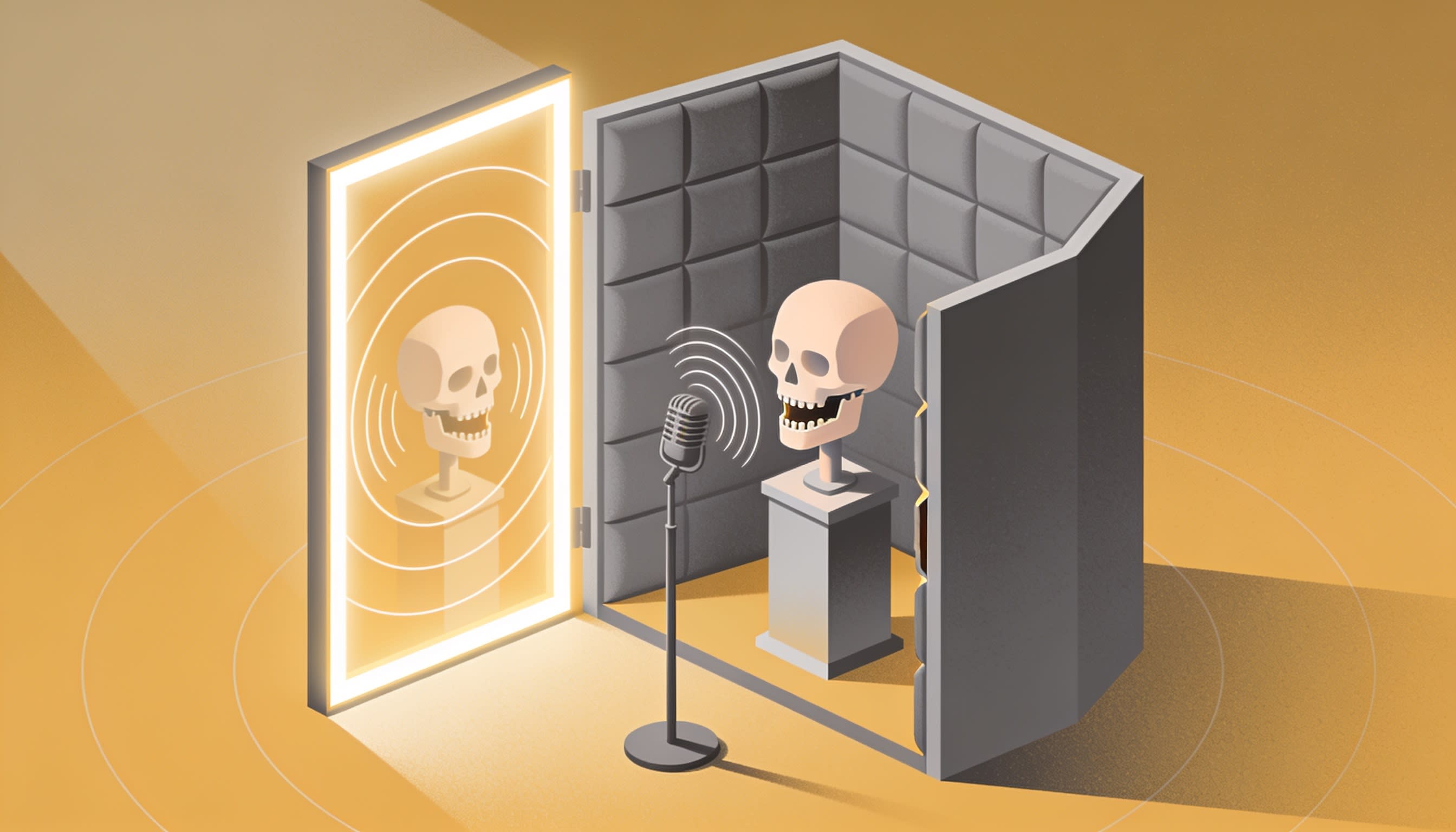
AI Studio's Talking tool turns one character picture, a line of text and a voice into a lip-synced clip. Upload the picture, type what the character says, choose a voice or upload your own audio, and generate. Tags like [whispers] change the delivery without being read out.
Step 1: Upload a Clear Character Picture
Open AI Studio and go to Talking. Upload your drawing or generated image in the "Your character" slot. The tool's own hint: a face looking at the camera works best.
Step 2: Write the Line
Type the dialogue in the "What they say" box, one or two short sentences. Add a voice-acting tag where the delivery should change:
[whispers] Don't tell the banana I said this.I can't believe it. [laughs] You actually did it.
Step 3: Choose a Voice or Upload Your Own
Pick Generate voice and search the picker's 16,000+ AI voices, or pick Upload audio to use your own recording. Your own voice keeps a channel recognizable.
Step 4: Generate and Check the Mouth
Check the cost shown on the Generate button (AI Studio uses your plan's AI credits), then generate. Watch with sound on: if the lips don't close on "p", "b" and "m", simplify the art or shorten the line.
How to Make Characters Talk to Each Other (AI Story)
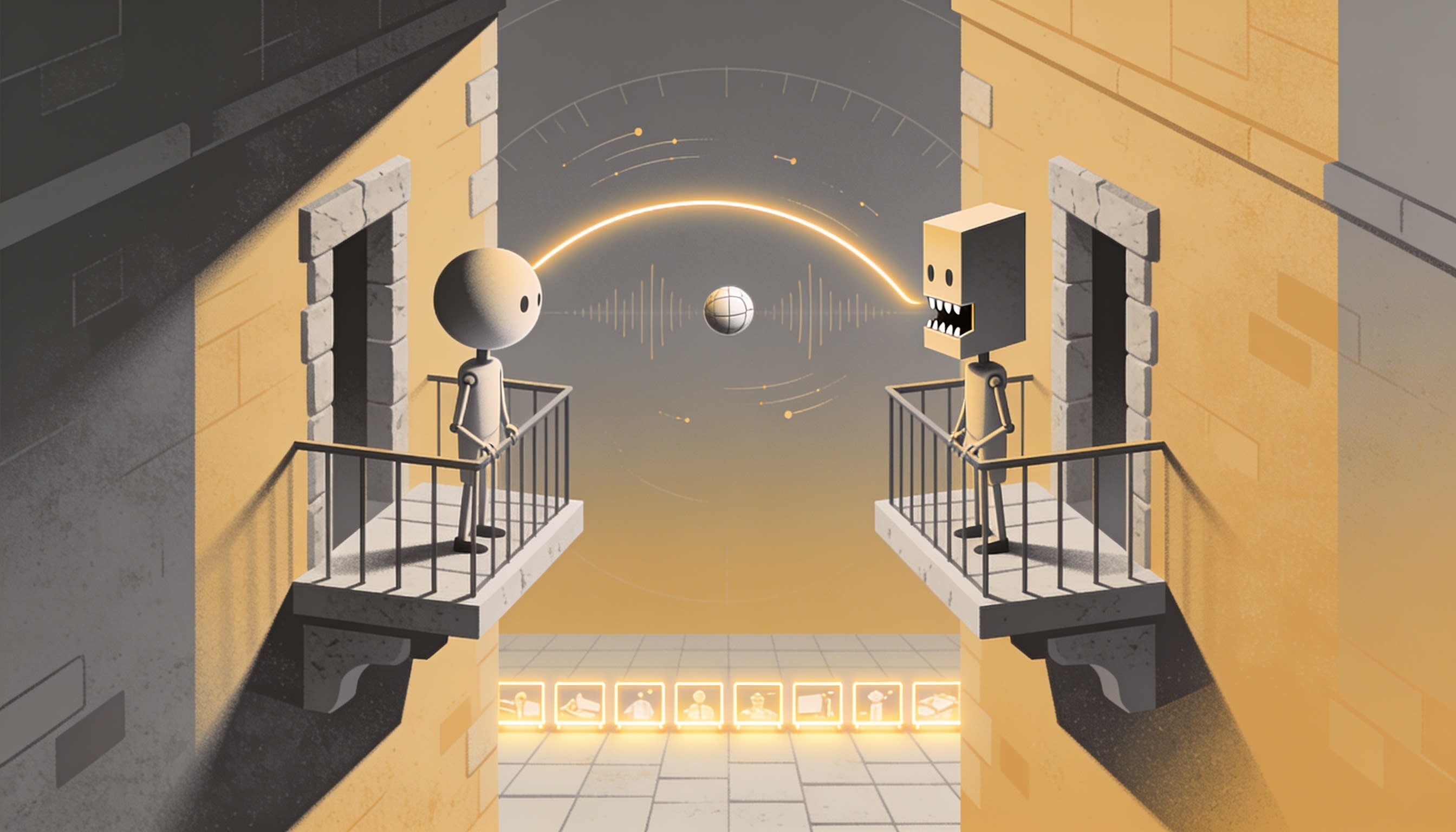
Characters talk mode in AI Story turns a script into a video where each scene is one of your characters speaking on camera, lip-synced in their own voice, with no narrator. Define the characters, assign voices, then let AI write the scenes or paste a "Name: line" script.
Step 1: Create or Pick Your Characters
Open the AI Story video generator and add characters with a name, an appearance and an uploaded or drawn picture. They're saved to your Characters page; From library also offers ready-made fruit, a cat, a dog and stickmen.
Step 2: Switch to Characters Talk and Assign Voices
Select Characters talk as the story mode. Give every character a distinct voice and a voice style (Natural, Calm, Warm, Energetic, Dramatic, Serious, Soft, Eerie or your own description).
Step 3: Write or Paste the Script
Let the AI script writer draft scenes to your target length, or paste a script with one line per speaker:
Banana: I've been in this fruit bowl for six days. Nobody picks me.Strawberry: [whispers] That's because you're going brown.Banana: [long pause] You did not just say that.
Speaker names aren't read aloud, and tags are performed, not spoken. For a ready-made cast, the 9:16 Fruit videos template has Strawberry, Banana, Cherry and Broccoli, drawn and voiced, with a starter story.
Step 4: Pick the Look and Generate
Choose a template or art style, and add scene instructions (up to 2,000 characters) for a consistent background. Generate, then review the Scenes tab.
Step 5: Fix Visuals Without Redoing the Voices
If a scene looks wrong, Redo pictures regenerates visuals but keeps words, voiceover and timing, using no voiceover minutes. For an editor walkthrough, watch this animated AI story video tutorial.
How to Get Clean Lip Sync Results
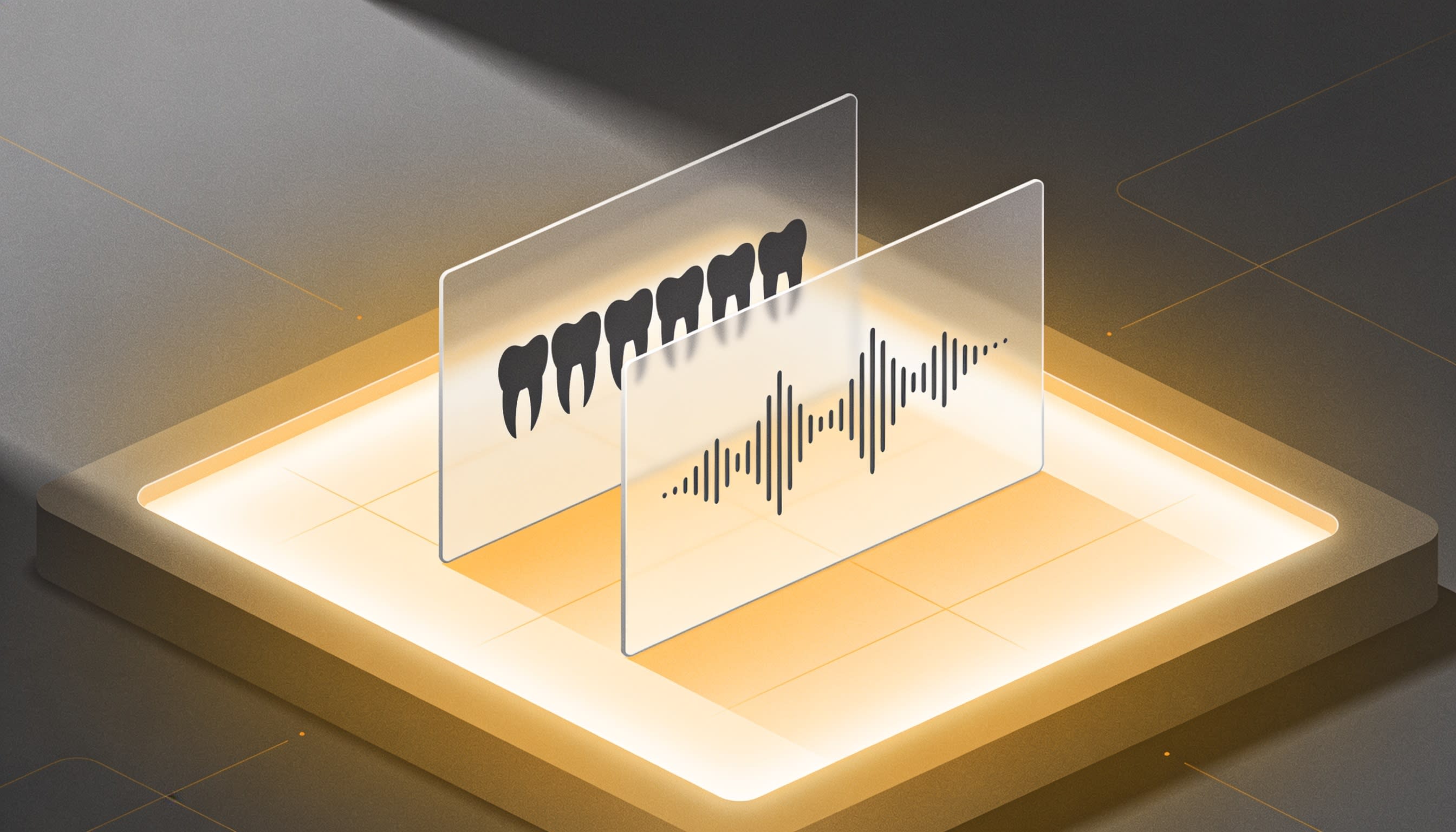
Clean lip sync depends more on inputs than on the tool. Use front-facing art with a visible mouth, keep the face large in the frame, write short lines, and pick a voice that suits the character. Most "bad" lip sync starts with a side-on face or cluttered image.
Character art checklist:
Front-facing, eyes to camera. Three-quarter views can work; profiles rarely do.
Mouth visible. No hands, hair or props covering it, and not a dot or missing mouth.
Face fills the frame. A tiny face in a wide scene syncs poorly in vertical video.
Simple background. Busy patterns around the head can warp as the face moves.
Line and voice checklist:
One idea per line. Short lines sync tighter and keep Shorts pacing quick.
Voice fits the character. A tiny cherry with a deep narrator voice breaks the joke, unless that is the joke.
Tags sparingly. One [whispers] per line reads as acting; three reads as noise.
For help choosing voices, see our comparison of AI voice generators for faceless videos.
Other AI Lip Sync Tools Worth Knowing
Several tools now make a picture talk. HeyGen suits realistic presenters, Hedra's Character-3 handles expressive stylized characters and long clips, and Kling's Avatar 2.0 animates a character image from audio. Pick by output. Prices were checked in November 2026 and change often.
Alternative #1: HeyGen Avatar IV
What it does: turns one photo into a talking video with gestures; HeyGen lists anime, animal and stylized characters as supported.
Pricing: a no-cost plan with 3 videos a month up to 1 minute and a watermark; paid plans start around $29 a month.
Best for: realistic presenters, explainers and business videos.
Where it falls short: built for single presenters, so dialogue scenes mean editing separate clips together.
Alternative #2: Hedra Character-3
What it does: an image-plus-audio model for talking characters, up to 10 minutes; Hedra's examples include a talking bear and a cat podcast host.
Pricing: a no-cost tier with 300 credits a month (no commercial use); paid plans roughly $10 to $75 a month, with credits charged per second of video.
Best for: expressive stylized characters and longer monologues.
Where it falls short: per-second costs add up, and it outputs clips, not a captioned multi-scene story.
Alternative #3: Kling AI Avatar 2.0
What it does: animates a character image from uploaded or text-to-speech audio, with an optional expression prompt; Kling's guide cites scenes up to about 5 minutes.
Pricing: credit-based plans on kling.ai; check current rates before committing.
Best for: a single character delivering longer speech with directed expressions.
Where it falls short: Kling's examples are mostly human-like characters, so test simple cartoon designs first.
Clippie: Talking and Characters Talk
Best for: talking cartoon characters inside finished short-form stories, with voices, captions and scenes in one place.
Pricing: every plan is paid; plans start at $19.99 a month, with discounts on longer billing (check the pricing page).
Where it falls short: it isn't a timeline editor, and HeyGen is the better pick for photorealistic presenters.
Consent, Deepfakes and AI Labels
Only animate characters you own or have permission to use, and never make a real person appear to say something without consent. Cartoon characters generally don't need an AI label on YouTube or TikTok, but anything that looks like a real person usually does.
The consent rule: a photo of a classmate, an ex or a celebrity is not a character. Making a real person talk without consent can break platform rules and, in some places, the law.
Platform rules (checked November 2026):
YouTube requires creators to disclose realistic altered or synthetic content, including making a real person appear to say something they didn't. Its altered or synthetic content disclosure rules exempt clearly unrealistic and fully animated content.
TikTok's Community Guidelines on AI-generated content require a label on realistic-looking AIGC. They prohibit AI likenesses of anyone under 18 and of adult private figures without permission.
Meta applies an "AI info" label to AI-generated content on Facebook and Instagram, using industry signals and creator self-disclosure.
Laws: the EU AI Act's deepfake disclosure duties apply from August 2026, and the US TAKE IT DOWN Act targets non-consensual intimate imagery, including AI-generated images. Other countries have their own rules. This isn't legal advice; check the rules where you and your audience are.
AI Lip Sync Mistakes to Avoid
Most talking character videos fail for avoidable reasons: real people animated without consent, art the model can't read, overlong lines, one voice for every character, and missing labels on realistic content. Fix these before you post, not after a strike.
Mistake #1: Animating a Real Person Without Consent
Even as a joke, it invites removals and legal risk. Use original characters or get written permission.
Mistake #2: Using Side-On or Hidden-Mouth Art
Profiles and covered mouths produce smeared or frozen lips. Redraw the character facing the camera.
Mistake #3: Cramming a Paragraph Into One Clip
Long lines drift out of sync and drag the pacing. Split them, one line per scene.
Mistake #4: Giving Every Character the Same Voice
Viewers track speakers by voice first. Give each character a distinct voice and style.
Mistake #5: Skipping the Label on Realistic Characters
Cartoon fruit is exempt on YouTube; a photoreal "grandma" isn't. Turn on AI disclosure when in doubt.
FAQs
What is the best AI lip sync tool for cartoon characters?
It depends on the output. For talking cartoon characters inside finished short-form stories, a multi-character story mode saves editing. Hedra Character-3 suits expressive single characters and long monologues; HeyGen is strongest for realistic presenters. Test your own character art in two tools before paying for a plan.
Can I make a picture talk with AI using my own voice?
Yes. Most talking photo AI tools let you upload a recording instead of generating speech, and Clippie's Talking tool has an Upload audio option. Record in a quiet room, speak clearly and keep clips short. Your own voice makes a channel more recognizable than a stock AI voice.
Do I have to label AI lip sync videos on YouTube and TikTok?
Only when the result looks realistic. YouTube exempts clearly unrealistic and fully animated content, and TikTok's labeling rule covers realistic-looking scenes and people. A talking cartoon banana doesn't need the label; a photoreal human character, or any real person made to speak, does. Check each platform's current rules before posting.
Is it legal to make a photo of a real person talk with AI?
It depends on consent, content and location. With the person's permission and nothing deceptive or sexual, it's often fine; without consent, it can break platform rules and laws on deepfakes, privacy or likeness in many places. This isn't legal advice. When in doubt, use an original character instead.
Can a talking AI character video be monetized?
It can, if the channel is original and varied. YouTube's monetization policies exclude repetitive, mass-produced content, so a channel posting near-identical talking clips risks rejection. Write new stories, develop recurring characters with personalities, and vary formats. TikTok and Meta also favor original content in their creator payment programs.
What's the difference between a talking photo and an AI avatar?
A talking photo animates one still image to speak a line, usually as a short clip. An AI avatar is typically a realistic, reusable digital presenter, often cloned from a real person, used for longer videos. For faceless channels, talking photos of original cartoon characters avoid the consent questions that real-person avatars raise.
What to Do Next
Start small: one character, one line, one test. Then build a cast.
Today: make one front-facing character with a clear mouth say a single hook line.
This week: write a 6 to 10 line "Name: line" script for two characters and turn it into a full story.
Before posting: run the mistakes list above and turn on AI labels for anything realistic.
Choose a niche: this rundown of monetizable faceless niches for 2026 helps you pick where a talking cast fits.
If you want characters, voices, lip sync and captions in one workflow, Clippie's Characters talk mode is a practical place to build your first two-character scene.
Try it in Clippie
Make any character talk
Upload a picture, type a line and pick a voice. Clippie makes a talking clip with the voice in sync with the lips.
Make a talking video