
How to Use Seedream Image Generator (Complete Guide 2026)
Learn how to use Seedream models in Clippie AI to generate high-quality images. This complete guide covers Seedream 4.0, 4.5, and 5.0 Lite, including their differences, step-by-step tutorials, and a structured prompt guide.
Introduction
Generating high-quality AI images requires the right balance between speed, control, and output quality. The Seedream models in Clippie AI are designed to give creators flexible options depending on their needs.
The Seedream family includes Seedream 4.0, Seedream 4.5, and Seedream 5.0 Lite, each offering different capabilities. Seedream 4.0 and 4.5 are optimized for simple and efficient image generation, making them great for quick outputs without extra setup. However, these versions do not support reference image uploads, so all results rely entirely on your prompt.
Seedream 5.0 Lite is the most advanced version, offering improved image quality, better prompt understanding, and additional controls such as resolution selection and the ability to upload up to 4 reference images. This makes it ideal for creators who want more consistent and refined results.
Whether you want fast generation or more control over your visuals, Seedream models provide a flexible solution for different types of creative workflows.
In this guide, you’ll learn how to use the Seedream Image Generator in Clippie AI, along with a complete prompt framework to help you create high-quality and consistent AI-generated images.
Table of Contents
How to Use Seedream Image Generator
Prompt Guide for Better Results
Prompt Examples
Common Mistakes to Avoid
FAQs
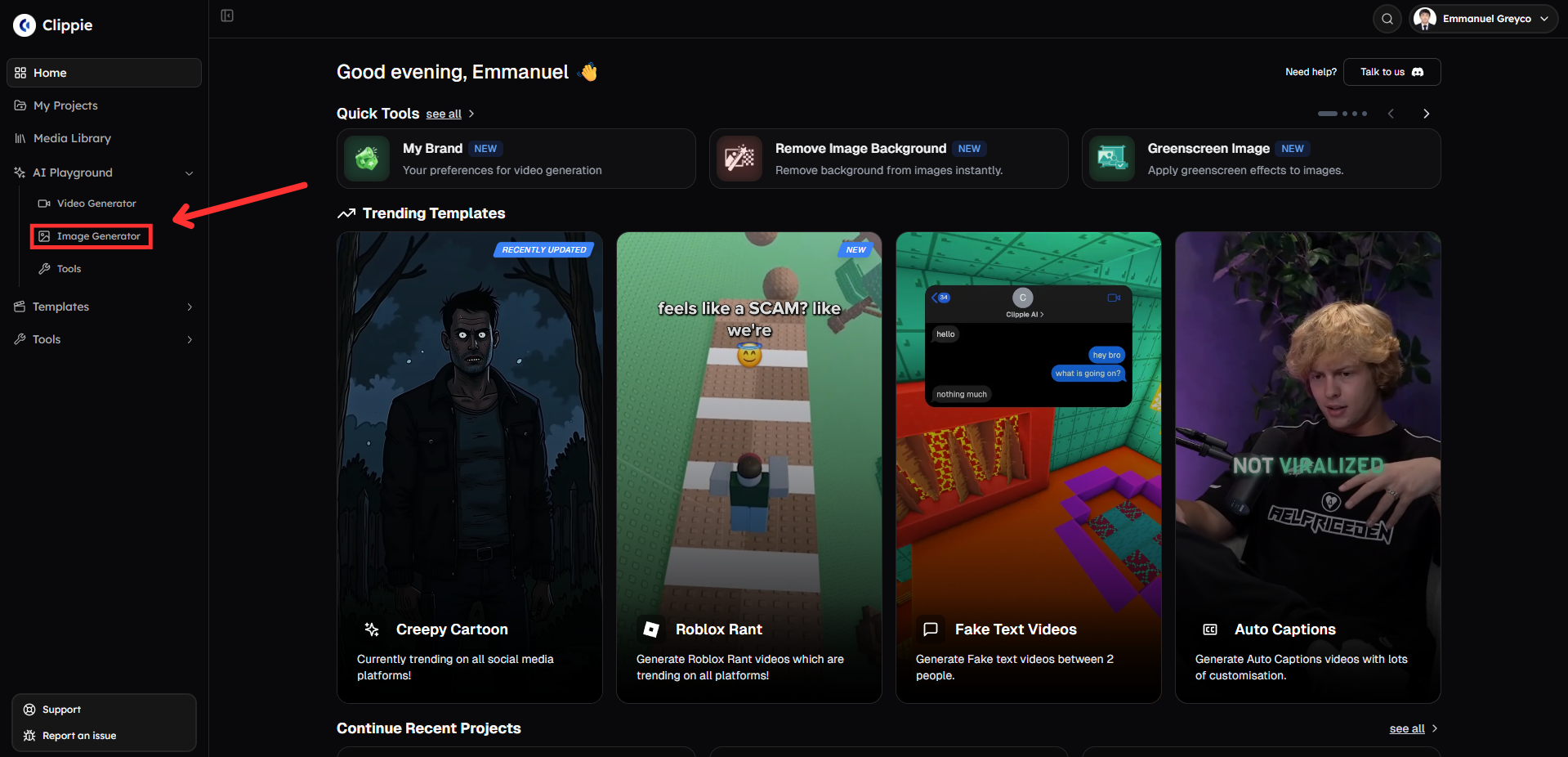
Step 1: Open the AI Image Generator in AI Playground
Start by accessing the image generation tool inside Clippie AI.
Go to AI Playground and select Image Generator.
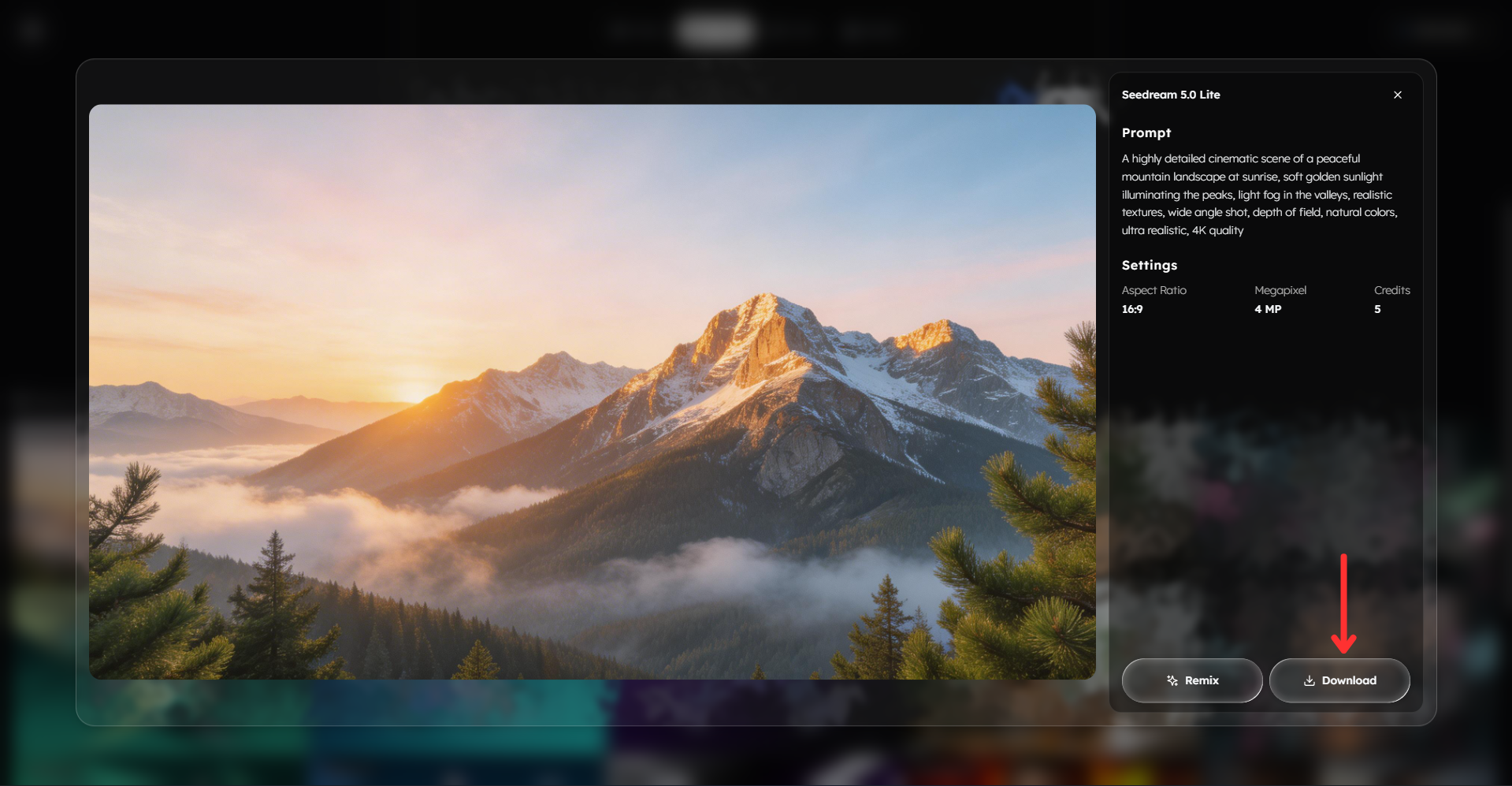
Step 2: Generate Your Image with Seedream Models
Create your image using a Seedream model.
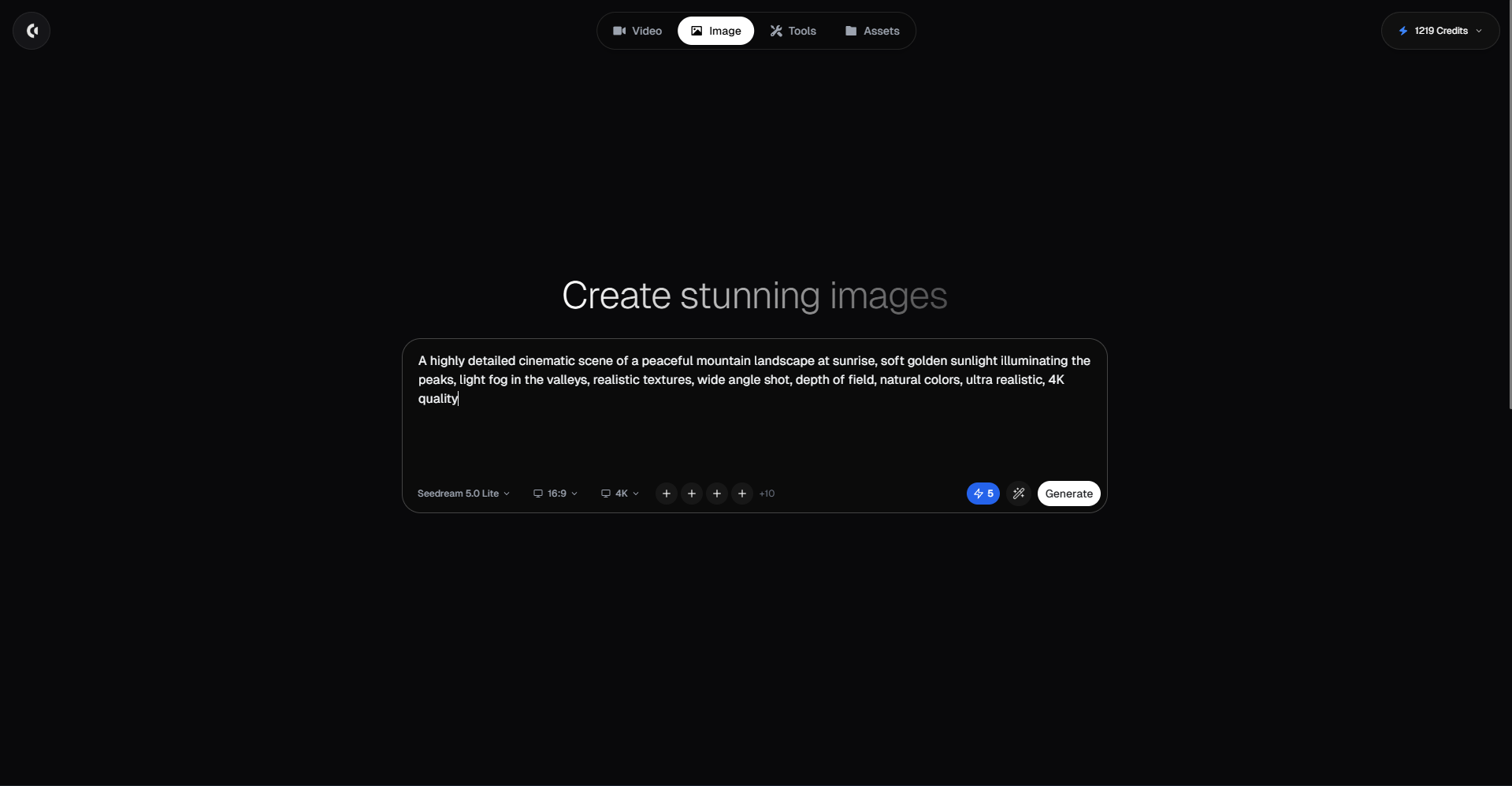
Select your preferred model (Seedream 4.0, Seedream 4.5, or Seedream 5.0 Lite).
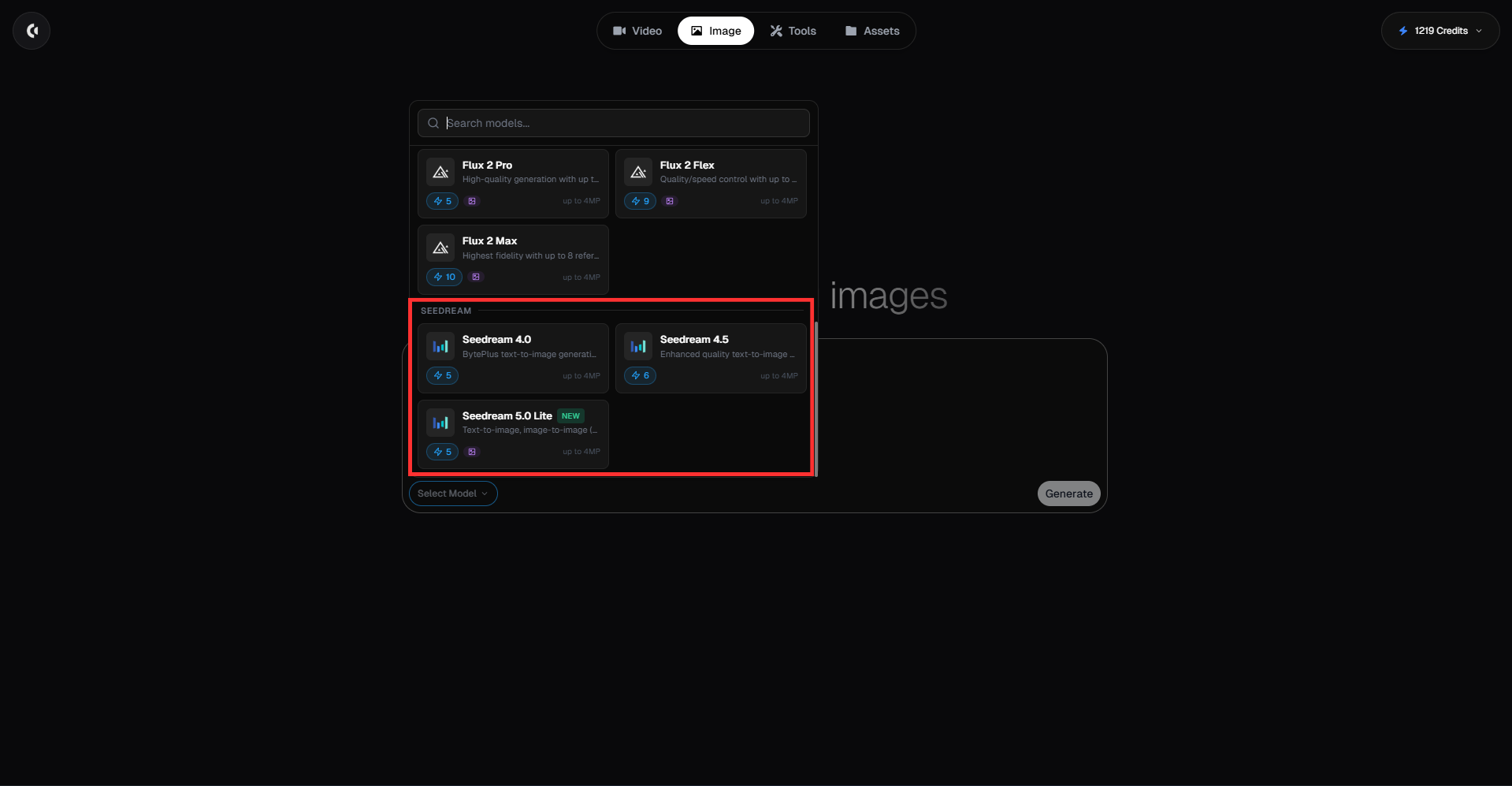
Type a detailed prompt describing the image you want to generate.
Example prompt:
A highly detailed cinematic scene of a peaceful mountain landscape at sunrise, soft golden sunlight illuminating the peaks, light fog in the valleys, realistic textures, wide angle shot, depth of field, natural colors, ultra realistic, 4K quality
Choose your preferred aspect ratio.
Select your preferred resolution.
For Seedream 5.0 Lite only: Upload up to 4 reference images.
Click Generate to create your image.
Pro tip: If you are using Seedream 4.0 or 4.5, focus on writing a strong prompt since there is no reference image support.
Step 3: Download Your Image
Once your image has been generated:
Download your image.
Prompt Guide: How to Write High-Quality Prompts for Seedream
Seedream models perform best when prompts are clear, structured, and descriptive. Think of your prompt as describing a scene in detail.
1. Use the Core Prompt Formula
Subject + Environment + Style + Lighting + Composition + Details + Quality
2. Subject (Main Focus)
Clearly define what the image is about.
Examples:
a mountain landscape
a person working on a laptop
a modern house
3. Environment (Scene Context)
Add where the subject is.
Examples:
during sunrise
in a modern office
in a forest
4. Style (Visual Direction)
Examples:
cinematic
realistic
minimalist
photorealistic
5. Lighting (Very Important)
Examples:
golden hour lighting
soft natural lighting
dramatic shadows
ambient lighting
6. Composition (Optional but Powerful)
Examples:
wide angle shot
close up shot
depth of field
centered subject
7. Details & Enhancements
Examples:
realistic textures
soft shadows
reflections
clean composition
8. Quality Keywords
Examples:
high quality
4K
ultra realistic
9. Optional: Adding Text in Images
You can include text in your image if needed.
Examples:
text saying “WELCOME” at the top
small text at the bottom saying “2026”
Tips:
Keep text short
Specify placement
Avoid long sentences
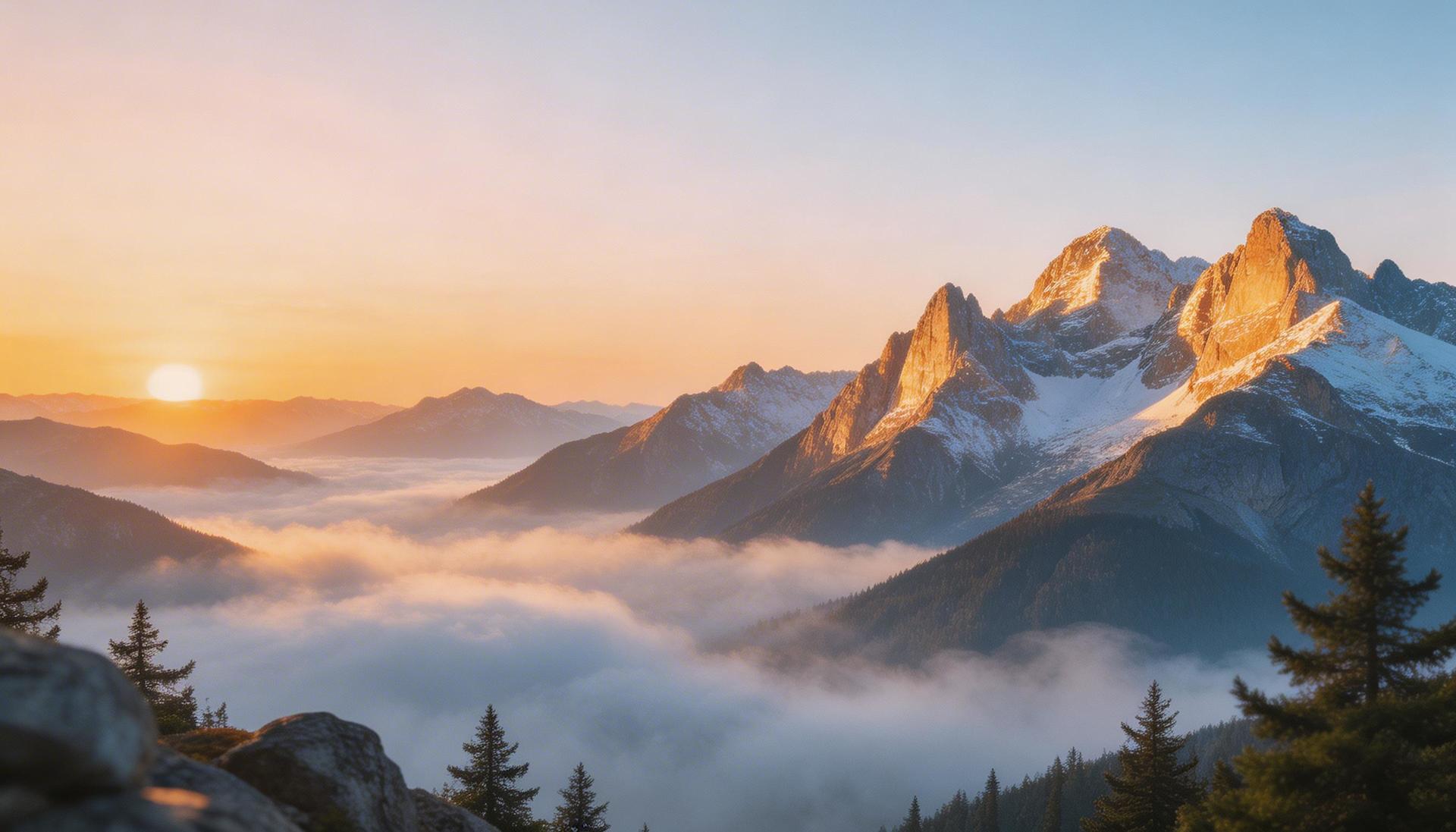
10. Example of a Strong Prompt
A cinematic wide angle shot of a mountain landscape at sunrise, golden light illuminating the peaks, soft fog in the valleys, realistic textures, depth of field, natural colors, ultra realistic, 4K quality
11. Bad vs Good Prompt
Bad:
“mountain”
Good:
A mountain landscape at sunrise with golden lighting, soft fog, realistic textures, cinematic style, 4K
12. Reference Image Usage
Seedream 4.0 & 4.5
→ No reference image support
Seedream 5.0 Lite
→ Supports up to 4 reference images
13. Common Mistakes to Avoid
Writing vague prompts
Not including lighting
Overcomplicating styles
Ignoring composition
14. Pro Tip for Best Results
If you want better control and consistency, use Seedream 5.0 Lite with reference images. For faster workflows, use 4.0 or 4.5 with strong prompts.
Bonus: Get 1-on-1 Support in Our Discord Community
If you get stuck or want personalized help, join our Discord community. Our team offers 24/7 one-to-one support to help you go viral with your content.
Click me to join our discord community!
FAQs: Using Seedream Image Generator
How do I write a good prompt for Seedream to get better images?
To get better results with Seedream, your prompt should clearly describe the subject, environment, style, lighting, and quality.
A simple structure that works well is: Subject + Environment + Style + Lighting + Details + Quality
For example: A cinematic image of a mountain landscape at sunrise, soft golden light illuminating the peaks, light fog in the valleys, realistic textures, wide angle shot, 4K quality
Seedream models respond best to clear and descriptive prompts. Avoid short prompts like “mountain” because they do not give enough detail for high-quality output.
What is the difference between Seedream 4.0, 4.5, and 5.0 Lite?
All Seedream models support resolution selection (Standard, 2K, 4K), but they differ in features and control.
Seedream 4.0 and 4.5:
fast and simple image generation
no reference image support
rely entirely on prompt quality
Seedream 5.0 Lite:
improved image quality and detail
better prompt understanding
supports up to 4 reference images
If you need quick results, 4.0 and 4.5 are sufficient. If you want better consistency and more control, 5.0 Lite is the better option.
How can I improve image quality when using Seedream?
To improve image quality, focus on writing better prompts and using available features.
Best practices:
describe lighting clearly (e.g., golden hour, soft shadows)
include style (cinematic, realistic, minimalist)
add detail keywords like “high quality” or “4K”
use reference images (Seedream 5.0 Lite only)
Clear prompts combined with proper lighting and detail descriptions will produce significantly better results.
Can I use reference images in Seedream for better consistency?
Yes, but only with Seedream 5.0 Lite.
Seedream 5.0 Lite allows you to upload up to 4 reference images to guide the AI.
Reference images help with:
maintaining consistent characters
matching visual style
improving composition
controlling colors and layout
Seedream 4.0 and 4.5 do not support reference images, so consistency depends entirely on your prompt.
Related Blog Posts
How to Use Nano Banana Image Generator (Complete Guide 2026)
How to Use Imagen Image Generator (Complete Guide 2026)
How to Use Flux Image Generator (Complete Guide 2026)
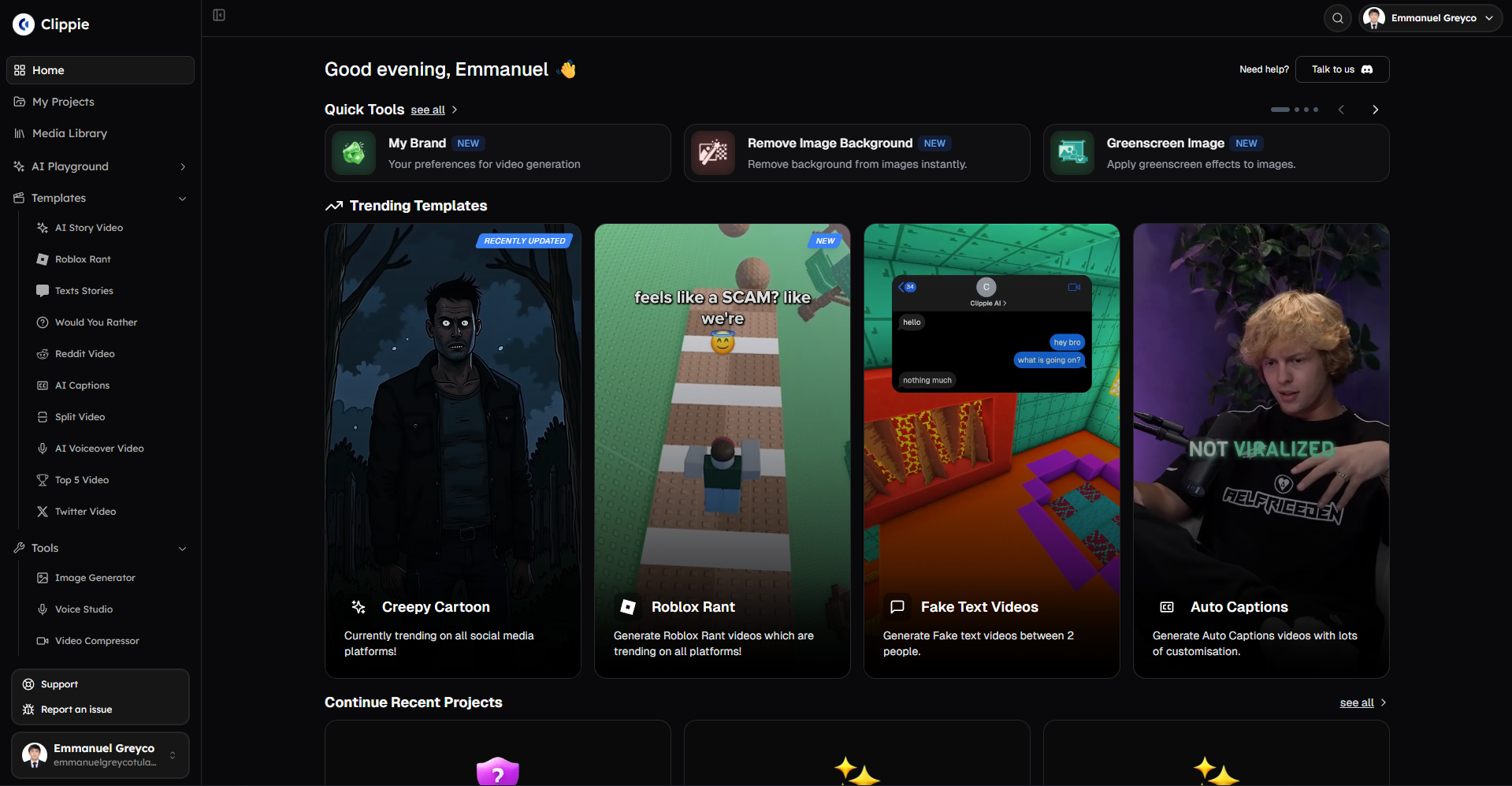
Click Me To Start Creating With Clippie AI Now!
Make an AI story video
Write a script or let AI write one. Clippie turns it into a narrated video with AI scenes, voiceover and captions.
Read more

How to Make Top 5 Ranking Videos in 2026 (Step-by-Step)
Build ranking Shorts that can still earn: pick a debatable topic, set clear criteria, source clips you may use, script the countdown, add your commentary.

How to Create Short-Form Videos Using AI: 8 Steps (2026)
A beginner workflow for AI videos on TikTok, Reels and Shorts: pick a format, script a hook, add visuals, voice and captions, export at 9:16, label AI.
7 Free CapCut Alternatives for Short-Form Video (2026)
Compare Edits, YouTube Create, VN, Clipchamp, Canva, DaVinci Resolve and Shotcut: what each gives free users, what it caps first and where it falls short.