How to keep characters consistent in AI videos.
Your character has brown hair in scene one, black hair in scene two and a different jacket in scene three. This guide explains why that happens and the methods that fix it, from a better prompt to a reference picture that every scene is drawn from.
- Methods compared5
- Steps6
- Last checked13 November 2026
Short answer
To keep a character consistent in an AI video, stop describing them from scratch in every prompt. Create one reference picture of the character, write a short fixed description of the traits that must never change, and generate every scene from that picture and description, changing only the action and the setting. Then check the scenes side by side and redraw the ones that drifted before you animate anything.
- 1
Fastest: Use a tool that attaches the character’s picture to every scene for you, such as Clippie’s AI Story.
- 2
By hand: Keep a character sheet and paste the same description and reference image into each generation.
- 3
Most control: Train a model on the character. It takes many images and the most time.
Clippie’s steps were checked against the product on 13 November 2026.
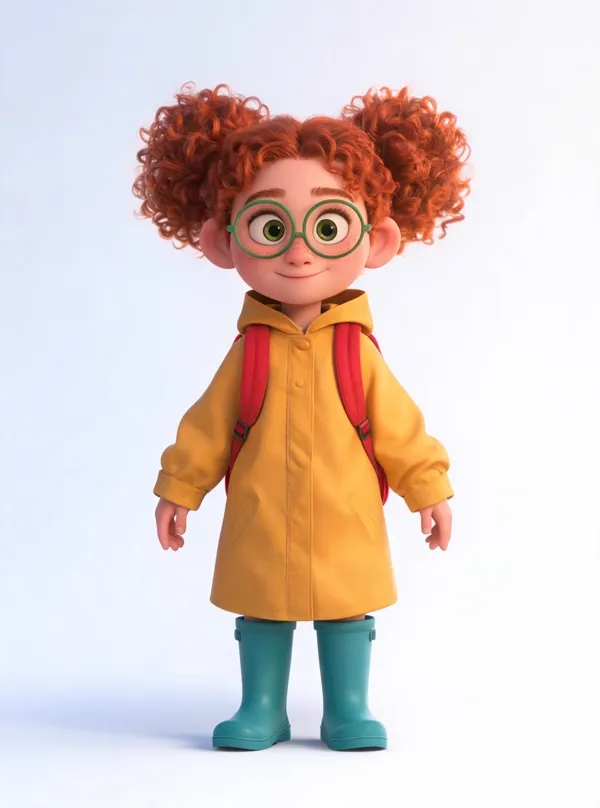
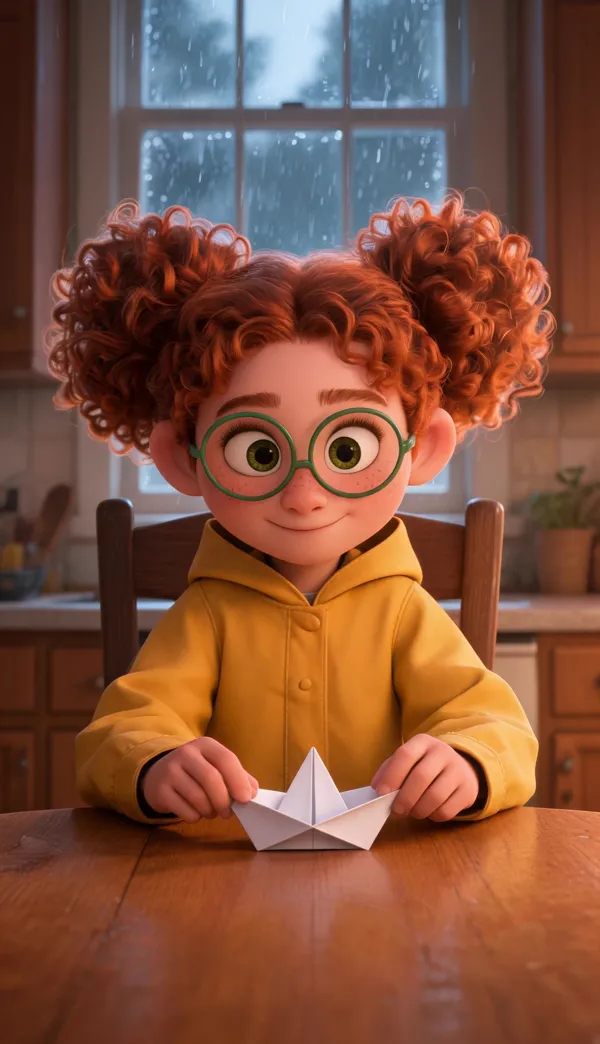
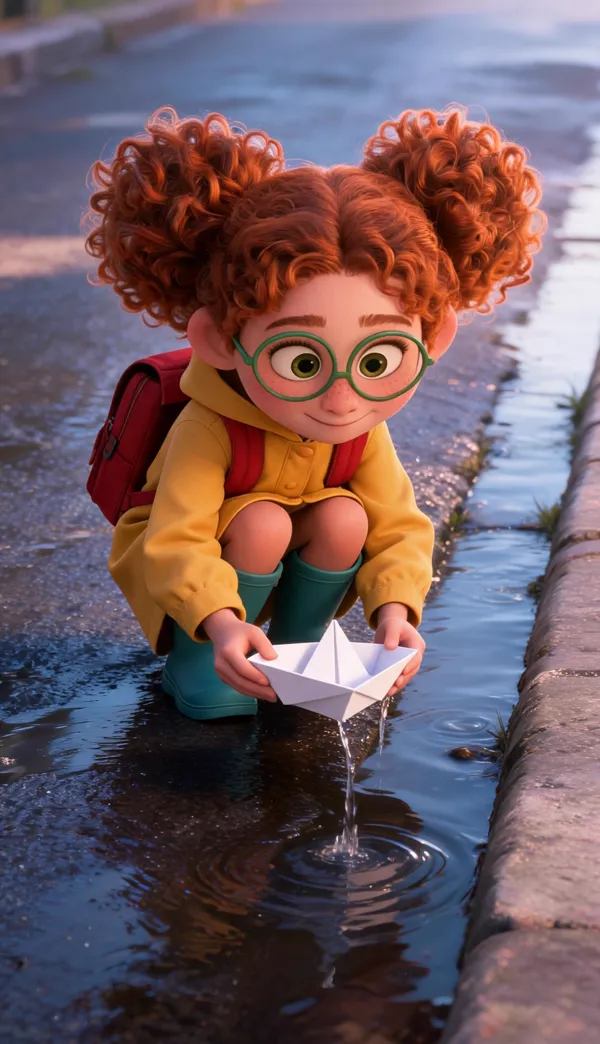
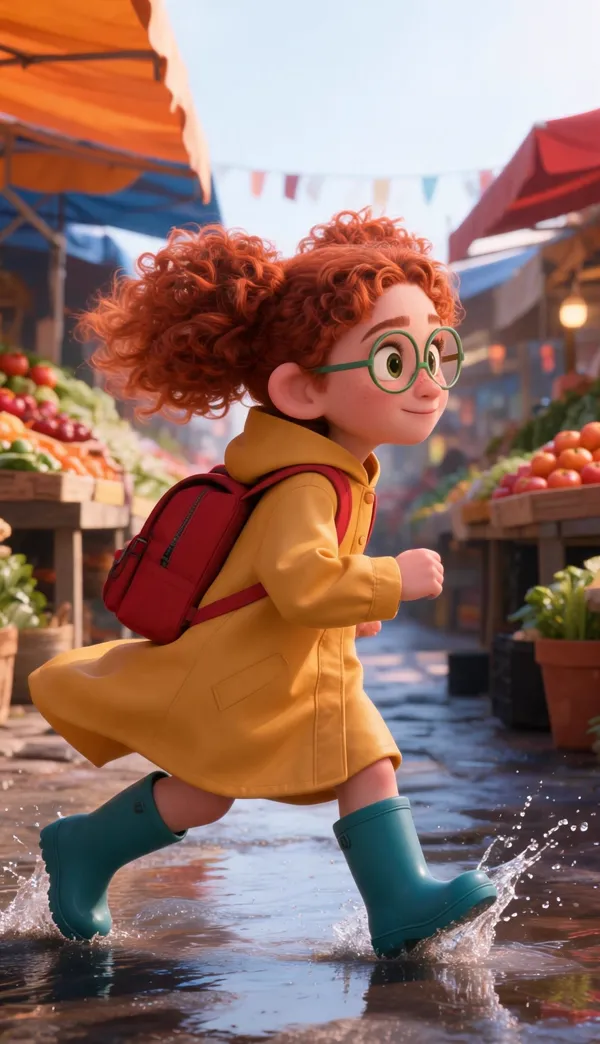
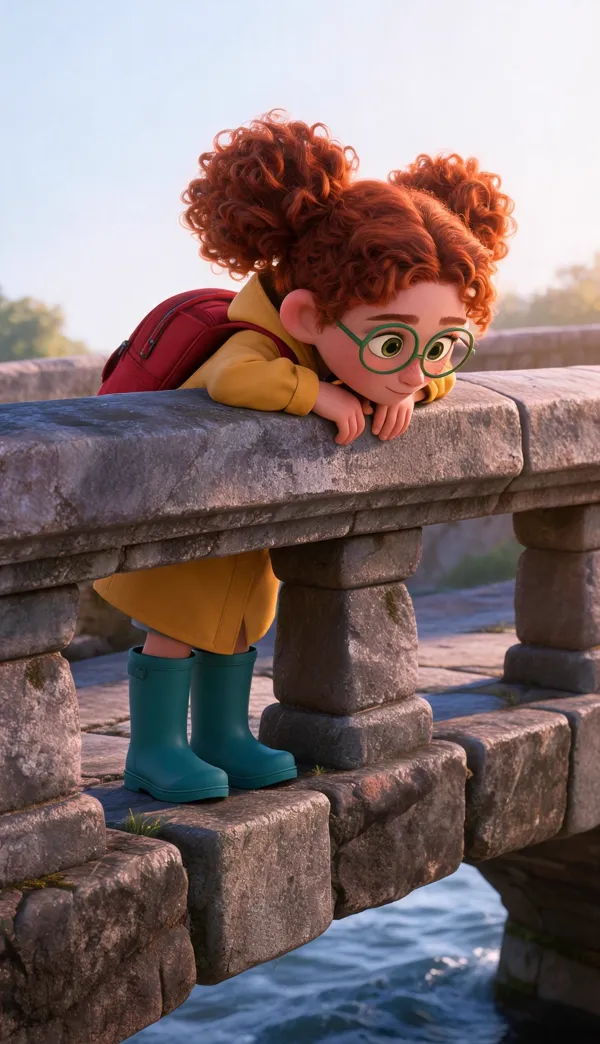
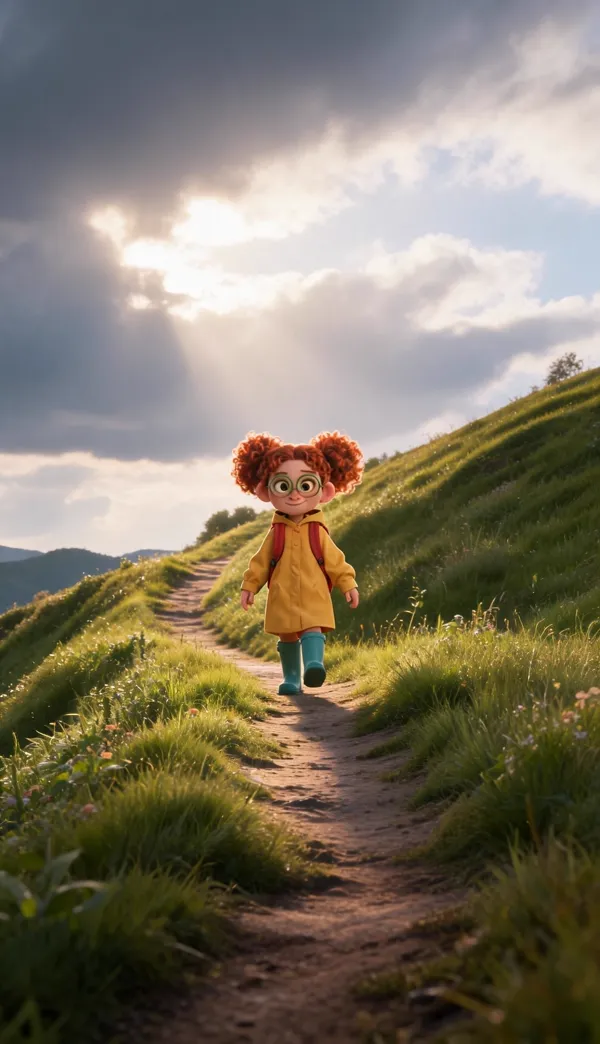
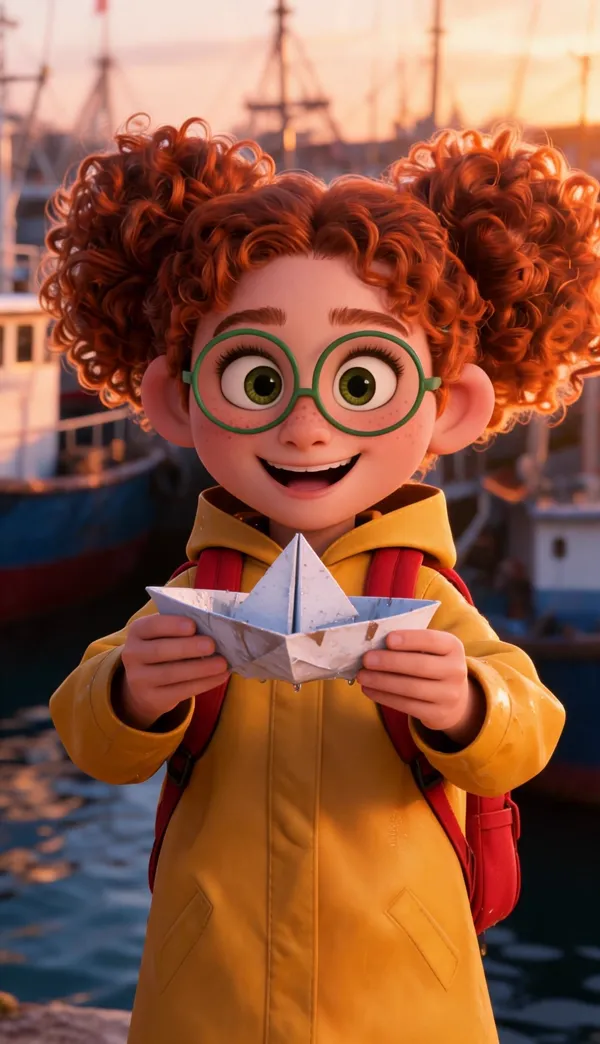
One picture of Mira, drawn from a single “Looks like” line, then six scenes of one story drawn from it in the 3D animated film look. First take, nothing retouched: the hair, glasses, raincoat, boots and backpack hold in close shots, wide shots and from the side.
How to keep a character consistent. Six steps.
- 1
Decide the traits that never change
Pick three or four: body shape, hair, one outfit with its colours, and one accessory. Write them as a single short line.
- 2
Make one reference picture
Draw the character once, full body, on a plain background, in the art style of the video. This picture is the source of truth.
- 3
Fix the art style
Choose one look for the whole video. A character that changes style between scenes reads as a different character.
- 4
Generate every scene from the reference
Attach the picture and the fixed line to every scene, and change only what the character is doing and where.
- 5
Review the scenes side by side
Compare faces, outfits, props and relative sizes across neighbouring scenes. Redraw the scenes that drifted, one at a time.
- 6
Animate last
Animate from the approved stills, then save the character so the next video starts from the same picture.
Five ways to keep a character consistent. What each one holds.
From the least effort to the most. They stack: a fixed description plus a reference picture is the combination most creators need.
| Method | How it works | Holds well | Where it breaks |
|---|---|---|---|
| A fixed description | Paste the same appearance line into every prompt and change only the action. | Outfit colours, hair, accessories. | Faces and proportions. Two drawings of “a tall man in a red coat” are two different men. |
| A reference picture | Give the image model a picture of the character with each scene, on a model that accepts reference images. | Face, proportions, outfit and overall design. | Small details, and models or styles that cannot take a reference. |
| A character sheet | One picture and a written list of permanent traits, kept outside the tool and reused for every video. | Consistency across episodes and collaborators. | It is only a note. Something still has to apply it to each scene. |
| A fixed seed | Reuse the same random seed so the model starts from the same noise. | Near-identical framing of the same prompt. | Any real change of pose, angle or setting. Not offered by many tools. |
| A trained model (LoRA) | Fine-tune an image model on 15 to 30 pictures of the character. | One character, very reliably, in one style. | Setup time, cost, and a new training run for every character. |
Clippie’s AI Story uses the first two together: the “Looks like” line and the character’s picture go to every scene the character is in.
The full guide. Why characters drift, and how to stop it.
What is going on inside the tools, the method that works in any of them, and the same method in Clippie where most of it is done for you.
Why AI characters change between scenes
An AI video is not drawn as one continuous film. It is built from separate generations: one picture or one short clip per scene. Each generation starts from random noise and a prompt, and the model has no memory of the scene before. Ask for “a young woman with brown hair in a green jacket” six times and you get six plausible women, because thousands of different people fit that sentence.
Text cannot close that gap on its own. A description pins down the things words are good at, such as colours, clothes and props, and leaves the face, the proportions and the drawing style to chance. That is why a character often keeps their red scarf from scene to scene while their face quietly changes.
Animation adds a second source of drift. A video model animating a still can alter the character over the length of a clip, most often during fast movement or when the character turns away and back.
The method that works in any tool
Every reliable approach comes down to the same idea: give each scene the same visual reference, not just the same words.
- Write the permanent traits once: Keep it short and concrete: “thin black stick figure, round head, red scarf, small blue backpack”. Leave out moods and poses. Those belong to scenes, not to the character.
- Generate one clean reference picture: Full body, neutral pose, plain background, in the style of the video. Regenerate until it is right, because every later scene inherits its mistakes.
- Use an image model that accepts reference images: This is the step most people miss. Many styles and older models take text only, and no prompt will make them hold a face.
- Send the reference with every scene: Attach the picture and the fixed line each time. The scene prompt then only says what happens: “Wren crosses the snowy bridge at dusk”.
- Name the character the same way everywhere: If the script calls one person “the traveller”, “the stranger” and “he”, nothing can tell which scenes are about them.
- Check stills before motion: Fixing a still is quick. Fixing an animated clip means paying for the animation twice.
How to do it in Clippie
Clippie’s AI Story turns a script into a narrated video scene by scene, and its cast does the steps above for you. The reference is attached to each scene automatically, so there is nothing to paste.
- Pick a look with the standing-figure mark: 21 of the 46 looks draw characters from their picture, including Bare stickman and Caveman stickman, 3D animated film, Storybook and Cinematic. The “Use character pictures” filter in the look gallery lists them.
- Open Characters and add your cast: Up to 8 characters per story. Each gets a name and a “Looks like” line of up to 400 characters.
- Give each character a picture: Draw it in the story’s look from the “Looks like” line, upload a drawing or photo, or add a saved character with “From library”. If you skip this, Clippie draws the picture for you when the story is generated.
- Write or paste the script: Type @ to mention a character by name. Under the script, Clippie also suggests characters it found, including groups such as “the guards”, with the other words the script uses for them.
- Generate: The script is split into scenes, and each scene a character appears in is drawn with their picture as the reference.
- Review and fix: Regenerate a single scene’s picture and it keeps the characters’ pictures. Change or add a character and Clippie offers to redraw only the scenes they are in.
- Animate, caption and export: Each scene is animated from its own approved picture. Add captions and music, then export in 9:16 or 16:9.
On looks without the mark, such as Classic stickman, Pixar 3D and Creepy cartoon, scenes are drawn from the “Looks like” line alone. A tight, concrete description matters most there.
How to write a description that holds
A good appearance line is short, visual and permanent. Compare “a cute, memorable girl who loves adventure” with “a girl of about ten, shoulder-length brown hair, grey hoodie, blue jeans, flying goggles pushed up on her head”. The first gives a model nothing to repeat. The second has four traits you can check in every scene.
Lead with silhouette and colour, because those are what a viewer recognises at thumbnail size. Give each character one signature item that no one else in the story has. Keep temporary states out of it: “soaking wet” or “angry” in the character’s description will follow them into every scene.
- Include: body shape, hair, outfit with colours, one accessory.
- Make distinct: give each character one obvious difference, such as height or a colour.
- Leave out: personality words, moods, poses and settings.
- Never: name a real person or an existing character as a shortcut.
Fixing a character that still drifts
When a scene comes out wrong, work out which kind of drift it is before regenerating, and change one thing at a time.
- The face or body changed: Check that the look uses character pictures and that the scene actually names the character. A scene that only says “she” may not have been matched to anyone.
- The outfit changed: The scene text probably contradicted the character, for example a scene described as “in pyjamas”. Decide which one you want and remove the other.
- A background figure looks like the hero: Add the others as their own character or group with a different look, such as “zombies: grey skin, torn clothes”. Otherwise the style’s default figure is used for everyone.
- Only the animated clip drifted: Go back to the approved still, simplify the motion you asked for, and animate again.
- Everything changed after switching look: A picture drawn for another look pulls scenes towards the old style. Redraw the character in the new look first.
Keeping the same character across videos
A series needs the same character next week, not just in the next scene. Save the reference picture, the fixed description and the voice together, and start every episode from them. Keep the art style the same too, since the same character redrawn in a new style looks like a reboot.
In Clippie this is the character library. Characters are saved when you use them in a story, with their picture, look and voice, and “From library” adds them to a new story. The page on using the same character across videos covers planning a series around a saved cast.
The method, built in. What Clippie does for you.
One picture, every scene
Each character has a picture. On 21 looks, every scene the character is in is drawn with that picture as its reference, so the face, outfit and proportions come from one source.
Described is enough
Write what a character looks like and skip the drawing. When the story is generated, Clippie draws their picture in the story’s look first, then draws the scenes from it.
@mentions in the script
Type @ and pick a character. The scene knows exactly who it is about, and the narrator reads the name as a normal word.
Characters found in your script
Clippie reads the script and suggests the recurring characters and groups, with the other words the script uses for them, so “the grey figures” are still drawn as your zombies.
Fix one character, not the whole video
Add or change a character after the story is generated and redraw only the scenes they are in. Every other scene stays exactly as it was.
A library for the next video
Characters you use are saved to your library, up to 300, with their picture and voice. Add one to a new story with “From library”.
Frequently asked questions.
Why does my AI character look different in every scene?
Because each scene is generated separately from a text prompt, and the model has no memory of the previous scene. A description fixes colours and clothes but leaves the face and proportions open, so every generation invents them again. Giving every scene the same reference picture is what stops it.
What is the easiest way to keep a character consistent?
Use a tool that keeps a cast and sends each character’s picture to every scene they appear in. In Clippie you add the character once in AI Story, with a name, a “Looks like” line and a picture, and the 21 looks that take reference images draw every scene from it.
Do I need to train a model or a LoRA?
Not for most videos. Training a model on a character gives very reliable results, but it takes 15 to 30 images, time and money for every character. A single reference picture on an image model that accepts references is enough for narrated stories, explainers and series.
Does using the same seed keep a character consistent?
Only for nearly identical prompts. A seed fixes the starting noise, so the same prompt gives the same picture, but as soon as the pose, angle or setting changes the character changes with it. Seeds are useful for small variations of one shot, not for a whole story.
Can I keep a character consistent in ChatGPT, Midjourney or other image tools?
Often, by uploading or attaching the reference picture with every request and repeating the fixed description. What you do not get is the video part: splitting a script into scenes, applying the reference to each one, narrating, captioning and animating. That is the work a story tool does.
Is the character identical in every single scene?
Close, not guaranteed. A reference picture steers the drawing far more than a text description does, and the main traits (head shape, hair, outfit, colours) normally hold from scene to scene. Small details such as a logo or the exact number of buttons can still vary, so look through the scenes before you animate. A scene that drifted can be redrawn on its own without touching the others.
Which looks use character pictures?
21 of the 46 story looks, plus any look you describe yourself: Stickman: Bare stickman, Caveman stickman, Whiteboard stickman, Doodle explainer and Painted stickman. 3D & games: Fruit people, 3D animated film, Kids cartoon, Claymation, Toy brick and Blocky voxel. Illustrated & anime: Soft anime, Storybook and Editorial. Comic: Noir ink. Realistic & cinematic: Cinematic, History documentary, True crime, Ancient epic, Phone photo and Vintage film. They carry a standing-figure mark in the look gallery. The other looks keep characters from the “Looks like” line.
Can I use the same character in another video?
Yes. A character you use in a story is saved to your character library with their picture and voice, up to 300 characters. Open a new story, choose “From library” and they are in the cast. Draw the new story in the same look and they match the earlier video.