
How to Fix AI Voiceover Not Pausing Between Sentences (Complete Guide 2026)
Struggling with AI voiceovers reading sentences too fast without pauses? Learn how to fix sentence spacing, improve pacing, and create natural-sounding voiceovers in Clippie AI with simple techniques that actually work.
Introduction
One of the most common issues creators face when generating AI voiceovers is that sentences sound rushed or “connected,” with little to no pause between them. Even when using proper punctuation like periods and commas, the AI may still read everything too quickly, making the voiceover sound unnatural.
This usually happens because AI voices don’t always interpret punctuation the same way humans do. Instead of relying only on grammar, AI voice models respond better to formatting, spacing, and intentional pacing cues.
In this guide, you’ll learn how to fix AI voiceovers that don’t pause properly, using simple but effective techniques you can apply directly inside Clippie AI.
Table of Contents
Why AI Voiceovers Sound Rushed
Use Line Breaks for Better Pauses
Write Shorter Sentences
Add Natural Pause Words
Use Punctuation Strategically
Adjust Voice Speed
Test and Refine Your Script
FAQs
Step 1: Understand Why AI Voiceovers Sound Rushed
Before fixing the issue, it’s important to understand why it happens.
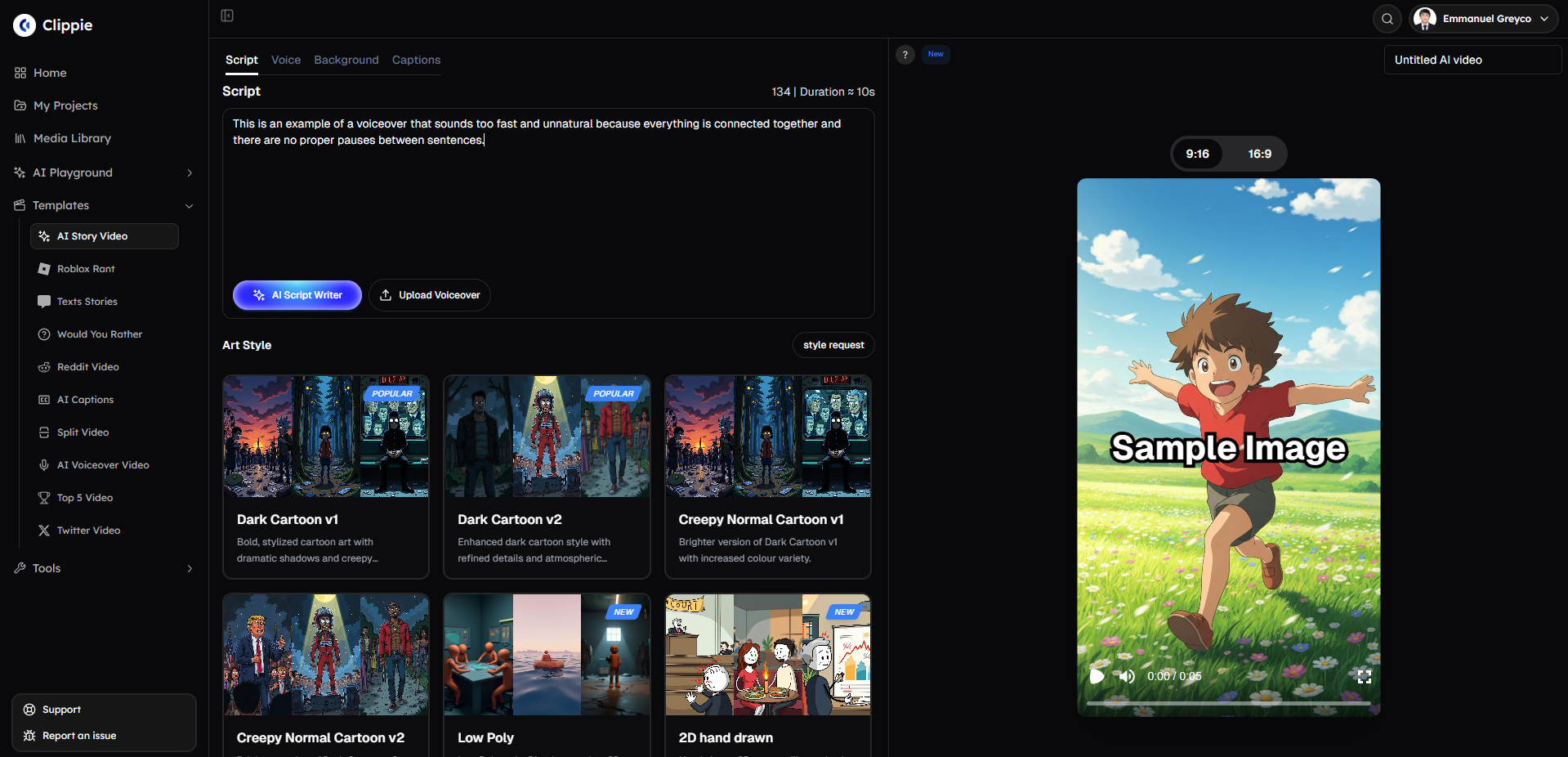
AI voice models are trained to read text efficiently, not necessarily naturally. Because of this, they may:
ignore punctuation pauses
read sentences continuously
prioritize speed over natural pacing
That’s why even correctly written scripts can sound unnatural when converted into voice.
Step 2: Add Line Breaks Instead of Just Periods
The most effective way to force pauses is by using line breaks.
Instead of writing:
This is the first sentence. This is the second sentence. This is the third sentence.
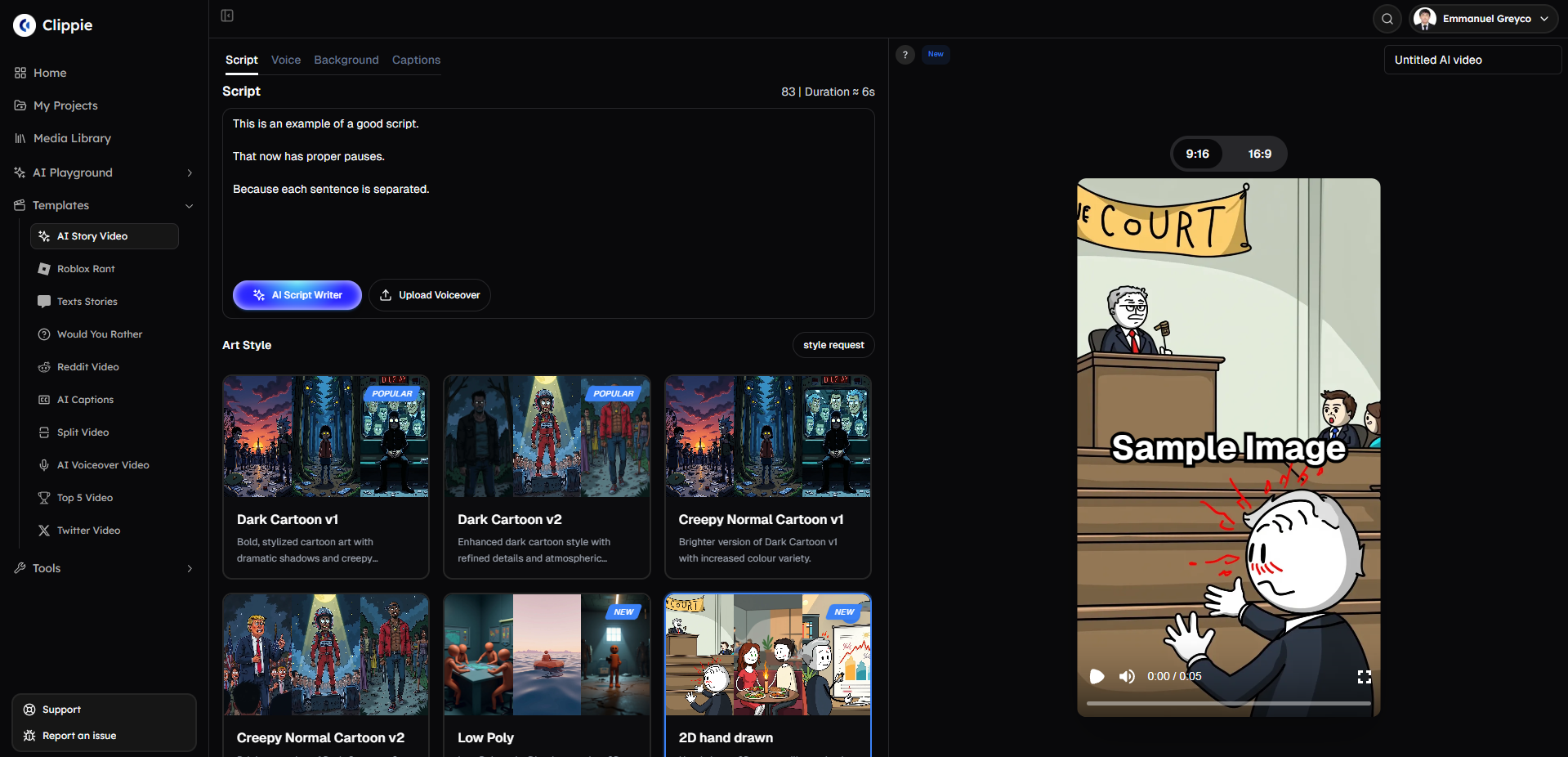
Write it like this:
This is the first sentence.
This is the second sentence.
This is the third sentence.
This creates a clear separation that AI voices recognize as a pause.
Short rule: Periods = weak pause Line breaks = strong pause
Step 3: Use Shorter Sentences
Long sentences are more likely to be read quickly without proper pauses.
Instead of:
This is a long sentence that keeps going and makes the voiceover sound rushed and unnatural because there are too many ideas in one line.
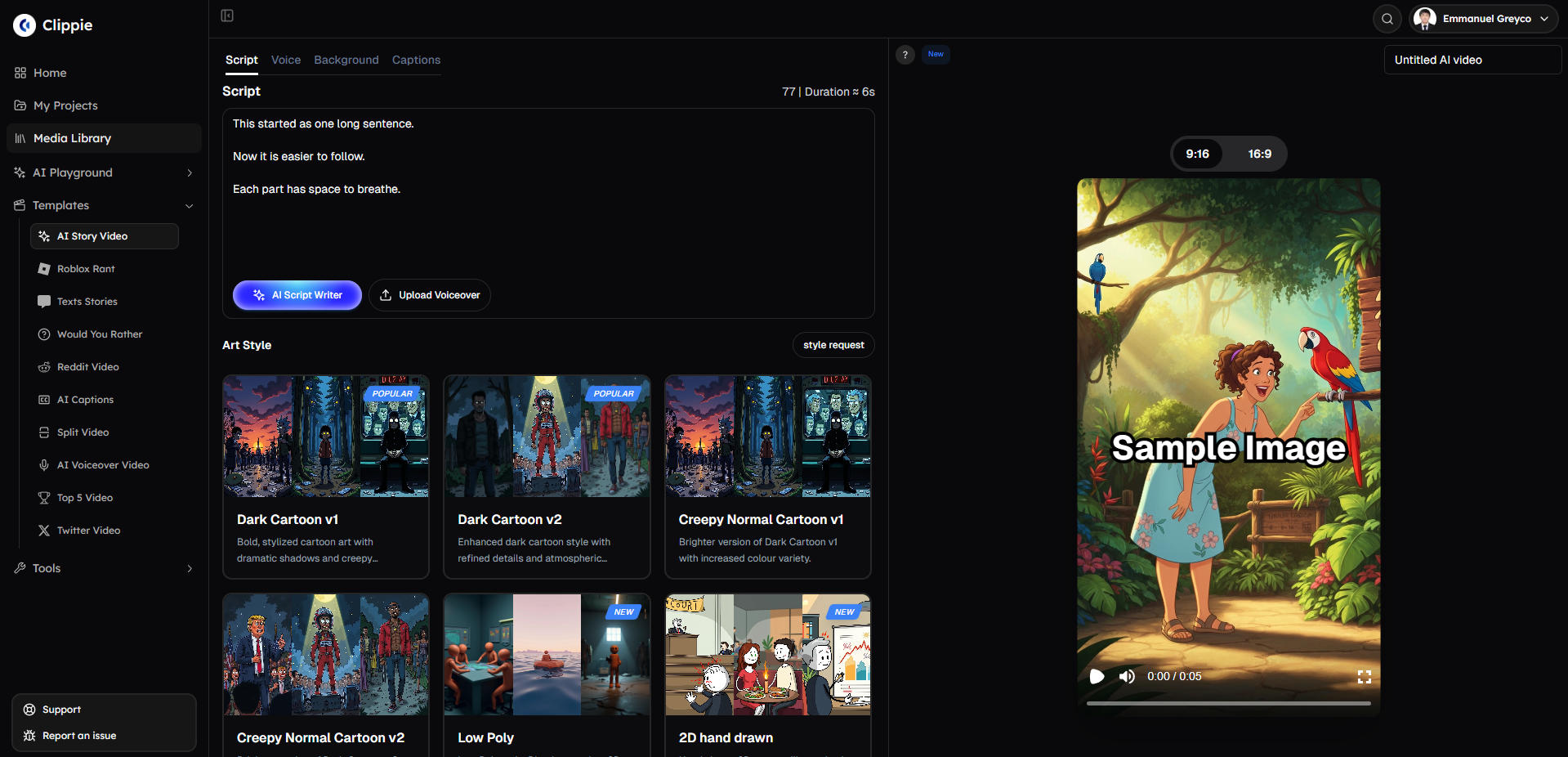
Break it into:
This is a long sentence.
It keeps going.
This makes the voiceover sound rushed.
Shorter sentences = better pacing.
Step 4: Add Natural Pause Words
You can also guide the AI using natural speech patterns.
Examples:
“Now,”
“So,”
“Then,”
“But here’s the catch,”
Example:
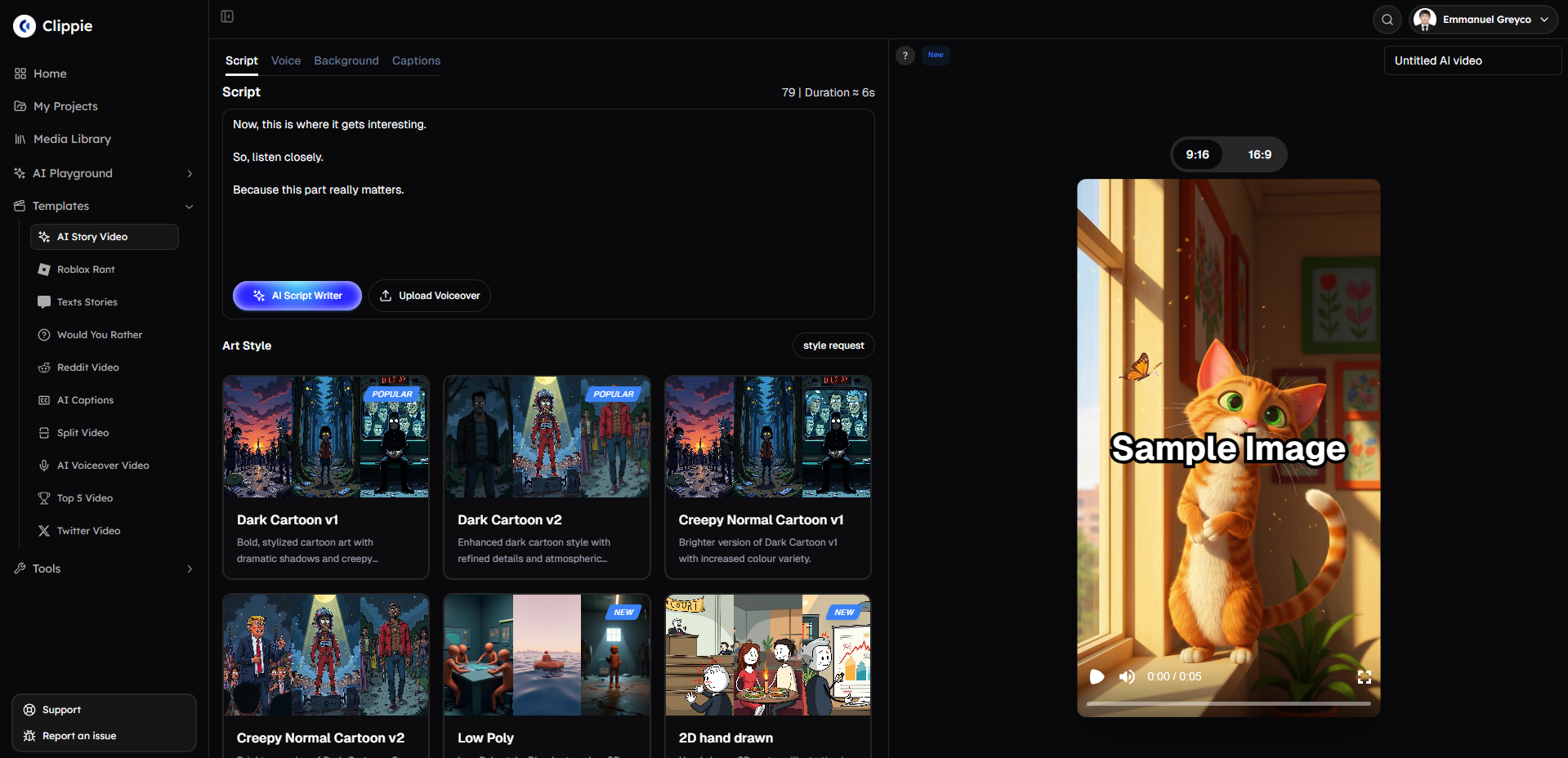
Now, this is where it gets interesting.
These words naturally slow down delivery and improve flow.
Step 5: Use Commas and Ellipses Properly
While periods are not always reliable, commas and ellipses can help shape pacing.
Examples:
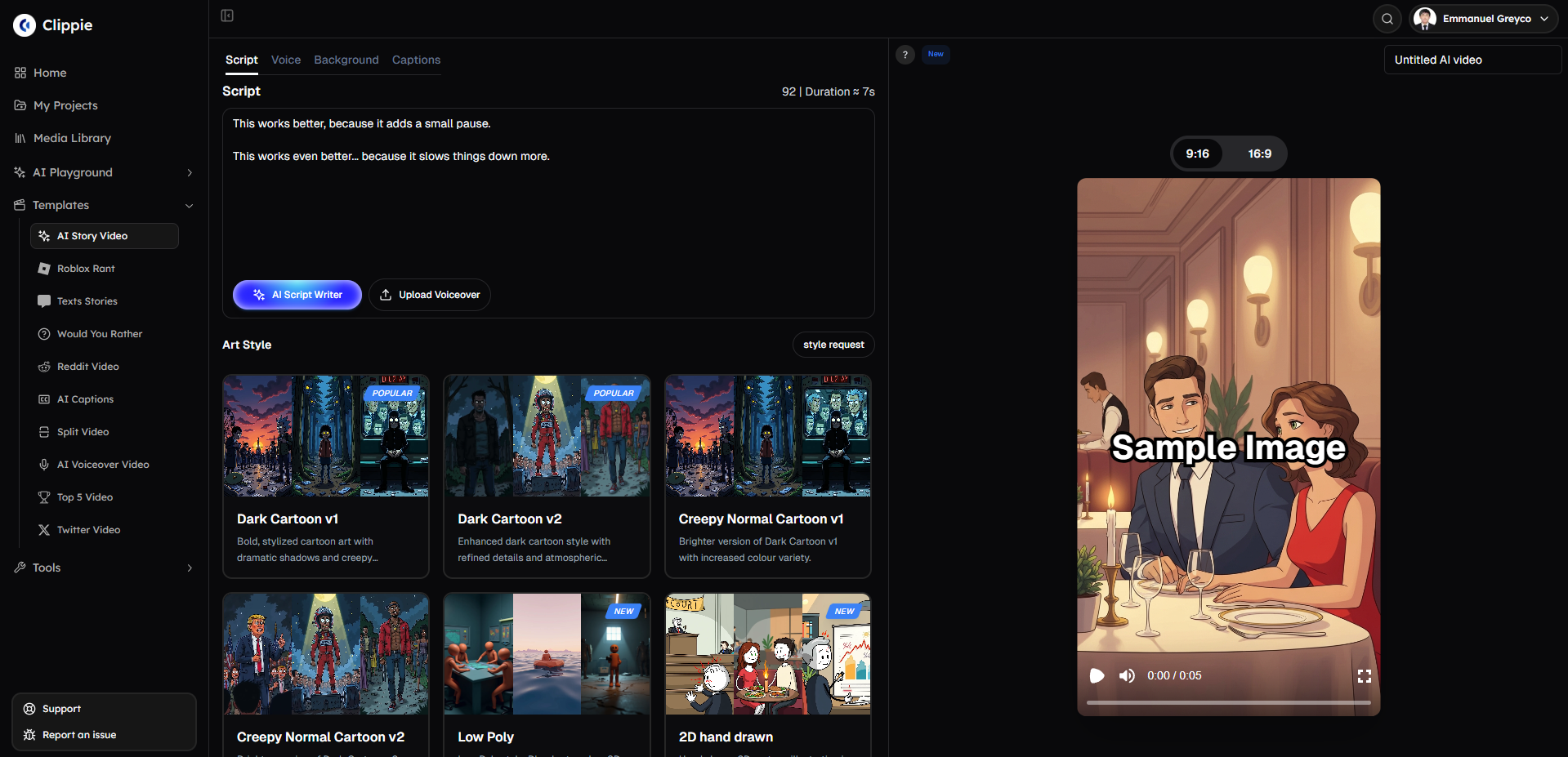
This works better, because it adds a slight pause.
This works even better... because it forces a longer pause.
Use ellipses sparingly, but they are very effective for dramatic pauses.
Step 6: Adjust Voice Speed if Available
If your voice settings allow it, slightly lowering the speed can improve clarity.
Best practice:
reduce speed slightly (not too slow)
combine with better formatting
Speed alone won’t fix the issue, but it helps when combined with proper script structure.
Step 7: Test and Refine Your Script
AI voiceovers improve with small adjustments.
Best workflow:
generate voice
listen carefully
adjust spacing or sentence structure
regenerate
Small tweaks can make a big difference in naturalness.
Best Example: Before vs After
❌ Before (no pauses): This is an example of a voiceover that sounds too fast and unnatural because everything is connected together.
✅ After (with pauses):
This is an example of a voiceover.
That sounds much more natural.
Because each sentence has space to breathe.
Pro Tips for Natural AI Voiceovers
Use line breaks for strong pauses
Keep sentences short and clear
Add natural speech cues
Avoid long paragraphs
Test and refine your script
Bonus: Get 1-on-1 Support in Our Discord Community
If you get stuck or want personalized help, join our Discord community. Our team offers 24/7 one-to-one support to help you go viral with your content.
Click me to join our discord community!
FAQs: Fixing AI Voiceover Pacing
Why does my AI voiceover sound like it’s rushing through sentences?
AI voice models are optimized for efficiency, not natural pacing. This means they may ignore punctuation like periods and read sentences continuously without pausing. To fix this, you need to structure your script using line breaks and shorter sentences instead of relying only on punctuation.
How do I make AI voiceovers pause between sentences properly?
The best way to add pauses is by using line breaks between sentences. This creates a stronger signal for the AI to stop briefly before continuing. You can also use commas, ellipses, and shorter sentences to improve pacing and make the voice sound more natural.
What is the best way to format a script for AI voice generation?
A well-formatted script should use short sentences, clear spacing, and natural phrasing. Instead of writing long paragraphs, break your script into smaller sections with line breaks. This helps the AI understand where pauses should happen and improves overall clarity.
Can I fix voice pacing just by changing punctuation?
Not always. While punctuation like commas and periods can help slightly, they are not enough on their own. AI voices respond better to formatting such as spacing and line breaks. For best results, combine punctuation with proper structure and sentence length.
Related Blog Posts
How to Clone Your Voice for a Faceless YouTube Channel in 2026 (And Never Record Again)
How to Make Faceless Finance Videos With AI in 2026 (The Highest-CPM Niche Guide)
How to Use VEO3 and VEO3.1 to Create Cinematic AI Videos in 2026 (Creator's Guide)
Click Me To Start Creating With Clippie AI Now!
Read more
Best AI Tools for Faceless YouTube Channels in 2026
A faceless YouTube channel needs one good tool per stage, not thirty. Research, scripting, voice, video and thumbnail picks, plus three stacks by budget

Best AI Video Tools for Faceless Content in 2026
The right tool depends on what you make: story shorts, prompt-to-video, repurposing, captions or avatars. Honest picks for each, plus where each one fails.

The Psychology Behind Viral Short-Form Videos, Minus the Myths
Viewers decide fast, but not for the reasons most guides repeat. Seven patterns behind videos people finish, plus how to read your own retention curve.