How to schedule YouTube Shorts and keep posting while you are busy.
Upload the Short, write the details, set the visibility to a day and time, and YouTube or Clippie posts it for you. This guide covers YouTube Studio, the YouTube app and scheduling straight from Clippie, plus when to post and how to plan a week at once.
- Ways to schedule3
- Steps5
- Clippie schedules up to6 months ahead
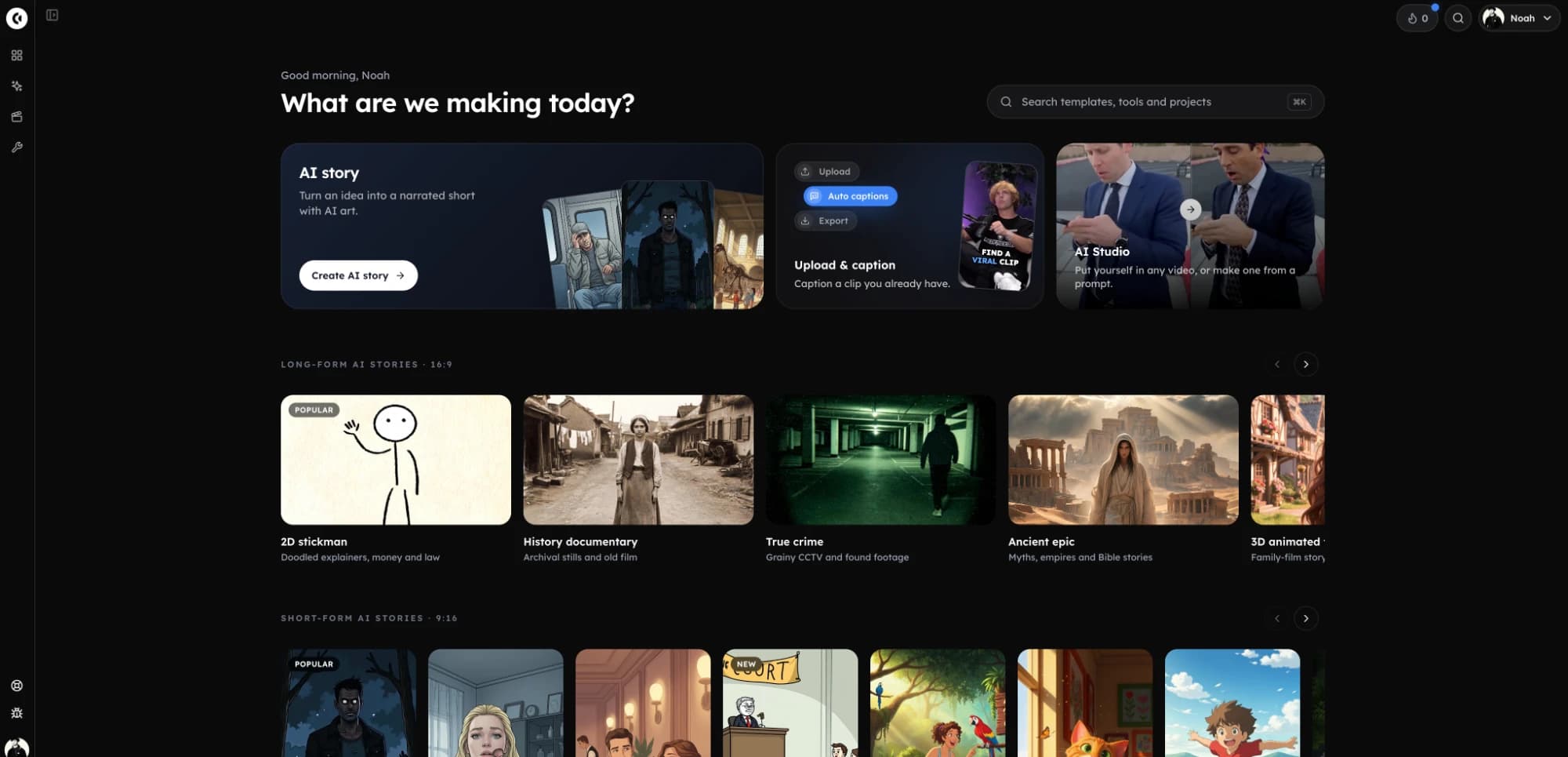
Shorts made in Clippie. Each one can be scheduled from the export screen with the steps below.
How to schedule a YouTube Short. Five steps.
- 1
Finish a vertical video
Export in 9:16 and keep it to three minutes or less, so YouTube treats it as a Short.
- 2
Write the title and description
Lead with the hook in the title. Add a line or two and a few hashtags in the description.
- 3
Set the audience
Say whether the video is made for kids. YouTube asks this for every upload.
- 4
Choose Schedule and a time
Pick the day and time you want it public. In Clippie, pick the visibility it should go out with.
- 5
Check the schedule
Find it under scheduled content in YouTube Studio, or on the calendar in Clippie, and move it if you need to.
The full guide. Scheduling Shorts, three ways.
What YouTube counts as a Short, how to schedule one in YouTube Studio, the YouTube app or Clippie, and how to plan a week of posts.
The short answer
To schedule a YouTube Short, upload the vertical video in YouTube Studio, fill in the title, description and audience, then on the Visibility step choose Schedule, set the date and time, and confirm. The Short stays private until that time and then goes public on its own.
If you made the video in Clippie, you can skip the download and the upload: press Post when the export finishes, fill in the same details, pick a day and time up to six months ahead, and Clippie publishes it from its servers at that time.
What YouTube counts as a Short
There is no separate Shorts upload button to get right. YouTube looks at the file: a vertical or square video up to three minutes long is a Short, and shows in the Shorts feed and on your channel’s Shorts tab. A 16:9 video, or one longer than three minutes, is a regular video. A #Shorts hashtag is optional; the shape and length decide.
So the scheduling steps are the same for Shorts and regular videos. What changes is the export: 1080x1920 for a Short, 1920x1080 for a regular video.
Method 1: schedule a Short in YouTube Studio
YouTube Studio on a computer is the free, built-in way, and works for any video file you have on your device:
- Go to studio.youtube.com, click Create, then Upload videos, and pick the file.
- On Details, write the title and description, and answer whether the video is made for kids.
- Click through Video elements and Checks. Wait for the copyright check if you used music or footage you did not make.
- On Visibility, choose Schedule instead of Save or publish, then set the date, the time and the time zone.
- Click Schedule. The video appears in your Content list as scheduled, and you can change the time there until it goes out.
Each upload is scheduled on its own, so a week of Shorts means seven uploads and seven sets of details. Keep the files named by day so you upload them in the right order.
Method 2: schedule a Short in the YouTube app
The YouTube app on a phone has the same option. Upload the video from your camera roll, and on the details screen open Visibility and choose Schedule, then set the date and time. The menus move between app versions, so if a step looks different, look for Visibility: that is where scheduling lives.
The app is handy for a Short you filmed on the phone. For videos you edit somewhere else, it means moving every file to the phone first.
Method 3: schedule straight from Clippie
If you make your Shorts in Clippie (AI stories, Reddit stories, would you rather, Top 5 countdowns and the rest), the scheduler is on the same account, so the finished video never leaves the app:
- Connect YouTube once: open Schedule under Tools and connect your channel through Google’s sign-in.
- Press Post: on the toast that says your export is ready, on a video in your renders, or in the Media Library. The composer opens with that video.
- Fill in the details: title, description, Public, Unlisted or Private, and the made-for-kids switch.
- Post now or schedule: pick a day and time up to six months ahead. The post appears on the week and month calendar.
- Let it run: Clippie publishes at that time even if you are offline. If something goes wrong, the post shows why and Clippie retries it.
Posting from Clippie needs a paid Clippie plan. TikTok and Instagram are coming later; for now it posts to YouTube.
When to schedule your Shorts
Schedule for when your viewers are already on YouTube. Once your channel has some views, YouTube Studio shows this under Analytics, on the Audience tab, in a chart of when your viewers are on YouTube. Pick a slot an hour or so before the busiest part of that chart.
Before you have that data, pick one time and keep to it for a few weeks, so you are comparing videos rather than time slots. A Short keeps being shown in the feed for days or weeks after it posts, so the exact minute matters less than posting regularly.
How to schedule a week of Shorts
Scheduling pays off when you make videos in batches and let them go out one a day:
- Make them in one sitting: write five to seven scripts together, and use one saved template so every video has the same look.
- One slot a day: schedule each video for the same time on consecutive days, so the channel never goes quiet.
- Check the week view: gaps and double-booked days stand out on a calendar. Drag a post to fix them.
- Keep a spare: have one extra video ready for the day a post needs pulling or redoing.
Visibility and made for kids
Public is what you want for almost every Short. Unlisted posts it where only people with the link can see it, which is useful for checking how a video looks on the channel before it goes out. Private keeps it to you. In YouTube Studio a scheduled video stays private until its time; in Clippie the visibility you pick is the one it posts with at the scheduled time.
Made for kids is about who the video is for, not how it looks. A cartoon horror story is not made for kids just because it is animated. Videos marked made for kids lose comments and personalised ads, so answer it honestly for each video.
Mistakes that make scheduled Shorts flop
Scheduling saves time, but it also makes it easy to queue up problems:
- The wrong time zone: check what time zone the time is in, especially if your audience is in another country.
- Everything at once: ten Shorts in an hour compete with each other. One or two a day is easier for the feed to test.
- Footage you do not own: clips from other channels get claimed after they go out, when you are not there to fix it.
- Set and forget: look at the History list or the Content tab now and then, so a failed or claimed post does not go unnoticed.
- Weak first second: scheduling does not fix a slow hook. Put the title or the first line on screen at once.
Schedule by format. Make the video, then queue it.
 YouTube Shorts schedulerConnect your channel once, then post or schedule any video you make in Clippie from a week or month calendar.
 Reddit stories to YouTubePaste a post, get a narrated story over gameplay, and schedule part two for tomorrow.
 Stickman videos to YouTubeMake a stickman Short or a 16:9 episode, then put the whole series on the calendar.
Why schedule from Clippie. No download, no re-upload.
Post from the export
When a render finishes, the ready toast has a Post button. Renders and the Media Library have one too, so there is nothing to download and upload again.
Week and month calendar
See every scheduled post by week or by month, and drag a post to another day to move it.
Posts while you are offline
Clippie publishes at the time you picked from its own servers. Close the tab and shut the laptop.
Plain-English failures
If a post fails, you see why in words you can act on, and Clippie retries it automatically.
The YouTube settings that matter
Title, description, Public, Unlisted or Private, and the made-for-kids setting YouTube asks every upload for.
Your channel, your call
Connect through Google’s own sign-in. Disconnect any time and Clippie’s access is revoked with Google.
Frequently asked questions.
Can you schedule YouTube Shorts?
Yes. In YouTube Studio or the YouTube app, choose Schedule on the Visibility step of the upload and pick a date and time. If you made the video in Clippie, you can also schedule it from Clippie’s Schedule page without uploading it yourself.
Can you schedule YouTube Shorts on mobile?
Yes. In the YouTube app, upload the video, open Visibility on the details screen and choose Schedule. Clippie runs in the phone’s browser too, so you can schedule a Clippie video from your phone the same way as on a computer.
Will my video post as a Short or as a regular video?
YouTube decides from the video itself: a vertical or square video up to three minutes long is a Short, and anything else is a regular video. Export in 9:16 for a Short and in 16:9 for a regular video; Clippie posts both the same way.
Can I schedule several Shorts at once?
Each Short is scheduled on its own in YouTube Studio, the YouTube app and Clippie. In Clippie they all sit on one week or month calendar next to the editor, so lining up a week of videos you have just made takes a few minutes.
What time should I schedule YouTube Shorts?
When your viewers are on YouTube. YouTube Studio shows this under Analytics on the Audience tab once the channel has enough views. Before then, pick one time and keep to it so you can compare videos fairly.
Do scheduled Shorts get fewer views?
YouTube has not said that it treats a scheduled Short differently from one published by hand. What matters is the video itself and posting regularly, which is what scheduling helps with.
Can I change a scheduled Short?
In YouTube Studio, open the video in the Content list and change the details or the time before it goes out. In Clippie, drag the post to another day on the calendar.
How far ahead can I schedule?
Up to six months. Pick any day and time in that window, and move the post later by dragging it on the calendar.
Do I need a paid plan to post to YouTube from Clippie?
Yes. Posting and scheduling to YouTube are part of the paid Clippie plans, like exporting. You can look around the Schedule page first; Clippie asks you to pick a plan when you post. Plans are listed below.