Make stickman videos and schedule them to YouTube.
Write or generate a script, pick one of five stickman looks, and Clippie makes the scenes, the voice and the captions. Then post the finished video to your channel, or schedule a whole series so a new episode goes out at the same time every week.
- Stickman looks5
- Post asShorts or 16:9 episodes
- ScheduleUp to 6 months ahead
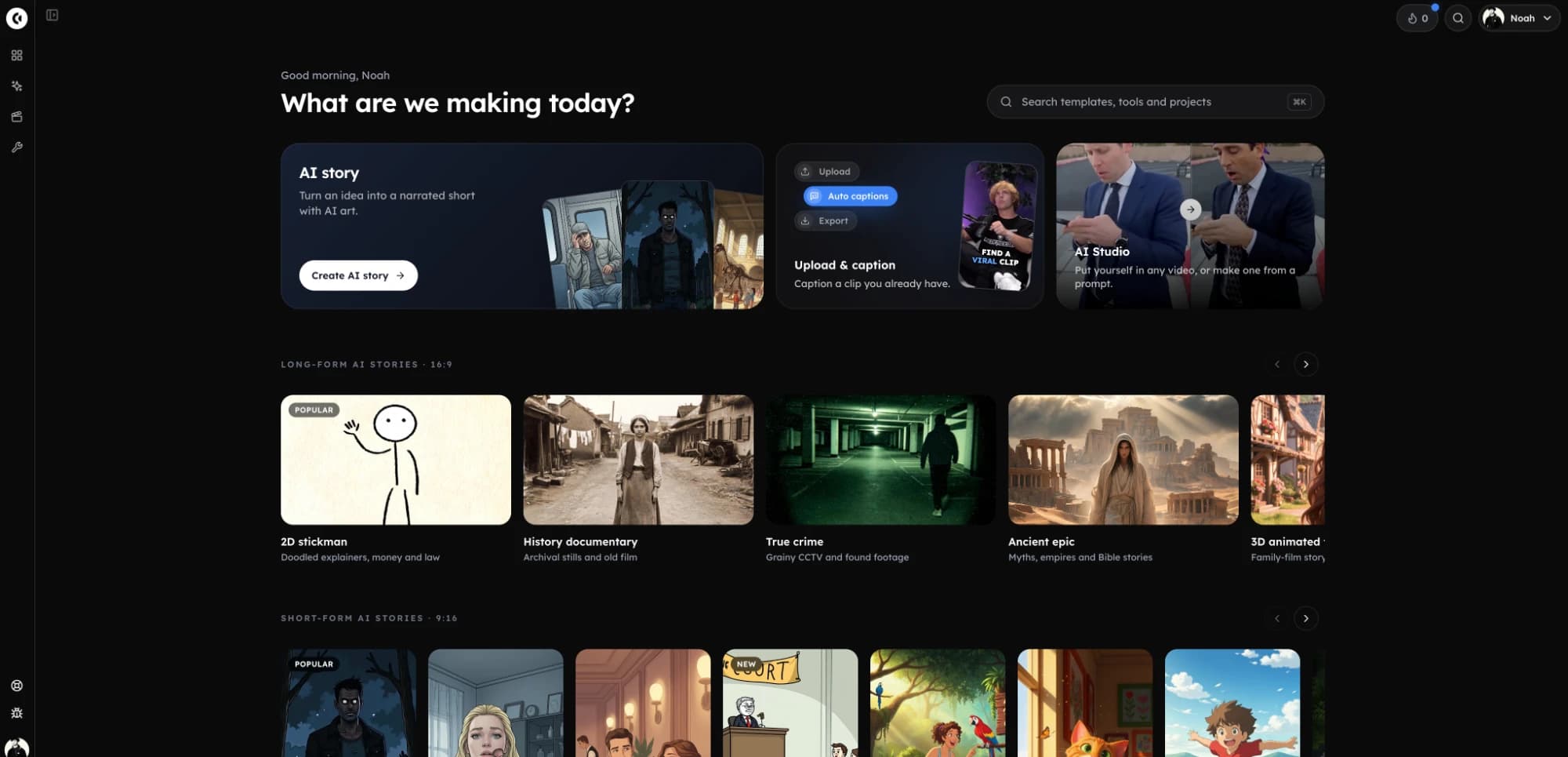
Stickman scenes made in Clippie, in the Bare and Caveman looks.
From script to scheduled episode.
- 1
Pick a look and a shape
Open a stickman template in 9:16 for Shorts or 16:9 for the main channel.
- 2
Write the script
Paste your own, or let the script writer draft one from an idea. Bring a saved character in with @.
- 3
Generate and export
Clippie makes a scene for every few lines, the voiceover and the captions. Animate the scenes that matter, then export.
- 4
Post or schedule
Press Post when the export is ready, write the title and description, and publish now or pick the episode’s day and time.
Running a stickman channel on a schedule.
How to plan episodes, pair Shorts with long videos, and set up each post so it goes out right.
Plan episodes, not one-offs
Stickman channels that grow tend to have one recurring character and a series people can follow: a survival story in parts, a “what if” every week, a history of one era told in episodes. A schedule turns that into a habit for viewers. Pick the day and time, schedule the next few episodes, and keep the same slot for every one.
In Clippie, save the main character once with a name and a description and bring them into each script with @, so the stickman looks the same in every episode you queue up.
Shorts and long videos from the same story
The stickman looks work in both shapes, so one idea can feed both sides of a channel:
- A 16:9 episode: the full story at 5 to 10 minutes, posted as a regular video on a fixed day.
- Shorts around it: a one-minute vertical version of the hook or the best moment, scheduled on the days in between.
- One calendar: both go to the same channel from the same week view, so you can see the whole week’s plan at once.
Make a week in one sitting
The slow part of a stickman video is the script. Write several together, generate the scenes and voices back to back, and export them one after another. Each ready toast has a Post button, so you can schedule every video as soon as it finishes, rather than collecting files and uploading them later.
Made for kids is about the audience, not the drawing
Stick figures look simple, but YouTube’s made-for-kids setting is about who the video is for. A survival story, a horror story or a history of war is not made for kids because it is animated. Mark a video made for kids only when children are the audience, since those videos lose comments and personalised ads. The composer has the switch on every post.
A stickman channel in one app. From idea to posted.
Five stickman looks
Bare, Caveman, Doodle explainer, Painted and Classic, each in 9:16 and 16:9.
Script writer
Draft a script from an idea at the length you pick, or paste your own and edit it line by line.
A recurring character
Save a character with a name and a description, and bring them into each script with @.
Voice and captions
125 AI voices and word-by-word captions in 100+ languages.
Post from the export
When a render finishes, the ready toast has a Post button. Renders and the Media Library have one too, so there is nothing to download and upload again.
Week and month calendar
See every scheduled post by week or by month, and drag a post to another day to move it.
Posts while you are offline
Clippie publishes at the time you picked from its own servers. Close the tab and shut the laptop.
Plain-English failures
If a post fails, you see why in words you can act on, and Clippie retries it automatically.
Frequently asked questions.
How do I upload stickman videos to YouTube?
Make the video in a Clippie stickman template, export it, and press Post on the ready toast. Connect your YouTube channel the first time, write the title and description, choose the visibility, and publish now or schedule it. There is no file to download and upload again.
Can I schedule a stickman series?
Yes. Schedule each episode for its day and time, up to six months ahead, and the week or month calendar shows the whole series. Drag an episode to move it.
Should stickman videos be marked made for kids?
Only if children are the audience. YouTube’s setting is about who the video is for, not whether it is animated, so a stickman horror or survival story is usually not made for kids.
Will my video post as a Short or as a regular video?
YouTube decides from the video itself: a vertical or square video up to three minutes long is a Short, and anything else is a regular video. Export in 9:16 for a Short and in 16:9 for a regular video; Clippie posts both the same way.
Does my computer need to be on when the post goes out?
No. Clippie publishes the video from its own servers at the time you picked, so you can close the browser or turn your computer off.
Can I post to TikTok or Instagram too?
Not yet. YouTube is first, for both Shorts and regular videos, and more platforms are coming. Until then you can download any render and upload it to TikTok or Instagram yourself.
Do I need a paid plan to post to YouTube from Clippie?
Yes. Posting and scheduling to YouTube are part of the paid Clippie plans, like exporting. You can look around the Schedule page first; Clippie asks you to pick a plan when you post. Plans are listed below.