
How to Use the AI Playground in Clippie AI (2026 Guide)
Learn how to use the AI Playground in Clippie AI to test ideas, generate prompts, and experiment with new video content styles.
Introduction
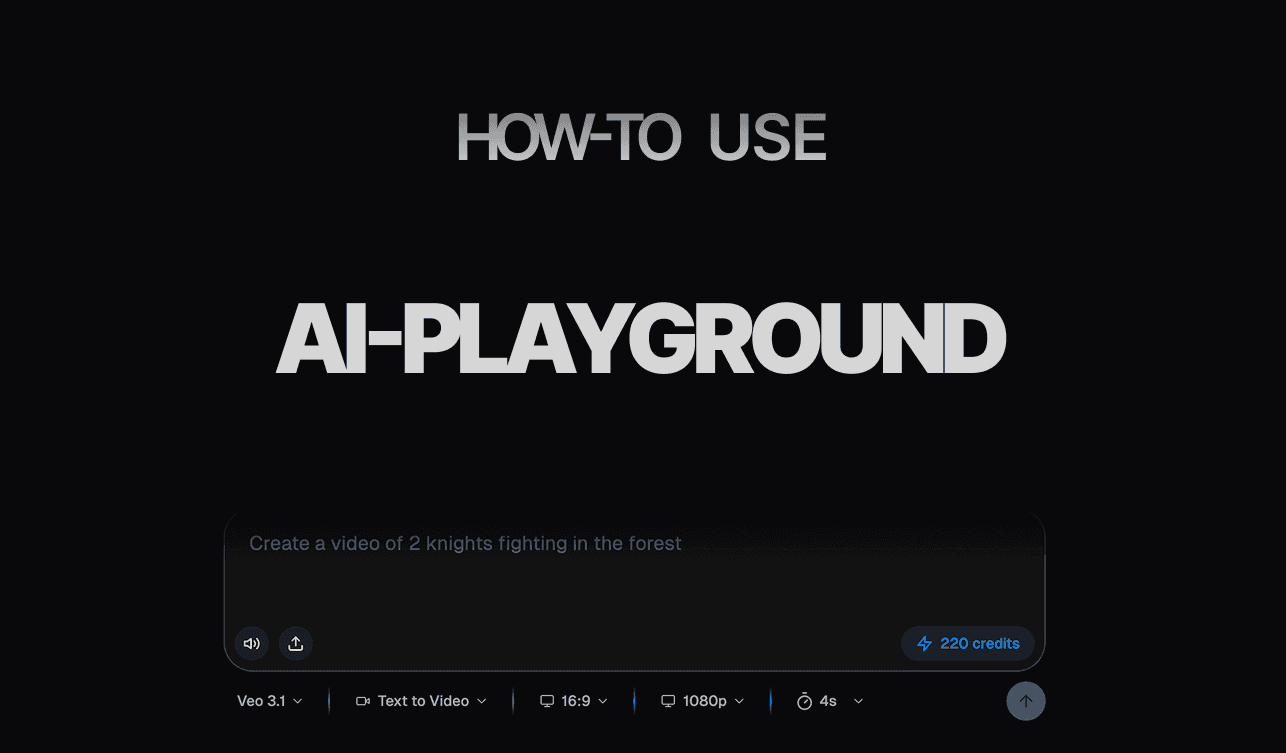
AI Playground in Clippie AI is your creative space to build AI-powered videos using advanced AI models like Sora 2 Pro, VEO 3.1, and Seedance 1.0. It allows you to animate scenes for your AI story videos, bringing your scripts to life with stunning AI-generated motion and effects.
To use AI Playground, you’ll need AI credits, which are separate from your Clippie subscription and available as optional top-ups. These credits power the AI models, letting you explore different styles and create unique animations that elevate your video content.
In this guide, we’ll show you how to access AI Playground, choose and use different AI models, and animate your scenes to produce engaging AI story videos.
Step 1: Open the AI Playground
Start by accessing the AI video creation tool.
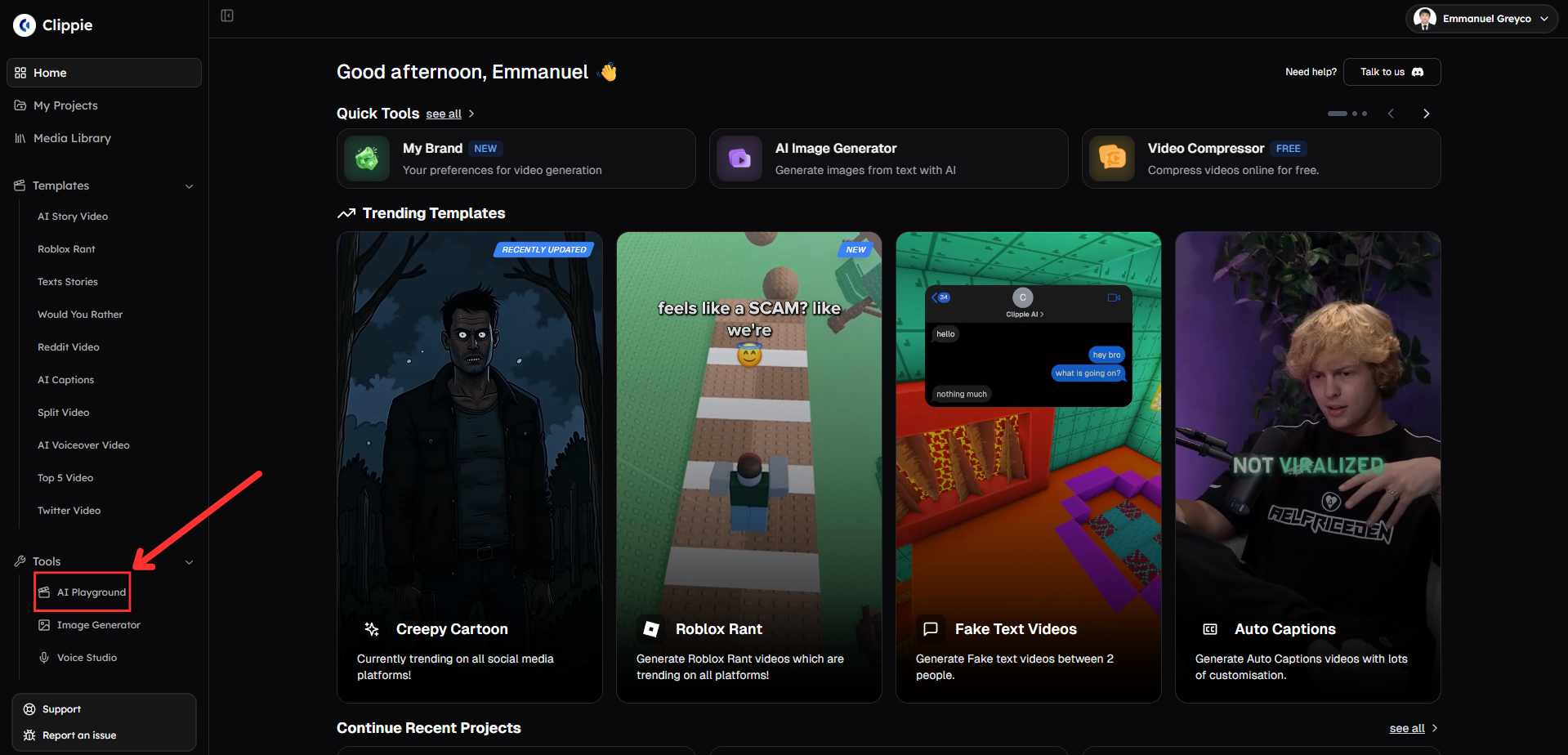
Go to Tools and click AI Playground.
Step 2: Generate Your AI Video
This is where you create your AI-powered video.
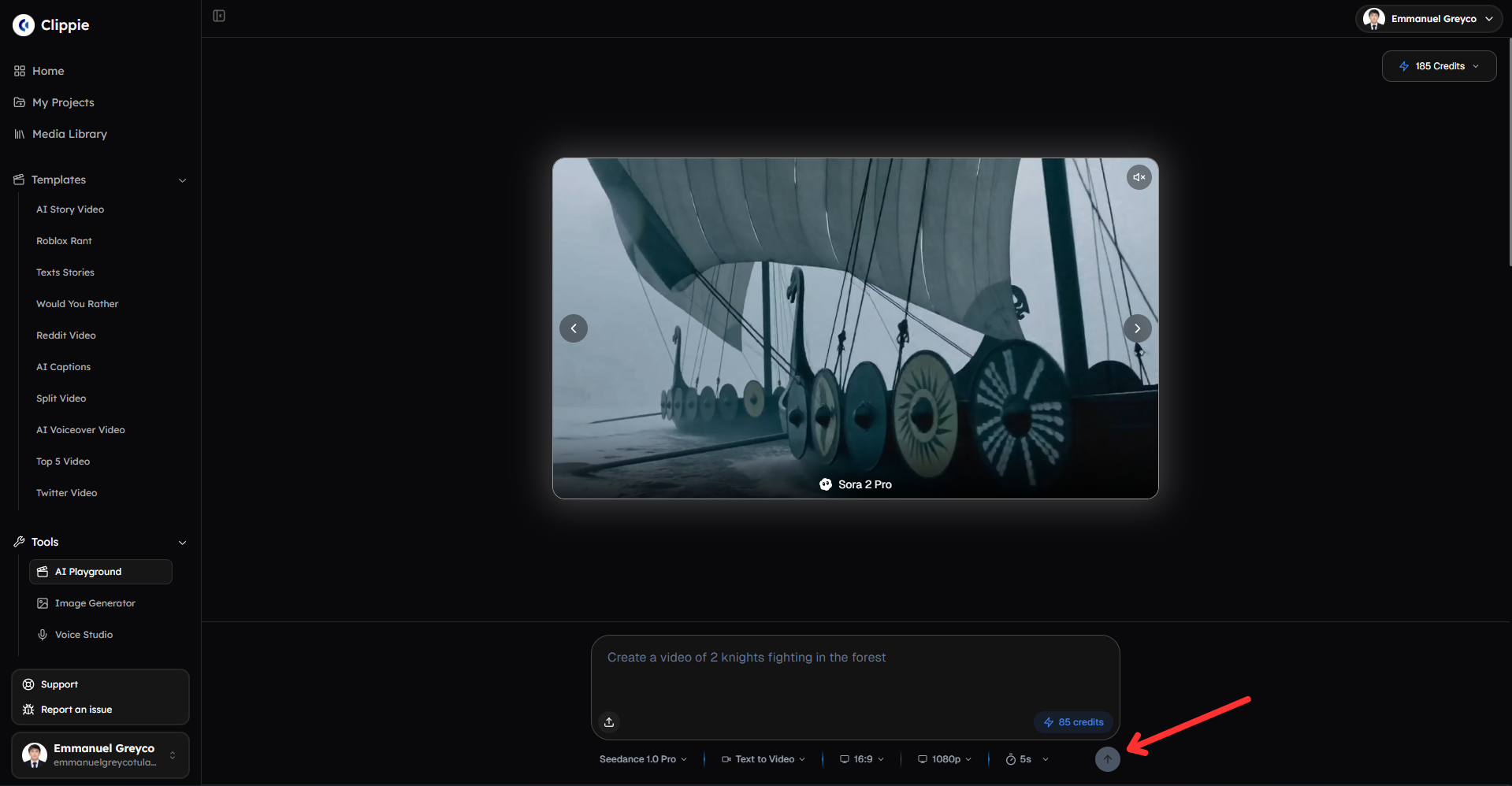
Type a detailed prompt describing the video you want to generate.
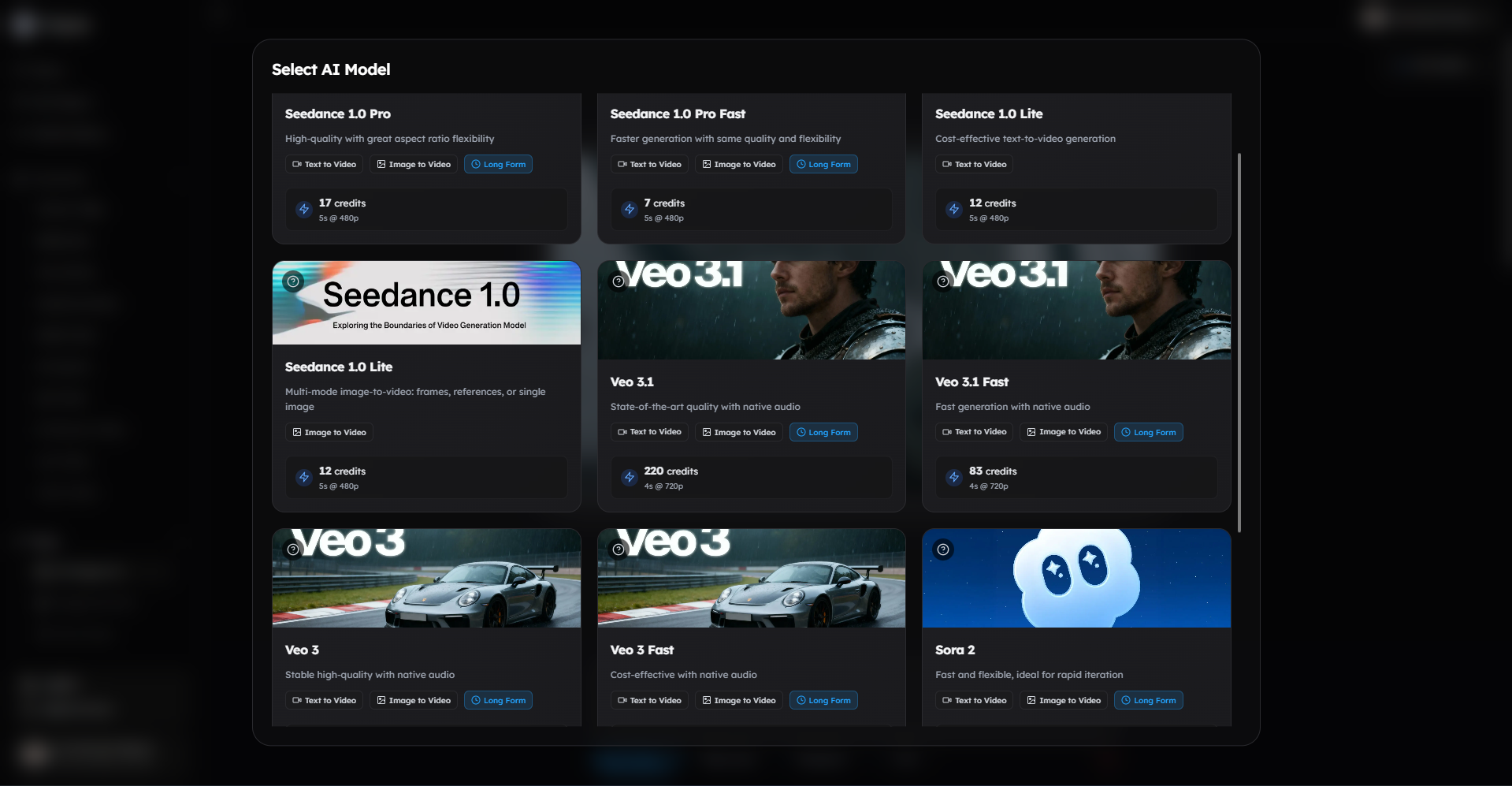
Select your AI model such as Seedance 1.0 Pro, VEO 3.1, or Sora 2 Pro.
Choose your video ratio.
Select your resolution.
Set the duration of your AI video in seconds.
Click Send Prompt to generate your AI video.
Pro tip: The more detailed your prompt, the better and more accurate the generated AI video will be.
The cost of AI credits depends on the resolution, video duration, and the AI model you choose. If you’re animating scenes for an AI story video, we recommend using Seedance Pro Fast, which offers the best balance of quality and speed for image-to-video animation specifically designed for AI Stories.
Step 3: Download or Manage Your Videos
Once your video is generated:
Download your AI video.
Click View Library to access and manage your other generated AI videos.
You can also go to the Media Library and click AI Videos to view and manage all your generated AI videos.
Bonus: Get 1-on-1 Support in Our Discord Community
If you get stuck or want personalized help, join our Discord community. Our team offers 24/7 one-to-one support to help you go viral with your content.
Click me to join our discord community!
FAQs: Using AI Playground
Q: What is AI Playground used for? A: AI Playground is used to create AI-generated videos using advanced models like Seedance 1.0 Pro, VEO 3.1, and Sora 2 Pro, and to animate scenes for AI story videos.
Q: Do I need AI credits to use AI Playground? A: Yes. AI Playground requires AI credits, which are not included in your subscription and are available as optional top-ups.
Q: Which AI model should I use for AI story animations? A: For animating scenes in AI story videos, Seedance Pro Fast is recommended because it offers the best quality and performance for image-to-video animation.
Q: What affects the cost of generating an AI video? A: The cost depends on the AI model you select, the video resolution, and the duration of the generated video.
Related Blog Posts
How to Generate AI Images with Clippie AI (2026 Guide)
How to Use Voice Studio in Clippie AI (2026 Guide)
How to Compress Videos with Clippie AI (2026 Guide)
Click Me To Start Creating With Clippie AI Now!
Make an AI story video
Write a script or let AI write one. Clippie turns it into a narrated video with AI scenes, voiceover and captions.
Read more

How to Make Top 5 Ranking Videos in 2026 (Step-by-Step)
Build ranking Shorts that can still earn: pick a debatable topic, set clear criteria, source clips you may use, script the countdown, add your commentary.

How to Create Short-Form Videos Using AI: 8 Steps (2026)
A beginner workflow for AI videos on TikTok, Reels and Shorts: pick a format, script a hook, add visuals, voice and captions, export at 9:16, label AI.
7 Free CapCut Alternatives for Short-Form Video (2026)
Compare Edits, YouTube Create, VN, Clipchamp, Canva, DaVinci Resolve and Shotcut: what each gives free users, what it caps first and where it falls short.