
How to Remove Image Backgrounds with Clippie AI (2026 Guide)
Learn how to remove image backgrounds instantly with Clippie AI to create clean, professional visuals for videos, thumbnails, and social media content.
Introduction
Removing backgrounds from images is essential for creating clean visuals, thumbnails, overlays, and faceless content. Instead of spending time manually cutting out subjects, Clippie AI’s image background remover lets you remove backgrounds instantly with just a few clicks.
Remove Background tool is perfect for creators who want to isolate people, objects, or products and place them into new scenes, videos, or designs. Whether you’re creating AI story visuals, social media content, or promotional assets, background removal helps your content look more professional and polished.
In this guide, we’ll show you how to remove image backgrounds using Clippie AI step by step, so you can quickly create transparent images ready for use in videos and designs.
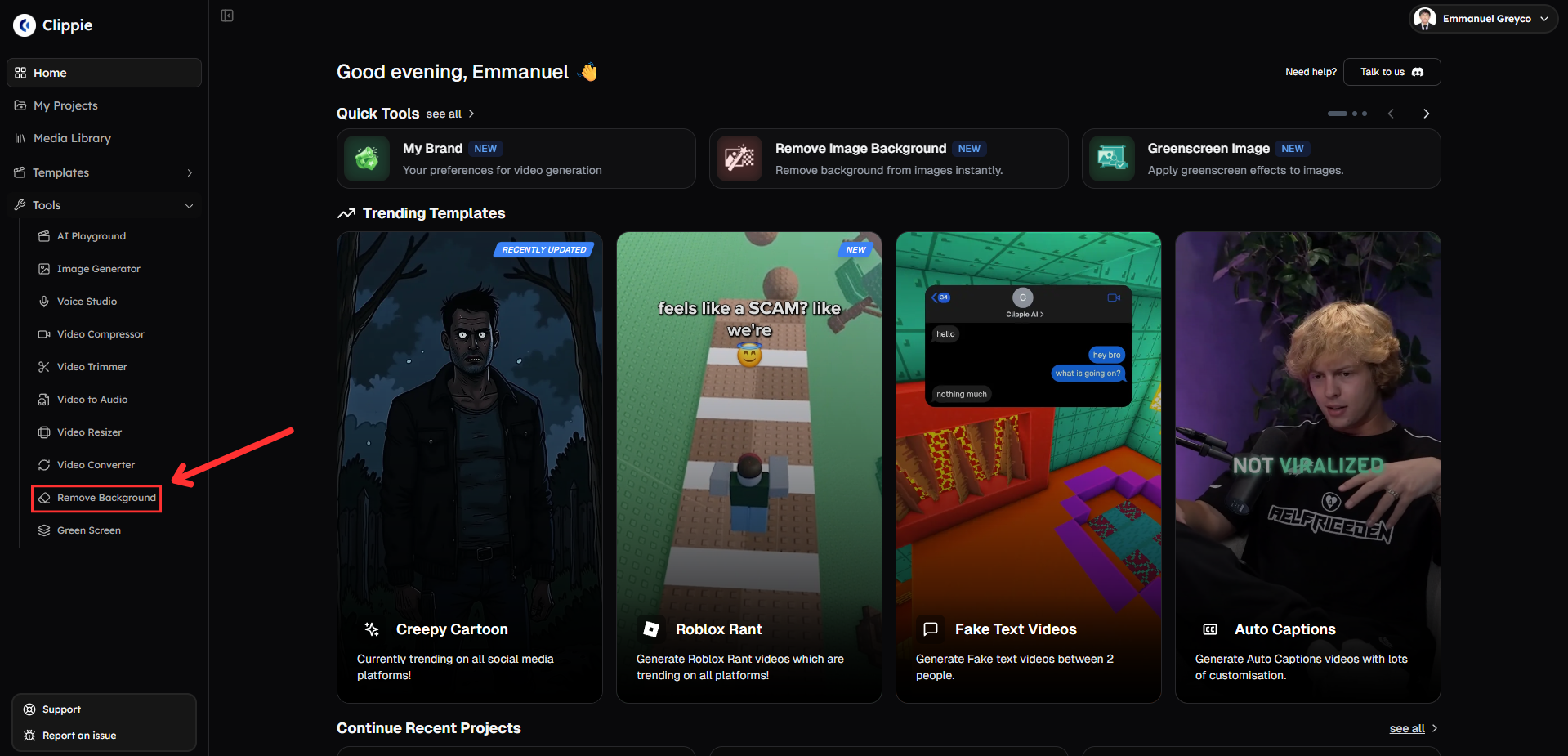
Step 1: Open the Remove Background Tool
Start by accessing the image background removal tool.
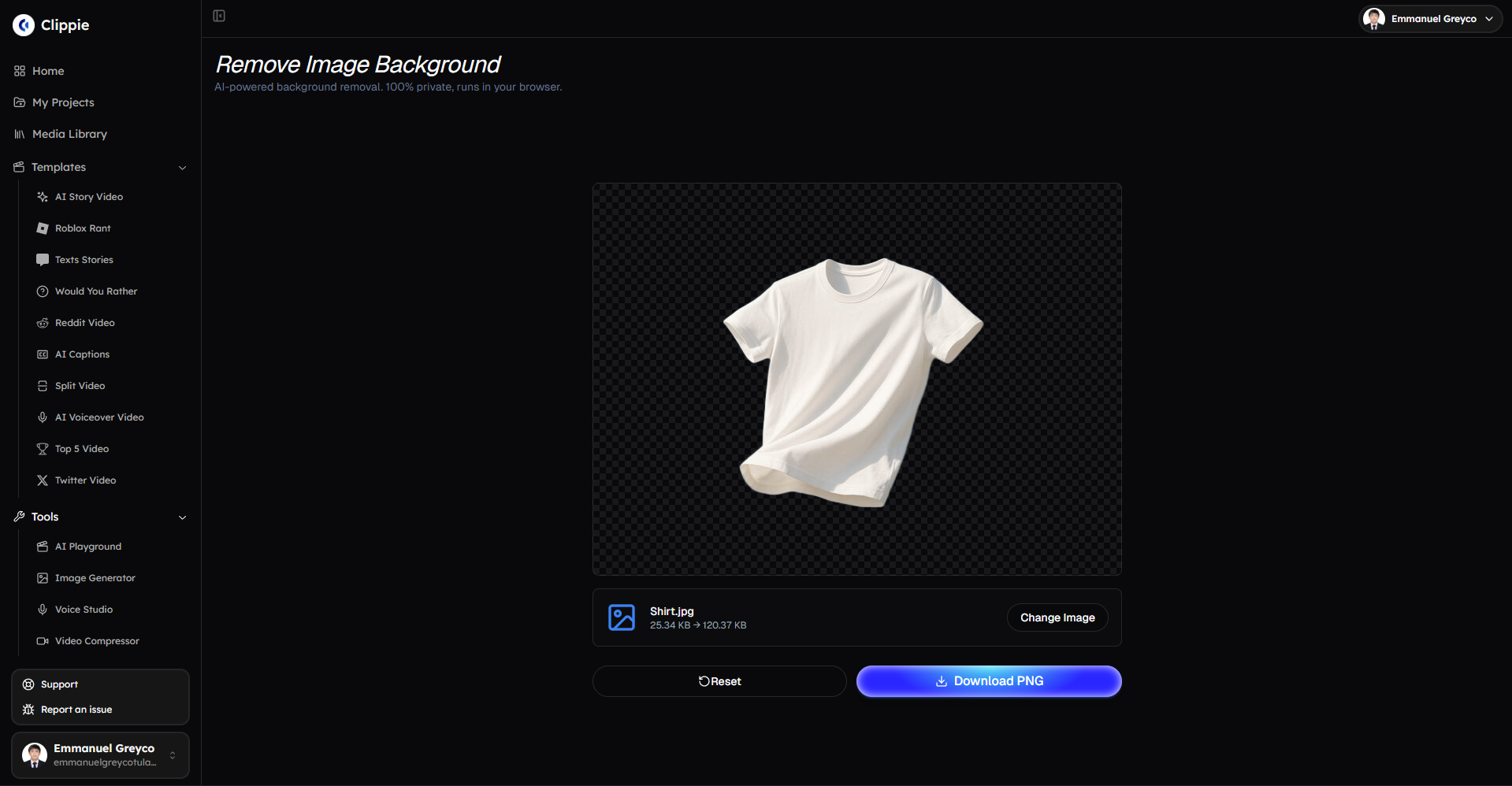
Go to Tools and click Remove Background.
Step 2: Remove the Image Background
Automatically remove the background and keep only the main subject.
Upload your image.
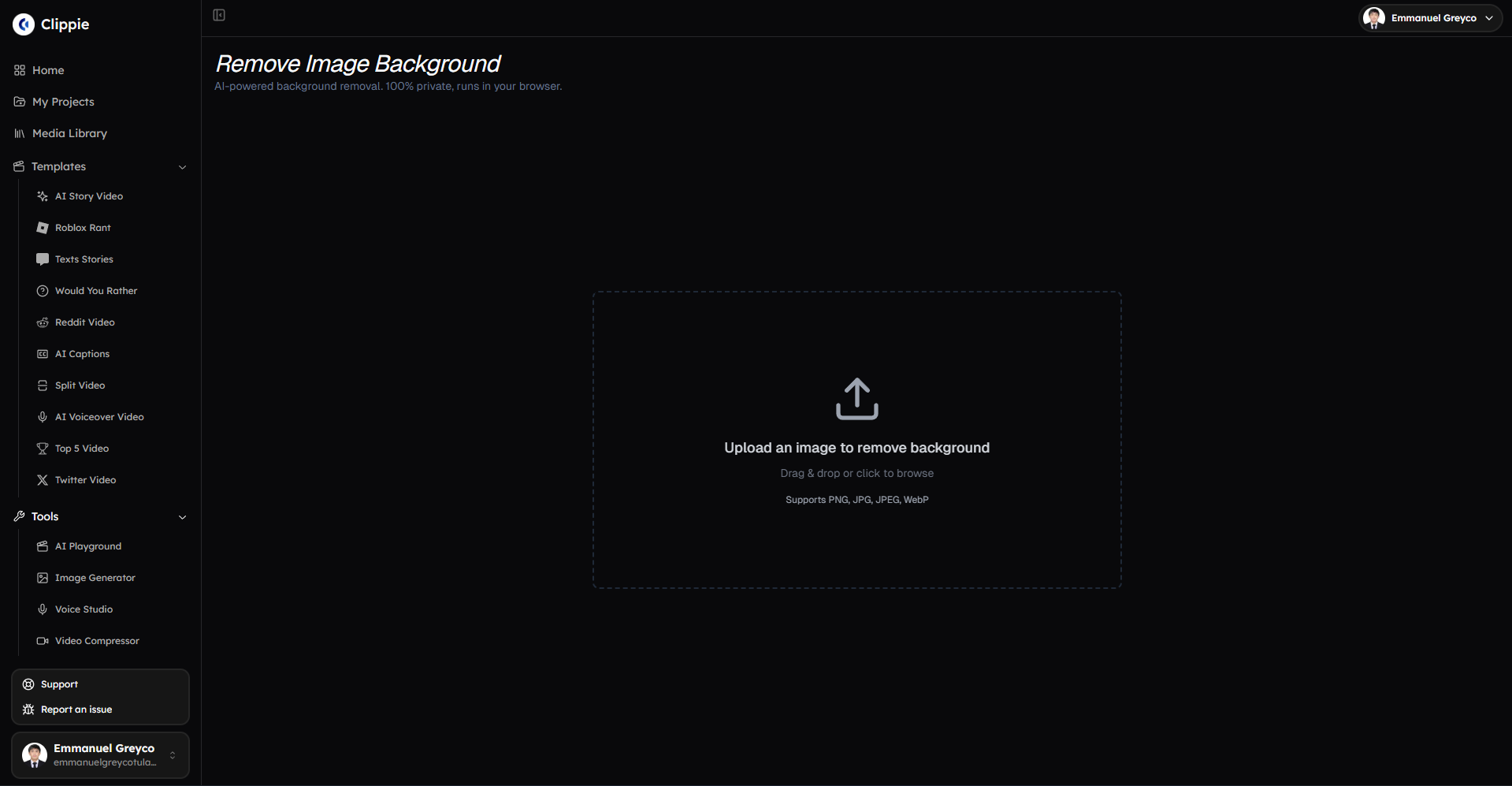
Click Remove Background to process the image.
Step 3: Download Your Image
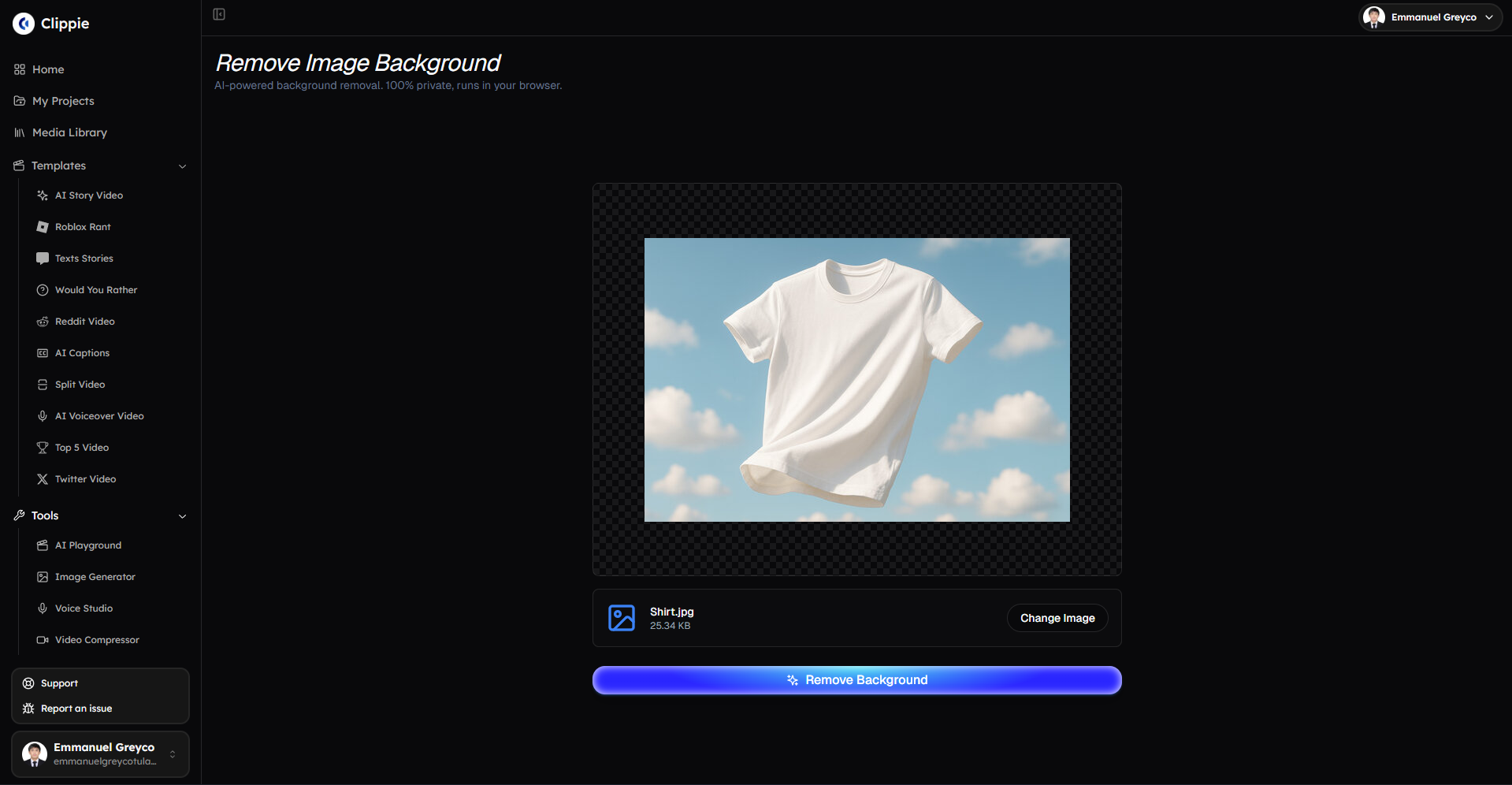
Once the background removal is complete:
Click Download to save your image.
Bonus: Get 1-on-1 Support in Our Discord Community
If you get stuck or want personalized help, join our Discord community. Our team offers 24/7 one-to-one support to help you go viral with your content.
Click me to join our discord community!
FAQs: Using Remove Background
Q: What does the Remove Background tool do? A: It automatically removes the background from an image, leaving only the main subject.
Q: What types of images work best with background removal? A: Images with clear subjects and good contrast from the background produce the cleanest results.
Q: Does removing the background affect image quality? A: No. The tool preserves the original image quality while removing the background.
Q: What can I use background-removed images for? A: They are ideal for thumbnails, overlays, designs, product images, and video content.
Related Blog Posts
How to Replace Image Backgrounds with a Solid Color Using Green Screen (2026 Guide)
How to Convert Videos Easily with Clippie AI (2026 Guide)
How to Create AI Story Videos with Clippie AI (2026 Guide)
Click Me To Start Creating With Clippie AI Now!
Make an AI story video
Write a script or let AI write one. Clippie turns it into a narrated video with AI scenes, voiceover and captions.
Read more

How to Make Top 5 Ranking Videos in 2026 (Step-by-Step)
Build ranking Shorts that can still earn: pick a debatable topic, set clear criteria, source clips you may use, script the countdown, add your commentary.
How to Create Short-Form Videos Using AI: 8 Steps (2026)
A beginner workflow for AI videos on TikTok, Reels and Shorts: pick a format, script a hook, add visuals, voice and captions, export at 9:16, label AI.
7 Free CapCut Alternatives for Short-Form Video (2026)
Compare Edits, YouTube Create, VN, Clipchamp, Canva, DaVinci Resolve and Shotcut: what each gives free users, what it caps first and where it falls short.