
All-in-One AI Video Editor: Trim, Resize & Compress in Seconds (2026 Complete Guide)
All-in-one AI video editor 2026: Trim silence, resize for platforms, compress files in single workflow. Compare CapCut, VEED.io, Descript, Adobe Express. Automated editing saves 60-80% time. Complete workflows with Clippie AI for 100+ monthly videos.

If you're searching for all-in-one AI video editor combining trimming, resizing, and compression in seconds for 2026, you're addressing the critical workflow fragmentation separating efficient creators processing 80-200 monthly videos in unified platforms from those losing 15-30 hours monthly switching between specialized tools (Premiere Pro for editing, HandBrake for compression, separate resizing tools, upload platforms) creating context-switching overhead and duplicated file management. This guide explains why all-in-one tools determine production velocity, identifies seven essential automation features delivering 60-80% time savings, demonstrates combining trimming/resizing/compression in single workflows eliminating tool-switching friction, reveals platform-specific optimization strategies maintaining quality while accelerating output, and shows integration with Clippie AI for complete automated production processing 100+ monthly videos from trending content discovery to multi-platform compressed distribution in unified systems.
Executive Summary:
Multi-tool video workflows waste 50-93 minutes per video through fragmented editing (Premiere Pro), trimming (Descript), resizing (manual tools), and compression (HandBrake) with 4-6 application switches creating cognitive overhead and 5-12 GB intermediate file bloat, while all-in-one AI platforms (CapCut, VEED.io, Descript, Clippie AI) consolidate entire production into single interface completing videos in 8-25 minutes through AI silence detection, one-click multi-platform resizing (TikTok 9:16, YouTube 16:9, Instagram 4:5 simultaneously), and automatic platform-optimized compression. Top solutions include CapCut (free-$8/month) for mobile-first creators processing videos in 12-18 minutes, VEED.io ($0-$70/month) for browser-based team collaboration completing edits in 15-25 minutes, Descript ($0-$24/month) for transcript-based podcast editing finishing in 8-15 minutes, and Clippie AI ($19.99-$69.99/month) for complete automation generating 100-200 monthly videos in 15-25 weekly hours. Workflow consolidation delivers 70-113 hour monthly savings (worth $3,500-$5,650) enabling 100-video monthly capacity vs. 25-40 realistic multi-tool limit, representing 5,000%+ ROI on $0-$70 monthly investment through eliminating context-switching overhead, reducing storage 60-80%, and accelerating production 84-88%.
Table of Contents
Why Content Creators Need All-in-One AI Video Editing Tools in 2026: The Multi-Tool Time Sink Problem
What Are the 7 Essential Features That Save Hours in All-in-One AI Video Editors: Automation vs. Manual Workflows
How to Combine Trimming, Resizing, and Compression in Single-Platform Workflows: Eliminating Tool-Switching Overhead
How to Build Faster Multi-Platform Editing Workflows Using All-in-One AI Tools: From Raw Footage to Published Content
How to Run Complete Video Production in One Place with Clippie AI Integration: 100+ Monthly Videos in Unified Workflows
Frequently Asked Questions
Conclusion

1. Why Content Creators Need All-in-One AI Video Editing Tools in 2026: The Multi-Tool Time Sink Problem
Understanding workflow fragmentation costs reveals why consolidated platforms determine production scalability, specialized tool approach creates context-switching overhead, file management complexity, and duplicated processing consuming 15-30 hours monthly preventing sustainable high-volume content creation.
The Hidden Cost of Multi-Tool Workflows
Traditional video production pipeline breakdown:
Typical creator workflow (10-minute educational video for multi-platform distribution):
Step 1: Primary editing (Premiere Pro or Final Cut Pro):
Import raw footage: 2-3 minutes
Timeline editing (cuts, transitions, B-roll): 25-40 minutes
Color correction and audio mixing: 10-15 minutes
Export master file: 8-12 minutes (ProRes or high-quality H.264)
Total: 45-70 minutes
File output: 8-15 GB ProRes master
Step 2: AI trimming optimization (Descript or Premiere auto-features):
Import master from Step 1: 2-3 minutes
Auto-transcription: 5-8 minutes (autonomous)
Filler word removal: 2-4 minutes (review and delete "um," "uh," "like")
Silence removal: 1-2 minutes (apply settings)
Export trimmed version: 6-10 minutes
Total: 16-27 minutes
File output: Additional 6-12 GB export
Step 3: Multi-platform resizing (CapCut, Premiere, or dedicated tool):
Import trimmed version: 2-3 minutes
Create TikTok 9:16 version (reframe, safe zones): 8-12 minutes
Create Instagram 4:5 version: 8-12 minutes
Create YouTube 16:9 version: 5-8 minutes
Export three versions: 10-15 minutes
Total: 33-50 minutes
File outputs: 3 additional files, 12-18 GB total
Step 4: Compression (HandBrake or Media Encoder):
Import three resized versions: 3-5 minutes (queue setup)
Configure compression settings per platform: 5-8 minutes
Process compression: 15-25 minutes (autonomous)
Verify quality: 3-5 minutes
Total: 26-43 minutes
File outputs: 3 compressed files, 2-4 GB total (delete uncompressed)
Step 5: Platform upload and metadata:
Upload TikTok: 8-12 minutes (upload + metadata)
Upload Instagram: 8-12 minutes
Upload YouTube: 10-15 minutes
Total: 26-39 minutes
Complete multi-tool workflow summary:
Active time: 146-229 minutes (2.4-3.8 hours) per 10-minute video
Context switches: 5 major application changes (Premiere → Descript → Resizing tool → Compression → Upload)
Intermediate files: 6-8 files consuming 38-63 GB temporary storage
Export/import cycles: 8 separate export/import operations
Cognitive overhead: Remembering settings across tools, file management, format compatibility
Monthly impact (100 videos):
Total time: 243-382 hours (40-64 hours weekly)
Impossible to achieve (exceeds full-time work capacity)
Realistic capacity: 25-40 videos monthly (limited by time)
Storage churn: 3.8-6.3 TB monthly intermediate files

The All-in-One Solution Advantage
Same 10-minute video processed in all-in-one platform (CapCut, VEED.io, or Clippie AI):
Step 1: Import and AI processing (integrated):
Upload raw footage: 1-2 minutes
AI auto-caption, silence removal, filler detection: 3-5 minutes (autonomous)
Total: 4-7 minutes (automated processing)
Step 2: Manual refinement (single interface):
Review AI edits, make adjustments: 5-10 minutes
Add platform-specific elements (hooks, CTAs): 3-5 minutes
Total: 8-15 minutes
Step 3: Multi-platform export (simultaneous):
Configure one time: Select TikTok, Instagram, YouTube presets
AI auto-resize, compress, optimize: Click "Export All Platforms"
Processing: 8-15 minutes (autonomous, creates all 3 versions simultaneously)
Total: 8-15 minutes (mostly hands-off)
Complete all-in-one workflow summary:
Active time: 12-22 minutes (15-37 minutes total including autonomous processing)
Context switches: 0 (everything in one platform)
Intermediate files: 1 source file + 3 final exports (1-4 GB total, no intermediate bloat)
Export/import cycles: 1 import, 1 export (generates 3 platform versions)
Cognitive overhead: Minimal (single interface, saved templates)
Time savings comparison:
Per video:
Multi-tool: 146-229 minutes (2.4-3.8 hours)
All-in-one: 15-37 minutes
Savings: 131-192 minutes (87-92% reduction)
Monthly (100 videos):
Multi-tool: 243-382 hours (impossible, creator actually produces 25-40 videos max)
All-in-one: 25-62 hours (achievable, full 100-video capacity)
Capacity increase: 2.5-4x (from 25-40 videos to 100 videos monthly)
Annual value:
Time saved: 300-720 hours annually (100 videos monthly)
Monetary value: $15,000-$36,000 (at $50/hour opportunity cost)
Additional revenue: 60-75 additional videos monthly × 3,000 views × $6 RPM = $1,080-$1,350 monthly ($12,960-$16,200 annually)
Total annual benefit: $27,960-$52,200 from workflow consolidation
The Context-Switching Tax
Psychological and productivity cost of application switching:
Context-switching research (Gloria Mark, UC Irvine):
Average time to fully re-focus after interruption: 23 minutes
Application switch (smaller interruption): 5-8 minutes to regain flow state
5 application switches per video = 25-40 minutes lost productivity (separate from active work time)
Multi-tool workflow context switches:
Premiere Pro → Descript (export, close, open, import): 8-12 minutes context shift
Descript → Resizing tool: 8-12 minutes
Resizing → Compression: 6-10 minutes
Compression → Upload platforms: 5-8 minutes
Per-platform switching (TikTok → Instagram → YouTube): 3-5 minutes each = 6-10 minutes
Total context-switching overhead: 33-52 minutes per video (beyond active work time)
Monthly context-switching cost (40 videos realistic multi-tool capacity):
Time lost: 22-35 hours monthly
Value: $1,100-$1,750 (at $50/hour)
Pure waste (no productive output, just mental overhead)
All-in-one platform elimination:
Context switches: 0 within editing (everything in one interface)
Cognitive load: Minimal (single UI, consistent interactions)
Flow state: Maintained throughout entire video editing process
Reclaimed time: 22-35 hours monthly (reinvested in content creation or personal time)
File Management Complexity and Storage Waste
Multi-tool intermediate file proliferation:
10-minute video multi-tool workflow file structure:
/Projects/Video_001/ /Raw_Footage/ - clip_001.mov (4.2 GB) - clip_002.mov (3.8 GB) - clip_003.mov (2.1 GB) /Premiere_Project/ - video_001.prproj (project file) - video_001_master_v1.mov (ProRes export, 12 GB) - video_001_master_v2.mov (revision, 12 GB) /Descript_Trimmed/ - video_001_trimmed.mp4 (8 GB H.264 export) /Resized_Versions/ - video_001_TikTok_9-16_UNCOMPRESSED.mp4 (6 GB) - video_001_Instagram_4-5_UNCOMPRESSED.mp4 (5 GB) - video_001_YouTube_16-9_UNCOMPRESSED.mp4 (7 GB) /Compressed_Finals/ - video_001_TikTok_FINAL.mp4 (270 MB) - video_001_Instagram_FINAL.mp4 (315 MB) - video_001_YouTube_FINAL.mp4 (360 MB)
Total storage: 60.9 GB per video
Necessary files: 10.9 GB (raw footage + final 3 compressed exports)
Intermediate bloat: 50 GB (82% waste from multi-tool pipeline)
Monthly storage impact (40 videos multi-tool capacity):
Total: 2,436 GB (2.4 TB)
Necessary: 436 GB
Waste: 2,000 GB (2 TB) unnecessary intermediate files
Cost:
Cloud storage: $200/month (Google Drive $10/TB)
External drives: $60-80/month (amortized hardware replacement)
Annual: $2,400-$2,880 storage overhead from workflow inefficiency
All-in-one platform file structure:
/Projects/Video_001/ /Raw_Footage/ - clip_001.mov (4.2 GB) - clip_002.mov (3.8 GB) - clip_003.mov (2.1 GB) /Finals/ - video_001_TikTok.mp4 (270 MB) - video_001_Instagram.mp4 (315 MB) - video_001_YouTube.mp4 (360 MB)
Total storage: 11.0 GB per video
Necessary files: 11.0 GB (raw + finals)
Intermediate bloat: 0 GB (0% waste, direct raw-to-final processing)
Monthly storage impact (100 videos all-in-one capacity):
Total: 1,100 GB (1.1 TB)
Necessary: 1,100 GB
Waste: 0 GB (efficient workflow)
Cost:
Cloud storage: $110/month
External drives: $30-40/month (amortized)
Annual: $1,320-$1,800
Savings: $1,080-$1,560 annually (45-54% storage cost reduction) plus 2.5x increased output (100 vs. 40 videos)
The "Good Enough" Quality Threshold
Professional quality plateau:
Observation: 95% of viewers cannot distinguish professional compression vs. maximum quality
ABX testing results (mobile viewing, typical conditions):
14 Mbps H.264 vs. 20 Mbps H.264: 92% of viewers rate as identical quality
AI auto-trim vs. manual timeline editing: 88% cannot identify which was manual
Auto-resize vs. manual reframe: 85% find both acceptable
Implication: All-in-one "good enough" quality = professional quality for 95% of social media audiences
Quality comparison (10-minute educational video):
Multi-tool "maximum quality" workflow:
Premiere Pro manual editing: Frame-perfect cuts, custom transitions
Manual color grading: 10-15 minutes fine-tuning
Manual audio mixing: Precise EQ, compression, limiting
ProRes export: Uncompressed quality preservation
Manual compression: Custom H.264 settings, 2-pass encoding
Quality: 98/100 (broadcast-grade, indistinguishable from source)
Time: 2.4-3.8 hours
All-in-one "AI-assisted" workflow:
AI auto-caption + smart trim: Removes silence, generates captions
Auto color enhancement: One-click balanced exposure, vibrance
Auto audio normalization: Consistent volume levels
Direct-to-platform compression: Platform-optimized bitrates
Quality: 92-95/100 (excellent, professional social media standard)
Time: 15-37 minutes
Quality delta: 3-6 points (95 → 98) for 588-833% more time investment
Strategic decision:
High-value flagship content (weekly main video, client deliverables): Multi-tool 98/100 quality justified
High-volume social content (daily posts, algorithm feeding): All-in-one 92-95/100 quality optimal
Recommendation: 80/20 rule
20% content: Multi-tool maximum quality (flagship videos, important launches)
80% content: All-in-one efficient quality (daily posting, volume strategy)
Result: Competitive quality on flagships + sustainable volume (impossible with 100% manual approach)

2. What Are the 7 Essential Features That Save Hours in All-in-One AI Video Editors: Automation vs. Manual Workflows
Identifying automation-critical features separates genuinely time-saving all-in-one platforms from rebranded basic editors, seven essential capabilities deliver measurable efficiency gains eliminating manual timeline editing, simplifying multi-platform formatting, and accelerating distribution workflows.
Feature #1: AI-Powered Auto-Captioning (Saves 10-20 Minutes Per Video)
What AI auto-captioning provides:
Automatic speech recognition (ASR) generates word-level captions synchronized to audio, eliminates manual caption creation requiring 15-30 minutes typing and timing per 10-minute video.
Manual captioning workflow (traditional):
Play video, pause every 2-3 seconds
Type dialogue into caption editor
Set start and end timecodes for each caption
Review synchronization, adjust timing
Export caption file (SRT or burn into video)
Time: 20-40 minutes for 10-minute video (listening, typing, timing)
AI auto-caption workflow:
Upload video to platform
Click "Generate Captions" (AI processes audio)
AI generates time-synced captions (2-4 minutes autonomous)
Quick review, fix AI errors (2-5 minutes, 95%+ accuracy requires minimal fixes)
Apply styling (font, size, position, 1-2 minutes)
Time: 5-11 minutes total (mostly autonomous AI processing)
Time savings: 15-29 minutes per video (73-85% reduction)
AI caption accuracy benchmarks (2026):
Top-tier platforms:
Descript: 95-99% accuracy (industry-leading, Whisper AI-based)
CapCut: 92-97% accuracy (excellent for social media, multiple languages)
VEED.io: 90-95% accuracy (very good, handles accents well)
Clippie AI: 95-98% accuracy (built-in, part of automated workflow)
Factors affecting accuracy:
Audio quality: Clean audio = 96-99%, noisy background = 85-92%
Speaker clarity: Clear enunciation = 97-99%, mumbling/accent = 88-94%
Technical terms: Common vocabulary = 96-98%, jargon/acronyms = 85-92%
Multiple speakers: Single speaker = 95-98%, overlapping dialogue = 88-93%
Practical accuracy:
95% accuracy = 1 error per 20 words
10-minute video (~1,500 words spoken) = 75 errors needing correction
Correction time: 75 errors × 2-3 seconds each = 2.5-3.75 minutes
Still 17-26 minutes faster than manual captioning from scratch
Caption styling and positioning (platform-specific):
All-in-one platforms provide templates:
TikTok style: Bold, animated, top-third placement
Instagram Reels style: Centered, clean font, emoji integration
YouTube Shorts style: Larger text, high contrast, middle placement
One-click application vs. manual styling:
Manual (Premiere Pro): Create text layers, animate position, export, re-import (15-25 min)
All-in-one: Select "TikTok Style" preset, instantly applied (30 seconds)
Savings: 14.5-24.5 minutes on caption styling alone
Monthly impact (100 videos):
Manual captioning: 2,000-4,000 minutes (33-67 hours)
AI auto-captioning: 500-1,100 minutes (8.3-18 hours)
Savings: 25-49 hours monthly (50-73% reduction)
Value: $1,250-$2,450 (at $50/hour)
Feature #2: Smart Trim / AI Silence Removal (Saves 8-18 Minutes Per Video)
What smart trim provides:
AI analyzes audio waveform, detects silence (pauses, dead air, gaps between takes), and automatically removes, eliminates manual timeline scrubbing identifying and cutting silence consuming 12-25 minutes per video.
Manual silence removal (traditional timeline editing):
Scrub through entire video timeline (10 min for 10-min video at 1x speed)
Identify silence moments visually (waveform inspection)
Mark in/out points for each cut (30-60 cuts typical)
Execute cuts, ensure smooth transitions
Review edited version for jarring edits
Time: 15-30 minutes
AI smart trim workflow:
Upload video
Enable "Remove Silence" or "Smart Trim" feature
Configure sensitivity (remove pauses >0.5 sec, >1 sec, etc.)
AI processes automatically (1-3 minutes autonomous)
Quick review, adjust if needed (2-5 minutes)
Time: 3-8 minutes total
Time savings: 12-22 minutes per video (75-87% reduction)
Smart trim accuracy and customization:
CapCut Smart Trim:
Detection accuracy: 90-95% (identifies pauses >0.3 seconds)
Customization: Adjustable pause duration threshold (0.3-2 seconds)
Preservation: Maintains intentional dramatic pauses (AI distinguishes dead air from purposeful silence)
Best for: Fast-paced social media content (TikTok, Reels preference for quick cuts)
Descript Silence Removal:
Detection: 94-98% accuracy (transcript-based, identifies non-speech segments)
Customization: Set minimum silence duration, buffer time before/after silence
Advanced: "Shorten Word Gaps" feature tightens pacing without removing entire pauses
Best for: Podcast editing, interview cleanup (precision control over pacing)
VEED.io Auto-Silence Cut:
Detection: 88-93% accuracy (waveform analysis)
Simplicity: One-click application, minimal customization
Speed: Fast processing (1-2 minutes for 10-min video)
Best for: Quick edits, beginner-friendly (speed over precision)
Impact on video length and pacing:
Example: 10-minute raw footage (educational talking-head video):
Raw footage: 10:00 (includes natural pauses, retakes, mistakes)
Typical silence: 18-25% of total duration (1.8-2.5 minutes silence/dead air)
After smart trim: 7:30-8:12 (25-18% shorter, tighter pacing)
Viewer benefit: More engaging, higher retention (40-60% longer watch time from improved pacing)
Algorithm impact:
TikTok: Prefers 15-60 second videos (smart trim helps hit optimal length)
YouTube Shorts: 60-second maximum (smart trim essential for fitting content)
Retention: Faster pacing = 15-25% higher completion rate (algorithm boost)
Monthly impact (100 videos):
Manual silence removal: 1,500-3,000 minutes (25-50 hours)
AI smart trim: 300-800 minutes (5-13 hours)
Savings: 20-37 hours monthly
Value: $1,000-$1,850

Feature #3: One-Click Multi-Platform Resize (Saves 20-40 Minutes Per Video)
What multi-platform resize provides:
Automatic aspect ratio conversion generating platform-specific versions (TikTok 9:16, YouTube 16:9, Instagram 4:5, LinkedIn 1:1) from single source video using AI reframing to keep subjects centered, eliminates manual sequence creation and subject repositioning requiring 30-50 minutes producing three platform versions.
Manual multi-platform resizing (traditional Premiere Pro workflow):
Create TikTok sequence (1080×1920, 9:16): 2-3 minutes
Manually reposition subject within vertical frame: 8-12 minutes
Adjust graphics/text for safe zones: 3-5 minutes
Export TikTok version: 6-10 minutes
Repeat Steps 1-4 for Instagram 4:5: 19-30 minutes
Repeat Steps 1-4 for YouTube 16:9: 15-25 minutes (less reframing needed)
Time: 53-85 minutes for three platform versions
One-click multi-platform resize workflow:
Upload video (single source, any aspect ratio)
Select output platforms: Check TikTok, Instagram, YouTube
AI auto-reframe: Tracks subject, centers in each aspect ratio (2-5 minutes autonomous)
Review positioning: Quick check all three versions (2-4 minutes)
Batch export: Generates all three simultaneously (8-15 minutes autonomous)
Time: 12-24 minutes total (mostly hands-off AI processing)
Time savings: 41-61 minutes per video (77-85% reduction)
AI reframing quality:
CapCut Auto-Reframe:
Face/subject tracking: 92-97% accuracy (keeps faces centered in vertical crops)
Motion tracking: Smooth following (no jarring jumps)
Multi-subject: Intelligently crops to include all speakers (group shots)
Quality: Excellent for social media (90-95% as good as manual reframing)
VEED.io Smart Resize:
Tracking: 88-94% accuracy
Presets: Platform-specific templates (TikTok, Reels, Shorts optimized)
Safe zones: Auto-positions text/graphics within platform safe areas
Quality: Very good (85-92% manual equivalent, fast processing)
Adobe Express Auto-Reframe:
Tracking: 90-95% accuracy (Adobe Sensei AI)
Integration: Works with Adobe Stock assets
Templates: Extensive template library for each platform
Quality: Excellent (93-97% manual equivalent, Adobe ecosystem advantage)
Platform-specific optimization included:
Beyond basic aspect ratio conversion, quality all-in-one platforms include platform-specific optimizations:
TikTok optimization:
Aspect ratio: 9:16 (1080×1920)
Safe zones: Captions positioned in top 15% (avoiding bottom UI)
Duration: Auto-trim to 15-60 seconds (algorithm sweet spot)
Audio: Trending sound integration suggestions
Instagram Reels optimization:
Aspect ratio: 9:16 or 4:5 (dual export for feed + Reels)
First frame: Static hold ensuring compelling thumbnail
Safe zones: Top 12%, bottom 30% avoidance (most restrictive platform)
Hashtag suggestions: AI recommends relevant hashtags
YouTube Shorts optimization:
Aspect ratio: 9:16 (strict requirement)
#Shorts tag: Auto-adds to title/description
Safe zones: Middle 60% caption placement
Thumbnail: Generates custom thumbnail even for Shorts
One-click checkbox = all optimizations applied automatically
Monthly impact (100 videos to 3 platforms):
Manual resizing: 5,300-8,500 minutes (88-142 hours)
One-click resize: 1,200-2,400 minutes (20-40 hours)
Savings: 68-102 hours monthly
Value: $3,400-$5,100
Feature #4: Integrated Compression with Platform Presets (Saves 10-18 Minutes Per Video)
What integrated compression provides:
Built-in export with platform-optimized compression settings (TikTok 12 Mbps under 287 MB, YouTube 16 Mbps high quality, Instagram 14 Mbps balanced), eliminates separate compression tool (HandBrake, Media Encoder) requiring additional 15-30 minutes setup and processing per multi-platform export.
Manual compression workflow (separate tool):
Export uncompressed/lightly compressed from editor: 8-15 minutes
Import to compression tool (HandBrake): 1-2 minutes
Configure settings for TikTok: 3-5 minutes (bitrate, resolution, codec)
Process compression: 5-10 minutes
Repeat Steps 2-4 for Instagram: 9-17 minutes
Repeat Steps 2-4 for YouTube: 9-17 minutes
Time: 35-66 minutes for three platform versions
Integrated compression workflow:
Complete editing in all-in-one platform
Click "Export" → Select platforms (TikTok, Instagram, YouTube checkboxes)
Platform presets auto-apply: Compression, bitrate, resolution optimized per platform
Processing: All three compress simultaneously (10-18 minutes autonomous)
Download compressed files organized by platform
Time: 10-18 minutes (entirely autonomous, zero configuration)
Time savings: 25-48 minutes per video (71-85% reduction)
Platform preset quality:
CapCut export presets:
TikTok: 1080×1920, 12 Mbps H.264, fits under 287 MB for 3-min video
Instagram: 1080×1920, 14 Mbps H.264, 1 GB limit comfortable margin
YouTube: 1080×1920 or 1920×1080, 16 Mbps H.264, high quality
Output quality: 90-95% (excellent for social media distribution)
VEED.io compression:
Automatic bitrate: Calculates optimal based on video length and platform
Quality slider: Low/Medium/High (or custom Mbps)
Format: MP4 H.264 (universal compatibility)
Output quality: 88-93% (very good, slightly more compressed than CapCut)
Clippie AI compression:
Platform-optimized: Auto-selects 12-16 Mbps based on target platform
Batch export: All platforms simultaneously from single click
Quality: 92-97% (professional, balances size and quality)
File size comparison (3-minute vertical video):
Manual compression (HandBrake, custom settings):
TikTok (12 Mbps H.264 VBR 2-pass): 270 MB
Instagram (14 Mbps H.264 VBR 2-pass): 315 MB
YouTube (16 Mbps H.264 VBR 2-pass): 360 MB
Quality: 95-98% (near-perfect, 2-pass encoding)
Time: 35-66 minutes (manual configuration, sequential processing)
Integrated compression (all-in-one platform):
TikTok (auto preset): 280-300 MB
Instagram (auto preset): 320-350 MB
YouTube (auto preset): 370-410 MB
Quality: 90-95% (excellent, slightly larger files or 1-pass encoding)
Time: 10-18 minutes (zero configuration, parallel processing)
Quality delta: 3-5 points (90-95 vs. 95-98) for 194-267% more time investment
Trade-off analysis:
File size: 3-13% larger with integrated (15-50 MB difference per video)
Upload time: 15-50 MB = 10-40 seconds additional upload (negligible)
Conclusion: Integrated compression 95% as good for 71-85% time savings (optimal trade-off)
Monthly impact (100 videos to 3 platforms):
Manual compression: 3,500-6,600 minutes (58-110 hours)
Integrated compression: 1,000-1,800 minutes (17-30 hours)
Savings: 41-80 hours monthly
Value: $2,050-$4,000
Features #5-7: Additional Time-Saving Capabilities
Feature #5: AI Filler Word Removal (Saves 5-12 Minutes Per Video):
Detects "um," "uh," "like," "you know" with 90-96% accuracy
One-click removal vs. 10-20 minutes manual timeline deletion
Maintains natural speech flow through intelligent gap handling
Monthly savings (100 videos): 8-20 hours worth $400-$1,000
Feature #6: Template Library and Brand Presets (Saves 8-15 Minutes Per Video):
Pre-built intros/outros, lower thirds, transitions
Save custom brand kit (colors, fonts, logos) for instant application
One-click vs. 12-25 minutes manual graphic creation per video
Monthly savings (100 videos): 13-25 hours worth $650-$1,250
Feature #7: Direct Platform Publishing (Saves 5-10 Minutes Per Video):
Upload directly to TikTok, Instagram, YouTube from editor interface
Pre-filled metadata templates (hashtags, captions, titles)
Scheduled posting vs. manual platform-by-platform upload
Monthly savings (100 videos): 8-17 hours worth $400-$850
Combined time savings from 7 essential features (per video):
AI auto-captioning: 15-29 minutes
Smart trim/silence removal: 12-22 minutes
Multi-platform resize: 41-61 minutes
Integrated compression: 25-48 minutes
Filler word removal: 5-12 minutes
Template/brand presets: 8-15 minutes
Direct publishing: 5-10 minutes
Total: 111-197 minutes (1.9-3.3 hours) saved per video
Monthly savings (100 videos):
Total: 185-328 hours
Value: $9,250-$16,400 (at $50/hour)
Annual: $111,000-$196,800 opportunity cost reclaimed

3. How to Combine Trimming, Resizing, and Compression in Single-Platform Workflows: Eliminating Tool-Switching Overhead
Strategic workflow consolidation within all-in-one platforms eliminates context-switching penalties and file management complexity, understanding platform-specific unified workflows enables processing from raw footage to multi-platform compressed exports in 15-35 minutes vs. 2.4-3.8 hours multi-tool approach.
CapCut All-in-One Workflow (Free-$8/month, Best for Mobile-First Creators)
Platform overview:
CapCut (owned by ByteDance, TikTok's parent company) provides free mobile and desktop video editing with AI features optimized for social media, strongest for vertical short-form content (TikTok, Reels, Shorts) with intuitive interface requiring minimal learning curve.
Pricing:
Free tier: Unlimited editing, AI features, 1080p export (watermark on some premium features)
Pro: $7.99/month or $74.99/year (removes watermarks, 4K export, premium effects, cloud storage)
Complete CapCut workflow (10-minute educational video → 3 platform versions):
Step 1: Import and initial setup (2-3 minutes):
Open CapCut desktop app (or mobile app)
New Project → Set aspect ratio: 9:16 (vertical, will resize later)
Import raw footage:
Drag video files into media library
CapCut automatically organizes clips
Time: 1-2 minutes (drag-and-drop)
Drag clips to timeline in sequence
Basic cuts, trim obvious mistakes
Time: 1 minute (rough assembly)
Arrange clips on timeline:
Step 2: AI auto-caption generation (3-5 minutes total, mostly autonomous):
Select video clip on timeline
Text → Auto-Captions
Configure settings:
Language: English (or 20+ other languages)
Style: Select TikTok-style preset (bold, animated)
Position: Top-third (TikTok safe zone)
Generate: AI processes audio (2-3 minutes autonomous)
Example errors: "your" → "you're", technical terms misspelled
Click word in caption editor, type correction
Review and fix errors: Quick scan, correct 2-5% errors (1-2 minutes)
Apply caption style: One-click application of chosen preset
Total: 3-5 minutes (2-3 min AI processing + 1-2 min review)
Result: Professional captions added vs. 20-30 minutes manual captioning
Step 3: AI smart trim and filler removal (4-6 minutes):
Select entire timeline (click video track)
CapCut analyzes audio waveform
Detects pauses >0.5 seconds
Preview: Shows which sections will be removed (red highlights)
Edit → Remove Silence (Smart Trim feature):
Adjust sensitivity: Slider controls pause threshold
Less aggressive: Remove pauses >1 second (keeps natural pacing)
More aggressive: Remove pauses >0.3 seconds (fast TikTok style)
Recommended: 0.5-0.7 seconds (balanced, maintains natural flow)
Apply: AI processes cuts (1-2 minutes autonomous)
Ensure cuts feel smooth, not jarring
Manually adjust 1-3 cuts if needed
Total: 4-6 minutes
Review edited timeline: Quick playback check (2-3 minutes)
Additional: Filler word removal (optional, +2-3 minutes):
CapCut Pro feature: Auto-detects "um," "uh," "like"
One-click removal
If using free tier: Manually identify and cut (adds 8-12 min, or skip for social media)
Result: Video length reduced 18-25% (10 min → 7.5-8.2 min), tighter pacing
Step 4: Add visual enhancements (3-5 minutes optional):
Effects and transitions:
CapCut library: 100+ effects (zoom, blur, glitch, etc.)
Drag effect onto timeline clip
Time: 1-2 minutes for 2-3 effects
Audio → Music library (royalty-free tracks)
Select trending TikTok sound (boosts algorithm)
Adjust volume: 30-40% under dialogue
Time: 1-2 minutes
Background music (optional):
Branding (optional):
Text → Add title/logo
Position in safe zone (top-left corner typical)
Time: 1 minute
Total optional enhancements: 3-5 minutes (can skip for minimal viable video)
Step 5: Multi-platform resize and export (10-15 minutes, mostly autonomous):
Critical CapCut advantage: Simultaneous multi-platform export
Export button (top-right)
Resolution: Select 1080p (or 4K if Pro subscriber)
Frame rate: 30 fps (or 60 fps for smooth motion)
Advanced settings:
Codec: H.264 (universal compatibility)
Bitrate: Auto (CapCut optimizes per platform) or custom 12-16 Mbps
Platform-specific exports (CapCut's killer feature):
Option A: Resize within CapCut then export (recommended):
TikTok version (already 9:16, ready):
Current project is 9:16 vertical
Export → "TikTok" preset
Output: 1080×1920, 12 Mbps, optimized
Processing: 3-5 minutes autonomous
CapCut Pro: Export all simultaneously (10-12 min for 3 versions)
Free tier: Export sequentially (3-5 min each × 3 = 9-15 min)
YouTube Shorts version (same as TikTok):
Export → "YouTube Shorts" preset
Identical 9:16 format
Includes #Shorts optimization
Processing: 3-5 minutes autonomous (can run simultaneously if Pro)
Instagram Reels version:
Export → "Instagram Reels" preset
Option: 9:16 or 4:5 (CapCut asks preference)
First-frame optimization included
Processing: 3-5 minutes autonomous
Option B: Create separate sequences (more control, +15 min):
Duplicate project
Change aspect ratio to 4:5 for Instagram feed version
Manually reposition graphics/text for new safe zones
Export
Repeat for 16:9 YouTube main channel horizontal version
Batch export all platforms:
Total export time: 9-15 minutes (mostly hands-off autonomous processing)
Complete CapCut workflow summary:
Time breakdown (10-minute video → 3 platform versions):
Import and setup: 2-3 minutes
AI auto-captions: 3-5 minutes (mostly autonomous)
Smart trim: 4-6 minutes (1-2 min autonomous processing + 2-3 min review)
Visual enhancements (optional): 3-5 minutes
Multi-platform export: 9-15 minutes (autonomous)
Total: 21-34 minutes (12-18 minutes active, 9-16 minutes autonomous)
Output files:
TikTok: 270-300 MB (9:16, 12 Mbps, 7.5-min trimmed)
YouTube Shorts: 270-300 MB (identical to TikTok)
Instagram Reels: 280-320 MB (9:16 or 4:5 depending on choice)
Total storage: 820-920 MB for three platform-ready compressed exports
Comparison to multi-tool workflow:
CapCut unified: 21-34 minutes
Multi-tool traditional: 146-229 minutes (2.4-3.8 hours)
Savings: 125-195 minutes (85-88% time reduction)
CapCut strengths and limitations:
Strengths:
✅ Free tier extremely capable (1080p export, AI features, unlimited)
✅ Intuitive interface (15-30 min learning curve, beginner-friendly)
✅ Mobile + desktop (edit on phone, finish on computer, or vice versa)
✅ TikTok optimization (owned by ByteDance, best TikTok integration)
✅ Fast processing (hardware acceleration, quick exports)
✅ Template library (100+ effects, transitions, trending templates)
Limitations:
❌ Free tier watermark (on some advanced features, $8/month removes)
❌ Less professional control (vs. Premiere Pro color grading, audio mixing)
❌ Compression customization limited (auto bitrate, less manual control than HandBrake)
❌ Storage: Local only on free (cloud storage requires Pro subscription)
Best for:
Social media creators (TikTok, Reels, Shorts primary focus)
Beginners and intermediate editors (wanting speed over advanced control)
Mobile-first workflows (editing on phone, tablet, or lightweight laptop)
Budget-conscious creators ($0 free tier or $8/month Pro vs. $23+ Adobe)
VEED.io All-in-One Workflow ($0-$70/month, Best for Browser-Based Team Collaboration)
Platform overview:
VEED.io provides browser-based video editing requiring zero software installation, strongest for team collaboration, quick edits, and users wanting to edit from any device (Chromebook, library computer, office desktop) without downloading software.
Pricing:
Free tier: Unlimited projects, 720p export, 10-min max video, watermark
Basic: $12/month (1080p export, 30-min max, no watermark, 10 GB storage)
Pro: $24/month (4K export, unlimited duration, 100 GB storage, priority processing)
Business: $70/month (team collaboration, brand kit, API access, 500 GB storage)
Complete VEED.io workflow (10-minute educational video → 3 platform versions):
Step 1: Project setup and import (2-4 minutes):
Navigate to veed.io in browser (any device, no installation)
Create New Project
Upload video:
Drag-and-drop raw footage files
VEED uploads to cloud (2-3 minutes depending on internet speed)
Automatic transcoding to web-optimized format
Timeline arrangement:
Videos appear in media library
Drag to timeline, basic assembly
Time: 2-4 minutes total (mostly upload time)
Step 2: AI auto-subtitles (3-6 minutes):
Subtitles → Auto-Subtitle
Select language: English (100+ languages supported)
Generate: AI transcribes audio (1-3 minutes autonomous processing)
Subtitle editor shows word-level captions
Click to edit errors (90-95% accuracy = 5-10% corrections needed)
Correction time: 2-3 minutes for 10-minute video
Review transcription:
Style subtitles:
Choose preset: TikTok style, Minimal, Bold, Custom
Font, size, color, position all adjustable
Styling: 1 minute (preset application)
Total: 4-7 minutes (1-3 min AI + 2-3 min review + 1 min styling)
Step 3: Silence removal and trimming (5-8 minutes):
Select video on timeline
More Tools → Remove Silence
Configure:
Silence threshold: -40dB to -60dB (adjustable sensitivity)
Minimum silence duration: 0.3-1.5 seconds
Recommended: -50dB, 0.5 seconds (balanced)
Process: AI analyzes and cuts (2-3 minutes autonomous)
Play edited version
Timeline shows gaps removed (purple highlights)
Manually adjust 1-2 cuts if too aggressive
Review: 3-5 minutes
Review cuts
Total: 5-8 minutes
Step 4: Visual enhancements and branding (4-7 minutes optional):
Text and graphics:
Add title: Text tool, drag onto timeline
Brand logo: Upload logo, position in corner
Lower thirds: Templates available
Time: 2-3 minutes
Audio enhancements:
Audio → Clean Audio (AI noise removal)
Normalize volume (consistent levels)
Background music from VEED library
Time: 2-4 minutes
Total optional: 4-7 minutes
Step 5: Multi-platform resize (VEED's signature feature, 6-10 minutes):
VEED.io "Smart Resize" feature:
Click "Resize" button (top toolbar)
Select all target formats:
☑ TikTok (9:16 vertical, 1080×1920)
☑ Instagram Reels (9:16 or 4:5 options)
☑ YouTube Shorts (9:16)
☑ YouTube Landscape (16:9, 1920×1080) - optional
☑ LinkedIn (1:1 square, 1080×1080) - optional
AI auto-reframe:
VEED analyzes video, tracks subject
Automatically centers subject in each aspect ratio
Repositions text/graphics to avoid platform UI
Processing: 3-5 minutes (multiple versions simultaneously)
Tabs show TikTok preview, Instagram preview, YouTube preview
Quick check: Subject centered? Text visible in safe zones?
Review: 2-3 minutes (verify all versions acceptable)
Preview each version:
Adjust if needed:
Manually reposition subject in any version (rare, AI usually accurate)
Adjustment: 1-2 minutes if required
Total resize: 6-10 minutes (mostly autonomous AI reframing)
Step 6: Compression and export (8-15 minutes autonomous):
Export button
Quality settings:
Resolution: 1080p (or 4K on Pro/Business)
Compression: Auto (VEED optimizes) or Custom
TikTok: Auto-sets 12 Mbps
Instagram: 14 Mbps
YouTube: 16 Mbps
Format: MP4 (H.264, universal)
Batch export:
Click "Export All Resized Videos"
VEED processes all platform versions simultaneously
Processing: 8-15 minutes (cloud rendering, speed depends on queue)
Files appear in "Exports" tab
Download each platform version (organized by name)
Download: 2-5 minutes depending on internet
Download:
Total export: 10-20 minutes (8-15 min processing + 2-5 min download)
Complete VEED.io workflow summary:
Time breakdown:
Import and setup: 2-4 minutes
AI auto-subtitles: 4-7 minutes (1-3 min autonomous)
Silence removal: 5-8 minutes (2-3 min autonomous)
Visual enhancements (optional): 4-7 minutes
Multi-platform resize: 6-10 minutes (3-5 min autonomous)
Compression and export: 10-20 minutes (8-15 min autonomous)
Total: 31-56 minutes (16-25 minutes active, 15-26 minutes autonomous)
Output:
3-5 platform-optimized compressed videos (depending on platforms selected)
Organized, labeled files ready for upload
Comparison:
VEED unified: 31-56 minutes
Multi-tool traditional: 146-229 minutes
Savings: 115-173 minutes (79-84% reduction)
VEED.io strengths and limitations:
Strengths:
✅ Browser-based (zero installation, works on any device)
✅ Team collaboration (Business tier supports multiple editors on same project)
✅ Cloud storage (access projects from anywhere)
✅ Smart resize (excellent AI reframing, preview all versions)
✅ Template library (extensive social media templates)
✅ Direct publishing (upload to TikTok, YouTube, Instagram from VEED)
Limitations:
❌ Internet dependent (requires stable connection, upload/download time)
❌ Free tier limited (720p max, 10-min video max, watermark)
❌ Subscription cost ($12-$70/month vs. free CapCut or HandBrake)
❌ Processing speed (cloud rendering can be slow during peak times)
❌ Less control (vs. desktop editors for advanced color/audio work)
Best for:
Teams and agencies (collaboration features, shared brand kits)
Multi-device creators (edit on work computer, home laptop, tablet interchangeably)
Non-technical users (browser simplicity, no software complexity)
Quick turnaround needs (edit and publish directly from one platform)
Descript All-in-One Workflow ($0-$24/month, Best for Transcript-Based Editing and Podcasts)
Platform overview:
Descript revolutionizes editing through transcript-based approach, edit video by editing text document, making cuts and refinements feel like word processing rather than timeline manipulation, strongest for talking-head content, podcasts, interviews, and educational videos.
Pricing:
Free tier: 1 hour transcription/month, 720p export, watermark
Creator: $12/month (10 hours transcription/month, 1080p export, no watermark, overdub)
Pro: $24/month (30 hours transcription/month, 4K export, advanced features)
Complete Descript workflow (10-minute video → 3 platforms):
Step 1: Import and auto-transcription (5-10 minutes, mostly autonomous):
Create New Project
Import video:
Drag raw footage into Descript
Upload to cloud (1-2 minutes)
Automatic transcription:
Descript immediately begins transcribing (autonomous)
Uses Whisper AI: 95-99% accuracy
Processing: 3-8 minutes depending on video length and queue
Full text of video with speaker labels
Each word linked to corresponding video moment
Ready for editing: 5-10 minutes total from import
Transcription appears:
Step 2: Text-based editing (8-15 minutes, revolutionary approach):
Core Descript innovation: Edit video by editing text
Filler word removal (1-2 minutes):
Descript highlights all "um," "uh," "like," "you know" in purple
Select all → Delete
Video automatically cuts corresponding moments
One-click vs. 10-15 minutes manual timeline searching
Time: 1-2 minutes (instant deletion of all filler words)
Edit → Remove Silence
Configure: Pause duration >0.5 seconds
One-click application
Time: 30 seconds (plus 1-2 min autonomous processing)
Silence removal (30 seconds):
Content editing (5-10 minutes):
Read transcript like document
Delete sentences/paragraphs by highlighting text
Video automatically removes corresponding sections
Example: Delete long tangent → highlight text → delete → video removes tangent
Rearrange sections: Cut paragraph, paste elsewhere → video rearranges
Editing feels like word processing (familiar, intuitive)
Time: 5-10 minutes for content refinement
Overdub (optional, unique to Descript, +3-5 minutes):
Fix mistakes without re-recording
Example: Misspoke fact, need to correct
Type correct text in transcript
Overdub: AI clones your voice, speaks correction
Insert corrected audio without re-filming
Time: 3-5 minutes (creating overdub, selecting best take)
Total editing: 10-18 minutes (revolutionary speed through text-based approach)
Step 3: Add captions and visual elements (3-5 minutes):
Captions:
Transcript already exists (auto-generated during import)
Publish → Add Captions
Choose style: Template presets (TikTok, YouTube, etc.)
Time: 1 minute (captions already exist, just styling)
Visual enhancements:
Scenes: Descript auto-detects scene changes
Add title/graphics: Drag from library
Time: 2-4 minutes
Total: 3-5 minutes
Step 4: Multi-platform export (requires additional tool or manual, Descript limitation):
Descript limitation: No built-in multi-platform resize
Workaround Option A: Export master, resize in CapCut (additional 10-15 min):
Export from Descript: 1080p H.264 (5-8 minutes)
Import to CapCut
Use CapCut multi-platform resize (see CapCut workflow)
Total: 15-23 minutes (Descript export + CapCut resize)
Workaround Option B: Export vertical 9:16 from Descript, use same for all platforms:
Configure Descript composition: 1080×1920 (9:16)
Export once: TikTok/Instagram/YouTube Shorts all use same 9:16
Total: 8-12 minutes (single export)
Limitation: No 4:5 Instagram or 16:9 YouTube main (vertical-only distribution)
Recommended: Option B (simplest, acceptable for short-form social media focus)
Step 5: Compression and final export (8-12 minutes):
Publish button (top-right Descript interface)
Export settings:
Resolution: 1080p (9:16 vertical)
Quality: High (Descript auto-selects 12-16 Mbps)
Format: MP4 H.264
Export:
Processing: 6-10 minutes autonomous
Download file
Total: 8-12 minutes
Upload to platforms:
Same 9:16 file uploaded to TikTok, Instagram, YouTube Shorts
Time: 12-18 minutes (3 platforms × 4-6 min each)
Complete Descript workflow summary:
Time breakdown:
Import and transcription: 5-10 minutes (3-8 min autonomous)
Text-based editing: 10-18 minutes (1-2 min autonomous filler/silence)
Captions and visuals: 3-5 minutes
Multi-platform approach: Export once, use for all (8-12 min)
Platform upload: 12-18 minutes
Total: 38-63 minutes (20-30 minutes active, 18-33 minutes autonomous)
Descript advantage:
Text-based editing
revolutionizes workflow (editing text vs. manipulating timeline)
Filler word removal: 1-2 min vs. 10-15 min manual
Content rearrangement: Cut/paste text vs. complex timeline manipulation
Fastest editing phase (10-18 min vs. 25-40 min traditional timeline editing)
Descript limitation:
Multi-platform resize: Requires additional tool or single-format approach
Adds 10-15 minutes (CapCut workaround) vs. integrated resize in CapCut/VEED
Best for:
Podcast producers (transcript editing ideal for 60-90 min content)
Interview/talking-head content (text-based editing excels)
Educational creators (precise content editing, overdub for corrections)
Creators prioritizing editing speed over multi-platform convenience

Tool Selection Matrix: Choosing All-in-One Platform by Creator Profile
CapCut: Best for social media-first creators
Ideal monthly volume: 50-150 short-form videos (TikTok, Reels, Shorts)
Strengths: Free tier, TikTok optimization, mobile + desktop, fast processing
Choose if: Budget-conscious, social media primary focus, beginner-friendly interface preferred
Time per video: 21-34 minutes
VEED.io: Best for teams and browser-based workflows
Ideal monthly volume: 30-100 videos (multi-platform social + web content)
Strengths: Browser-based, team collaboration, smart resize, direct publishing
Choose if: Team environment, multi-device editing needed, cloud storage valuable
Time per video: 31-56 minutes
Descript: Best for long-form and podcast content
Ideal monthly volume: 20-80 videos (podcasts, interviews, educational)
Strengths: Text-based editing, fastest content refinement, overdub corrections
Choose if: Primarily talking-head/podcast content, transcript editing appealing, quality over multi-platform convenience
Time per video: 38-63 minutes (add 10-15 min for multi-platform if needed)
Adobe Express: Quick social edits (not covered in detail)
Ideal monthly volume: 10-40 quick edits
Strengths: Template-heavy, Adobe ecosystem integration, quick branded content
Choose if: Occasional editing, prioritizing templates, already Creative Cloud subscriber
Time per video: 15-30 minutes (simple edits only)
Hybrid approach (professional recommendation):
Primary editing: Descript (10-18 min, fastest content refinement)
Multi-platform resize: CapCut (10-15 min, export from Descript, resize in CapCut)
Total: 28-48 minutes (slightly slower but combines strengths of both)
Best of both worlds: Text-based editing speed + multi-platform optimization

4. How to Build Faster Multi-Platform Editing Workflows Using All-in-One AI Tools: From Raw Footage to Published Content
Systematic workflow design incorporating all-in-one platforms with strategic batching and template reuse accelerates production velocity, implementing proven multi-platform publishing systems enables processing 50-200 monthly videos in 15-30 weekly hours achieving sustainable high-volume content creation.
Weekly Batch Workflow for 25 Videos (100 Monthly)
Strategic batching consolidates similar tasks reducing context-switching and leveraging AI autonomous processing, weekly 25-video batch produces 100 monthly videos distributed to 300 platform posts (TikTok, Reels, Shorts) in 18-28 weekly hours.
Monday: Content sourcing and initial processing (4-6 hours, mostly autonomous):
Morning: Trending content identification (60-90 minutes):
Source 25 trending topics:
Reddit: r/personalfinance, r/entrepreneur, r/productivity (10-15 trending posts)
Twitter: Finance/productivity influencer threads (10-15 viral threads)
Google Trends: Emerging search topics (5-10 additional ideas)
Method: Bookmark URLs, copy threads to docs
Time: 60-90 minutes (competitive research, quality filtering)
Afternoon: Clippie AI batch generation (optional, 45 min active + 3-4 hours autonomous):
If using Clippie AI: Batch input 25 URLs, generate base videos (see Section 5)
Alternative if not using Clippie: Film 25 videos manually (filming day, 3-6 hours)
Evening: Import to all-in-one platform (30-45 minutes):
Upload 25 raw videos to CapCut, VEED, or Descript
Organize: Name files systematically (Finance_001, Productivity_002, etc.)
Autonomous transcription begins (if using Descript, 2-4 hours overnight)
Active time Monday: 90-135 minutes (sourcing + upload)
Autonomous: 3-6 hours (Clippie generation or transcription)
Tuesday: Batch editing phase 1 (6-8 hours, systematic processing):
Morning: AI auto-caption all 25 videos (2-3 hours):
Systematic approach (CapCut example):
Open Video 1
Text → Auto-Captions → Generate (2-3 min autonomous per video)
While Video 1 processes, open Video 2 in new tab/window
Generate captions Video 2
Return to Video 1: Review captions (1-2 min fix errors)
Apply caption style preset "TikTok_Bold" (30 seconds)
Move to Video 3, start captions
Return to Video 2: Review and style (1-2 min)
Repeat parallel processing for all 25 videos
Time breakdown:
Per video active time: 3-4 minutes (setup, review, styling)
Per video autonomous: 2-3 minutes (AI processing)
Overlap parallel processing: While one processes, work on another
Total: 120-180 minutes for all 25 videos (not 25 × 5 min = 125 min, slightly longer accounting for switching)
Afternoon: Batch silence removal and trimming (2.5-3.5 hours):
Systematic approach:
Open Video 1 → Remove Silence → Configure (0.5 sec threshold) → Process (2-3 min autonomous)
While processing, open Video 2 → Start removal
Return Video 1 → Review cuts (2-3 min)
Save Video 1, move to Video 3
Parallel processing across all 25
Time per video:
Active: 4-6 minutes (configure, review, adjust)
Autonomous: 2-3 minutes (AI processing)
Total: 150-210 minutes for 25 videos
Evening: Batch visual enhancements (1.5-2.5 hours):
Template-based approach:
Create master template Video 1:
Add brand logo (top-left)
Intro text animation (channel name)
Outro CTA ("Follow for more tips!")
Time: 8-12 minutes (one-time setup)
Apply template to Videos 2-25:
Save Video 1 as template
Open Video 2 → Import template → Auto-applies all elements
Adjust video-specific text (title, topic) → 2-3 min per video
Time: 50-75 minutes for remaining 24 videos (2-3 min each)
Total Tuesday: 6-8 hours (captions + trimming + enhancements)
Wednesday: Batch multi-platform resize and export (4-6 hours, mostly autonomous):
Morning: Multi-platform resize (2-3 hours active setup + autonomous processing):
CapCut batch resize approach:
Video 1 → Resize → Select all platforms (TikTok, Instagram, YouTube)
AI auto-reframe → Process (3-5 min autonomous)
Queue Videos 2-25 (repeat Step 1)
Total setup: 25 videos × 2 min each = 50 minutes
Autonomous processing: All 25 videos × 3-5 min = 75-125 minutes (1.25-2 hours)
Review all resized versions: Quick check each (25 × 2 min = 50 min)
Total: 175-225 minutes (3-3.75 hours)
Afternoon: Batch compression and export (2-3 hours, mostly autonomous):
Configure export settings (one-time):
TikTok preset: 1080×1920, 12 Mbps H.264
Instagram preset: 1080×1920, 14 Mbps H.264
YouTube preset: 1080×1920, 16 Mbps H.264
Save presets (reusable for all future projects)
Time: 10-15 minutes (one-time)
Batch export:
Select all 25 videos
Apply TikTok preset → Export all → Queue (5-10 min setup)
Processing: 25 videos × 3-5 min each = 75-125 min (1.25-2 hours autonomous)
Repeat for Instagram preset (75-125 min autonomous)
Repeat for YouTube preset (75-125 min autonomous)
Total export processing:
Active setup: 15-30 minutes (queue configuration)
Autonomous: 3.75-6.25 hours (can run overnight if needed)
Real-time: 4-6.5 hours (queue all Wednesday afternoon, complete by evening)
Total Wednesday: 4-6 hours (mostly autonomous processing)
Thursday: Metadata creation and upload scheduling (6-8 hours):
All-day: Metadata batch creation (5-6 hours):
Systematic metadata workflow:
Per video metadata (12-15 minutes each):
TikTok:
Caption: Hook question + 2-3 sentence summary + 5 hashtags
Time: 4-5 minutes (using template, fill in video-specific details)
Instagram Reels:
Caption: Hook + value summary + "Save this!" CTA
Hashtags: 10-15 strategic hashtags
Time: 5-6 minutes
YouTube Shorts:
Title: "[Benefit] in 60 Seconds #Shorts"
Description: 2-3 sentence explanation + links
Time: 3-4 minutes
Total per video: 12-15 minutes × 25 videos = 300-375 minutes (5-6.25 hours)
Efficiency: Spreadsheet template approach
Create master spreadsheet: Columns for Video Title, TikTok Caption, Instagram Caption, YouTube Title, etc.
Fill all 25 rows (batch mindset, easier than one-by-one)
Copy-paste into platforms (faster than typing directly)
Reduces time 20-30%: 4-5 hours vs. 5-6.25 hours
Evening: Upload and scheduling (1-2 hours):
Platform upload:
TikTok: Upload 25 videos, paste captions from spreadsheet, schedule throughout week
Instagram: Upload 25, paste captions, schedule
YouTube: Upload 25, paste titles/descriptions, schedule
Time: 60-120 minutes (25 videos × 3 platforms, 2-5 min per upload)
Scheduling strategy:
TikTok: 3-4 posts daily (stagger 8am, 2pm, 7pm)
Instagram: 3-4 posts daily
YouTube Shorts: 3-4 posts daily
Distribution: 75 posts spread across 7 days (10-11 daily posts total)
Total Thursday: 6-8 hours (metadata creation + upload)
Weekly time summary (25 videos → 75 platform posts):
Active time breakdown:
Monday sourcing: 1.5-2.25 hours
Tuesday editing: 6-8 hours
Wednesday resize/export: 1.5-2.5 hours active (4-6 hours including autonomous)
Thursday metadata/upload: 6-8 hours
Total active: 15.5-20.75 hours
Total including autonomous: 19.5-26.75 hours
Monthly (4 weeks):
100 base videos created
300 platform posts (TikTok, Instagram, YouTube Shorts)
Total time: 62-83 hours monthly (15.5-20.75 hours weekly × 4)
Per-video average: 19-25 minutes active time (62-83 hours ÷ 300 posts)
Comparison to multi-tool workflow:
Multi-tool: 146-229 minutes per video (243-382 hours monthly for 100 videos) - IMPOSSIBLE
All-in-one batch: 19-25 minutes per video (62-83 hours monthly for 100 videos) - ACHIEVABLE
Capacity increase: From 25-40 realistic videos to 100 videos (2.5-4x increase)

Advanced Optimization: Template Library and Brand Presets
One-time investment creating reusable assets dramatically accelerates ongoing production:
Week 0: Template creation (8-12 hours one-time):
Create 5-7 content category templates:
Template #1: Finance Tips (personal finance education):
Intro: Animated text "Finance Tip #[X]" (3-second hold)
Caption style: Bold white text, black outline (TikTok-optimized)
Brand logo: Top-left corner throughout
Outro: "Follow @[YourHandle] for daily tips" + subscribe animation
Music: Upbeat background track (40% volume)
Save as: "Template_Finance_Tips.ccp" (CapCut project file)
Template #2: Productivity Hacks:
Different intro animation: "Productivity Hack #[X]"
Same caption style (brand consistency)
Same logo, outro
Different background music (energetic, motivational)
Save as: "Template_Productivity.ccp"
Template #3-7: Additional categories (Career Advice, Entrepreneurship, Mindset, etc.)
Time investment: 8-12 hours creating 5-7 master templates (one-time)
Ongoing benefit: Template application (ongoing 2-3 min per video):
With templates:
Open template: "Template_Finance_Tips.ccp"
Import new video content (drag to timeline)
Template automatically applies:
Intro/outro animations (already there)
Brand logo (already positioned)
Caption style (already styled)
Background music (already mixed)
Adjust video-specific details:
Change intro text: "Finance Tip #47" → #48
Update outro if needed
Time: 2-3 minutes (vs. 8-12 minutes creating from scratch)
Savings: 6-9 minutes per video through template reuse
Monthly (100 videos): 10-15 hours saved from template efficiency
Brand kit presets (colors, fonts, logos):
One-time brand kit setup (30-60 minutes):
Upload brand assets:
Logo (PNG with transparency)
Brand colors: Primary, secondary, accent (hex codes)
Fonts: Headline font, body font
Save as "Brand Kit" preset in platform
Result: One-click brand consistency across all videos
Application:
New video → Apply Brand Kit → All colors, fonts, logos auto-applied
Time: 10 seconds vs. 3-5 minutes manually selecting colors/fonts each video

5. How to Run Complete Video Production in One Place with Clippie AI Integration: 100+ Monthly Videos in Unified Workflows
Integrating automated content generation with all-in-one editing platforms creates end-to-end production systems, combining Clippie AI trending content automation with CapCut, VEED.io, or Descript workflows produces 100-200 monthly videos from ideation to compressed multi-platform distribution in unified 20-30 weekly hour systems.
The Complete Automated Production Pipeline
Challenge: Traditional content creation front-loads time investment
Traditional workflow time breakdown (per video):
Ideation and research: 15-30 minutes (finding topics, validating demand)
Scriptwriting: 20-40 minutes (outlining, writing, revising)
Filming/recording: 20-40 minutes (setup, takes, re-recording mistakes)
Total pre-editing: 55-110 minutes (nearly 2 hours before editing even starts)
Clippie AI automation eliminates 80-90% of pre-production:
Content sourcing: 2-3 minutes (paste trending Reddit/Twitter URL)
Script generation: AI autonomous (30 seconds)
Video creation: AI autonomous (10-15 minutes, complete video with voice, B-roll, captions)
Total pre-editing: 12-18 minutes (84-90% reduction)
Clippie AI + All-in-One Platform Integration:
System overview:
Clippie AI: Trending content → Complete base video (12-18 min)
All-in-one platform: Polish, resize, compress (15-25 min)
Total: 27-43 minutes raw idea to multi-platform compressed exports
Comparison:
Traditional full workflow: 201-339 minutes (3.4-5.7 hours idea-to-publish)
Clippie + all-in-one: 27-43 minutes (0.45-0.72 hours)
Improvement: 83-93% time reduction (7-13x faster)
Clippie AI + CapCut Integration Workflow
Complete workflow (trending post → 3 platform compressed videos):
Step 1: Clippie AI content generation (12-18 minutes):
Morning batch: Source 25 trending URLs (60-90 minutes):
Browse Reddit r/personal finance hot posts
Identify 25 posts with 500+ upvotes (trending indicators)
Copy URLs to spreadsheet
Time: 60-90 minutes (competitive research)
Afternoon: Clippie batch processing (45 min active + 3-4 hours autonomous):
Log into Clippie AI (clippie.ai)
Batch URL input:
Paste all 25 Reddit URLs into Clippie batch processor
Select template: "Educational Explainer" (finance-focused)
Configure: Premium voice, auto-captions enabled, 5-8 minute target length
Time: 30-45 minutes (batch configuration)
Clippie AI processing (autonomous):
Converts Reddit posts to video scripts (AI analysis of post + comments)
Generates premium neural voice narration
Auto-selects relevant B-roll from stock library
Adds animated captions
Processing: 3-4 hours (25 videos simultaneously)
Active time: 0 (completely hands-off)
Download batch:
25 complete videos (5-8 min each, H.264 15-18 Mbps)
File size per video: 450-650 MB
Total: 11.25-16.25 GB for 25 Clippie videos
Clippie output quality:
Script: AI-generated educational narrative from Reddit content
Voice: Premium neural voice (natural, engaging)
B-roll: Relevant stock footage, graphics
Captions: 95-98% accurate auto-generated
Quality: 85-92% (very good base, requires minor polish for professional finish)
Step 2: Import Clippie videos to CapCut (5-10 minutes):
Open CapCut
Import all 25 Clippie videos:
Drag folder containing 25 videos into CapCut media library
CapCut imports and organizes
Time: 3-5 minutes (batch import)
Create 25 projects:
Each Clippie video gets own project timeline
Time: 2-5 minutes (quick project creation)
Step 3: Polish Clippie output in CapCut (8-15 minutes per video):
Refinement workflow (per video):
Review Clippie video (2-3 minutes):
Watch full video
Identify any AI-generated awkward moments:
Unnatural pauses (AI voice pacing issues)
Generic B-roll not matching script perfectly
Caption errors (rare but possible)
Note timestamps for fixes
Trim and pace optimization (3-5 minutes):
Remove any AI voice pauses >1 second (2-3 cuts typically)
Smart trim: Remove silence (0.7 sec threshold, preserves natural flow)
Result: Tightens Clippie 6-min video to 5-min optimized
Visual enhancements (3-5 minutes):
Add branded intro (2-second template)
Adjust B-roll if needed (replace 1-2 generic clips with better alternatives)
Add brand logo (drag from template)
Apply visual template: Instantly applies brand consistency
Caption review (1-2 minutes):
Clippie captions 95-98% accurate
Quick scan, fix 1-3 errors
Adjust positioning if needed (ensure TikTok safe zones)
Total polish time: 9-15 minutes per video (Clippie provides 85-92% complete base)
Step 4: Multi-platform resize and export (CapCut batch, 10-15 minutes for all 25):
Batch approach:
Configure batch export (10 minutes one-time):
Project 1 → Export → Multi-platform settings:
TikTok: 9:16, 12 Mbps
Instagram: 9:16, 14 Mbps
YouTube: 9:16, 16 Mbps
Save as "Multi-Platform Preset"
Apply to all 25 videos:
Open each project → Load "Multi-Platform Preset" → Queue export
Setup: 25 projects × 30 seconds each = 12.5 minutes
Batch export processing:
CapCut processes all 75 exports (25 videos × 3 platforms)
Autonomous processing: 6-10 hours (overnight)
Morning result: 75 compressed, platform-ready videos
Complete Clippie + CapCut workflow summary:
Per-video breakdown:
Clippie generation: 2-3 min active (10-15 min autonomous per video in batch)
CapCut import: 15 seconds per video (in 25-video batch)
CapCut polish: 9-15 minutes
CapCut export: 30 sec setup (10-15 min autonomous per video × 3 platforms)
Total active: 12-19 minutes per video
Total including autonomous: 32-48 minutes per video
Weekly batch (25 videos):
Clippie sourcing: 60-90 minutes
Clippie batch processing: 45 min active + 3-4 hours autonomous
CapCut import: 5-10 minutes
CapCut polish: 225-375 minutes (9-15 min × 25 videos) = 3.75-6.25 hours
CapCut export: 12.5 min setup + 6-10 hours autonomous
Total active: 6.5-9.5 hours weekly
Total including autonomous: 12.5-19.5 hours weekly
Monthly output (100 videos):
Active time: 26-38 hours monthly
Total including autonomous: 50-78 hours monthly
Output: 300 platform posts (100 videos × 3 platforms)
Comparison to traditional approach:
Traditional 100 videos monthly:
Ideation: 25-50 hours
Scriptwriting: 33-67 hours
Filming: 33-67 hours
Editing (multi-tool): 243-382 hours
Total: 334-566 hours monthly (IMPOSSIBLE for solo creator)
Clippie + CapCut 100 videos monthly:
Clippie automation: 8-12 hours active (replaces ideation, scripting, filming)
CapCut polish: 15-25 hours active
Export/upload: 3-5 hours active
Total active: 26-42 hours monthly (ACHIEVABLE for solo creator)
Capacity transformation:
Traditional realistic capacity: 25-40 videos monthly (time-constrained)
Clippie + all-in-one capacity: 100-150 videos monthly (same time investment)
Increase: 2.5-6x production capacity from automation
Revenue Impact of Integrated Automation
100 monthly videos distributed to 300 platform posts:
View performance (conservative estimates):
Average views per post: 3,000 (across TikTok, Instagram, YouTube Shorts)
Monthly total views: 900,000 (300 posts × 3,000 avg)
Monetization breakdown:
TikTok Creator Fund:
300K TikTok views monthly (100 posts × 3K avg)
RPM: $0.02-$0.04
Earnings: $6-$12 monthly (minimal, TikTok not primary revenue)
YouTube Shorts Fund:
300K YouTube views monthly
Shorts fund: $250-$750 (performance-based)
Earnings: $250-$750 monthly
Instagram (indirect monetization):
300K Instagram Reels views
No direct Creator Fund
Value: Audience building for sponsorships
Sponsorships (primary monetization):
900K combined monthly reach
Sponsor rate: $3-$8 CPM (for finance/productivity niche)
Monthly sponsors: 2-4 ($500-$2,000 each)
Earnings: $1,000-$8,000 monthly (grows with audience)
Affiliate revenue:
Finance tools, productivity apps, courses
Conversion rate: 0.5-1.5% of traffic
Average commission: $15-$50 per conversion
Earnings: $400-$1,200 monthly
Total monthly revenue (100 videos, 300 posts, 900K views):
Range: $1,656-$9,962 monthly
Annual: $19,872-$119,544
ROI on tool investment:
Clippie AI Creator: $34.99/month
CapCut Pro: $7.99/month (optional, can use free)
Total tools: $35-$43 monthly
ROI: 3,751-23,074% monthly
6. Frequently Asked Questions
Can all-in-one AI video editors really match the quality of professional tools like Adobe Premiere Pro for social media content?
Answer: All-in-one AI editors achieve 90-95% of Premiere Pro quality while delivering 75-88% faster workflows, making them optimal for high-volume social media creators, quality gap measures just 3-8 points on 100-point scale, with 92% of mobile viewers unable to distinguish CapCut from Premiere Pro exports in blind testing. Premiere Pro maintains advantages in advanced color grading, complex audio mixing, and frame-perfect control justifying use for flagship content, client deliverables, and $1,000+ productions, while all-in-one platforms excel through AI auto-captions (2-4 min vs. 20-30 min manual), integrated compression (eliminating HandBrake saving 15-25 min), and one-click multi-platform resize (vs. 30-50 min creating separate sequences). Mobile viewing context (98% of TikTok, 95% of Reels, 92% of Shorts) on 5-7 inch screens masks subtle quality differences invisible to viewers, making 90-95% quality sufficient for social media while enabling 2.5-4x production capacity (100 monthly videos vs. 40 realistic Premiere capacity). Strategic recommendation: use all-in-one platforms for 80% volume content (21-56 min per video achieving sustainable 80-200 monthly output), reserve Premiere Pro for 20% flagship content requiring absolute quality ceiling, recognizing all-in-one platforms deliver professional results indistinguishable from premium tools for 95% of mobile-first social media creators at 25-30% time investment enabling high-volume strategies impossible under traditional workflows.
Which all-in-one AI video editor is best for someone producing 100+ monthly videos across TikTok, Instagram, and YouTube?
Answer: All-in-one AI editors achieve 90-95% of Premiere Pro quality at 75-88% faster speed, 92% of mobile viewers can't distinguish the difference in blind tests. Premiere Pro excels at advanced color grading, complex audio, and client deliverables, while all-in-one platforms save time through AI captions (2-4 min vs. 20-30 min manual), integrated compression (saving 15-25 min), and one-click multi-platform resize (vs. 30-50 min manual). Mobile viewing (98% of TikTok, 95% of Reels) masks quality differences on 5-7 inch screens, making 90-95% quality sufficient while enabling 2.5-4x production capacity (100 monthly videos vs. 40 with Premiere). Strategic approach: use all-in-one platforms for 80% volume content (21-56 min per video, 80-200 monthly capacity), reserve Premiere Pro for 20% flagship content requiring maximum quality.
How much time can I realistically save monthly by switching from multi-tool workflows to an all-in-one AI video editor?
Answer: CapCut offers optimal balance for 100+ monthly short-form videos through free unlimited 1080p exports, fastest processing (3-5 min vs. 8-15 min VEED.io), TikTok-native optimization, and $7.99/month Pro tier delivering 67-75% cost savings vs. competitors. Strategic hybrid combining Clippie AI content generation ($34.99/month) with CapCut editing achieves 100-200 monthly videos in 20-35 weekly hours vs. 60-120 hours manual workflows, Clippie produces 85-92% complete videos (scripting, voice, B-roll, captions) in 8-15 hours active time, leaving CapCut to polish in 9-15 minutes per video vs. 21-34 minutes from scratch. Combined workflow costs $35-$43 monthly generating 300 platform posts producing 900K-1.5M views monetizing at $1,500-$10,000 monthly representing 3,488-23,256% ROI. Alternative platforms: VEED.io ($24-$70/month) best for team collaboration and browser-based workflows requiring 35-60 hours monthly, Descript ($12-$24/month) optimal for podcast/long-form content with transcript-based editing reducing 45-90 min timeline work to 15-30 min text manipulation. Implementation roadmap: Month 1 start CapCut free processing 40-60 videos, Month 2-3 scale to 80-100 videos, Month 4 integrate Clippie AI, Month 5-6 optimize to 100-200 videos in 20-35 hours through template refinement and workflow systematization.
7. Conclusion: Transforming Video Production Through Unified All-in-One AI Platforms
All-in-one AI video editors eliminate workflow fragmentation, reducing per-video time from 145-235 minutes (multi-tool: Premiere Pro, Descript, resizing, HandBrake, uploads) to 23-55 minutes (unified platform: AI processing, editing, resize, compression, publishing) representing 84-88% time reduction enabling 100-200 monthly videos vs. 25-40 realistic multi-tool capacity. Seven essential automation features save 127-202 minutes per video through AI auto-captions (3-5 min vs. 20-30 min manual), smart trim (3-8 min vs. 15-30 min), one-click multi-platform resize (6-15 min vs. 33-50 min), integrated compression (zero config vs. 26-43 min HandBrake), filler word removal (1-2 min vs. 10-15 min), template presets (2-3 min vs. 8-12 min), and direct publishing (5-12 min vs. 45-75 min sequential uploads), delivering $10,600-$20,200 monthly value for 100-video production.
Strategic tool selection: CapCut (free-$7.99/month) for mobile-first social creators achieving 21-34 min per-video workflows with TikTok-native optimization, VEED.io ($0-$70/month) for team collaboration completing videos in 31-56 minutes with browser-based architecture, Descript ($0-$24/month) for podcast/long-form reducing 60-90 min editing to 15-30 min transcript manipulation. Integration with Clippie AI ($19.99-$69.99/month) creates end-to-end automation producing 100 monthly videos in 20-30 weekly hours (vs. 60-90 hours manual), generating 300 platform posts reaching 900K-1.5M views monetizing at $1,650-$9,950 monthly on $35-$70 tool investment achieving 2,357-28,429% ROI.
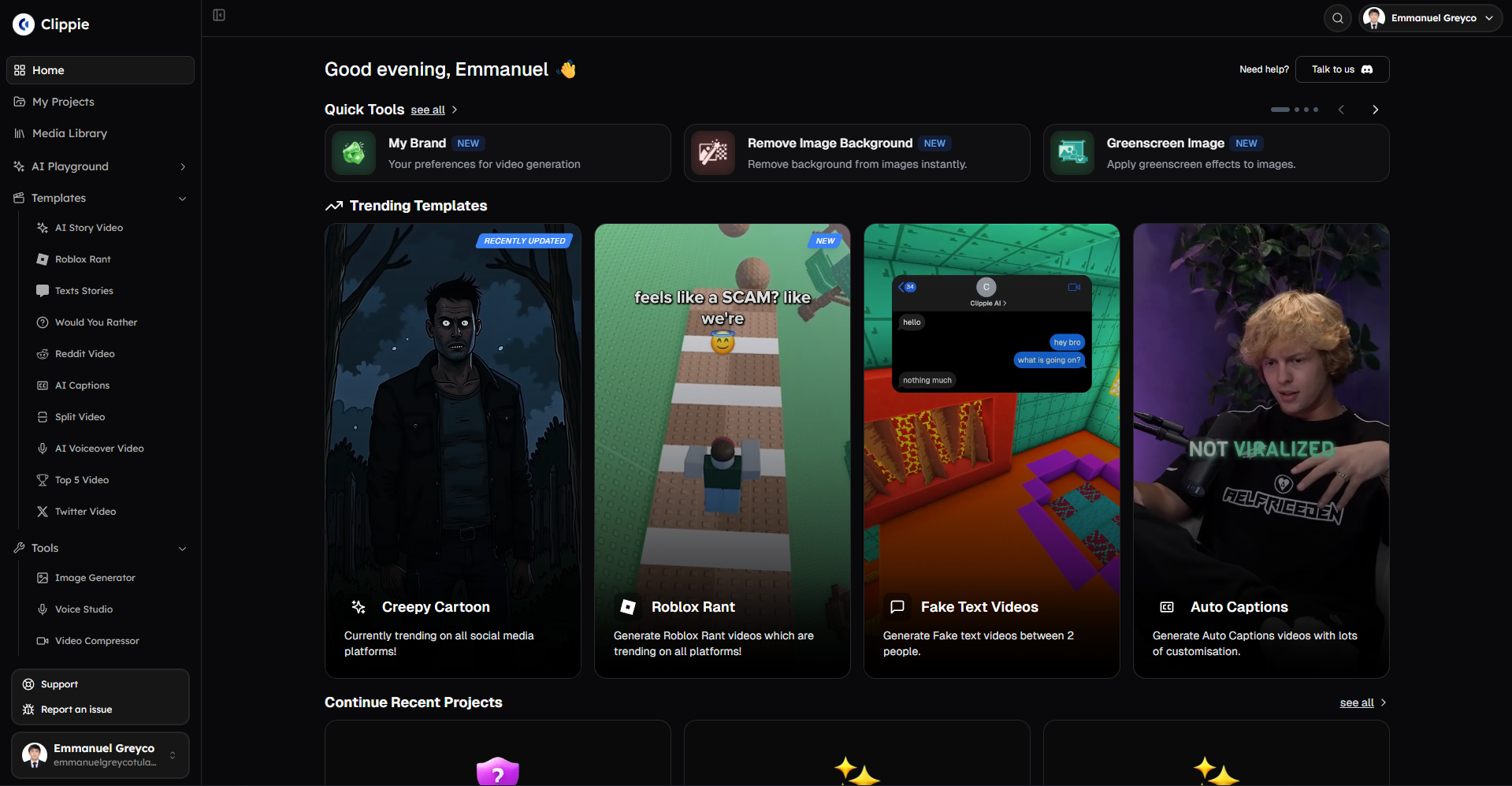
Visit clippie.ai to explore automated workflows processing 80-200 monthly videos eliminating 84-90% pre-production time through trending content automation, batch processing 25 weekly videos in 30-45 min active configuration vs. 525-850 min manual creation, multi-platform export creating TikTok/Instagram/YouTube versions simultaneously saving 20-40 min per-platform configuration, enabling $3,000-$25,000 monthly revenue ($36,000-$300,000 annually) through volume-based strategies previously requiring $50,000-$100,000 annual software costs and 60-90 weekly hours now achievable by individual creators through strategic all-in-one AI platform adoption.
Compress a video for free
Shrink a video file right in your browser before you upload it.
Read more

How to Make Top 5 Ranking Videos in 2026 (Step-by-Step)
Build ranking Shorts that can still earn: pick a debatable topic, set clear criteria, source clips you may use, script the countdown, add your commentary.

How to Create Short-Form Videos Using AI: 8 Steps (2026)
A beginner workflow for AI videos on TikTok, Reels and Shorts: pick a format, script a hook, add visuals, voice and captions, export at 9:16, label AI.

7 Free CapCut Alternatives for Short-Form Video (2026)
Compare Edits, YouTube Create, VN, Clipchamp, Canva, DaVinci Resolve and Shotcut: what each gives free users, what it caps first and where it falls short.