
TikTok Export Settings Guide, Best Video Quality Settings for AI-Generated Videos in 2026
The complete TikTok export settings guide for AI-generated videos in 2026, resolution, frame rate, codec, file size specs, common upload mistakes, Clippie AI export workflow, and cross-platform comparison.

Searching for the best TikTok export settings for AI-generated videos in 2026?
Your video can be perfectly scripted, well-narrated, and visually compelling, and still underperform because of avoidable export and upload errors that reduce visual quality, trigger compression artefacts, or cause the algorithm to distribute it with lower confidence.
This guide covers everything you need to know about export settings for AI-generated video on TikTok in 2026, the exact specs that preserve quality, the mistakes that creators make when uploading AI-produced content, how Clippie AI handles export optimisation, and how to adapt settings for YouTube Shorts and Instagram Reels when cross-posting.
Executive Summary
This guide is for faceless content creators who produce AI-generated videos and want to ensure every upload to TikTok, YouTube Shorts, and Instagram Reels reaches the maximum possible quality and algorithmic reach. It covers why export settings affect distribution, the exact technical specifications for each platform, the most common upload mistakes that degrade AI video quality, how Clippie AI's export workflow handles these considerations, a platform-by-platform comparison of settings, and a batch export system for high-volume creators. By the end, you will know exactly how to export and upload AI-generated video across all three platforms for optimal quality and performance.
Table of Contents
Why Export Settings Directly Impact Your TikTok Reach and View Quality in 2026
TikTok's Recommended Video Specs in 2026, Resolution, Frame Rate, and File Size
The Biggest Export Mistakes AI Video Creators Make on TikTok (And How to Fix Them)
How to Export AI-Generated Videos From Clippie AI for Maximum TikTok Quality
Platform-by-Platform Export Settings, TikTok vs Shorts vs Reels Compared
How to Batch Export Multiple Videos at the Right Settings Without Losing Time
Frequently Asked Questions

1. Why Export Settings Directly Impact Your TikTok Reach and View Quality in 2026
The relationship between export settings, upload quality, and algorithmic reach is not theoretical, it is measurable. Videos uploaded at suboptimal settings undergo additional compression during TikTok's processing pipeline that degrades visual quality, reduces caption readability, and creates the visual roughness that viewers associate with low-effort content.

How TikTok Processes Uploaded Video
When a video is uploaded to TikTok, the platform processes it through its compression pipeline before distributing it to viewers. This processing:
Converts the uploaded file to TikTok's internal delivery format
Applies additional compression to reduce file size for delivery across varying network speeds
Evaluates the video for quality signals that influence initial distribution
The critical insight: The less compression TikTok needs to apply during processing, the better the final viewer-facing quality. A video uploaded at optimal specs, correct resolution, correct codec, appropriate bitrate, requires minimal additional compression. A video uploaded at suboptimal specs requires significant compression, and every compression pass degrades quality further.
How Quality Signals Affect Initial Algorithmic Distribution
TikTok's algorithm considers multiple signals when determining how widely to distribute a new video in its initial test pool. Visual quality is one of these signals, not the primary driver of distribution, but a contributing factor that affects whether the algorithm classifies a video as high-quality content worth distributing more broadly.
What this means practically:
A video with significant visual compression artefacts, blurring, pixelation, banding in gradient areas, loss of detail in text overlays, may receive narrower initial distribution than the same video uploaded at full quality. This is a secondary effect compared to hook quality and completion rate, but it compounds over thousands of videos for a channel producing at volume.
The Text Overlay and Caption Quality Problem
AI-generated videos frequently include text overlays, captions, section titles, motivational quotes, as integral visual elements. Text is highly sensitive to compression: fine text, thin strokes, and high-contrast text-on-background combinations all degrade visibly at lower bitrates.
When TikTok's compression reduces the quality of text overlays, it directly affects viewer experience, making captions harder to read, reducing the visual professionalism of the content, and potentially cutting off the viewer who is watching without audio and relying on captions to follow the content.
The solution: Upload at the highest viable quality so TikTok's compression starts from the best possible source material, producing the cleanest final output.
2. TikTok's Recommended Video Specs in 2026, Resolution, Frame Rate, and File Size
TikTok's technical specifications have evolved as the platform has grown and its delivery infrastructure has improved. The following specs represent the current recommended settings for the best quality output on TikTok in 2026.
Primary TikTok Video Specifications
Aspect Ratio:
9:16 (vertical) is the native TikTok format and must be used for all standard feed content
1:1 (square) is supported but receives less algorithmic preference in the main feed
16:9 (horizontal) is supported but displays with black bars in the feed, not recommended for regular content
Resolution:
Minimum: 720p (1280 × 720)
Recommended: 1080p (1920 × 1080)
Preferred: 1080 × 1920 for vertical content (this is the full-screen vertical format)
High quality option: Some creators upload at 2K (1080 × 2160 equivalent) where the production pipeline supports it, though TikTok downsamples to 1080p for delivery
Frame Rate:
Minimum: 24fps
Recommended: 30fps
High motion content: 60fps is supported and beneficial for content with significant motion, though most faceless AI content performs equivalently at 30fps
Video Codec:
Recommended: H.264 (MP4 container), the most universally compatible and best-supported format in TikTok's processing pipeline
H.265 (HEVC) is supported but may undergo additional processing steps, H.264 is the safer default
VP9 and AV1 are not recommended for direct TikTok upload
Audio:
Recommended: AAC audio codec
Recommended sample rate: 44.1kHz or 48kHz
Recommended bitrate: 128kbps minimum, 192kbps recommended for voice-narrated content
Stereo audio is preferred over mono
File Size:
Maximum: 287.6 MB for videos up to 10 minutes
For standard short-form content (30–90 seconds), file sizes of 20–80 MB are typical at recommended quality settings
Very large file sizes (above 200 MB for sub-3-minute content) suggest excessive bitrate that does not improve quality after TikTok's compression
Video Bitrate:
Recommended: 2,500–8,000 kbps for 1080p content
Below 2,500 kbps: visible quality degradation, particularly on text overlays and detailed imagery
Above 8,000 kbps for short content: unnecessary file size with no viewer-facing quality benefit after TikTok compression
Maximum Video Length:
Standard uploads: Up to 10 minutes
Verified accounts with special access: Up to 60 minutes
For short-form content, optimal performance length: 15–90 seconds for discovery, up to 3 minutes for established channel content
The HD Upload Setting Within TikTok
TikTok has a native HD upload option in the upload settings that enables higher-quality delivery for viewers on compatible devices and connections. This setting is separate from the export quality of the video file, it affects how TikTok delivers the already-uploaded video.
Enabling HD upload:
Before uploading, go to upload settings within the TikTok app
Enable the "Upload HD" option if available on your account
Note: this feature is not universally available across all regions and account types, check availability within the upload interface
Even with the HD setting disabled, uploading at 1080p with H.264 encoding produces the best possible output quality within TikTok's standard delivery.
TikTok Quality Signal Checklist
Before uploading any AI-generated video to TikTok, confirm:
Aspect ratio is 9:16 (vertical)
Resolution is 1080 × 1920 (or minimum 1280 × 720)
Frame rate is 30fps (or 24fps minimum)
Codec is H.264 in an MP4 container
Audio is AAC at 128kbps+
File size is between 15–150 MB for standard short-form content
No TikTok watermark from a previous TikTok export (watermarked videos receive reduced distribution on Reels and Shorts when cross-posted)

3. The Biggest Export Mistakes AI Video Creators Make on TikTok (And How to Fix Them)
Mistake 1: Uploading With a Horizontal Aspect Ratio
This is the most visually obvious mistake and one of the most common for creators transitioning from YouTube content creation to TikTok.
What happens: A 16:9 video uploaded to TikTok displays with black letterbox bars at the top and bottom of the screen. The visual content occupies only 56% of the available screen space. Viewers scroll past because the content appears immediately unprofessional.
The fix: Always export in 9:16 before uploading to TikTok. If the source video was produced in 16:9, create a separate 9:16 export rather than relying on TikTok's in-app cropping tool, which produces variable quality results.
Mistake 2: Uploading a Video That Already Has a TikTok Watermark
Creators who download their own TikTok videos and re-upload them, or who save TikTok clips from other tools, sometimes upload videos that carry the TikTok watermark. Beyond the cross-platform issue (TikTok-watermarked videos are suppressed on Reels and Shorts), TikTok itself applies quality penalties to re-uploaded watermarked content.
The fix: Always export directly from the production platform, Clippie AI, in this case, rather than downloading from TikTok and re-uploading. Clippie AI exports do not carry watermarks.
Mistake 3: Using the Wrong File Format
Some AI video tools export in formats other than H.264 MP4, including MOV, WebM, or HEVC. While TikTok can process these formats, the conversion step adds processing overhead that can introduce quality degradation.
The fix: Export in H.264 MP4 format as the default. Clippie AI exports in MP4 format, no format conversion required.
Mistake 4: Very Low Bitrate Export
Some AI production tools default to low bitrate export to reduce file sizes. At bitrates below 2,000 kbps for 1080p content, visual quality degrades noticeably, particularly on text overlays, fine image detail, and areas of the image with subtle colour gradients.
The fix: Confirm the export bitrate is at least 2,500 kbps for 1080p content. Clippie AI's export settings are calibrated for quality-appropriate output, no manual bitrate adjustment is required.
Mistake 5: Uploading via Desktop Browser With Compression Enabled
When uploading through TikTok's web interface (tiktok.com) or via certain third-party scheduling tools, some browsers or tools add a compression step during upload that further degrades quality beyond TikTok's own processing.
The fix: Upload directly through the TikTok mobile app when possible, the app's native uploader performs the most consistent quality upload. If uploading via desktop is necessary for workflow reasons, use TikTok Studio (TikTok's desktop creator interface) rather than the consumer web interface.
Mistake 6: Using a Low-Resolution Source File
AI tools that generate visuals at lower than 1080p resolution produce source files that cannot be upscaled to 1080p without quality loss. A video generated at 720p upscaled to 1080p export looks worse than a video generated and exported at native 720p.
The fix: Ensure the production platform generates visuals at 1080p or higher. Clippie AI generates at 1080p, no upscaling occurs during export.
Mistake 7: Exporting a Horizontal Video and Cropping in TikTok's Editor
TikTok's in-app editor allows cropping, but the crop operation within the app processes the video a second time, applying a second round of compression. This compounds the quality reduction compared to exporting the correct aspect ratio from the production platform before uploading.
The fix: Never rely on TikTok's in-app cropping for aspect ratio correction. Always export in the correct ratio from the production platform.
Mistake 8: Inconsistent Captions Caused by Re-Export Timing Drift
Some AI production tools that handle captioning in a separate step from audio generate captions that are slightly out of sync after export, particularly if the audio is re-encoded during export and the timing offsets shift.
The fix: Use a production platform where captions are generated and synced to the audio before the export step, so the sync is baked into the source file before TikTok's processing touches it. Clippie AI auto-syncs captions to the AI voiceover before export, no post-export timing drift.
4. How to Export AI-Generated Videos From Clippie AI for Maximum TikTok Quality
Clippie AI's export workflow is built to produce TikTok-ready output without requiring manual configuration of technical settings. Here is how the process works and what to confirm at each stage.
Step 1: Confirm the Production Format
Before beginning production in Clippie AI, confirm:
The voiceover, visuals, and captions are all set for the correct aspect ratio
For TikTok content: confirm the 9:16 vertical format is the target
For YouTube long-form: confirm 16:9 is the target
If producing for both in the same session: plan to export both formats separately
Step 2: Complete Production in the Correct Aspect Ratio
Clippie AI's production workflow supports both vertical (9:16) and horizontal (16:9) production. Ensure that the visual content, AI-generated images and VEO3.1/Seedance footage, is generated in the correct aspect ratio for the target platform.
Visuals generated in 16:9 can be adapted to 9:16 during export, but visuals generated natively in 9:16 produce the cleanest vertical output, no cropping, no quality reduction from aspect ratio conversion.
Step 3: Export Settings in Clippie AI
Clippie AI's export function is optimised for the target platform without requiring manual codec or bitrate configuration. Select the export format:
TikTok / Shorts / Reels format: 9:16, 1080 × 1920, MP4, H.264, 30fps
YouTube long-form format: 16:9, 1920 × 1080, MP4, H.264, 30fps
The platform handles codec selection (H.264), audio encoding (AAC), and bitrate calibration automatically, producing output within TikTok's recommended quality parameters without manual configuration.
Step 4: Export File Naming for Batch Management
For creators producing multiple videos per week, a consistent file naming convention prevents upload errors, uploading the wrong version to the wrong platform, or uploading a draft version instead of the final export.
Recommended naming convention:
[Platform]-[Date]-[Topic]-[Version]
Examples:
TT-2026-03-15-DisciplineHardTruth-v1.mp4Shorts-2026-03-15-DisciplineHardTruth-v1.mp4Reels-2026-03-15-DisciplineHardTruth-v1.mp4
This convention makes the correct file immediately identifiable in a batch folder, preventing the common error of uploading the YouTube Shorts version to TikTok or the Reels version to YouTube.
Step 5: Pre-Upload Quality Check
Before uploading to TikTok, perform a 30-second quality check on the exported file:
Play the full video on the device used for upload, confirm visual quality, audio sync, and caption readability
Confirm the aspect ratio fills the full vertical screen (no black bars)
Confirm text overlays and captions are clear and legible
Confirm the audio level is consistent throughout, no sudden volume drops or spikes
This check takes 30–90 seconds depending on video length and eliminates the risk of uploading a defective export.

5. Platform-by-Platform Export Settings, TikTok vs Shorts vs Reels Compared
The same export file often works across TikTok, YouTube Shorts, and Instagram Reels, but each platform has specific settings that maximise quality and distribution on that platform specifically.
TikTok Settings (Full Specifications)
Aspect ratio: 9:16 (1080 × 1920)
Resolution: 1080p minimum (1080 × 1920)
Frame rate: 30fps (24fps minimum)
Codec: H.264 in MP4 container
Audio: AAC, 128kbps minimum, 48kHz sample rate
File size: Under 287.6 MB for standard uploads
Recommended content length: 15–90 seconds for best organic distribution
Recommended bitrate: 2,500–6,000 kbps for 1080p content
TikTok-specific note: Do not include the TikTok watermark on videos intended for cross-posting to Reels or Shorts. Export from Clippie AI rather than downloading from TikTok.
YouTube Shorts Settings
Aspect ratio: 9:16 (1080 × 1920), required for Shorts classification
Resolution: 1080p minimum
Frame rate: 30fps
Codec: H.264 in MP4 container (YouTube also accepts MOV and AVI but MP4/H.264 is the standard)
Audio: AAC, 128kbps minimum
Maximum length: 60 seconds for guaranteed Shorts classification
File size: Under 256 MB for standard uploads
YouTube Shorts-specific notes:
Add #Shorts in the title or description to ensure YouTube classifies the video in the Shorts feed
YouTube Shorts requires a title (unlike TikTok, which uses the caption as the title equivalent), include the primary keyword in the title
YouTube Shorts descriptions are indexed for search, write 100–200 words with natural keyword inclusion
Quality note: YouTube applies its own compression pipeline, which is slightly different from TikTok's. YouTube generally preserves more visual detail than TikTok at equivalent source quality, a video that looks good on TikTok will look at least as good on YouTube Shorts.
Instagram Reels Settings
Aspect ratio: 9:16 (1080 × 1920) primary; 4:5 (1080 × 1350) also performs well in the feed
Resolution: 1080p minimum (1080 × 1920 for full-screen vertical)
Frame rate: 30fps (25fps also accepted)
Codec: H.264 in MP4 container
Audio: AAC, 128kbps minimum
Maximum length: 90 seconds (15–60 seconds optimal for algorithmic distribution)
File size: Under 100 MB recommended (Instagram applies more compression to larger files)
Instagram Reels-specific notes:
Instagram's compression pipeline is more aggressive than TikTok's for videos above 100 MB, keeping the file size under 100 MB reduces the compression applied
Reels uploaded from TikTok with TikTok watermarks receive suppressed distribution, always upload a clean export from Clippie AI
Instagram recommends uploading via the mobile app rather than the web interface for best quality preservation
Cross-Platform Export Strategy
When a video is being published to all three platforms from the same source file:
Option 1: Single 9:16 export: The same 9:16 MP4 file is uploaded to TikTok, YouTube Shorts, and Instagram Reels. This is the most efficient approach for most short-form content where the aspect ratio, content, and quality are identical across platforms.
Option 2: Platform-specific exports: For content where platform-specific optimisation matters, different captions baked in, different text overlay positioning, or different music, produce a separate export per platform. This is more production-intensive but produces the best per-platform quality.
For most faceless AI content, Option 1 (single export, multi-platform upload) is sufficient and more efficient. Use Option 2 when the content itself differs materially by platform.

6. How to Batch Export Multiple Videos at the Right Settings Without Losing Time
For creators producing 5–20 videos per week, the batch export process can itself become a significant time cost if managed inefficiently. Here is the system that eliminates batch export friction.
The Weekly Batch Export System
Stage 1: Production Session (Wednesday)
Complete the full production batch in Clippie AI for the week's videos in one focused session. For each video:
Complete voiceover → visuals → captions → export
Export all videos for the week in the same session
Export each video in both 9:16 (for TikTok/Shorts/Reels) and 16:9 (for YouTube long-form where applicable)
Naming and organisation during export:
As each video exports, name it using the convention above and save to a dedicated weekly folder:
/2026-Week-12/ /TikTok/ TT-2026-03-15-video1.mp4 TT-2026-03-16-video2.mp4 ... /YouTube/ YT-2026-03-15-video1.mp4 ... /Reels/ IG-2026-03-15-video1.mp4 ...
This folder structure makes the correct file immediately accessible during the publishing session without searching through mixed file names.
Stage 2: Quality Review Session (Wednesday, after production)
After all exports are complete, conduct a batch quality review:
Open each exported file and scrub through at 2x speed
Flag any issues: audio sync drift, visual artefacts, caption errors, aspect ratio problems
Return to Clippie AI for any videos that need correction before the review session ends
Review time per video: approximately 60 seconds for a 60-second Short at 2x speed. For a 10-video batch: 10–15 minutes.
Stage 3: Publishing Preparation (Thursday)
With the quality-reviewed exports in the correctly named folders:
Write platform-specific captions for each video (TikTok, YouTube Shorts, Reels)
Upload to TikTok and YouTube Studio (schedule for the coming week)
Upload to Instagram Reels (schedule through Meta Business Suite or native scheduler)
The folder organisation from Stage 1 makes the publishing session fast, each platform's folder contains only the correctly formatted files for that platform.
Clippie AI Plans: Matched to Export Volume
Lite: $19.99/month
30 mins video export (~3–5 videos/month)
30 mins AI voice generation
30 mins speech-to-subtitles
100 AI images
1 custom voice
Captions in 102+ languages
50+ AI voices
24/7 support
Best for: Creators producing 3–5 videos per month who are optimising quality on a modest production schedule
Creator: $34.99/month
120 mins video export (~8–15 videos/month)
120 mins AI voice generation
120 mins speech-to-subtitles
500 AI images
10 custom voices
Captions in 102+ languages
50+ AI voices
24/7 support
Best for: Weekly content creators producing 2–3 videos per week across TikTok, Shorts, and Reels, the Creator plan supports both short-form and long-form export within the same monthly allocation
Pro: $69.99/month
250 mins video export (~15–25 videos/month)
250 mins AI voice generation
250 mins speech-to-subtitles
1,000 AI images
30 custom voices
Captions in 102+ languages
50+ AI voices
24/7 support
Best for: High-volume creators producing daily content across multiple platforms, or agencies managing exports for multiple client channels
No free tier is available on Clippie AI.
💡 For the complete hashtag and caption strategy that works alongside proper export settings to maximise TikTok distribution, read our guide on the best hashtags and captions for AI-generated short videos in 2026
💡 For the full short-form content strategy that export quality supports, read our guide on why short-form content is dominating in 2026 and how to win
💡 Produce and export TikTok-ready AI videos with Clippie AI today →
Conclusion: Export Quality Is the Final Step That Determines How Good Your Content Actually Looks
You can produce the best AI-generated video in your niche. If you upload it at the wrong aspect ratio, in the wrong codec, or at a bitrate that forces heavy compression, the viewer experiences a degraded version of what you created. The content is the same. The experience is worse.
The export settings in this guide are not complex, they are a one-time setup that becomes automatic. Confirm the specs once, build them into the production workflow, and export with confidence that every video reaching TikTok, Shorts, and Reels is arriving at the highest quality the platform can deliver.
Clippie AI's export workflow is calibrated to produce output within these specifications without requiring manual technical configuration. The creator's job is to produce compelling content. The platform handles the technical execution.
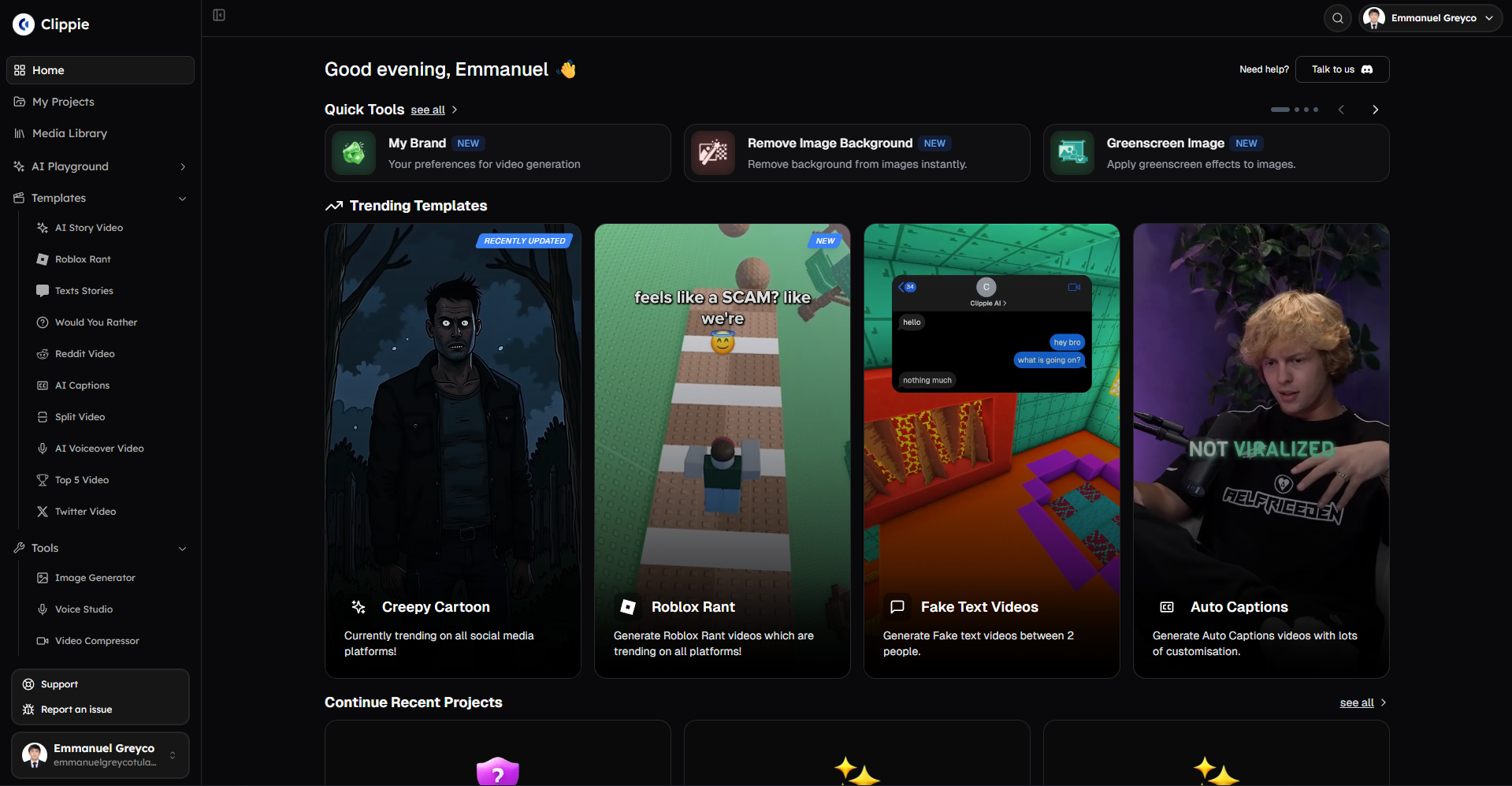
Start producing and exporting TikTok-ready AI videos with Clippie AI today →
7. Frequently Asked Questions
Q1: What is the best resolution for TikTok videos in 2026?
The best resolution for TikTok videos in 2026 is 1080 × 1920 pixels in 9:16 aspect ratio. This fills the full TikTok vertical screen without letterboxing or cropping, and is the native delivery resolution for TikTok on most mobile devices. 1080p is the minimum recommended resolution, lower resolutions (720p) are accepted but produce visible quality degradation in TikTok's delivery compression. Do not upload at higher than 1080p if the production pipeline does not natively generate at that resolution, upscaled footage looks worse than native 1080p.
Q2: Should I use H.264 or H.265 encoding for TikTok uploads?
Use H.264 encoding for TikTok uploads. H.264 in an MP4 container is TikTok's best-supported and most reliably processed format, it undergoes the simplest conversion in TikTok's pipeline, minimising quality loss during processing. H.265 (HEVC) is technically supported but may require additional conversion steps that can introduce quality inconsistency. For maximum compatibility and quality, H.264 MP4 is the standard across TikTok, YouTube Shorts, and Instagram Reels, it is the format Clippie AI exports by default.
Q3: Does using the TikTok watermark on a video affect its distribution?
Yes, on other platforms. A video downloaded from TikTok with the TikTok watermark visible receives significantly suppressed distribution when uploaded to Instagram Reels and YouTube Shorts, because both platforms detect and penalise cross-posted watermarked content. For cross-platform distribution, always export from the production platform (Clippie AI) rather than downloading from TikTok and re-uploading. Clippie AI exports contain no platform watermarks. On TikTok itself, the watermark appears when others download and share the video, the original upload is not affected by the watermark on the creator's own account.
Q4: What frame rate should AI-generated videos be exported at for TikTok?
30fps is the recommended frame rate for most AI-generated TikTok content. It provides smooth playback across all device types and is the standard frame rate for short-form social video. 24fps is acceptable for content with a cinematic aesthetic, true crime, motivational, documentary-style content, where the slightly less smooth motion creates a more filmic feel. 60fps is supported and beneficial for content with significant fast motion, though most faceless AI content (narration over atmospheric footage) performs equivalently at 30fps since the content itself does not require high frame rate to avoid motion blur.
Q5: Is there a maximum file size for TikTok uploads and does it affect quality?
TikTok's maximum file size for standard uploads is 287.6 MB for videos up to 10 minutes. For standard short-form content (30–90 seconds), a 1080p H.264 MP4 typically produces files between 20–80 MB at appropriate bitrates, well within the limit. Very large file sizes (above 150 MB for sub-60-second content) indicate excessively high bitrate that does not improve viewer-facing quality after TikTok's compression, it simply increases upload time and processing overhead. Clippie AI's export is calibrated to appropriate bitrate targets that produce quality output without unnecessarily large files.
Q6: Can I use the same exported video file for TikTok, YouTube Shorts, and Instagram Reels?
Yes, for most faceless AI content, a single 9:16 1080p H.264 MP4 export from Clippie AI can be uploaded to all three platforms without modification. The technical specifications for all three platforms are broadly compatible with this single format. The primary difference between platforms is not the video file but the caption, hashtags, and title, these should be optimised separately for each platform (TikTok caption, YouTube Shorts title and description, Instagram Reels caption with different hashtag strategy). Export once, adapt the text metadata for each platform, and upload to all three from the same source file for maximum efficiency.
Read more

How to Post One Faceless Video to TikTok, Reels and Shorts
One vertical export works on all three platforms, but the rules don't. Lengths, payout thresholds, caption styles and what you should never cross-post.

Best AI Tools for Faceless YouTube Channels in 2026
A faceless YouTube channel needs one good tool per stage, not thirty. Research, scripting, voice, video and thumbnail picks, plus three stacks by budget

Best AI Video Tools for Faceless Content in 2026
The right tool depends on what you make: story shorts, prompt-to-video, repurposing, captions or avatars. Honest picks for each, plus where each one fails.