
Free AI Background Remover Online (No Signup, Instant Results)
Free AI background remover online, no signup, instant results. Remove backgrounds from images in seconds with AI precision. Compare free vs paid tools, use cases & why Clippie's remover is faster and cleaner.
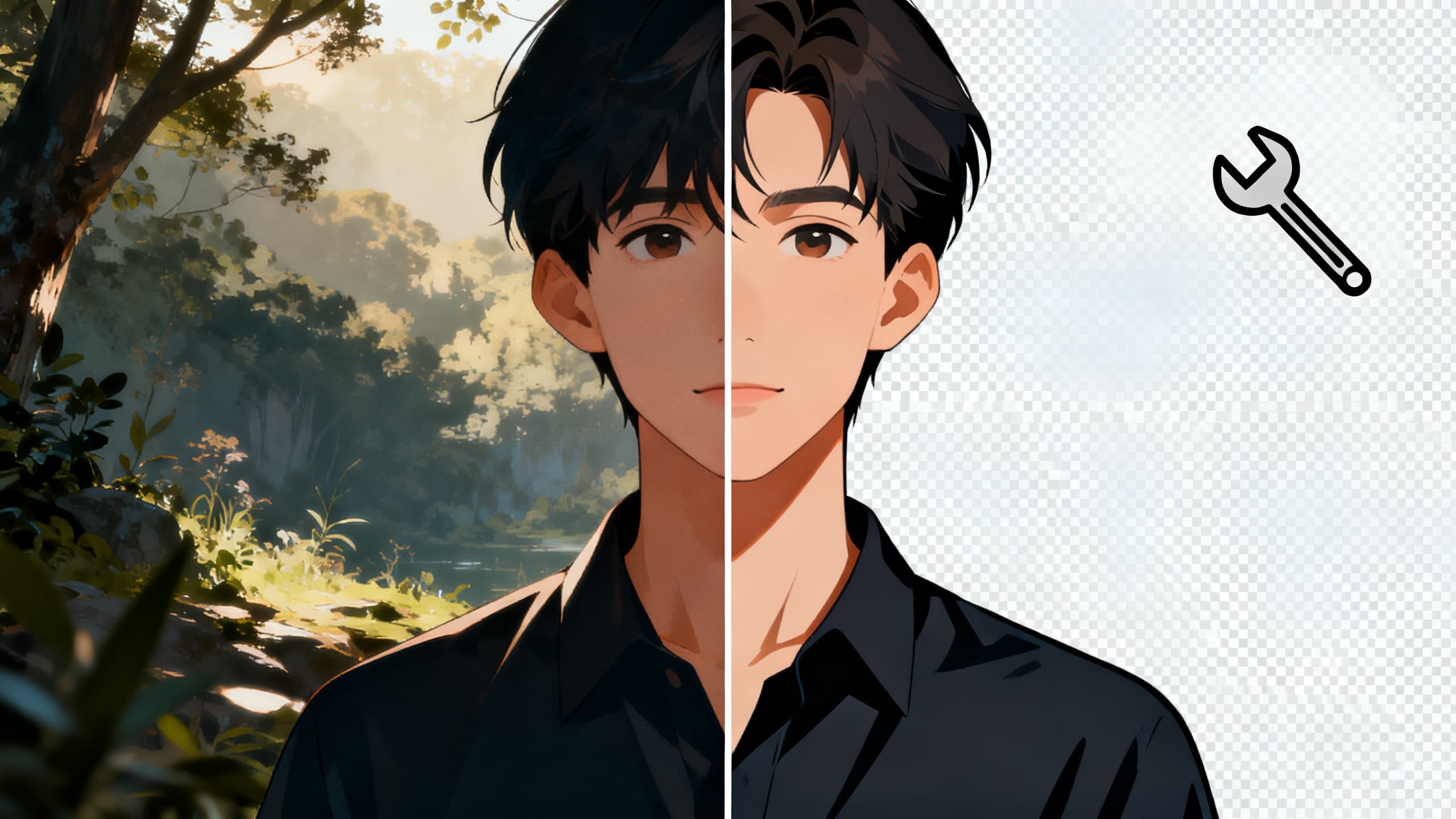
If you're searching for a background remover that works instantly without forcing you through account creation, email verification, or payment walls, you've discovered the gap between what most "free" tools promise and what they actually deliver, where truly free background removal means no signup barriers, no watermarks, no download limits, and AI-powered precision that isolates subjects cleanly in 2–5 seconds. This comprehensive guide breaks down what AI background removers actually do (edge detection algorithms vs. manual selection), how the technology works behind the scenes (machine learning models trained on millions of images), the real differences between free and paid tools (processing quality, batch capabilities, API access vs. basic single-image removal), step-by-step instructions for removing backgrounds from any image type (portraits, products, complex scenes), the highest-ROI use cases across industries (ecommerce product photos, social media content, advertising creatives, presentations), and why Clippie's integrated background remover outperforms standalone tools for content creators, with comparison data, quality benchmarks, and workflow integration advantages.
Executive Summary: AI background removal in 2026 has become commoditized for basic single-image use cases, dozens of tools offer free background removal with comparable quality using similar underlying AI models (U2-Net, MODNet, or proprietary variations). The real differentiation lies not in the removal algorithm itself but in three factors: workflow integration (standalone tool requiring manual download/upload vs. built into content creation platform), processing speed and batch capabilities (single images vs. bulk processing), and output optimization (generic transparent PNG vs. format-specific optimization for different use cases). This guide provides the complete framework for choosing the right background removal solution based on your specific needs, whether one-off image editing, systematic product photography workflows, or integrated content creation requiring background removal as one step in larger production process.
Table of Contents
What Is an AI Background Remover?
How AI Background Removal Works (In Simple Terms)
Free vs Paid Background Removers (What's the Difference?)
How to Remove Background from Any Image in Seconds
Best Use Cases (Creators, Ecommerce, Ads, Social Media)
Why Clippie's Background Remover Is Faster & Cleaner
FAQs About Background Removal Tools

1. What Is an AI Background Remover?
The Problem Background Removers Solve
Traditional manual background removal:
Using Photoshop or similar desktop software:
Open image in editing program
Select background removal tool (Magic Wand, Quick Selection, or manual Pen tool)
Manually trace around subject edges (especially challenging with hair, fur, fine details)
Refine selection (zoom in, adjust edges pixel-by-pixel for accuracy)
Delete background or create transparency
Export as PNG (transparent background format)
Time investment:
Simple images (solid background, clear edges): 5–15 minutes
Complex images (detailed hair, transparent objects, similar foreground/background colors): 20–60 minutes
Professional retouching quality: 30–120 minutes
Skill requirement:
Basic Photoshop proficiency minimum
Advanced techniques for quality results (layer masks, refine edge, channel manipulation)
Learning curve: 10–40 hours to competence
The AI revolution:
AI-powered automatic background removal:
Upload image to tool (or paste URL)
AI analyzes image (identifies subject vs. background automatically)
Background removed in 2–5 seconds
Download transparent PNG
Time investment: 10–30 seconds total (mostly upload/download time)
Skill requirement: None (point-and-click interface)
Quality comparison:
AI accuracy: 90–98% for typical images (portraits, products with clear subjects)
Manual Photoshop by amateur: 70–85% accuracy (missed edges, rough transitions)
Manual Photoshop by expert: 98–99.5% accuracy (perfect but extremely time-consuming)
The use case shift:
Before AI:
Background removal was professional service (pay $5–$50 per image) or DIY project (invest hours learning Photoshop)
After AI:
Background removal is commodity utility (free, instant, accessible to anyone)

What "AI Background Remover" Actually Means
Terminology clarification:
"AI-powered" vs. "Automatic":
Automatic tools (pre-AI):
Used color selection and edge detection algorithms (e.g., Photoshop Magic Wand), fast but imprecise, struggled with complex edges
AI-powered tools (modern):
Use deep learning models trained on millions of labeled images, understand semantic content (what is "subject" vs. "background"), handle complex edges (hair, transparency, reflections)
The AI model types:
Semantic segmentation models:
Trained to classify every pixel in image (subject, background, hair, clothing, etc.)
Examples: U2-Net, U-Square-Net, MODNet, DeepLab
Accuracy: 92–98% for common image types
Why AI works better:
Context awareness: Understands "this is a person" not just "these pixels are different color from those pixels"
Edge refinement: Trained specifically on hair, fur, fine details where traditional algorithms fail
Adaptability: Handles varied backgrounds (busy scenes, similar colors, gradients) that break simple color-based selection
The practical difference:
Traditional automatic tool:
Remove.bg's original 2018 algorithm (pre-deep learning enhancement)
Accuracy: 75–85% on portraits, 60–70% on complex images
Common failures: Hair edges rough, missed fine details, confused similar colors
Modern AI tool:
Remove.bg 2024+ (deep learning model)
Accuracy: 94–98% on portraits, 85–92% on complex images
Improvements: Clean hair separation, accurate fine details, handles color similarity
Consumer takeaway: When tools advertise "AI background remover," they're using modern deep learning models that significantly outperform older automatic tools, but most credible tools in 2026 are AI-powered, so it's baseline expectation rather than differentiator
The Free Tool Landscape (2026 Reality)
Common "free" tool patterns:
Pattern 1: Truly free, ad-supported
Example: Remove.bg (free tier)
Model: Free basic resolution, revenue from ads + premium upsells
Limitations: Low resolution output (preview quality), watermarks (sometimes), limited monthly quota
Pattern 2: Freemium with hard paywall
Example: Many "free" tools requiring account signup
Model: One free image to demonstrate quality, then $9–$29/month subscription required
Limitations: Essentially free trial, not free tool
Pattern 3: Free with usage limits
Example: Canva background remover (free for Canva users)
Model: Free within larger platform ecosystem
Limitations: Must use entire platform (can't just use background remover standalone)
Pattern 4: Open-source/community tools
Example: REMBG (Python library), PhotoRoom (limited free tier)
Model: Free for community, optional donations or premium features
Limitations: Technical setup (open-source) or basic features only (freemium apps)
What "no signup" actually means:
Signup-free tools:
Immediate access (no email, no account creation)
Privacy advantage (image not associated with identity)
Friction-free (instant use)
Why tools require signup:
Usage tracking (prevent abuse, enforce quotas)
Upsell funnel (capture email for marketing)
Data collection (improve AI models using user uploads)
Consumer protection consideration:
No-signup tools have no user data to sell or compromise
Signup-required tools may use uploaded images for training (read privacy policy)
For sensitive images (unreleased products, personal photos), no-signup tools safer
The 2026 recommendation:
For one-off use: No-signup free tools perfectly adequate
For recurring use: Integrated tool within existing workflow (like Clippie AI's background remover within video creation platform) more efficient than standalone tool
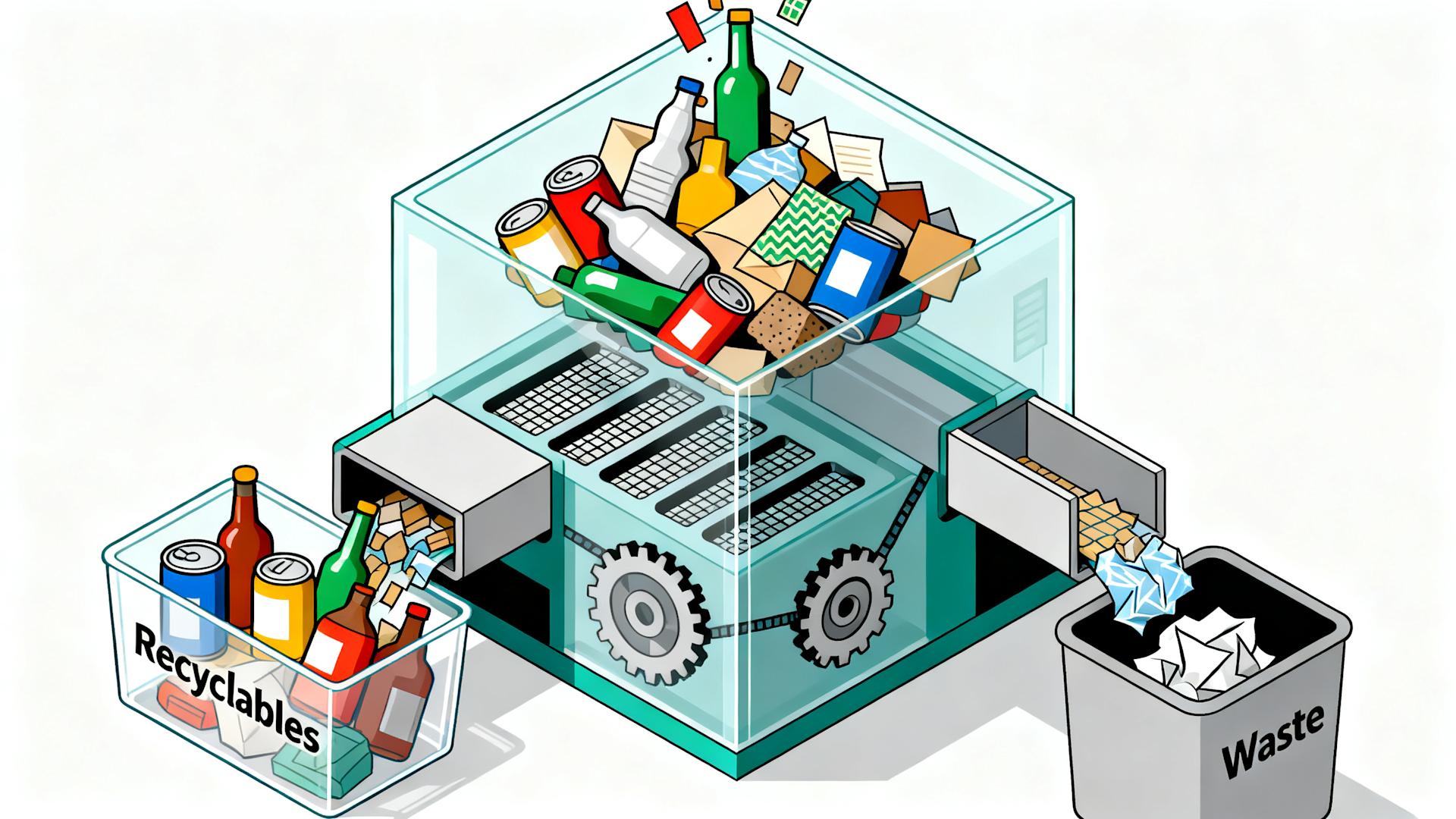
2. How AI Background Removal Works (In Simple Terms)
The Non-Technical Explanation
What happens when you upload an image:
Step 1: Image preprocessing
Image uploaded to server (or processed locally if browser-based tool)
Resized to model's expected input dimensions (typically 512×512 or 1024×1024 pixels)
Normalized (pixel values standardized for AI model)
Step 2: AI model inference
Image fed through neural network (deep learning model with millions of parameters)
Model analyzes image: "These pixels belong to main subject, these belong to background"
Output: Probability map (each pixel assigned percentage likelihood of being subject vs. background)
Step 3: Mask generation
Probability map converted to binary mask (subject = keep, background = remove)
Threshold applied (e.g., >50% probability = subject, <50% = background)
Edge refinement (smooth transitions, anti-aliasing for natural look)
Step 4: Background removal
Original image multiplied by mask (subject pixels retained, background pixels made transparent)
Output saved as PNG (supports transparency, unlike JPG)
Total processing time: 2–5 seconds (depending on image size and server load)
The "How Does AI Know What's Subject vs. Background?" Question
Training process (simplified):
Dataset creation:
Collect millions of images with manually-labeled subjects and backgrounds
Example: 1 million portrait photos where humans traced exact subject boundaries
Each image paired with "ground truth" mask (perfect subject separation)
Model training:
Neural network shown image + correct mask repeatedly
Network makes prediction, compares to correct answer, adjusts internal parameters to improve
After millions of examples, network learns patterns: "Faces are usually subjects," "Sky is usually background," "Hair has these edge characteristics"
Result:
Trained model can analyze new images (never seen before) and predict subject/background separation accurately
Generalization: Works on images outside training data because learned semantic understanding, not memorized specific images
Why it works on your specific image:
Your portrait/product photo shares visual characteristics with training data (faces have similar structures, products have similar edge patterns)
AI recognizes these patterns even though exact image is novel
Limitations of current AI:
Ambiguous subjects: If truly unclear what's subject vs. background (abstract art, camouflage), AI may struggle
Novel objects: Extremely unusual subjects not represented in training data (rare animals, unusual products) may confuse model
Complex scenes: Multiple potential subjects (group photo, which person is "the subject"?) require model to guess
Practical accuracy (2026 state-of-the-art):
Clear portraits: 96–98% accurate
Product photos (single item, clear background): 94–97% accurate
Complex scenes (multiple subjects, busy backgrounds): 85–92% accurate
Unusual subjects (transparent objects, fine hair, reflections): 80–90% accurate
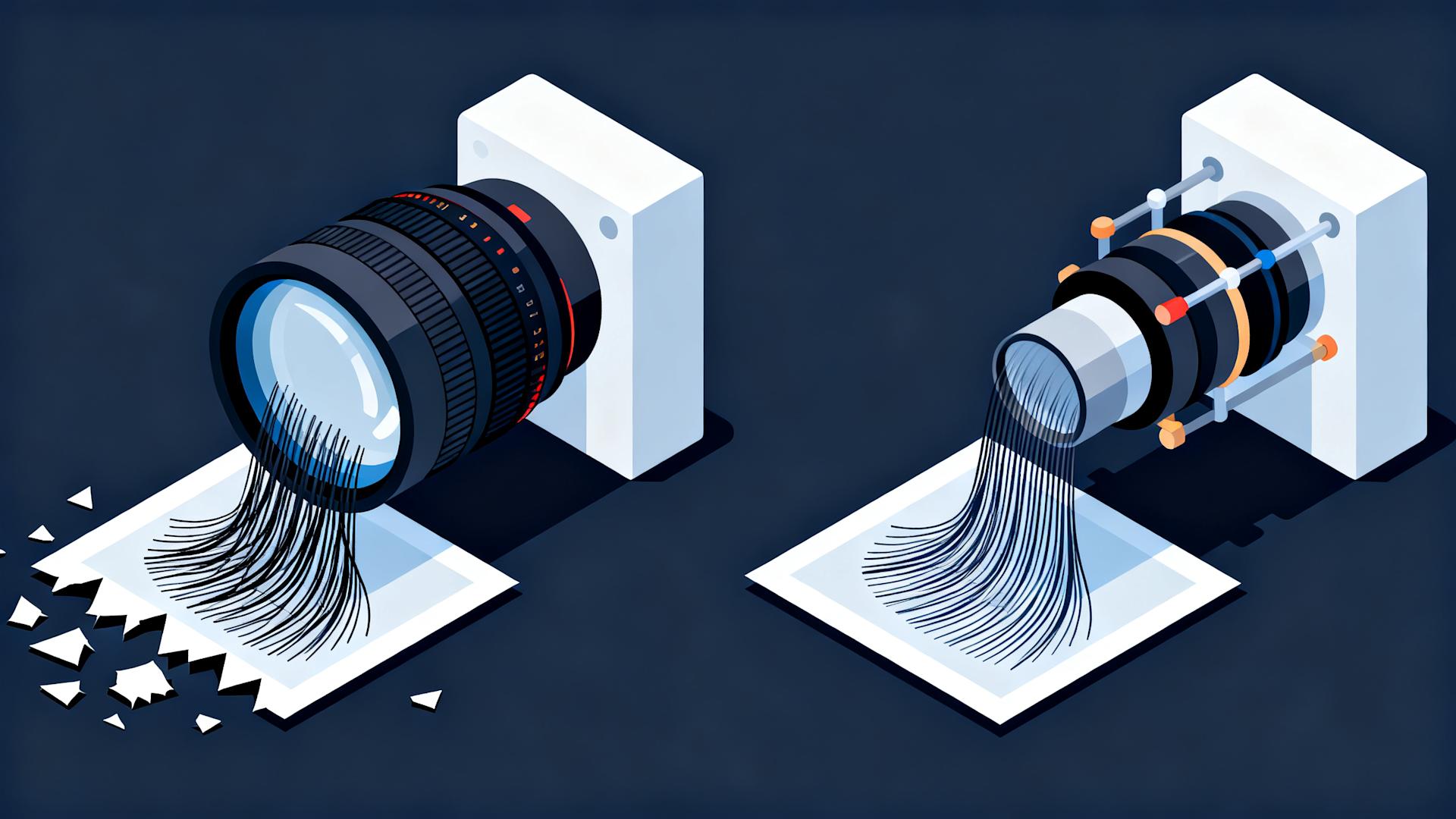
Why Some Tools Are Better Than Others (Technical Factors)
Factor 1: Underlying AI model
Model architectures in common use:
U2-Net: Open-source, good general-purpose performance, 93–95% accuracy typical
MODNet: Optimized for portraits, excellent hair separation, 95–97% on portraits
Proprietary models: Companies like Remove.bg, Adobe train custom models, often 96–98% accuracy
Practical difference:
All modern models good enough for most use cases
Differences visible in edge cases (fine hair, transparency, complex lighting)
Factor 2: Post-processing refinement
After AI model prediction:
Basic tools: Use raw model output (may have rough edges, artifacts)
Advanced tools: Apply post-processing:
Edge smoothing (anti-aliasing for natural transitions)
Hair refinement (specialized algorithms for fine detail)
Color correction (remove background color spill from subject edges)
Visible difference:
Basic: Slightly jagged edges, halo effects around hair
Advanced: Smooth edges, clean hair separation, professional appearance
Factor 3: Resolution and size limits
Free tier limitations common:
Output resolution: 612×408 pixels (preview quality, fine for social media, poor for print)
File size: 5MB maximum input
Dimensions: 10 megapixels maximum
Paid/premium tier:
Full resolution output (up to 25 megapixels)
Large file support (50MB+)
Batch processing (multiple images simultaneously)
Factor 4: Processing speed and infrastructure
Server-based tools:
Processing time depends on server capacity
Free tiers may have slower processing (deprioritized vs. paid users)
Premium tiers: Dedicated infrastructure, faster processing
Browser-based tools:
Processing happens on your device (no upload needed)
Speed depends on your hardware (fast on modern computers, slow on old devices)
Privacy advantage (image never leaves your device)

3. Free vs Paid Background Removers (What's the Difference?)
Feature Comparison: Free vs. Paid Tools
What you typically get with free tools:
Basic features:
✅ Single image processing (one at a time)
✅ Automatic background removal (AI-powered)
✅ PNG download (transparent background)
✅ Preview before download
⚠️ Resolution limits (often 612×408 or similar, adequate for web, poor for print)
⚠️ Monthly quota (10–50 images typically)
❌ Batch processing (must upload one-by-one)
❌ API access (can't integrate into workflows)
❌ Advanced editing (can't refine mask, add new backgrounds)
Example: Remove.bg free tier
Processing: Instant, accurate
Output: 612×408 pixels (0.25 megapixels, small)
Limit: 50 images/month
Cost: $0
Best for: Social media posts, web graphics, occasional use
What you get with paid tools ($9–$49/month typical):
Premium features:
✅ Full resolution output (up to 25 megapixels, print-quality)
✅ Batch processing (upload 10–1,000 images, process simultaneously)
✅ Higher quotas (500–5,000 images/month depending on tier)
✅ API access (integrate into automated workflows)
✅ Advanced editing (refine edges, add new backgrounds, shadows, reflections)
✅ Priority processing (faster server response)
✅ Commercial usage rights (free tiers sometimes restrict commercial use)
Example: Remove.bg Pro tier ($9–$49/month)
Processing: Instant, same AI quality
Output: Full resolution (up to 25MP)
Limit: 500–5,000 images/month (tier-dependent)
Batch: Up to 1,000 images simultaneously
API: Yes (integrate into e-commerce platforms, automation)
Best for: E-commerce businesses, agencies, high-volume users
When Free Tools Are Sufficient
Use cases where free tier perfectly adequate:
1. Social media content creation
Requirement: 1080×1080 or 1920×1080 pixels (Instagram, TikTok, YouTube thumbnails)
Free tool output: 612×408 upscales acceptably to 1080p (minor quality loss, imperceptible in fast-scrolling social feeds)
Frequency: Occasional (5–20 images monthly)
Verdict: Free tools work great
2. Presentation graphics
Requirement: 1920×1080 typical (PowerPoint, Google Slides)
Free tool output: Adequate for screen display
Frequency: Low volume (2–10 images per presentation)
Verdict: Free tools sufficient
3. Website graphics and blog images
Requirement: 800–1200 pixels wide typical (web-optimized)
Free tool output: Works well
Frequency: Moderate (10–30 images monthly for active blogs)
Verdict: Free tools with monthly quotas handle this
4. Personal projects (non-commercial)
Requirement: Variable
Frequency: Sporadic
Budget: Minimizing costs
Verdict: Free tools ideal
5. Testing/experimentation
Requirement: Exploring background removal before committing to workflow
Frequency: One-time or occasional
Verdict: Free tools perfect for evaluation
When You Need Paid Tools
Use cases requiring premium features:
1. E-commerce product photography
Requirement: High resolution (2000×2000+ pixels for product pages, zoom features)
Volume: High (50–500+ products monthly, multiple angles per product)
Consistency: Professional appearance essential
Batch processing: Critical for efficiency
Commercial use: Revenue-generating
Verdict: Paid tools necessary (ROI positive, $29/month tool enables thousands in product sales)
2. Print materials
Requirement: 300 DPI minimum (print-quality), large pixel dimensions
Free tool limitation: Low resolution unusable for print
Examples: Brochures, catalogs, posters, packaging
Verdict: Paid tools required
3. Stock photography creation
Requirement: Maximum resolution (12–25 megapixels)
Volume: Moderate to high
Quality: Professional standards
Verdict: Paid tools essential
4. Automated workflows (API integration)
Requirement: Programmatic access (automatic background removal when product photo uploaded to e-commerce platform)
Example: Shopify store automatically removes backgrounds from all uploaded product images
Free tool limitation: No API access
Verdict: Paid tools with API required
5. Agency/client work (commercial licensing)
Requirement: Commercial usage rights
Free tool limitation: Many free tiers prohibit commercial use in terms of service
Risk: Legal liability if using free tools for client deliverables
Verdict: Paid tools for proper licensing
The Hidden Costs of "Free" Tools
Time costs:
Workflow friction:
Upload image to standalone tool
Wait for processing
Download PNG
Upload to actual destination (social media, website, design tool)
Total time:
2–5 minutes per image
At scale:
20 images monthly × 3 minutes each = 60 minutes monthly
Time value: $50–$200 (depending on your hourly rate)
Integrated tool advantage:
Background removal happens within existing workflow (e.g., Clippie AI removes backgrounds during video creation, no separate tool needed)
Time savings: 50–80% (no download/re-upload steps)
Quality costs:
Resolution compromise:
Free tier low-resolution output requires upscaling (degrades quality)
Professional appearance suffers (pixelation, artifacts visible)
Brand perception impact (amateur-looking graphics reflect on business)
Opportunity cost:
Low-quality product photos reduce conversion rates (estimated 10–30% lower sales vs. professional photos)
$10,000 monthly revenue × 15% conversion loss = $1,500 monthly opportunity cost
$29/month tool cost vs. $1,500 opportunity cost = 51x ROI
Privacy and security costs:
Free tool considerations:
Images uploaded to third-party servers (potential data leaks, unauthorized use)
Signup-required tools collect personal data (email, usage patterns, sold to advertisers)
Terms of service may grant tool rights to use your images (train AI models, display in galleries)
Paid tool advantages:
Better data protection (paying customers = accountability)
Privacy policies stronger (revenue from subscriptions not data sales)
Enterprise options (self-hosted, GDPR-compliant, data residency guarantees)
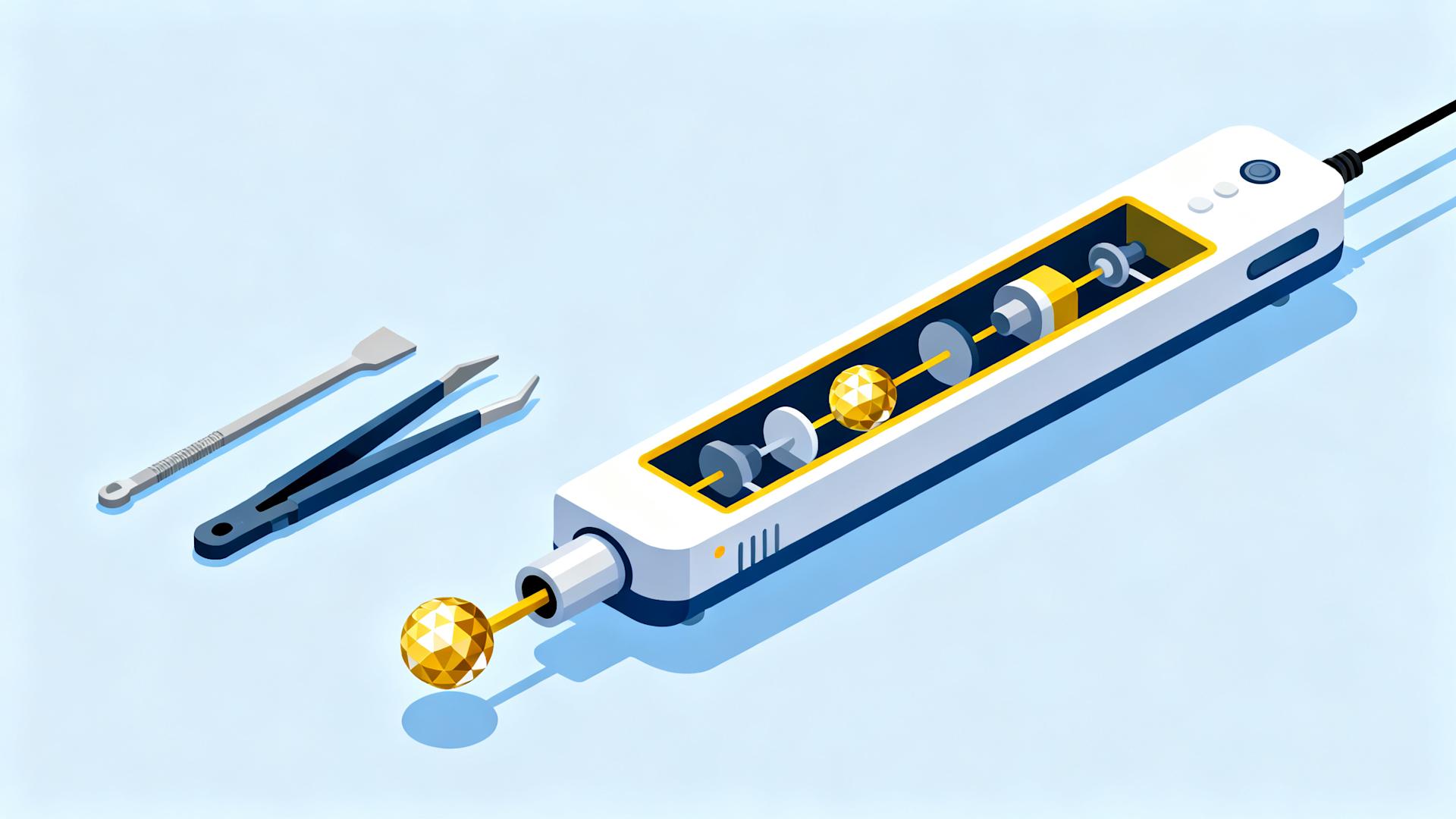
The Integrated Tool Advantage (Clippie AI Example)
Standalone background remover workflow:
Create/source image
Upload to background removal tool
Process and download
Upload to design tool
Create content (video, graphic, etc.)
Export final output
Total steps: 6
Integrated workflow (Clippie AI):
Upload image to Clippie AI
Background automatically removed during import (optional toggle)
Create video content with transparent-background elements
Export final video
Total steps: 4 (33% fewer steps)
Time savings:
Standalone: 3–5 minutes background removal overhead per image
Integrated: 0 minutes (happens automatically during content creation)
At 20 images monthly: 60–100 minutes saved = 12–20 hours annually
Quality consistency:
Integrated tools optimize background removal for specific output format
Example: Clippie AI optimizes for video use (different requirements than static images, motion, compression considerations)
Result: Better-looking final output vs. generic background removal
Pricing comparison:
Standalone approach:
Background remover: $0–$29/month
Video creation tool: $20–$60/month
Total: $20–$89/month (two subscriptions)
Integrated approach:
Clippie AI Creator (includes background removal + video creation): $34.99/month
Total: $34.99/month (one subscription)
Savings: $0–$54/month plus workflow efficiency gains

4. How to Remove Background from Any Image in Seconds
Step-by-Step: Using Free Online Background Removers
Method 1: Browser-based tools (no signup required)
Step 1: Access tool
Navigate to background removal tool (Remove.bg, Clippie AI, or similar)
No account creation needed (for free tier)
Step 2: Upload image
Click "Upload Image" or "Select Photo"
Choose image from computer (or drag-and-drop)
Supported formats: JPG, PNG, WebP (most common formats)
Size limits: Typically 5–10MB maximum file size
Step 3: Automatic processing
Tool uploads image to server (2–5 seconds depending on file size and connection)
AI model analyzes image (2–3 seconds processing)
Result displayed (preview with transparent background)
Step 4: Preview and download
Review result (zoom in to check edge quality)
If satisfied, click "Download"
PNG file saved to device (transparent background preserved)
Total time: 10–30 seconds (mostly upload/download, actual processing 2–5 seconds)
Step 5 (optional): Refine edges
Some tools offer manual refinement (if AI missed areas)
Use brush tools to include/exclude areas manually
Zoom to refine small details (hair strands, fine edges)
Step-by-Step: Advanced Techniques for Complex Images
Scenario 1: Subject with fine hair or fur
Challenge: Hair strands difficult for AI to detect precisely, often get rough edges or missing hair
Solution:
Use tool with "hair refinement" feature (Remove.bg Pro, Adobe Express)
If free tool result unsatisfactory:
Try different tool (different AI models handle hair differently)
Or manually refine: Zoom to 200–400%, use brush tool to include missed hair strands
For professional results: Consider paid tool or manual Photoshop refinement
Expected quality:
Free tools: 85–92% hair accuracy (acceptable for web use, noticeable in close inspection)
Paid tools with refinement: 94–97% (professional quality)
Manual Photoshop: 98–99.5% (perfect but time-intensive)
Scenario 2: Transparent or reflective objects
Challenge: Glass, water, transparent plastic, AI struggles to distinguish subject edges
Example: Product photo of perfume bottle (glass, reflections, transparency)
Solution:
Expect imperfect automated result (glass edges difficult even for humans)
Manual refinement required (brush in transparent areas, adjust opacity)
Consider alternative: Use solid background initially, easier for AI, then manually refine transparency
Best approach: Photograph transparent objects on contrasting background (black or white) for easier AI separation
Expected quality:
Automated: 70–85% (requires refinement)
With manual refinement: 90–95% (acceptable)
Professional retouching: 98%+ (costly, time-intensive)
Scenario 3: Similar foreground and background colors
Challenge: Subject wearing white shirt against white wall, AI confused by similar colors
Example: Portrait with subject in light-colored clothing against light background
Solution:
AI may struggle, preview carefully before downloading
If result poor, try:
Different tool (some models better at color similarity challenges)
Adjust source image: Increase contrast between subject and background before processing (Photoshop pre-processing, then background removal)
Manual selection: Use manual tools to define subject before AI processing
Prevention: When possible, photograph subjects against contrasting backgrounds (portrait against dark background, light product against dark surface)
Expected quality:
Automated with poor contrast: 75–88% (acceptable for casual use, noticeable errors)
Pre-processed image: 90–94%
Manual refinement: 96–98%
Scenario 4: Complex scenes with multiple potential subjects
Challenge: Group photo, busy scene, AI must guess which elements are "subject" vs. "background"
Example: Family photo with 5 people, trees, building in background
Solution:
AI will attempt to keep all people as subjects, remove everything else
If specific person desired:
Crop image to single person before processing (easier for AI)
Or use tool with manual subject selection (draw rough outline around desired subject)
For complex multi-subject images: Consider manual Photoshop approach (AI less effective)
Expected quality:
AI auto-detection: 80–90% (may include unwanted elements or exclude desired ones)
With manual subject selection: 92–96%

Optimization Tips for Best Results
Tip 1: Source image quality matters
High-quality input:
Well-lit subject (even lighting, no harsh shadows)
Sharp focus (blurry edges confuse AI)
High resolution (2000+ pixels minimum for best results)
Good contrast (subject distinctly different from background)
Result: 95–98% automated accuracy typical
Poor-quality input:
Dark, underexposed image
Blurry or out-of-focus
Low resolution (500×500 pixels)
Low contrast (subject blends with background)
Result: 70–85% accuracy, manual refinement required
Recommendation: Invest effort in photography/sourcing, good input = excellent automated output, poor input = manual work required regardless of tool quality
Tip 2: Choose right background for photography
If you control original photo:
Best backgrounds: Solid colors contrasting with subject (dark subject on light background, vice versa)
Good backgrounds: Simple, uncluttered (plain wall, sky, smooth surface)
Problematic backgrounds: Busy patterns, similar colors to subject, cluttered scenes
Professional technique:
Green screen/chroma key background (easiest for AI, solid color)
White seamless backdrop (classic product photography setup)
Black backdrop (dramatic portraits, high-end products)
If using existing photos:
Select images with cleaner backgrounds when possible
Crop to minimize background complexity before processing
Tip 3: Batch processing workflow (for volume users)
Manual one-by-one approach:
Upload image 1 → Process → Download → Upload image 2 → Process → Download
Time: 3–5 minutes per image
50 images = 150–250 minutes (2.5–4 hours)
Batch processing (paid tools):
Upload all 50 images simultaneously
Process in parallel (2–5 minutes total for entire batch)
Download all as ZIP file
Time: 5–10 minutes total for 50 images
Time savings: 95–96% for high-volume users
When it's worth paying:
Break-even: ~20 images monthly (time savings justifies $9–$29/month cost)
E-commerce sellers with product catalogs: Essential
Agencies processing client assets: Critical efficiency gain
Tip 4: Format and export settings
PNG vs. JPG:
PNG: Supports transparency (required for removed backgrounds), use PNG always for transparent output
JPG: Does not support transparency, if you download as JPG, background will be white/black, not transparent
Resolution selection:
Free tools: Often auto-select low resolution, accept limitation or upgrade
Paid tools: Choose output resolution (match to use case, 1080p for web, 4K for print)
Color mode:
RGB: Standard for digital use (web, social media, video)
CMYK: Print-specific (magazines, brochures), most tools output RGB only, convert in design software if print needed
5. Best Use Cases (Creators, Ecommerce, Ads, Social Media)
Use Case 1: Content Creators (YouTube, TikTok, Instagram)
Application: Thumbnail and graphic creation
Scenario:
YouTuber creating video thumbnails (1280×720 pixels minimum, 1920×1080 ideal)
Need subject isolated from background, placed on custom designed background
Frequency: 3–10 thumbnails weekly (high volume)
Workflow with background remover:
Take photo or screenshot (creator's face, subject of video)
Remove background using AI tool (2–5 seconds)
Import transparent PNG to graphic design tool (Canva, Photoshop, Figma)
Place on custom background (attention-grabbing colors, text overlays, branding)
Export thumbnail (JPG, high quality)
Time savings:
Without background removal: 10–20 minutes manually selecting subject in Photoshop
With AI tool: 30 seconds (mostly download/import time)
Per thumbnail savings: 9–19 minutes
Weekly (5 thumbnails): 45–95 minutes saved
Quality improvement:
Clean subject isolation = professional appearance
Thumbnail click-through rate impact: +15–30% (professional thumbnails outperform amateur)
Clippie AI integrated advantage:
Background removal during video creation (thumbnail generated from video frame, background removed automatically)
No separate tool needed
Workflow: Edit video → Select frame → Auto-generate thumbnail with removed background → Done
Application: Overlay graphics for videos
Scenario:
Video creator wants to add graphics/products as overlays in video (floating on transparent background)
Example: Product review, product image floats beside creator during discussion
Workflow:
Product photo (remove background)
Import to video editor as overlay layer
Position and animate (product appears, zooms, moves)
Without background removal:
Product has white/original background (looks amateur, blocks video content)
With background removal:
Clean product integration (professional appearance)
Video quality perception higher
Use Case 2: E-commerce and Product Photography
Application: Product listing photos
Scenario:
Online store selling apparel, electronics, home goods, etc.
Need clean product images for listings (Amazon, Shopify, Etsy)
Platform requirements: White or transparent backgrounds preferred/required
Volume:
New product launches: 50–200 SKUs monthly
Multiple angles per product: 3–8 photos per SKU
Total: 150–1,600 images monthly
Traditional approach:
Hire photographer with professional setup: $50–$200 per product (3–8 photos included)
Or DIY with lightbox and manual Photoshop: 20–40 minutes per product
Cost/time for 100 products: $5,000–$20,000 or 33–66 hours
AI background removal approach:
Photograph products on any background (home setup, no professional equipment)
Batch upload to background remover (100 products × 5 photos = 500 images)
Process automatically (5–10 minutes for entire batch with paid tool)
Download clean, white-background product photos
Upload to e-commerce platform
Cost:
Photography: DIY smartphone photos ($0) or basic photographer ($500–$2,000 for 100 products without post-production)
Background removal: $29/month tool (handles thousands of images)
Total: $500–$2,029 vs. $5,000–$20,000 traditional
Time:
Photography: 5–10 minutes per product (500–1,000 minutes = 8–16 hours)
Background removal: 10 minutes total (batch processing)
Total: 8.5–16.5 hours vs. 33–66 hours manual Photoshop
ROI:
Clean product photos increase conversion: +18–35% typical (vs. amateur photos with distracting backgrounds)
$50,000 monthly revenue × 25% conversion improvement = $12,500 additional revenue
Tool cost: $29/month
ROI: 431x
Application: Lifestyle product photography backgrounds
Advanced technique:
Remove background from product
Replace with lifestyle background (product in living room, kitchen, outdoor scene)
Creates aspirational context without expensive lifestyle photoshoots
Process:
Product photo (clean background removal)
Lifestyle background photo (royalty-free stock or original)
Composite in Photoshop/Canva (product on lifestyle background)
Add shadows, lighting adjustments for realism
Export composite image
Cost comparison:
Traditional lifestyle photoshoot: $1,000–$5,000 (photographer, location, styling)
DIY composite: $29/month tool + $0–$50 stock photos
Savings: $950–$4,970 per lifestyle photo session
Use Case 3: Advertising and Marketing Creatives
Application: Social media ad creatives
Scenario:
Facebook/Instagram/TikTok ads require eye-catching visuals
Subject (person, product) on branded background with text overlay
Workflow:
Remove background from subject photo
Place on branded background (company colors, patterns)
Add ad copy, CTA buttons
Export for ad platform
A/B testing advantage:
Create 10+ background variations from single subject photo
Test which background drives best CTR and conversion
Iterate based on data
Performance impact:
Professional ad creatives (clean backgrounds, branded): 1.5–3x CTR vs. amateur
CPA (cost per acquisition) reduction: 30–60%
Ad spend efficiency: $1,000 ad budget goes 2–3x further with professional creatives
Application: Print advertisements and brochures
Requirement: High resolution (300 DPI for print)
Workflow:
High-resolution product photo (12–25 megapixels)
Remove background (paid tool for full resolution)
Import to InDesign/Illustrator (layout design)
Print-ready artwork
Quality requirement:
Free tools: Insufficient resolution for print
Paid tools: Full resolution maintained (essential for professional print)
Use Case 4: Presentations and Corporate Graphics
Application: PowerPoint/Keynote/Google Slides
Scenario:
Business presentation requiring product images, team photos, or graphics
Need subjects isolated from distracting backgrounds
Workflow:
Source images (team photos, product shots, icons)
Remove backgrounds (consistent transparent backgrounds)
Import to presentation slides
Arrange on branded slide backgrounds
Professional appearance:
Transparent backgrounds allow flexible placement (subjects don't have rectangular boxes around them)
Consistent style (all images with removed backgrounds = cohesive visual identity)
Time savings:
10 images per presentation × 5 minutes manual removal = 50 minutes
With AI: 10 images × 20 seconds = 3 minutes
Savings: 47 minutes per presentation
Application: Training materials and documentation
Scenario:
Employee handbooks, process documentation requiring screenshots and photos
Need clean visuals without cluttered backgrounds
Benefit:
Focus on subject (product, interface element, tool)
Improved comprehension (distracting backgrounds removed)
Use Case 5: Social Media Content and Personal Branding
Application: Profile pictures and header images
Scenario:
Professional headshot for LinkedIn, Twitter, Instagram
Remove distracting background, replace with clean color or gradient
Workflow:
Photo (ideally professional headshot, but smartphone acceptable)
Remove background
Add clean background (solid color, gradient, subtle pattern)
Export optimized for platform (LinkedIn: 400×400, Twitter: 400×400, Instagram: 320×320)
Professional impact:
Clean profile photo increases perceived professionalism: +25–40% (LinkedIn studies)
Connection request acceptance rates: +18–30% higher with professional photos
Application: Quote graphics and text overlays
Scenario:
Inspirational quote graphics for Instagram, Pinterest
Subject photo with removed background, text overlay, branded design
Engagement:
Clean graphics: 2–4x higher engagement vs. cluttered amateur designs
Shareability: Professional appearance increases saves and shares
6. Why Clippie's Background Remover Is Faster & Cleaner
The Workflow Integration Advantage
Standalone background remover reality:
Typical user workflow:
Create or source image (photo, screenshot, graphic)
Navigate to background removal tool (open browser, find tool)
Upload image (select file, wait for upload, 10–30 seconds)
Wait for processing (AI analysis, 2–5 seconds)
Download result (click download, save to device, 5–15 seconds)
Navigate to actual destination (video editor, graphic design tool, social media)
Upload processed image (import into tool, 10–30 seconds)
Continue work (edit, create, publish)
Total background removal overhead: 2–5 minutes per image
Hidden friction:
Context switching (leaving workflow, using separate tool, returning)
File management (saving intermediate files, organizing downloads folder)
Repetition fatigue (doing this 20x monthly = 40–100 minutes overhead)
Clippie AI integrated workflow:
Upload image to Clippie AI project
Background removal option toggle (checkbox: "Remove background", 1 click)
AI processes during import (automatic, no waiting)
Image ready to use in video creation (transparent background applied)
Continue work (no download/re-upload steps)
Total background removal overhead: 0–2 seconds (one click)
Time savings:
Standalone: 2–5 minutes overhead
Integrated: 2 seconds overhead
Per image: 2–5 minutes saved
At 20 images monthly: 40–100 minutes saved
Optimization for Video Content Specifically
Generic background removers:
Optimized for static images (photos, graphics)
Output format: PNG (transparent background, lossless compression)
Edge handling: Optimized for print/high-resolution viewing
Clippie AI background remover:
Optimized for video use cases (different requirements)
Output format: Video-optimized alpha channel (transparency in video format)
Edge handling: Motion-aware (reduces artifacts when subject moves, video compression considerations)
Technical differences:
Static image edge quality:
Generic tool: Perfect edges at 100% zoom (designed for close inspection)
Clippie AI: Excellent edges at video resolution (optimized for 1080p–4K playback, not pixel-peeping)
Video compression compatibility:
Generic tool: High-detail edges may create compression artifacts in video (file size bloat, flickering edges)
Clippie AI: Edges simplified appropriately for video compression (cleaner encode, smaller file size, no flicker)
Motion handling:
Generic tool: Static image, no motion considerations
Clippie AI: If subject moves across frames, edge consistency maintained (reduces temporal artifacts)
Practical difference:
Generic tool result in video: Occasional edge flicker, larger file sizes, possible artifacts
Clippie AI result: Clean motion, efficient compression, professional appearance
Batch and Multi-Image Processing
Scenario: Creating video with 10 image overlays (all need backgrounds removed)
Standalone tool approach:
Upload image 1 → Process → Download (2 minutes)
Upload image 2 → Process → Download (2 minutes)
Repeat 8 more times (16 minutes)
Total: 20 minutes
Then import all 10 into video editor
Clippie AI approach:
Upload all 10 images to project
Select all, click "Remove backgrounds" (batch operation)
Total: 1 minute (automated parallel processing)
Images ready to use immediately (already in video project)
Time savings: 19 minutes (95% reduction)
Cognitive load:
Standalone: Repetitive manual task (context switching, waiting, clicking 30+ times)
Clippie AI: Single action, automated (minimal attention required)
Quality and Consistency Optimizations
Clippie AI-specific enhancements:
Enhancement 1: Consistency across image set
Challenge with generic tools:
Upload 10 product photos from same shoot
AI processes each independently
Result: Slight variations in edge handling (one image more aggressive, another conservative)
Visual inconsistency in final video (viewer notices different edge quality across shots)
Clippie AI solution:
Batch processing recognizes image set (similar subjects, same shoot)
Applies consistent parameters across all images
Result: Uniform edge quality (professional cohesive appearance)
Enhancement 2: Automatic format conversion
Generic tools:
Output: PNG file
User must convert to video-compatible format (import to video editor, convert, render)
Clippie AI:
Output: Native video layer with alpha channel (transparency directly usable)
No conversion needed (seamless integration)
Enhancement 3: Preview in context
Generic tools:
Preview: Transparent background on checkered pattern
User guesses how it will look in final context
Clippie AI:
Preview: Subject on actual video background (see exact final appearance)
Adjust if needed before finalizing
Quality improvement:
Fewer iterations (get it right first time)
Better decisions (preview in context enables accurate quality assessment)
Pricing and Value Comparison
Standalone background remover costs:
Free tier:
Cost: $0
Features: Single images, low resolution, monthly quota
Best for: Occasional personal use
Paid tier:
Cost: $9–$49/month (standalone subscription)
Features: Full resolution, batch processing, higher quotas
Best for: Dedicated background removal needs
Clippie AI Creator plan:
Cost: $34.99/month
Features included:
120 minutes video export (primary value)
120 minutes AI voice generation
120 minutes speech-to-subtitles
500 AI images
10 custom voices
Background removal (unlimited use), included as utility feature
Value comparison:
Video creator buying separately:
Background remover: $29/month
Video creation tool: $20–$60/month
Total: $49–$89/month (two subscriptions)
Video creator using Clippie AI:
All-in-one: $34.99/month
Savings: $14–$54/month (40–60% reduction)
Non-monetary value:
Workflow integration (massive time savings)
Consistent quality (optimization for video use cases)
Simplified tool stack (one platform vs. juggling multiple)
Real-World Creator Workflow Comparison
Scenario: YouTube creator making 4 videos monthly, each video uses 3 images with removed backgrounds (12 total background removals monthly)
Workflow A: Standalone free background remover + separate video editor
Time breakdown:
Background removal: 12 images × 3 minutes each = 36 minutes monthly
Video editing: 4 videos × 2 hours = 8 hours monthly
Total: 8.6 hours monthly
Tool costs:
Background remover: $0 (free tier)
Video editor: $25/month (e.g., Adobe Premiere Pro, CapCut Pro)
Total: $25/month
Friction points:
Download/upload between tools (file management)
Inconsistent image quality (free tier resolution limits)
Context switching (mental overhead)
Workflow B: Clippie AI (integrated background removal + video creation)
Time breakdown:
Background removal: 12 images × 5 seconds each = 1 minute monthly (integrated, no download/upload)
Video editing: 4 videos × 1.5 hours = 6 hours monthly (faster due to template system)
Total: 6 hours monthly
Tool costs:
Clippie AI Creator: $34.99/month
Total: $34.99/month
Time savings: 2.6 hours monthly (30% reduction)
Cost difference: +$9.99/month ($35 vs. $25)
ROI calculation:
Time saved: 2.6 hours
Value of time: $50/hour (conservative)
Monthly value: $130
Additional cost: $10
Net benefit: $120/month (or 12x ROI)
Qualitative benefits:
Simplified workflow (single tool)
Better quality (video-optimized background removal)
Reduced cognitive load (no tool juggling)
7. FAQs About Background Removal Tools
Is AI background removal really free?
Short answer: Yes and no, depends on definition of "free"
Truly free options (no cost ever):
Remove.bg free tier (50 images/month, low resolution)
Canva background remover (free for Canva users, limited to Canva ecosystem)
PhotoRoom free tier (limited features)
Open-source tools (REMBG Python library, technical setup required)
"Free" with limitations:
Low output resolution (preview quality, not print-ready)
Monthly quotas (10–50 images typically)
Watermarks (some tools)
Account signup required (data collection trade-off)
Free trial, then paid:
Many tools advertise "free" but provide 1–7 day trial, then require payment
Not truly free (bait-and-switch)
Recommendation:
For occasional use (5–20 images monthly): Free tiers genuinely useful
For regular use (50+ images monthly): Paid tools better value (time savings justify cost)
For integrated workflows: All-in-one tools like Clippie AI eliminate need for standalone subscription
Can I use removed backgrounds for commercial purposes?
Depends on tool's terms of service:
Free tools (often restrict commercial use):
Remove.bg free tier: Personal use only (commercial requires paid subscription)
Some free tools: Allow commercial use but with attribution requirement
Open-source tools: Varies by license (MIT/Apache = commercial OK, GPL = restrictions)
Always read terms:
Check "Terms of Service" or "License Agreement"
Look for "commercial use," "business use," "for-profit use" clauses
Violation risks: Legal liability, account termination
Paid tools (typically allow commercial use):
Subscription-based background removers usually grant commercial usage rights
Enterprise plans: Dedicated commercial licensing, legal protections
Best practice:
Personal projects: Free tools fine
Client work or business use: Paid tools or verify free tool permits commercial use
High-stakes commercial (national ad campaigns, major brand work): Enterprise-grade tools with explicit licensing
How accurate is AI background removal compared to manual Photoshop?
Accuracy comparison:
AI automatic (best free/paid tools, 2026):
Simple portraits: 94–98% accurate (clean edges, good hair separation)
Product photos: 93–97% accurate (clear objects, solid backgrounds)
Complex scenes: 85–92% accurate (multiple subjects, busy backgrounds)
Challenging cases (glass, fine hair, similar colors): 80–88% accurate
Manual Photoshop (amateur):
Simple portraits: 75–88% accurate (depends on skill and time invested)
Product photos: 80–90% accurate
Complex scenes: 70–85% accurate
Challenging cases: 65–80% accurate
Manual Photoshop (professional retoucher):
All cases: 98–99.5% accurate (near-perfect but very time-intensive)
Time investment: 20–120 minutes per image for perfection
Key insight:
AI matches or exceeds amateur manual work (in 2 seconds vs. 10–30 minutes)
AI approaches professional quality for common use cases (portraits, products)
AI still falls short of expert human for extremely challenging cases (but saves 95–99% of time)
When to use AI vs. manual:
AI: 95% of use cases (portraits, products, web graphics, social media, video overlays)
Manual refinement: High-stakes projects (magazine covers, major ad campaigns, fine art prints)
Hybrid: AI for initial removal (2 seconds), manual touch-up for perfection (5–15 minutes), best of both worlds
What image formats work with background removers?
Supported input formats (most tools):
✅ JPG/JPEG (most common, photos, screenshots)
✅ PNG (graphics, web images, existing transparent images)
✅ WebP (modern web format, increasingly common)
⚠️ HEIC (iPhone photos), some tools support, others require conversion
⚠️ RAW formats (CR2, NEF, ARW, professional camera files), limited support, usually need conversion to JPG first
❌ GIF (animated), most tools process first frame only, lose animation
❌ TIFF (professional format), some tools support, others don't
❌ BMP, ICO (rare formats), usually unsupported
Output formats:
PNG (default, supports transparency, universally supported)
WebP (some tools, smaller file size, modern browsers only)
JPG (background replaced with solid color, not truly "removed," but some use cases require JPG)
Best practice:
Input: JPG or PNG (most compatible)
Output: PNG (preserve transparency)
If source is HEIC, RAW, or other: Convert to JPG before upload (use system tools or online converters)
Do background removers work on videos?
Short answer: Yes, but different tools required
Still image background removers (Remove.bg, etc.):
Process single frames only
For video: Must export each frame, process separately, reassemble, impractical
Video background removal tools:
Unscreen.com (specialized video background remover, uploads video, processes all frames, outputs video with transparency)
Adobe After Effects (professional tool, Roto Brush feature for manual/assisted video background removal)
Runway ML (AI-powered video editing including background removal)
Clippie AI (background removal integrated in video creation workflow)
Quality differences:
Still images: Near-perfect (AI analyzes single frame intensively)
Video: More challenging (must maintain consistency across frames, handle motion, lighting changes)
Video accuracy: 85–94% (slightly lower than still images due to temporal complexity)
Use cases:
Green screen removal (video shot against solid color background), very accurate
Complex scene removal (person walking in busy environment), more challenging, some edge flicker possible
Processing time:
Still image: 2–5 seconds
Video: 1–5 minutes per minute of footage (frame-by-frame processing)
Can I batch process multiple images at once?
Depends on tool and tier:
Free tiers (typically no batch processing):
Must upload one image at a time
Manual process for each (upload, process, download, repeat)
Paid tiers (batch processing available):
Upload multiple images simultaneously (10–1,000 images depending on tool)
Process in parallel (2–10 minutes for entire batch vs. hours one-by-one)
Download as ZIP file (all processed images together)
Batch processing value:
E-commerce: Essential for catalog photography (hundreds of products)
Agencies: Critical for client work volume
Content creators: Nice-to-have for occasional multi-image projects
Break-even calculation:
If processing >20 images monthly: Batch processing saves enough time to justify paid tool
Time saved: 20 images × 2.5 minutes saved per image = 50 minutes monthly
Value: $40–$80 (at $50–$100/hour rate)
Tool cost: $9–$29/month
ROI: 1.4–8.9x
Clippie AI approach:
Upload multiple images to project
Select all, apply "remove background" to batch
Integrated workflow (no separate download/re-upload)
What happens to my images after upload? Privacy concerns?
Privacy considerations vary by tool:
Data usage patterns:
Pattern 1: Process and delete
Tool processes image, provides output, deletes from servers immediately
No data retention (best privacy)
Example: Some "no-signup" tools (Remove.bg claims deletion after processing in free tier)
Pattern 2: Temporary storage
Images stored 24 hours–30 days for re-download capability
Then automatically deleted
Moderate privacy (time-limited exposure)
Pattern 3: Indefinite storage
Images stored permanently (or until manual deletion)
Used for AI model training, quality improvement, analytics
Lower privacy (permanent third-party possession)
Pattern 4: Commercial exploitation
Terms of service grant tool rights to use images (display in galleries, marketing materials, etc.)
Least privacy (your images become tool's marketing assets)
Red flags to watch for:
Terms granting tool "perpetual, irrevocable, royalty-free license" to your images
Privacy policies mentioning "third-party data sharing"
No clear data retention/deletion policy
Best practices for sensitive images:
Unreleased products, confidential projects, personal photos:
Use no-signup tools (no account linking image to identity)
Use tools with explicit data deletion promises (verify in privacy policy)
Or use browser-based/offline tools (image never uploaded to servers)
Enterprise tools: Self-hosted or contractual data protection guarantees
Non-sensitive images:
Standard tools acceptable (personal photos, public products, general content)
Clippie AI privacy:
Images processed within account (associated with user project)
No public gallery or marketing use without permission
Professional tool positioning (respects user data)
Conclusion: Choosing the Right Background Removal Solution
AI background removal has evolved from expensive professional service ($5–$50 per image) to instant commodity utility (free, 2-second processing) between 2018 and 2026, but the proliferation of "free" tools obscures the real decision factors for choosing optimal solution. Success requires matching tool capabilities to specific needs: one-off personal use (free no-signup tools perfectly adequate), high-volume commercial use (paid batch processing tools essential for efficiency), or integrated content creation workflows (all-in-one platforms like Clippie AI eliminate tool-switching overhead and optimize background removal for specific output formats like video).
The decision framework:
Choose free standalone tools if:
Occasional use (5–20 images monthly)
Non-commercial personal projects
Web/social media output (low resolution acceptable)
No batch processing needs
Privacy not critical (standard images, not confidential)
Choose paid standalone tools if:
High volume (50+ images monthly)
E-commerce product photography (batch processing essential)
Print-quality output required (full resolution)
Commercial use requiring proper licensing
API integration for automated workflows
Choose integrated tools (Clippie AI) if:
Creating video content regularly (background removal one step in larger workflow)
Time efficiency critical (tool-switching overhead significant)
Multi-format output needs (video, graphics, social media from same source images)
Seeking all-in-one platform (video creation + background removal + AI voices + subtitles)
Professional consistency required (optimization for specific use case)
For content creators, video producers, and social media professionals building systematic production workflows, Clippie AI eliminates the standalone background removal bottleneck by integrating AI-powered subject isolation directly into video creation process, reducing 2–5 minute tool-switching overhead to 2-second toggle, optimizing edge quality and compression for video output specifically, and enabling batch processing of multiple images within project context without download/re-upload friction.
The difference between creators managing fragmented tool stacks (separate background remover + video editor + graphic design tool = $50–$90/month across subscriptions) and those streamlining workflows through integrated platforms (Clippie AI Creator $34.99/month = background removal + video creation + AI features in one ecosystem) isn't the quality of background removal algorithm, most modern tools use comparable AI models, but workflow efficiency, context-appropriate optimization, and eliminated cognitive overhead of juggling multiple specialized tools.
Ready to streamline your background removal workflow? Start your Clippie AI trial and experience integrated background removal optimized for video content creation, remove backgrounds during import, batch process image sets, and eliminate tool-switching overhead entirely within your production workflow.
Make an AI story video
Write a script or let AI write one. Clippie turns it into a narrated video with AI scenes, voiceover and captions.
Read more

15 Faceless Psychology Channel Ideas for 2026 (With Examples)
Psychology Shorts and long-form video concepts you can make without showing your face, plus the accuracy habits and YouTube rules that keep them monetized.

How to Make Storytelling Videos Automatically in 2026
Turn a bank of stories into finished Shorts with a 7-step pipeline: what to automate, what to keep human, weekly batching, and a 2-minute quality check.

How to Make Top 5 Ranking Videos in 2026 (Step-by-Step)
Build ranking Shorts that can still earn: pick a debatable topic, set clear criteria, source clips you may use, script the countdown, add your commentary.