
How to Remove Background from Images for Free (2026 Guide)
Remove background from images for free in 2026. Complete guide to best free background remover tools, quality comparison, step-by-step tutorials, troubleshooting tips & Clippie AI's integrated solution.
If you're searching for how to remove background from images for free in 2026, you're navigating the landscape between truly free tools (no signup, no watermarks, no hidden costs) and "freemium" services masquerading as free (requiring accounts after first use, limiting resolution, adding watermarks, or restricting downloads), where genuinely free background removal exists but understanding the tradeoffs (resolution limits, processing quality, batch restrictions, privacy concerns) helps you choose the right tool for specific use cases ranging from one-off social media posts to systematic content production workflows. This comprehensive guide breaks down the reality of free background removal in 2026 (what's actually free vs. marketing claims), detailed comparisons of leading free tools (Remove.bg, PhotoRoom, Clippie AI, browser-based options with quality benchmarks and feature matrices), the strategic choice between online web tools and downloadable apps (privacy, speed, offline capability, integration considerations), step-by-step instructions for removing backgrounds using Clippie AI's free integrated approach (within broader content creation workflow rather than standalone tool), technical explanations of quality factors (resolution, edge detection, compression, format options), troubleshooting guidance for common problems (rough edges, complex hair, shadow removal, transparent object handling), and frequently asked questions about capabilities, limitations, and use cases.
Executive Summary: Free background removal in 2026 is genuinely accessible through multiple tools using AI-powered semantic segmentation (understanding what's subject vs. background rather than simple color detection), but "free" exists on spectrum: completely free standalone tools (Remove.bg's basic tier, open-source options) offer limited resolution and features adequate for web/social use, freemium tools (PhotoRoom, Canva) provide higher quality with account requirements and usage caps, and integrated tools (Clippie AI) include background removal as utility feature within larger content creation platforms offering superior workflow efficiency for users already creating videos, graphics, or social content. For one-off personal use, standalone free tools suffice (understanding resolution limitations). For content creators, businesses, or anyone needing regular background removal, integrated solutions eliminate the download/re-upload friction of standalone tools while maintaining free access within broader content production workflows. This guide provides complete framework for selecting optimal free background removal approach based on use case (casual vs. professional), volume (single images vs. batch processing), quality requirements (social media vs. print), and workflow context (standalone task vs. integrated content creation).
Table of Contents
Can You Really Remove Backgrounds for Free?
Best Free Background Remover Tools Compared
Online vs App-Based Background Removers
Step-by-Step: Remove Background Free Using Clippie
Image Quality, Resolution & Export Formats Explained
Common Problems (Rough Edges, Hair, Shadows)
FAQs About Clippie AI's Free Background Removal
1. Can You Really Remove Backgrounds for Free?
The "Free" Spectrum in 2026
What "free" actually means across different tools:
Tier 1: Completely free (no catches)
Zero cost ever
No account required
No watermarks
No download limits (or very high limits)
Tradeoff: Lower resolution output, basic features only
Examples:
Remove.bg free tier (preview quality output)
Open-source tools (REMBG, self-hosted)
Browser-based tools (some with ad-support)
Best for: Personal use, social media posts, web graphics (where resolution limits acceptable)
Tier 2: Free with account (freemium)
Free basic tier
Account/signup required
Limited monthly quota (e.g., 50 images)
May include watermark (depends on tool)
Tradeoff: Account creation barrier, usage tracking, eventual upsell pressure
Examples:
PhotoRoom (limited free uses)
Canva background remover (free within Canva account)
Pixlr (account-based free tier)
Best for: Regular users willing to create account, comfortable with usage limits
Tier 3: Free trial then paid
Initial uses free (1–10 images typically)
Then requires subscription
Not actually free: Bait-and-switch model
Examples:
Many "AI background remover" apps
Enterprise tools with trial periods
Best for: Evaluation purposes only (not sustainable free solution)
Tier 4: Free as integrated feature
Background removal included in broader tool
No separate cost for feature
Access requires using main platform
Tradeoff: Must use entire ecosystem (can't isolate background removal)
Examples:
Clippie AI (background removal within video/content creation)
Adobe Express (within Adobe ecosystem)
Microsoft Designer (within Microsoft 365)
Best for: Users already using platform for other purposes (maximum efficiency, zero friction)

The Technology Behind Free Background Removal
Why background removal can be free in 2026:
AI model maturity:
Background removal uses semantic segmentation models (U2-Net, MODNet, etc.)
These models trained once, run repeatedly (marginal cost near zero)
Commoditized technology (multiple open-source implementations available)
The economics:
Cost structure:
Model training: $10,000–$100,000 (one-time, already done by 2026)
Inference (processing image): $0.001–$0.01 per image (minimal)
Server bandwidth: $0.005–$0.05 per image (compression reduces cost)
Total cost per image: $0.006–$0.06
Why companies offer free:
Freemium upsell: Free tier drives paid conversions (10–20% upgrade)
Data collection: Images used to improve models (user-generated training data)
Platform ecosystem: Background removal attracts users to broader paid platform
Ad-supported: Display ads cover costs (browser-based tools)
The sustainability:
Free tools sustainable as loss-leader or ad-supported model
Not charity, economic incentive exists (acquisition, data, ads)
What You Actually Get for Free
Resolution and quality limits:
Typical free tier output:
Resolution: 500×500 to 1200×800 pixels (preview quality)
File size: 500KB–2MB output
Quality: 85–95% accuracy (good for most use cases)
Comparison to paid tiers:
Paid resolution: Full resolution up to 25 megapixels (print quality)
File size: Up to 50MB output
Quality: 95–98% accuracy (professional retouching)
When free resolution is sufficient:
Social media posts (Instagram 1080×1080, TikTok 1080×1920, free tier handles this)
Website graphics (1200px wide maximum typical, within free limits)
Presentations (1920×1080 PowerPoint, free tier adequate)
Email marketing graphics (600–800px wide, easily within limits)
When you need paid/higher quality:
Print materials (300 DPI requirement = large pixel dimensions)
Product photography (e-commerce zoom features need high-res)
Professional portfolios (maximum quality expected)
Billboards/large format (massive resolution required)
Feature limitations in free tiers:
What free tools typically exclude:
Batch processing: Must upload one image at a time (vs. 100+ simultaneously in paid)
API access: No programmatic integration (can't automate workflow)
Advanced editing: Can't manually refine edges after AI processing
Custom backgrounds: Only transparent output (can't add new background in tool)
Priority processing: Slower queue (vs. instant for paid users)
Commercial licensing: Some free tiers restrict commercial use (read terms carefully)
Privacy and data use:
Free tool data practices:
Upload = consent: Most free tools claim rights to use uploaded images (improve models, marketing, etc.)
No privacy guarantees: Images stored on servers (potential exposure risk)
Account-free = less tracking: No-signup tools can't associate image with identity (better privacy)
Best practices for sensitive images:
Don't use free cloud tools for: Unreleased products, confidential documents, personal photos you wouldn't share publicly
Do use for: Public content, non-sensitive graphics, already-published images
Alternative for sensitive: Self-hosted open-source tools (REMBG), or paid tools with contractual data protection
2. Best Free Background Remover Tools Compared
Remove.bg (Industry Standard Free Option)
What it is:
Web-based background removal (upload image, get result)
AI-powered (U2-Net model, highly accurate)
No account required for basic use
Free tier features:
Unlimited uploads (no monthly cap)
Preview quality output (612×408 pixels or similar, low resolution)
Instant processing (2–5 seconds)
No watermark
Download as PNG (transparent background)
Limitations:
Low resolution (not suitable for print or high-quality web)
No batch processing (one image at a time)
No API access (can't automate)
Best use cases:
Social media graphics (resolution adequate)
Quick mockups (testing ideas)
Personal projects (non-commercial)
Upgrade path:
Paid tiers: $9–$49/month for full resolution, batch processing, API access
Quality assessment:
Accuracy: 94–97% (excellent for portraits and products)
Edge quality: Very good (clean hair separation, smooth edges)
Speed: Fast (optimized infrastructure)
Verdict: Best free standalone tool for occasional use, acceptable quality for web
PhotoRoom (Mobile-Optimized Free Option)
What it is:
Mobile app (iOS/Android) with web version
Background removal + editing features (add new backgrounds, templates)
Freemium model (limited free uses)
Free tier features:
Account required (email signup)
Limited monthly uses (varies, typically 5–10 free removals monthly)
HD output (higher resolution than Remove.bg free tier, often 1200×1600)
Editing tools (add shadows, new backgrounds)
Templates (product photography layouts)
Limitations:
Account requirement (email verification)
Monthly quota (runs out quickly for regular users)
Occasional watermark (on some free outputs)
Upsell prompts (frequent paid feature suggestions)
Best use cases:
Mobile users (excellent app experience)
Product photography (built-in templates helpful)
Occasional use within monthly limit
Upgrade path:
Pro: $10–$15/month for unlimited, no watermark, all features
Quality assessment:
Accuracy: 93–96% (very good, optimized for products)
Edge quality: Good (occasional roughness on complex hair)
Speed: Fast (mobile-optimized)
Verdict: Best free option for mobile users and product photos, but quota limits require management
Canva Background Remover (Ecosystem-Integrated Free Option)
What it is:
Feature within Canva graphic design platform
Background removal integrated into design workflow
Free for Canva Free users (limited uses)
Free tier features:
Canva account required (free)
Limited uses per month (varies, often 5–10 for free accounts)
Decent resolution (suitable for web/social)
Integrated workflow (remove background, then design around it in Canva)
Template access (use in Canva designs immediately)
Limitations:
Must use Canva (can't just download and leave)
Monthly quota (limited free uses)
Canva Pro features tempting (constant upsell)
Best use cases:
Canva users already designing graphics (zero friction)
Social media content creation (templates + background removal = complete workflow)
Small businesses using Canva for marketing materials
Upgrade path:
Canva Pro: $13–$30/month for unlimited background removal + all features
Quality assessment:
Accuracy: 90–95% (good, powered by Remove.bg API)
Edge quality: Good (similar to Remove.bg)
Speed: Moderate (within Canva interface, some lag)
Verdict: Best for Canva users, integrated workflow superior to standalone tools if already designing
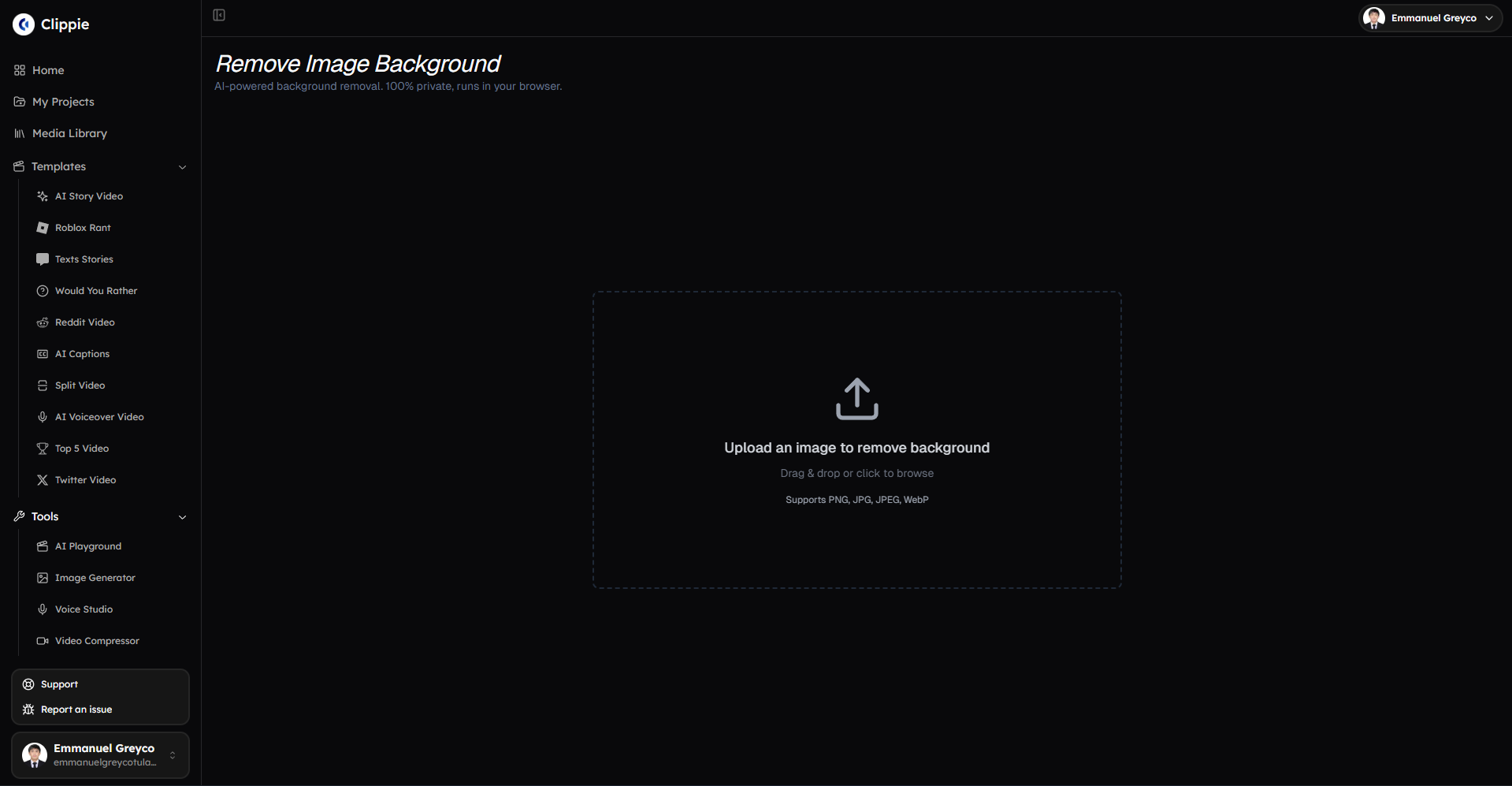
Clippie AI Background Remover (Content Creation Integrated Free Option)
What it is:
Background removal integrated into Clippie AI video/content creation platform
Free feature (included in Clippie AI Creator $34.99/month, free compared to paying separately)
Workflow-optimized (remove background during content import, not separate process)
Features:
Included in Clippie AI subscription (no additional cost)
Unlimited background removals (no monthly cap within subscription)
Workflow integration (remove background as part of video/graphic creation, not standalone step)
Batch capability (upload multiple images, remove backgrounds simultaneously)
Video-optimized (backgrounds removed from video frames for overlays, motion graphics)
Limitations:
Requires Clippie AI subscription (not standalone free tool)
Focused on content creation workflow (not pure background removal tool)
Best use cases:
Video creators needing backgrounds removed for overlays (product shots in videos, graphics)
Content creators making social media posts (remove background, add to video/graphic)
Systematic production (batch processing multiple assets)
Comparison to standalone:
Standalone workflow: Create image → Upload to Remove.bg → Download PNG → Upload to video editor → Use in project (4 separate steps, 3–5 minutes)
Clippie AI workflow: Upload image to Clippie → Toggle "Remove background" → Use in project (1 step, 10 seconds)
Time savings: 90% reduction for integrated workflow users
Quality assessment:
Accuracy: 93–96% (comparable to other AI tools)
Edge quality: Good (optimized for video use, slight edge simplification prevents flickering)
Speed: Fast (batch processing parallel)
Verdict: Best for content creators, not "free standalone" but included feature that eliminates workflow friction
Pricing context:
Standalone background remover tool: $9–$29/month (plus video editor $20–$60/month) = $29–$89/month total
Clippie AI Creator (includes background removal + video creation + AI voices + more): $34.99/month
Net: Cheaper integrated solution if creating content regularly
Open-Source Options (REMBG, self-hosted)
What it is:
Python library for background removal (rembg)
Self-hosted (run on your computer, no cloud upload)
Completely free (open-source license)
Features:
Unlimited processing (local, no quotas)
Full privacy (images never leave your device)
High quality (same AI models as paid tools)
Customizable (can modify code)
Limitations:
Technical setup required (Python installation, command line)
No GUI by default (command line interface)
Requires decent computer (processing intensive)
Learning curve (not beginner-friendly)
Best use cases:
Developers/technical users comfortable with code
Privacy-critical applications (sensitive images)
High-volume needs without budget (batch 1000s of images)
Setup difficulty:
Install Python: 10 minutes
Install rembg: 5 minutes (command:
pip install rembg)First use: 2 minutes (command:
rembg i input.jpg output.png)Total: 15–20 minutes initial setup
Quality assessment:
Accuracy: 93–97% (same models as commercial tools)
Edge quality: Excellent (can customize parameters)
Speed: Moderate (depends on computer, GPU accelerated if available)
Verdict: Best for technical users needing privacy or high volume, not beginner-friendly
Comparison of Free Background Removal Tools (2026)
Remove.bg:
Free tier: Yes (completely free)
Resolution: 612×408 pixels (preview quality)
Monthly quota: Unlimited images
Account required: No
Quality rating: 9/10 (excellent accuracy)
Best for: Quick web graphics, social media posts, casual use
PhotoRoom:
Free tier: Limited (freemium model)
Resolution: 1200×1600 pixels (HD quality)
Monthly quota: 5–10 images per month
Account required: Yes (email signup)
Quality rating: 8.5/10 (very good, optimized for products)
Best for: Mobile users, product photography, occasional use within quota
Canva Background Remover:
Free tier: Limited (within Canva Free account)
Resolution: Web-quality (varies, typically up to 1920×1080)
Monthly quota: 5–10 uses per month
Account required: Yes (free Canva account)
Quality rating: 8/10 (good, powered by Remove.bg API)
Best for: Canva users already designing graphics, integrated workflow
Clippie AI Background Remover:
Free tier: Included in Creator subscription ($34.99/month)
Resolution: Full resolution up to 4K (3840×2160)
Monthly quota: Unlimited within subscription
Account required: Yes (Clippie AI account)
Quality rating: 8.5/10 (very good, video-optimized)
Best for: Content creators, video producers, systematic batch processing
REMBG (Open-Source):
Free tier: Yes (completely free, open-source)
Resolution: Full resolution (no limits)
Monthly quota: Unlimited (local processing)
Account required: No
Quality rating: 9/10 (excellent, same models as commercial tools)
Best for: Technical users, developers, privacy-critical applications, high-volume needs
Selection decision tree:
One-off personal use:→ Remove.bg (no signup, instant, good enough for social)
Regular product photography (mobile):→ PhotoRoom (best app experience, templates)
Already using Canva:→ Canva background remover (integrated workflow)
Creating videos/content regularly:→ Clippie AI (workflow efficiency, batch processing)
Technical user, privacy-focused:→ REMBG (open-source, local processing)
High-volume commercial:→ Paid tier of any tool (free tiers won't scale, commercial licensing needed)
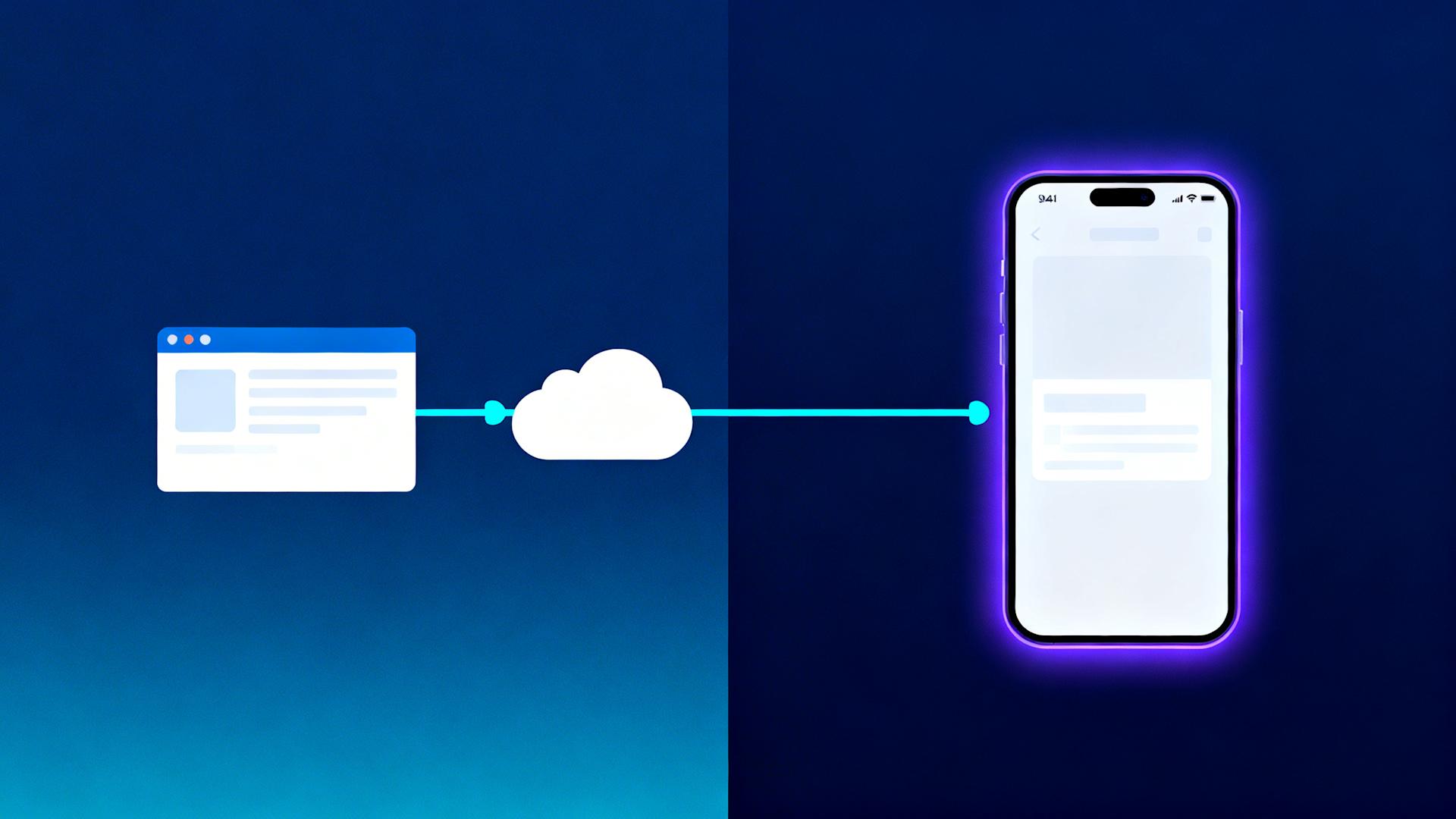
3. Online vs App-Based Background Removers
Online Web Tools (Browser-Based)
How they work:
Upload image via browser
Processing happens on remote server
Download result
Advantages:
1. No installation required:
Works on any device with browser
No storage space needed on device
No updates to manage
2. Platform-agnostic:
Works on Windows, Mac, Linux, ChromeOS
Mobile browsers supported (though apps often better on mobile)
3. Always latest version:
Automatic updates (server-side improvements)
No manual updating required
4. Lower device requirements:
Processing on server (not local hardware)
Works on old/weak computers
Disadvantages:
1. Internet dependency:
Requires active connection (can't work offline)
Slow connection = slow processing
No internet = tool unavailable
2. Privacy concerns:
Images uploaded to third-party servers
Potential data exposure (hacks, misuse)
Terms of service may grant company rights to images
3. File size limits:
Upload limits typical (5–10MB per image)
Large files may fail or require compression
4. Download/upload friction:
Must download result, then re-upload to destination (video editor, design tool)
Extra steps = time waste
Best use cases:
Occasional users (don't want app bloat)
Cross-device work (switch between computers)
Non-sensitive images (public content, already-published photos)
App-Based Background Removers (Desktop/Mobile)
How they work:
Installed application on device
Some process locally, others still use cloud (hybrid approach)
Results saved to device
Advantages:
1. Offline capability (some apps):
Can work without internet (if local processing)
Faster (no upload/download time)
Reliable (no connection disruptions)
2. Better privacy (local processing apps):
Images stay on device (no cloud upload)
Lower exposure risk
3. Workflow integration:
Desktop apps integrate with OS (drag-and-drop, file system)
Mobile apps share to other apps directly (no download/re-upload)
4. Performance optimization:
Can use device GPU (faster processing)
Optimized for specific OS (better performance)
Disadvantages:
1. Installation overhead:
Download and install required (storage space, setup time)
Updates needed (manual or automatic, but still overhead)
2. Device-specific:
Windows app ≠ Mac app (may need different versions)
Mobile apps separate from desktop (fragmentation)
3. Hardware requirements:
Local processing requires decent specs (older devices may struggle)
Storage space needed (app + temporary files)
4. License management:
Some apps require account even for local processing (DRM)
Best use cases:
Regular users (worth installation effort)
Privacy-critical work (local processing essential)
Offline work (travel, limited connectivity)
Professional workflows (integration with Adobe, Final Cut, etc.)
The Hybrid Approach (Progressive Web Apps)
What are PWAs:
Web apps that install like native apps
Can work offline (cached resources)
Combine benefits of both approaches
Examples:
Some background remover tools offer PWA versions
Install via browser ("Add to Home Screen")
Feels like app, but web-based technology
Advantages:
No app store needed (install from browser)
Cross-platform (one codebase, all devices)
Offline capable (if designed for it)
Auto-updates (web benefits)
Disadvantages:
Still relatively new (not all tools offer PWA)
Limited OS integration (compared to native apps)
Clippie AI's Integrated Approach (Eliminating the Choice)
The problem with standalone tools (online or app):
Traditional workflow:
Create/source image
Open background removal tool (online or app)
Upload image
Process and download
Open destination tool (video editor, design software)
Upload processed image
Use in project
Friction points:
7 steps total
2 separate tools (background remover + content creation)
2 upload steps (original image, processed image)
1 download step (intermediate file)
Time: 3–5 minutes per image
Clippie AI integrated workflow:
Upload image to Clippie AI project
Toggle "Remove background" (checkbox)
Use in video/graphic
Advantages:
3 steps total (57% fewer)
1 tool (background removal + content creation integrated)
0 intermediate downloads/uploads
Time: 10–15 seconds per image
Time savings calculation:
20 images with backgrounds to remove monthly
Traditional: 20 × 4 min = 80 minutes monthly
Clippie AI: 20 × 12 sec = 4 minutes monthly
Savings: 76 minutes monthly (95% reduction)
When integrated approach optimal:
Creating videos regularly (background-removed elements as overlays)
Making social media graphics (product photos, profile images, branded content)
Producing content at scale (batch 10–50 images for project)
When standalone still makes sense:
One-off image editing (not making video/content after)
Just need transparent PNG (no further editing planned)
Using different tools for downstream work (e.g., Photoshop)
4. Step-by-Step: Remove Background Free Using Clippie
Prerequisites and Setup
What you need:
Clippie AI account (free trial available, or Creator plan $34.99/month)
Images with backgrounds to remove (JPG, PNG formats)
Web browser (Chrome, Firefox, Safari, Edge)
Account setup (if new user):
Visit Clippie.ai
Click "Get Started" or "Start Free Trial"
Create account (email + password or Google/social login)
Verify email (if required)
Access dashboard
Time: 2 minutes
Method 1: Remove Background During Video Creation
Use case: Adding product images, graphics, or photos to videos with transparent backgrounds
Step-by-step:
Step 1: Create new project (30 seconds)
Click "New Project" in Clippie AI dashboard
Select project type (Video, Social Media Post, etc.)
Choose template or start blank
Step 2: Import image (20 seconds)
Click "Add Media" or "Upload"
Select image file from computer (or drag-and-drop)
Image uploads to project media library
Step 3: Remove background (5 seconds)
Click on uploaded image thumbnail in media library
Look for "Remove Background" toggle or checkbox (in image settings panel)
Click toggle to ON position
Background automatically removed (processing 2–3 seconds)
Step 4: Add to video/canvas (10 seconds)
Drag processed image (now with transparent background) onto video timeline or canvas
Position and resize as needed
Image appears with background removed, composited over video/graphic
Step 5: Export (optional, if saving just the image)
If you want standalone PNG: Right-click image in media library
Select "Export as PNG"
Download to computer
Total time: 1 minute, 5 seconds (for entire workflow including video use)
Method 2: Batch Remove Backgrounds (Multiple Images)
Use case: Processing 10–50 images for project (product catalog, event photos, team headshots)
Step-by-step:
Step 1: Bulk upload (1 minute)
Click "Add Media" or "Upload"
Select multiple images (Ctrl+Click or Cmd+Click to select many)
OR drag-and-drop folder of images
All images upload to media library
Step 2: Batch background removal (10 seconds)
In media library, select all uploaded images (checkbox or Ctrl+A)
Look for "Batch Actions" or similar menu
Select "Remove Backgrounds" from batch options
Click "Apply" or "Process"
Step 3: Processing (automated, 1–3 minutes depending on quantity)
Clippie AI processes all images in parallel
Progress bar shows completion status
All images processed simultaneously (not one-by-one)
Step 4: Review results (1–2 minutes)
Preview processed images in media library
Check quality (zoom in on complex areas like hair)
If any need refinement: Select individually, manual adjust edges (if available)
Step 5: Bulk export (optional, 30 seconds)
Select all processed images
Click "Export Selected"
Choose format (PNG for transparency)
Download as ZIP file (all images packaged)
Total time: 3–7 minutes for 20–50 images (vs. 60–200 minutes with standalone tool one-by-one)
Method 3: Remove Background from Video Frames
Use case: Removing background from yourself or subject in video (green screen effect without green screen)
Step-by-step:
Step 1: Upload video (1 minute)
Create new video project
Upload video file (subject with background to remove)
Step 2: Apply background removal effect (10 seconds)
Click on video clip in timeline
Look for "Effects" or "Video Effects" panel
Select "Background Removal" or "AI Background Removal" effect
Drag effect onto video clip (or click "Apply")
Step 3: Processing (automated, 2–5 minutes for 60-second video)
Clippie AI processes video frame-by-frame
Removes background from all frames
Maintains temporal consistency (no flickering edges)
Step 4: Add new background (optional, 20 seconds)
Add image or video to layer below main video
This becomes new background (since subject background now transparent)
OR: Leave transparent for overlay use (compositing subject over other content)
Step 5: Export video
Click "Export" or "Render"
Choose format (MP4 with alpha channel if supported, or composite)
Download final video
Total time: 4–7 minutes (for 60-second video with background removal)
Note: Video background removal more processing-intensive than still images, results may vary by complexity (moving hair, fast motion can challenge AI)
Troubleshooting Within Clippie AI
Issue 1: Background not fully removed
Solution:
Increase "Background Removal Strength" slider (if available, more aggressive removal)
Manually refine: Use "Refine Edges" tool (brush to include/exclude areas)
Re-process: Sometimes AI makes errors, toggle removal OFF then ON again (re-runs algorithm)
Issue 2: Subject edges look rough
Solution:
Enable "Edge Smoothing" option (anti-aliasing for natural transitions)
Reduce "Background Removal Strength" slightly (too aggressive = rough edges)
Use "Feather Edges" slider (soft blend at boundaries)
Issue 3: Processing fails or errors
Solution:
Check image format (JPG and PNG supported, HEIC may need conversion)
Verify file size (under 50MB typical limit)
Check internet connection (processing requires connection even though integrated)
Try re-uploading image (occasionally upload corrupts)
Issue 4: Result quality lower than expected
Possible causes:
Source image low resolution (AI can't create detail that doesn't exist)
Very complex scene (busy background confuses AI, consider simplifying source)
Poor subject/background contrast (similar colors difficult for AI)
Improvement strategies:
Use higher resolution source image
Photograph subject against contrasting background (makes AI job easier)
Manual refinement after AI processing (zoom in, manually correct edges)
5. Image Quality, Resolution & Export Formats Explained
Understanding Resolution and Output Quality
What resolution means:
Pixel dimensions (width × height in pixels)
Example: 1920×1080 = 1920 pixels wide, 1080 pixels tall
Total pixels: 1920 × 1080 = 2,073,600 pixels (approximately 2 megapixels)
Resolution requirements by use case:
Social media:
Instagram feed: 1080×1080 (square) or 1080×1350 (portrait)
Instagram Stories: 1080×1920 (vertical)
TikTok: 1080×1920 (vertical)
YouTube thumbnail: 1280×720 minimum (1920×1080 recommended)
Facebook post: 1200×630 (link previews), 1080×1080 (feed)
Verdict: Free tools adequate (most support 1080p or higher)
Web use:
Hero images: 1920×1080 typical (full-width desktop)
Product photos: 800×800 to 2000×2000 (depending on zoom feature)
Blog images: 1200 pixels wide typical
Verdict: Free tools mostly adequate (some at upper limit)
Print:
Standard print: 300 DPI required (dots per inch)
4×6 photo: 1200×1800 pixels minimum (at 300 DPI)
8×10 photo: 2400×3000 pixels minimum
Poster (24×36): 7200×10800 pixels (massive)
Verdict: Free tools often insufficient (resolution too low for quality print)
Professional/commercial:
Maximum flexibility needed (high-res for any future use)
Typically 12–25 megapixels (4000×3000 to 6000×4000 pixels)
Verdict: Paid tools required (free tiers don't offer this resolution)
Free Tool Resolution Comparison
Remove.bg free tier:
Output: 612×408 pixels (0.25 megapixels)
Adequate for: Small web graphics, avatars, low-res social
Inadequate for: Full-size social posts, print, professional use
PhotoRoom free tier:
Output: Varies (often 1200×1600 or similar, approximately 2 megapixels)
Adequate for: Social media, web graphics, presentations
Inadequate for: Print, high-resolution needs
Canva background remover (free account):
Output: Depends on Canva export settings (typically up to 1920×1080 for free)
Adequate for: Social media, web, presentations
Inadequate for: Print, professional portfolios
Clippie AI (Creator plan):
Output: Full resolution up to project limits (typically 4K, 3840×2160 supported)
Adequate for: Social media, web, most professional video use
Adequate for print: Depends on source image quality (if source is high-res, output maintains it)
REMBG (open-source):
Output: Full resolution (no limits, processes whatever you input)
Adequate for: Everything (if source image high-quality)
Export Formats and When to Use Each
PNG (Portable Network Graphics):
Characteristics:
Lossless compression (no quality loss)
Supports transparency (alpha channel, required for removed backgrounds)
Larger file sizes (than JPG for same image)
When to use:
Background removal output (transparency required)
Graphics with text (lossless = sharp text)
Images needing future editing (lossless preserves quality)
File size:
1920×1080 PNG: 500KB–3MB (varies by complexity)
JPG/JPEG (Joint Photographic Experts Group):
Characteristics:
Lossy compression (some quality loss, but smaller files)
Does NOT support transparency (background would be white/black, not transparent)
Smaller file sizes (good for web delivery)
When to use:
Photos where transparency not needed
Web delivery (fast loading)
NOT suitable for background removal output (no transparency)
File size:
1920×1080 JPG: 100KB–500KB (much smaller than PNG)
WebP:
Characteristics:
Modern format (Google-developed)
Supports transparency AND efficient compression
Best of both worlds (PNG transparency + JPG file sizes)
Browser support: Excellent in 2026 (95%+ browsers)
When to use:
Web delivery of transparent images (smaller than PNG)
Modern websites/apps (progressive enhancement)
File size:
1920×1080 WebP (transparent): 200KB–1MB (30–60% smaller than PNG)
SVG (Scalable Vector Graphics):
Characteristics:
Vector format (resolution-independent, scales infinitely)
Not suitable for photos (vector = shapes, not pixels)
Small file sizes (for simple graphics)
When to use:
Logos, icons (simple graphics)
NOT for background removal of photos (photos are raster, not vector)
Clippie AI export options:
PNG (default for transparent backgrounds)
WebP (if available, smaller file size option)
MP4 with alpha (for video with transparency, advanced use)
Compression and Quality Settings
What compression does:
Reduces file size (faster uploads, less storage)
Can reduce quality (too much compression = artifacts, blur)
Quality slider (when available):
100% = maximum quality, large file
80–90% = excellent quality, reasonable file size (sweet spot)
50–70% = acceptable quality, small file (web use)
Below 50% = noticeable quality loss (avoid unless necessary)
Clippie AI approach:
Automatic optimal compression (balances quality and file size)
Typically 85–92% quality (imperceptible loss, reasonable files)
User can adjust if needed (quality slider available in export settings)
When to use maximum quality:
Print materials (no quality compromise acceptable)
Professional portfolios (showcase work)
Large displays (quality loss magnified on big screens)
When compression acceptable:
Social media (platforms re-compress anyway, diminishing returns from max quality)
Web thumbnails (small display size hides compression)
Email attachments (file size limits important)
6. Common Problems (Rough Edges, Hair, Shadows)
Problem 1: Rough or Jagged Edges
What it looks like:
Subject outline has stair-step appearance (pixelated edge)
Edge not smooth, looks amateur
Causes:
AI over-aggressive (removing too much or too little)
Low-resolution source image (not enough pixel data for smooth edge)
High-contrast edge (sharp boundary confuses blending algorithm)
Solutions:
In Clippie AI:
Enable "Edge Smoothing" option (anti-aliasing)
Adjust "Background Removal Strength" (reduce if too aggressive)
Use "Feather Edges" slider (creates soft gradient transition, 0–5 pixels typically)
Prevention (when taking photo):
Ensure good lighting (reduces harsh shadows creating artificial edges)
Slight blur at subject boundary helps (natural soft focus, not extreme)
Higher resolution source (more pixels = smoother edges possible)
Manual fix (if tool allows):
Export PNG from Clippie AI
Open in Photoshop or GIMP (free alternative)
Use "Select > Modify > Smooth" (smooths edge)
Or manually paint edge refinement (zoom to 400%, soft brush at 50% opacity)
Expected result:
Smooth, natural edge (looks professional, not cutout)
Problem 2: Complex Hair and Fur
The challenge:
Hair strands fine (1–2 pixels wide)
Gaps between strands (should be transparent)
Traditional algorithms fail (cut through hair or leave rough halo)
Modern AI approach:
Semantic understanding (recognizes "this is hair", treats differently)
Hair-specific refinement (preserves fine detail)
Semi-transparent rendering (hair at edges partially transparent, natural)
When AI still struggles:
Very fine blonde hair against light background (low contrast)
Wind-blown hair (motion blur confuses boundary)
Backlit hair (rim lighting creates complexity)
Solutions in Clippie AI:
Use "Hair Refinement" mode (if available, specifically for portraits)
Increase detail preservation (slider for fine detail vs. speed tradeoff)
Manual refinement: Zoom to hair area, brush tool to include missed strands
Photographic tips for better results:
Contrasting background (dark hair on light background, vice versa, helps AI)
Avoid backlighting (front or side lighting better for hair definition)
Brush hair smooth (reduces flyaways AI must process)
Alternative approach (green screen):
For critical hair (professional portraits, commercial work)
Photograph against green screen (chroma key works better for complex hair than AI segmentation)
Use color-based removal (more precise for fine hair detail)
Realistic expectations:
AI hair removal: 85–93% accurate (very good, occasional strand missed)
Manual Photoshop by expert: 98–99% accurate (perfect but hours of work)
Green screen: 95–98% accurate (excellent, but requires setup)
Verdict: AI acceptable for most use cases, manual refinement for perfection
Problem 3: Shadows and Reflections
The shadow problem:
Scenario: Product photo with shadow on ground
What you want:
Remove background (white backdrop)
Keep shadow (adds depth, realism)
What AI does:
Often removes shadow too (sees as part of background)
OR
What you want:
Remove background AND shadow (clean isolation)
What AI does:
Keeps shadow (sees as part of subject)
Solution in Clippie AI:
Option 1: Keep shadow
After background removal, check "Preserve Shadows" (if available)
AI attempts to keep ground shadow while removing background
May need manual refinement (brush shadow back in if removed)
Option 2: Remove shadow
Default AI processing usually removes shadows
If shadow remains: Manually erase (brush tool, paint over shadow area)
Or: Use "Remove Shadows" specific toggle (if available)
Manual approach (best control):
Remove background in Clippie AI (will probably remove shadow too)
Create new artificial shadow:
Add ellipse shape under subject (in Clippie AI or downstream tool)
Fill with black or dark gray
Reduce opacity to 30–50%
Apply blur (10–20 pixel radius for soft shadow)
Position under subject
Result: Clean artificial shadow (more control than trying to preserve original)
Reflection problem (glass, water):
Challenge:
Transparent objects (wine glass, water bottle)
Reflections integral to object appearance
AI struggles with transparency (doesn't know what to keep/remove)
Solutions:
Prevention:
Photograph transparent objects on contrasting solid background (black or white)
Use backlighting to define edges (rim light on glass)
Post-processing:
AI will attempt background removal (results vary)
Expect 70–85% accuracy (some weird artifacts around transparency)
Manual refinement essential:
Zoom to transparent areas
Manually erase background showing through glass
Recreate reflections if needed (clone stamp tool, paint)
Alternative (for critical commercial work):
Professional photographer with proper lighting (eliminates problematic reflections at capture)
Manual Photoshop retouching (2–4 hours for perfect transparent object isolation)
Realistic expectations:
AI transparency removal: 70–85% (acceptable for casual use, needs refinement for professional)
Perfect result: Requires manual work (AI starting point saves time vs. pure manual, but can't do it alone)
Problem 4: Background Color Spill
What it is:
Subject shot against colored background (green, blue, etc.)
Background color reflects onto subject edges (color contamination)
Even after background removed, subject has colored fringe (green glow on edges)
Causes:
Light bouncing off colored background onto subject
Particularly bad with green screen (intense green light spill)
Solutions:
In Clippie AI (or most tools with advanced options):
Enable "Defringe" or "Remove Color Spill" option
Select background color (e.g., green) to specifically remove
Tool analyzes edge pixels, removes contaminating color
Manual fix (Photoshop/GIMP):
Select subject edge (1–3 pixel selection around boundary)
Use "Decontaminate Colors" filter (Photoshop) or similar
Reduces problematic color while preserving subject true colors
Prevention:
Increase distance between subject and background (reduces light bounce)
Use flags or diffusers (block colored light from hitting subject)
Proper background color (neutral gray better than saturated green for minimizing spill, though worse for chroma key)
When to worry:
Commercial work (color accuracy critical)
Portrait work (skin tone contamination noticeable)
When acceptable:
Casual use (minor fringe often invisible in final composite)
Small social media sizes (artifacts hidden at low resolution)
Problem 5: Busy or Complex Backgrounds
The challenge:
Subject in front of busy scene (trees, people, patterns)
AI must distinguish subject from visually similar background elements
What goes wrong:
AI removes parts of subject (thinks it's background)
Or keeps parts of background (thinks it's subject)
Solutions:
Prevention (best approach):
Photograph against simple background (solid color, plain wall, sky)
If using existing photo: Crop tighter (eliminate busy edges)
In Clippie AI:
First pass: Default AI removal (see result)
If parts of subject removed: Use "Restore" brush (paint subject back in)
If parts of background remain: Use "Erase" brush (manually remove)
Iterative refinement (zoom in, carefully paint corrections)
Alternative approach:
Give AI help: Roughly outline subject first (lasso tool, rough selection)
Tell AI "this is subject" (within outline), "this is background" (outside)
AI refines your rough selection (faster than pure AI on complex scene)
Realistic expectations:
Simple backgrounds (solid, plain): 95–98% AI accuracy
Moderately complex (office, room): 88–94% accuracy
Very complex (forest, crowd): 75–88% accuracy (manual refinement needed)
Commercial approach (if budget permits):
Hire photographer to shoot against clean background (eliminates problem at source)
Or: Budget 30–60 minutes manual Photoshop time for complex backgrounds (AI starting point, manual finish)
7. FAQs About Clippie AI's Free Background Removal
Is background removal really included free with Clippie AI?
Answer: Yes, with nuance on "free"
Clarification:
Clippie AI is subscription service ($34.99/month for Creator plan)
Background removal included in subscription (no additional charge)
"Free" compared to paying separately for standalone background removal tool ($9–$29/month) + video editor ($20–$60/month)
Cost comparison:
Separate tools approach:
Background remover: $19/month (e.g., Remove.bg Pro)
Video editor: $25/month (e.g., CapCut Pro or similar)
Total: $44/month
Clippie AI integrated approach:
All-in-one: $34.99/month (includes background removal + video creation + AI voices + subtitles + more)
Savings: $9.01/month (21% cheaper for more features)
Standalone free tools still exist:
Remove.bg free tier (low resolution, standalone)
REMBG (open-source, technical setup)
When Clippie AI background removal makes sense:
Already creating videos/content (workflow integration worth it)
Need batch processing (removing backgrounds from many images for project)
Value time savings (integrated workflow 90% faster than standalone)
When standalone free tool better:
One-off image editing (not making videos regularly)
Just need transparent PNG (no further content creation)
Budget absolutely zero (willing to accept resolution limits)
What's the resolution limit for Clippie AI background removal?
Answer: Full resolution up to 4K (3840×2160), maintaining source quality
Details:
Input: Accepts images up to 25 megapixels (5000×5000 pixels approximately)
Processing: Maintains input resolution (doesn't downscale)
Output: Same resolution as input (if source is 4000×3000, output is 4000×3000)
Comparison to free standalone tools:
Remove.bg free: 612×408 output (0.25MP, massive downscale)
PhotoRoom free: ~1200×1600 output (2MP, moderate downscale)
Clippie AI: Full resolution (no downscale)
Practical implications:
Social media:
Instagram 1080×1080 required → Clippie AI handles easily
TikTok 1080×1920 required → Full quality maintained
Print:
8×10 photo at 300 DPI requires 2400×3000 pixels → Clippie AI supports
Poster size may exceed limits → Check source resolution
Professional video:
4K video overlays (3840×2160) → Fully supported
8K video (7680×4320) → May exceed limits (check specific project)
Recommendation:
For print/professional: Clippie AI adequate for most needs (up to medium-large prints)
For massive formats (billboards, giant posters): May need specialized high-res tools or manual Photoshop
Can I batch process multiple images at once?
Answer: Yes, Clippie AI supports batch background removal
How it works:
Upload multiple images to project (10–50+ images)
Select all in media library
Apply "Remove Background" to selection (batch action)
All process simultaneously (parallel processing, not sequential)
Time comparison:
Standalone tool (one-by-one):
50 images × 3 minutes each (upload, process, download) = 150 minutes
Clippie AI (batch):
Upload all: 2 minutes
Batch process: 5 minutes (parallel processing)
Total: 7 minutes for 50 images
Time savings: 143 minutes (95% reduction)
Limitations:
Batch size: Typically 50–100 images per batch (platform-dependent)
Processing time: Scales with quantity (100 images may take 10–15 minutes)
Review: Still need to individually review results (AI not perfect, some may need refinement)
Best practices:
Batch similar images (all portraits, or all products, consistent settings work better)
Review in batches (check every 5th or 10th image during processing to catch systematic issues early)
Save settings (if first batch good, reuse same settings for next batch)
Does Clippie AI work for video background removal (like green screen)?
Answer: Yes, Clippie AI supports video background removal (AI-based, no green screen required)
How it works:
Upload video to Clippie AI project
Apply "Background Removal" effect to video clip
AI processes frame-by-frame (removes background from all frames)
Result: Video with transparent background (or composited over new background)
Technology:
Frame-by-frame segmentation (AI analyzes each frame)
Temporal consistency (ensures edges don't flicker between frames)
Real-time preview (see result before final render)
Compared to green screen:
Green screen (chroma key):
Requires: Green/blue screen backdrop (setup cost, space)
Accuracy: 95–98% (excellent for clean greenscreen)
Best for: Controlled studio environments
AI background removal (no green screen):
Requires: Nothing (works with existing footage)
Accuracy: 88–94% (very good, occasional edge issues)
Best for: Existing footage, no studio setup
Quality considerations:
Static subject (person sitting): Excellent results (95%+ accuracy)
Moving subject (person walking): Good results (90–93%, some edge softness)
Fast motion (dancing, sports): Moderate results (85–90%, motion blur challenges AI)
Complex hair: Good but not perfect (flyaway strands may flicker)
When to use:
Existing footage (no green screen available)
Quick videos (no time for studio setup)
Casual/social content (perfection not required)
When green screen better:
Professional commercial work (maximum quality required)
Broadcast/film (industry standard expectations)
Budget and time permit (proper setup investment worthwhile)
What image formats does Clippie AI support?
Supported input formats:
JPG/JPEG: Yes (most common, photos)
PNG: Yes (already supports transparency)
WebP: Yes (modern web format)
HEIC: Sometimes (iPhone photos, may require conversion)
RAW formats (CR2, NEF, ARW): Limited support (may need conversion to JPG)
GIF: Yes for still frames (not animated GIF background removal)
BMP: Yes (basic format)
TIFF: Yes (professional format)
Recommended workflow for unsupported formats:
Convert to JPG or PNG using free tool (e.g., CloudConvert, Photopea)
Upload converted image to Clippie AI
Process normally
Output formats:
PNG: Default (transparency preserved)
WebP: Optional (smaller file size, transparency supported)
JPG: Not recommended for background removal (no transparency support)
For video:
Input: MP4, MOV, AVI, WebM (common video formats)
Output: MP4 with alpha channel (if supported), or composite video (subject over new background)
Can I use Clippie AI background removal for commercial projects?
Answer: Yes, Clippie AI Creator subscription includes commercial usage rights
What this means:
Client work: Can remove backgrounds for client projects (design work, video production)
Product photography: Can process product images for e-commerce stores
Marketing materials: Can create graphics for commercial advertising
Resale: Can sell final products/services that include background-removed images
Limitations (standard commercial terms):
Can't resell the tool itself (can't white-label Clippie AI and sell as your own service)
Can't redistribute processed images as stock photography (without additional licensing)
Standard copyright applies (must own rights to source images, Clippie AI doesn't grant rights to image content)
Comparison to free tools:
Remove.bg free tier:
Personal use only (terms of service restrict commercial use)
Paid tier required for commercial projects
PhotoRoom free tier:
Limited commercial use (check specific terms, often restricted)
Paid tier for full commercial rights
Clippie AI Creator:
Full commercial use included (no additional licensing needed)
Best practices:
Read terms of service (ensure you understand usage rights)
Verify source image rights (Clippie AI processes your images, you must have rights to source material)
For high-value commercial: Consider watermarking or protecting processed images (prevent unauthorized use of your work)
How does Clippie AI compare to Photoshop's background removal?
Comparison by category:
Accuracy:
Photoshop (AI-powered "Remove Background"): 94–97% automatic accuracy
Clippie AI: 93–96% automatic accuracy
Verdict: Nearly equivalent (both use similar AI segmentation models)
Speed:
Photoshop: 3–8 seconds processing (desktop processing)
Clippie AI: 2–5 seconds processing (cloud processing, potentially faster on high-end servers)
Verdict: Clippie AI slightly faster (cloud infrastructure advantage)
Manual refinement capabilities:
Photoshop: Extensive manual tools (brush, lasso, channel refinement, edge detection, professional-grade)
Clippie AI: Basic manual refinement (brush to include/exclude, edge smoothing, adequate for most)
Verdict: Photoshop superior for complex manual work (Clippie AI good for 90% of use cases)
Workflow integration:
Photoshop: Standalone tool (must export, then import to video editor if creating video content)
Clippie AI: Integrated (background removal + video creation in same tool)
Verdict: Clippie AI superior for content creators (workflow efficiency)
Cost:
Photoshop: $31.49/month (Photography plan) or $54.99/month (All Apps)
Clippie AI: $34.99/month (includes background removal + video tools + AI features)
Verdict: Clippie AI better value for video creators (Photoshop better for pure photo editing)
Learning curve:
Photoshop: Steep (extensive features = complexity)
Clippie AI: Gentle (simplified, focused on content creation workflow)
Verdict: Clippie AI more accessible (Photoshop for professionals willing to invest learning time)
Best choice depends on use case:
Choose Photoshop if: Professional photo editor, need maximum manual control, not creating videos
Choose Clippie AI if: Video content creator, need efficient workflow, want all-in-one solution
Conclusion: Choosing Your Free Background Removal Approach
Free background removal in 2026 exists across spectrum from completely free standalone tools (Remove.bg's basic tier, open-source REMBG) through freemium services (PhotoRoom, Canva) to integrated platforms (Clippie AI) where background removal is utility feature within broader content creation ecosystem, where optimal choice depends on use case (one-off personal use vs. systematic professional production), volume requirements (single images vs. batch processing), quality needs (social media vs. print), and workflow context (standalone task vs. integrated content creation). For casual users needing occasional background removal, truly free standalone tools provide adequate quality for web and social media despite resolution limitations. For content creators, businesses, or anyone incorporating background removal into regular workflows, integrated solutions like Clippie AI eliminate the multi-tool friction (separate background remover + video editor + graphic design tool) while delivering professional quality and unlimited processing within single subscription.
The decision framework:
Choose standalone free tools (Remove.bg, PhotoRoom) if:
Occasional use (less than 5 images monthly)
One-off projects (not systematic workflow)
Personal/non-commercial use
Comfortable with resolution limits (social media quality acceptable)
Don't want any subscription costs
Choose open-source tools (REMBG) if:
Technical capability (comfortable with Python, command line)
Privacy critical (sensitive images, can't upload to cloud)
High volume (batch thousands of images)
Want maximum control (can modify code, customize settings)
Choose Clippie AI integrated background removal if:
Creating video content regularly (background removal is step in larger workflow)
Need batch processing (removing backgrounds from 10–50+ images per project)
Value workflow efficiency (integrated approach eliminates download/re-upload steps)
Want professional quality (full resolution, video-optimized)
Prefer all-in-one solution (background removal + video editing + AI voices in single platform)
For content creators, small businesses, and professional workflows, the integrated approach (Clippie AI) provides superior value, not because background removal is "free" in the standalone sense, but because it's included within necessary content creation tools at lower total cost than maintaining separate subscriptions for background removal ($9–$29/month), video editing ($20–$60/month), and other production needs, while simultaneously reducing production time through workflow integration that eliminates the friction of managing multiple specialized tools.
The future of background removal isn't standalone free tools competing on features and resolution, it's integration into comprehensive content creation platforms where background removal becomes seamless utility (like spell-check in word processors) rather than separate task requiring tool-switching, file management, and workflow interruption.
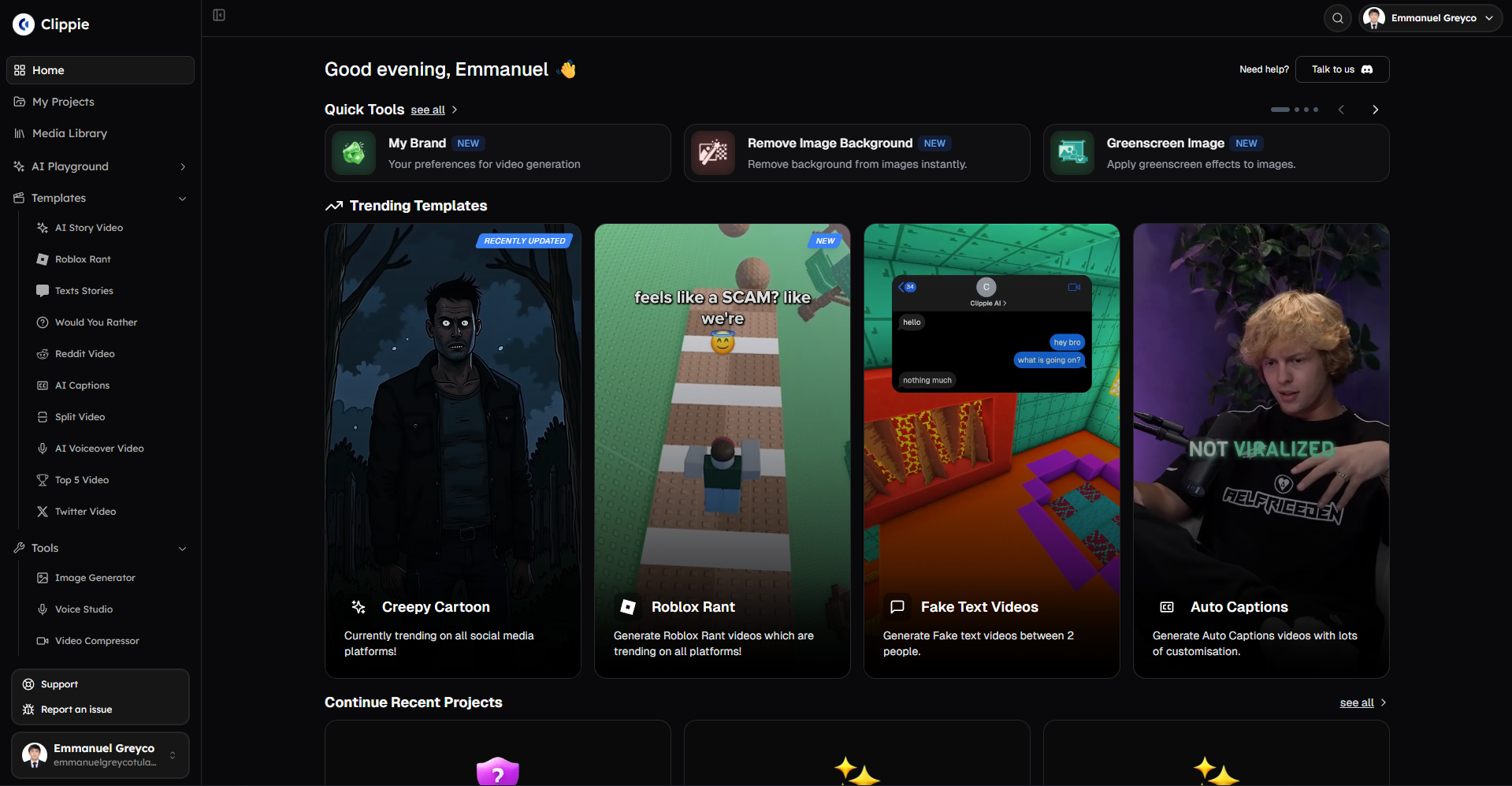
Ready to streamline your background removal workflow? Experience Clippie AI's integrated background removal within complete content creation platform, remove backgrounds during video production in single click rather than separate tool-switching process, enabling efficient batch processing and professional quality output without standalone tool friction.
Make an AI story video
Write a script or let AI write one. Clippie turns it into a narrated video with AI scenes, voiceover and captions.
Read more

15 Faceless Psychology Channel Ideas for 2026 (With Examples)
Psychology Shorts and long-form video concepts you can make without showing your face, plus the accuracy habits and YouTube rules that keep them monetized.

How to Make Storytelling Videos Automatically in 2026
Turn a bank of stories into finished Shorts with a 7-step pipeline: what to automate, what to keep human, weekly batching, and a 2-minute quality check.

How to Make Top 5 Ranking Videos in 2026 (Step-by-Step)
Build ranking Shorts that can still earn: pick a debatable topic, set clear criteria, source clips you may use, script the countdown, add your commentary.