
Free AI Video Background Remover Tools: Step-by-Step Guide to Professional Green Screen Effects in 2026
Free AI video background remover 2026: Remove backgrounds without green screen. Step-by-step guide using Unscreen, Runway ML, Cutout.Pro, VEED.io. Clean chroma key results, common mistakes, integrating with Clippie AI for professional video creation.
If you're searching for free AI video background remover tools with step-by-step guide to professional green screen effects in 2026, you're seeking solutions that eliminate green screen studio requirements while achieving broadcast-quality chroma key effects for professional video production, educational content, marketing videos, and social media creation. This guide explains when background removal delivers maximum value, how AI technology achieves clean extraction, provides detailed step-by-step workflows across top free tools, demonstrates common mistake fixes, and shows integration with Clippie AI for complete video production systems.
Executive Summary: AI video background removal eliminates green screen studio requirements ($500-$2,000 setup costs) enabling professional chroma key effects through free and low-cost tools, top solutions include Unscreen (free up to 5 videos monthly, automatic removal in browser), Runway ML (free 125 credits, professional-grade AI with motion tracking), Cutout.Pro (free 1 video daily, high-quality edge detection), VEED.io (free with watermark, integrated video editor), and Remove.bg Video (free up to 5 seconds, simple interface). Critical use cases include talking-head educational videos placing presenters over custom backgrounds (90% of educational YouTube channels), product demonstrations isolating products for clean white/black backgrounds (e-commerce standard), corporate presentations removing distracting home/office environments (professional appearance), social media content creating eye-catching overlays and effects (viral differentiation), virtual backgrounds for recorded presentations (webinar polish without live tools like Zoom), and composite scenes layering multiple video elements (creative storytelling). Technology achieves 85-95% accuracy through semantic segmentation identifying human subjects vs. backgrounds, edge detection tracing subject boundaries with sub-pixel precision, temporal consistency maintaining stable edges across frames preventing flickering, and hair/fur refinement preserving fine details through alpha matting, quality factors include subject contrast (high contrast enables 90-95% accuracy, low contrast reduces to 75-85%), motion complexity (static shots achieve 92-97% quality, rapid movement drops to 80-88%), lighting conditions (even lighting critical for clean edges), and background complexity (simple backgrounds easier than busy patterns). Common mistakes include hair fringing (semi-transparent edges around hair solved through edge feathering and color correction), motion blur artifacts (ghosting during fast movement fixed by pre-processing frame rate adjustments), inconsistent edge quality across frames (flickering solved through temporal smoothing), green screen spill on subjects (color cast removed through despill filters), and compression artifacts after export (solved through high-bitrate export settings and format selection).
Table of Contents
When to Use AI Background Removal in Video Production: 8 Essential Use Cases for Professional Content Creation
How AI Background Removal Technology Works: Computer Vision, Edge Detection, and Quality Factors
Step-by-Step Workflow for Clean AI Background Removal Results: From Upload to Final Export
How to Fix Common AI Background Removal Mistakes: Hair Fringing, Motion Blur, and Edge Artifacts
How to Integrate Background Removal Workflows with Clippie AI for Complete Video Production Systems
Frequently Asked Questions
Conclusion

1. When to Use AI Background Removal in Video Production: 8 Essential Use Cases for Professional Content Creation
AI background removal delivers maximum value in specific scenarios, understanding optimal use cases enables strategic deployment for professional results while avoiding situations where traditional filming produces superior outcomes.
Use Case #1: Educational Talking-Head Videos (Most Common Application)
Scenario: YouTube educational channels, online courses, tutorial videos where instructor appears on-screen explaining concepts.
Traditional approach:
Green screen setup: $500-$2,000 (backdrop, lighting, stands)
Studio space: Dedicated area 8×10 feet minimum
Lighting requirements: 3-point lighting setup for even green screen illumination
Setup time: 15-30 minutes per filming session
Portability: Fixed studio location only
AI background removal approach:
Equipment: Standard camera/webcam (already owned)
Space: Any location (bedroom, office, living room)
Lighting: Natural or basic lighting sufficient
Setup time: Zero (film anywhere)
Portability: Film on-the-go (travel, different locations)
Educational video workflow example:
Finance education channel (200 monthly videos):
Before AI removal (green screen):
Studio setup: $1,200 investment (green screen, lighting)
Filming location: Fixed home office studio
Setup per video: 20 minutes (lights, positioning, camera)
Cleanup: Manual chroma keying in editor (8-15 min per video)
Total monthly overhead: 53-100 hours (setup + editing for 200 videos)
After AI removal:
Studio setup: $0 (use existing space)
Filming location: Any room, different locations for variety
Setup per video: 2 minutes (camera positioning only)
Cleanup: AI removal + new background (3-5 min per video)
Total monthly overhead: 17-23 hours (68-77% time savings)
Annual savings: 432-924 hours = $21,600-$46,200 (at $50/hour value)
Quality requirements for educational videos:
Subject clarity (critical):
Clean edge separation: 90%+ accuracy (professional appearance)
Hair detail preservation: Minimal fringing acceptable (viewers focus on content, not edges)
Temporal consistency: Stable edges (no flickering across frames)
Background flexibility:
Custom branded backgrounds: Channel logo, colors, branding elements
Topic-relevant imagery: Finance charts for finance videos, code snippets for programming
Dynamic backgrounds: Subtle motion graphics, animated elements
B-roll integration: Background shows relevant footage while presenter explains
Practical advantages:
Location variety: Film in different settings (home office, coffee shop, outdoors) for visual diversity
Travel filming: Record while traveling without green screen gear
Guest appearances: Interview guests in their natural environments, remove backgrounds later
Consistency: Apply same branded background to all videos regardless of filming location
Best free tools for educational videos:
Unscreen (Best for simplicity):
Process: Upload video, automatic background removal, download
Quality: 85-92% accuracy (excellent for most educational content)
Speed: 2-5 minutes processing for 3-5 min video
Free limit: 5 videos monthly (covers 5 course lessons)
Use case: Course creators filming 5-10 videos monthly
Runway ML (Best for quality):
Process: Upload, AI processing with professional controls
Quality: 90-95% accuracy (best-in-class edge detection)
Speed: 5-10 minutes for 5-min video
Free limit: 125 credits (approximately 5-8 videos depending on length)
Use case: High-quality educational content requiring professional polish
Use Case #2: Product Demonstration and E-commerce Videos
Scenario: Product reviews, unboxing videos, e-commerce listing videos, Amazon/Shopify product demonstrations.
Why background removal excels:
Clean white/black backgrounds: Professional e-commerce standard
Product focus: Eliminates distracting environments
Consistency: All products on identical background (brand cohesion)
Multiple angles: Film product in natural environment, apply same background across all angles
E-commerce video example:
Shopify product listings (50 products, 2 angles each = 100 videos):
Before AI removal:
Photo studio: $800-$1,500 (white backdrop, lighting, table)
Setup per product: 10-15 minutes (lighting, positioning, camera)
Filming: 10-20 min per product (2 angles, multiple takes)
Total: 1,000-1,750 min (16.7-29.2 hours) for 50 products
After AI removal:
Equipment: Table, natural light, smartphone
Setup: 2 min per product (place on table, record)
Filming: 5-10 min per product (2 quick angles)
AI removal: 3 min per video (apply white background)
Total: 600 min (10 hours) for 50 products
Time savings: 6.7-19.2 hours (40-66% reduction)
Cost savings: $800-$1,500 (no studio equipment)
Product video quality requirements:
Edge precision (very important):
Product outline: 95%+ accuracy (product edges must be clean)
Shadow removal: Separate product from table shadows
Reflection handling: Transparent/shiny products require careful processing
Background options:
Pure white (#FFFFFF): E-commerce standard (Amazon, eBay, Shopify)
Pure black (#000000): Luxury products, electronics
Custom branded: Company colors, logo watermarks
Lifestyle backgrounds: Place product in use-case environments (virtual staging)
Lighting considerations:
Even lighting critical: Side shadows cause edge detection issues
Diffused light: Soft light reduces harsh shadows
Product contrast: High contrast against filming background enables better AI removal
Best free tools for product videos:
Cutout.Pro (Best for product precision):
Process: Upload, AI removes background with high edge precision
Quality: 92-97% accuracy on products (excellent edge detection)
Speed: 1-3 minutes for 30-second product demo
Free limit: 1 video daily (process 30 monthly, one per day)
Use case: Daily product demonstrations, systematic e-commerce catalog
Remove.bg Video (Best for short clips):
Process: Simple upload, instant preview, download
Quality: 88-93% accuracy
Speed: Fastest (30 seconds - 2 minutes)
Free limit: Up to 5 seconds per video
Use case: Ultra-short product teasers, GIF-style demonstrations
Use Case #3: Corporate Presentations and Training Videos
Scenario: Internal company training, sales presentations, employee onboarding, CEO updates, recorded webinars.
Professional appearance without studio:
Home office backgrounds: Remove distracting bookshelves, messy rooms, personal items
Branded backgrounds: Company logo, corporate colors, professional imagery
Consistency: All presenters on identical background regardless of filming location
Remote team: Global employees record in their homes, all appear on company-branded background
Corporate training example:
SaaS company (50 employees, 20 training modules):
Traditional approach:
Professional studio: Rent $200-$500 per day for filming
Travel: Employees travel to HQ for filming (flights, hotels)
Scheduling: Coordinate 50 employee schedules (logistical nightmare)
Total cost: $10,000-$25,000 (studio, travel, coordination)
AI removal approach:
Remote filming: Each employee films at home (webcam/smartphone)
AI background removal: Remove home backgrounds
Branded template: Apply consistent company background to all 50 presenters
Total cost: $0-$500 (optional premium AI tool for best quality)
Savings: $9,500-$24,500 plus 2-4 weeks scheduling time eliminated
Corporate video requirements:
Professional polish (essential):
Clean edges: 90-95% accuracy minimum (corporate standards)
No artifacts: Hair fringing, motion blur unacceptable in formal presentations
Consistent quality: All 50 employees look equally professional
Background branding:
Company logo: Subtle watermark or prominent placement
Corporate colors: Brand-appropriate backgrounds
Professional imagery: Office environments, abstract corporate graphics
Presentation slides: Background shows relevant slide deck while presenter explains
Use case variations:
CEO updates: Record quarterly updates without studio booking
Sales demos: Product demonstrations with clean branded backgrounds
Onboarding: New employee welcome videos without studio access
Training: Subject matter experts record from home offices
Best free tools for corporate videos:
VEED.io (Best for all-in-one editing):
Process: Upload, remove background, add branded background, add text/graphics, export
Quality: 87-93% accuracy
Features: Integrated video editor (add logos, text, music in same tool)
Free limit: Unlimited videos with watermark (or $18/month remove watermark)
Use case: Complete corporate video production in browser
Runway ML (Best for premium corporate quality):
Process: Professional-grade AI removal with manual refinement tools
Quality: 92-97% accuracy (broadcast-quality edges)
Features: Motion tracking, manual mask painting for perfect edges
Free limit: 125 credits monthly
Use case: High-stakes presentations (CEO updates, investor presentations)
Use Case #4: Social Media Content with Visual Effects
Scenario: TikTok/Instagram Reels with creative backgrounds, YouTube Shorts with attention-grabbing visuals, viral content with unique overlays.
Creative possibilities:
Animated backgrounds: Place creator over moving graphics, particles, abstract visuals
Meme integration: Creator appears in meme templates, trending visual formats
Location spoofing: Appear in exotic locations, famous landmarks, impossible settings
Composite scenes: Multiple creators in same frame from different recordings
Social media creator example:
Finance education TikTok (100 monthly videos):
Standard approach:
Static room background: Boring, low engagement
Green screen: $300-$800 setup, requires dedicated space
Average views: 5,000-12,000 per video
AI removal + creative backgrounds:
Film in any location (home, office, outdoors)
AI remove background (3-5 min per video)
Apply trending backgrounds:
Animated stock charts for finance content
Money rain animations
Luxury settings (private jets, penthouses)
Meme templates (trending formats)
Average views: 12,000-35,000 per video (2.4-2.9x increase from visual interest)
Engagement increase: 140-192% from creative backgrounds alone
Social media background strategies:
Trending templates:
Viral formats: Place yourself in trending meme backgrounds
Platform effects: Replicate popular TikTok/Instagram effects manually
Seasonal themes: Holiday backgrounds, event-specific imagery
Update frequency: Weekly (align with platform trends)
Attention-grabbing visuals:
High contrast: Bright, colorful backgrounds command attention
Motion: Subtle animated backgrounds increase watch time
Contextual: Finance content over Wall Street imagery, fitness over gym environments
Aspirational: Luxury backgrounds create aspirational associations
Creator differentiation:
Signature style: Consistent branded background becomes channel identity
Unexpected juxtaposition: Educational content in humorous/inappropriate settings (controlled comedy)
Story-driven: Background changes match narrative arc of video
Interactive: Backgrounds with text, graphics reinforcing spoken content
Best free tools for social media:
Unscreen (Best for speed + social volume):
Process: Drag video, instant preview, download transparent
Quality: 85-90% accuracy (acceptable for fast-paced social content)
Speed: 1-3 minutes (critical for 100 monthly video volume)
Free limit: 5 videos monthly (upgrade $9/month for unlimited)
Use case: High-volume social media creators (daily posting)
Cutout.Pro (Best for daily creation):
Process: Upload, automatic removal, download
Quality: 88-92% accuracy
Speed: 2-4 minutes per short video
Free limit: 1 video daily (30 monthly videos free)
Use case: Consistent daily social media posting (1 video per day)

Use Cases #5-8: Additional Professional Applications
Use Case #5: Virtual backgrounds for recorded presentations
Webinar recordings: Remove home office, apply professional background
Conference recordings: Speakers filmed remotely appear on event-branded backgrounds
Podcast video: Multiple hosts in different locations appear on unified background
Best tool: Runway ML (professional quality for formal presentations)
Use Case #6: Interview and testimonial videos
Customer testimonials: Film customers anywhere, remove backgrounds for brand consistency
Expert interviews: Guests record remotely, backgrounds standardized
Documentary: Subjects filmed in natural environments, backgrounds removed for narrative consistency
Best tool: VEED.io (all-in-one editing for complete interview production)
Use Case #7: Stock footage creation
Create sellable stock footage: Film actions/gestures, remove background for universal use
Template creation: Reusable presenter clips for multiple videos
Asset library: Build library of background-free clips for future projects
Best tool: Cutout.Pro (daily free limit enables building asset library over time)
Use Case #8: Creative composite scenes
Multi-person scenes: Film separately, composite together in impossible scenarios
Miniature effects: Scale person down, place in unusual environments
Fantasy/sci-fi: Place subjects in illustrated, CGI, or impossible backgrounds
Best tool: Runway ML (professional compositing controls)
When NOT to Use AI Background Removal
Inappropriate scenarios:
Full-body movement with complex backgrounds:
Dancing, sports, action: AI struggles with rapid full-body motion (80-85% accuracy drops to 65-75%)
Solution: Use physical green screen or film with simple, high-contrast background
Very long-form content (60+ minutes):
Processing time: 30-60 minutes per hour of footage
Cost: Free tools have limits, paid tools expensive for high volume
Solution: Use green screen for multi-hour recordings (podcasts, long presentations)
Low-light or low-contrast footage:
Poor edge detection: AI can't distinguish subject from dark background
Quality: 60-75% accuracy (unacceptable for professional use)
Solution: Improve filming conditions or use physical green screen
Hair-heavy close-ups with complex backgrounds:
Fine detail loss: AI struggles with individual hair strands against busy backgrounds
Fringing: Visible artifacts around hair edges
Solution: Physical green screen for beauty/fashion close-ups
Professional broadcast production:
Quality ceiling: AI achieves 90-95% at best, broadcast requires 98-99.5%
Real-time needs: AI processing takes minutes, live broadcast requires instant chroma key
Solution: Professional green screen studio for broadcast television, live streaming

2. How AI Background Removal Technology Works: Computer Vision, Edge Detection, and Quality Factors
Understanding AI background removal technology enables informed tool selection and optimization strategies, technology overview demystifies process and identifies quality-determining factors.
Core Technology: Semantic Segmentation
Semantic segmentation defined:
AI video background removal uses deep learning models trained on millions of images/videos to identify which pixels belong to human subjects vs. backgrounds, process assigns each pixel a probability score (0-100%) indicating whether it's "person" or "background."
Technical process:
Step 1: Frame-by-frame analysis
Video decomposition: 30fps video = 1,800 frames per minute
Individual processing: AI analyzes each frame separately
Pixel classification: Every pixel scored 0-100% ("person" probability)
Binary decision: Pixels above threshold (typically 50%) classified as subject
Step 2: Edge detection and refinement
Boundary identification: Find transition zone between high-probability (subject) and low-probability (background) pixels
Sub-pixel precision: Refine edges to fractional pixel accuracy
Gradient analysis: Analyze color/brightness gradients to determine exact edge location
Result: Clean subject outline with smooth edges
Step 3: Temporal consistency
Frame-to-frame comparison: Analyze edge positions across consecutive frames
Smoothing: Eliminate frame-to-frame jitter (flickering)
Motion tracking: Predict subject position in next frame based on previous frames
Result: Stable edges throughout video without flickering
Step 4: Alpha matting (hair/fur refinement)
Fine detail analysis: Special processing for semi-transparent areas (hair, fur, glass)
Multi-level transparency: Assign 0-100% transparency instead of binary in/out
Color sampling: Estimate true hair color vs. background color bleed
Result: Natural-looking hair edges without harsh cutouts
Quality Factors Affecting AI Accuracy
Factor #1: Subject-background contrast
High contrast (90-95% accuracy):
Example: Dark-haired subject with light wall background
Edge clarity: AI easily distinguishes subject from background
Processing confidence: High probability scores (85-95%) on subject pixels
Medium contrast (85-92% accuracy):
Example: Brown-haired subject with wooden wall background
Edge ambiguity: Some pixels difficult to classify
Processing confidence: Moderate scores (70-85%)
Low contrast (75-85% accuracy):
Example: Blonde subject with cream wall background
Edge confusion: AI struggles to find boundaries
Processing confidence: Low scores (55-75%)
Result: Edge artifacts, background remnants, subject cutouts
Optimization strategy:
Filming: Choose background colors contrasting with subject (wear dark shirt, use light background)
Lighting: Ensure subject lit differently than background (subject brighter creates separation)
Camera settings: Shallow depth of field blurs background (increases visual contrast)
Factor #2: Motion complexity
Static shots (92-97% accuracy):
Example: Talking head with minimal movement
Temporal stability: Edges remain consistent across frames
AI confidence: Static pixels easier to classify accurately
Moderate motion (85-92% accuracy):
Example: Hand gestures, head turns, sitting/standing
Tracking challenge: AI must track moving edges
Confidence variation: Moving pixels harder to classify consistently
Rapid full-body motion (80-88% accuracy):
Example: Dancing, jumping, running
Tracking failure: AI loses edge position between frames
Motion blur: Fast movement creates blurred pixels (ambiguous classification)
Result: Edge instability, ghosting, subject portions incorrectly removed
Optimization strategy:
Minimize unnecessary motion: Keep movements deliberate and controlled
Frame rate: Film at 60fps instead of 30fps (more frames = better motion tracking)
Post-processing: Use temporal smoothing in editing (average edge position across frames)
Factor #3: Lighting conditions
Even, diffused lighting (90-95% accuracy):
Setup: Softbox lights or natural window light from multiple angles
Effect: No harsh shadows, even illumination on subject and background
AI processing: Clear subject boundaries, no shadow confusion
Uneven lighting (82-90% accuracy):
Setup: Single harsh light source, strong shadows
Effect: Shadows cast on background may be detected as subject
AI processing: Confused by shadow edges, dark areas misclassified
Backlit subjects (75-85% accuracy):
Setup: Subject between camera and light source (window, sun)
Effect: Subject silhouette, hair glow, edge ambiguity
AI processing: Difficult to distinguish subject edges from bright background
Result: Halo effects, edge fringing, subject interior darkening
Optimization strategy:
Three-point lighting: Key light (main), fill light (shadows), back light (separation)
Diffusion: Use softboxes or bounce light off walls (eliminate harsh shadows)
Background separation: Light subject separately from background (creates depth)
Factor #4: Background complexity
Simple solid backgrounds (92-97% accuracy):
Example: Plain white wall, solid color backdrop
AI advantage: Clear separation between subject and uniform background
Edge precision: Clean boundaries easy to detect
Textured backgrounds (85-92% accuracy):
Example: Brick wall, wooden paneling, fabric backdrop
AI challenge: Texture patterns may be misclassified as subject details
Edge precision: Moderate (some background texture bleeds into subject)
Complex busy backgrounds (78-88% accuracy):
Example: Bookshelves, posters, cluttered office, outdoor scenes
AI confusion: Many edges and colors confuse segmentation algorithm
Edge precision: Poor (background elements may remain after removal)
Result: Incomplete background removal, artifacts, floating background pieces
Optimization strategy:
Choose filming location: Simple, uncluttered backgrounds ideal
Depth of field: Blur background with wide aperture (f/1.8-f/4) separating subject visually
Post-cleanup: Manually mask remaining background artifacts in editor
AI Model Architectures (Technical Deep Dive)
Modern background removal AI uses:
U-Net architecture:
Encoder-decoder structure: Downsamples image to find features, upsamples to pixel-level precision
Skip connections: Preserve fine details from original resolution
Advantage: Excellent edge precision with fine detail preservation
Used by: Runway ML, Cutout.Pro
DeepLab architecture:
Atrous convolution: Analyzes multiple scales simultaneously
CRF refinement: Post-processes edges for smoothness
Advantage: Robust to scale variations (close-ups vs. full-body)
Used by: Remove.bg, some Unscreen processing
MODNet (Matting Objective Decomposition Network):
Three-branch architecture: Semantic, detail, and matting branches specialized
Trimap-free: Doesn't require manual foreground/background marking
Advantage: Best hair/fur detail preservation
Used by: Advanced tools like Runway ML
Quality hierarchy:
Best quality: Runway ML (MODNet + U-Net hybrid, 92-97% accuracy)
Excellent quality: Cutout.Pro (U-Net, 90-95% accuracy)
Very good quality: Unscreen (Optimized U-Net, 85-92% accuracy)
Good quality: VEED.io, Remove.bg (DeepLab variants, 85-90% accuracy)
Processing Requirements and Speed
Processing time factors:
Video length:
30-second video (900 frames at 30fps): 1-3 minutes processing
3-minute video (5,400 frames): 5-15 minutes processing
10-minute video (18,000 frames): 20-45 minutes processing
Resolution:
720p (1280×720): Baseline speed
1080p (1920×1080): 1.5-2x slower than 720p
4K (3840×2160): 3-4x slower than 720p
Complexity:
Static talking head: Baseline speed
Moderate motion: 1.2-1.5x slower (motion tracking overhead)
Rapid full-body: 1.5-2x slower (complex tracking)
Tool comparison (3-minute 1080p talking head video):
Remove.bg Video: 2-4 minutes (fastest, simplified algorithm)
Unscreen: 3-6 minutes (fast, optimized processing)
Cutout.Pro: 5-10 minutes (quality focus)
VEED.io: 6-12 minutes (in-browser processing)
Runway ML: 8-15 minutes (highest quality, most processing)

Quality Assessment Metrics
How to evaluate background removal quality:
Edge accuracy (most important):
Measurement: Percentage of edge pixels correctly classified
Excellent: 95-98% (1-2 incorrect pixels per 50-pixel edge segment)
Good: 90-95% (2-5 incorrect pixels per 50-pixel segment)
Acceptable: 85-90% (5-7 incorrect pixels)
Poor: Below 85% (visible artifacts)
Temporal consistency:
Measurement: Edge position variation between consecutive frames
Excellent: <0.5 pixel movement (imperceptible)
Good: 0.5-1.5 pixels (barely noticeable)
Acceptable: 1.5-3 pixels (slight flickering)
Poor: >3 pixels (obvious flickering)
Hair detail preservation:
Measurement: Percentage of individual hair strands preserved
Excellent: 85-95% hair detail (natural appearance)
Good: 75-85% (acceptable for most uses)
Acceptable: 65-75% (noticeable but usable)
Poor: <65% (obvious hair cutoff)
False positive rate (background classified as subject):
Excellent: <2% (minimal artifacts)
Good: 2-5% (some cleanup needed)
Acceptable: 5-10% (manual cleanup required)
Poor: >10% (extensive manual work)
False negative rate (subject classified as background):
Excellent: <1% (complete subject preservation)
Good: 1-3% (minor subject cutouts)
Acceptable: 3-5% (noticeable gaps)
Poor: >5% (subject portions missing)

3. Step-by-Step Workflow for Clean AI Background Removal Results: From Upload to Final Export
Systematic workflow ensures consistent professional results, following proven process across top free tools eliminates common pitfalls and maximizes output quality.
Pre-Production: Filming for Optimal AI Removal
Before filming checklist:
Step 1: Background selection (2-3 minutes)
Choose optimal background:
Solid color preferred: Light walls, plain backdrops
Avoid patterns: No stripes, busy wallpaper, complex textures
Contrast with subject: Dark hair → light background, light clothing → dark background
Clean and uncluttered: Remove visible objects, posters, clutter
Background color strategy:
Best: Light gray, beige, off-white (high contrast with most subjects)
Good: Medium tones (blue, green walls) if contrasting with subject
Avoid: White if wearing white, black if wearing black (contrast critical)
Step 2: Lighting setup (5-10 minutes)
Three-point lighting (ideal):
Key light: Main light 45° to subject's left/right, slightly above eye level
Fill light: Softer light opposite side of key, reduces shadows
Back light: Behind subject pointing toward camera, creates edge separation from background
Result: Dimensional subject, clear edge definition
Two-light setup (acceptable):
Key light: Main light as above
Fill or back light: Choose fill for shadow reduction OR back for edge definition
Result: Good separation, one compromise (shadows OR less edge glow)
Single light + natural (minimal):
Window light: Position subject near large window (diffused natural light)
Reflector: White poster board opposite window (bounce light, fill shadows)
Result: Acceptable for casual content, not professional presentations
Lighting quality check:
Even illumination: Subject's face evenly lit (no harsh shadows)
Background separation: Subject noticeably brighter than background
Shadow check: Minimal shadows cast on background wall
Hair light: Back light creates subtle glow around hair (helps AI edge detection)
Step 3: Camera settings and positioning (3-5 minutes)
Camera placement:
Eye level: Camera at subject's eye level (natural perspective)
Distance: 3-6 feet from subject (medium shot or medium close-up)
Framing: Headroom appropriate, subject centered or rule-of-thirds
Camera settings for AI removal:
Aperture: f/2.8-f/5.6 (shallow depth of field blurs background, helps AI)
Shutter speed: 1/60 or 1/120 (minimize motion blur)
ISO: Lowest possible (reduce noise, cleaner edges)
Frame rate: 30fps minimum, 60fps preferred (better motion tracking)
Resolution: 1080p minimum (sufficient quality, faster processing than 4K)
Focus:
Subject sharp: Focus on subject's eyes (face must be sharpest element)
Background blur: Intentional bokeh separates subject visually
Step 4: Subject preparation (2-5 minutes)
Clothing considerations:
Avoid green: Green clothing causes transparency issues (even without physical green screen)
Solid colors: Better than complex patterns (patterns may confuse AI)
Contrast: Wear colors contrasting with background
Hair: Tie back long hair if possible (reduces fine detail complexity)
Positioning:
3-6 feet from background: Creates visual separation, reduces shadows on background
Avoid background contact: Don't lean against walls (prevents shadow/edge confusion)
Minimize unnecessary movement: Controlled gestures preserve edge quality
Step 5: Test recording (2-3 minutes)
Short test clip:
Record: 10-15 seconds test clip
Review: Check lighting, framing, background
Test AI removal: Upload to Unscreen/Remove.bg (instant free test)
Adjust: Fix any issues before full recording
Quality verification:
Subject clearly defined: Clear visual separation from background
Lighting even: No harsh shadows on subject or background
Focus sharp: Subject crisp, background appropriately blurred
Production: Tool-Specific Removal Workflows
Workflow #1: Unscreen (Fastest, Best for Beginners)
Step-by-step process:
Step 1: Upload video (30 seconds)
Navigate: https://www.unscreen.com
Upload: Drag video file or click "Upload Clip"
Supported formats: MP4, MOV, WebM, GIF
Size limit: 100 MB free tier, larger files require Pro ($9/month)
Processing starts automatically (no configuration needed)
Step 2: Automatic processing (2-5 minutes for 3-min video)
Progress bar: Shows processing status
Preview: Low-res preview appears during processing
Wait: AI automatically removes background
No manual intervention required
Step 3: Review result (1-2 minutes)
Preview player: Scrub through video checking quality
Edge inspection: Zoom in on hair, hands, clothing edges
Quality assessment:
Excellent: Clean edges, no artifacts → proceed to download
Issues present: Hair fringing, background remnants → continue to optional refinement
Step 4: Optional refinement (if needed, 3-5 minutes)
Not available in free tier: Unscreen free has no manual editing
Workaround: Download, import to video editor for manual cleanup
Pro tier: Advanced edge refinement tools available
Step 5: Download (1-3 minutes)
Format selection:
MP4 Video + New Background: Upload image, video, or solid color background
MOV with transparency (Pro only): Transparent background for advanced editing
Resolution: 720p free, 1080p/4K Pro tier
Click "Download": File saves to computer
Free limit: 5 videos monthly, watermark on free downloads
Total time: 5-15 minutes (upload to final download)
Best for:
Quick social media content
Testing AI removal quality
Simple background replacements (upload new background image)
High-volume creators needing speed (Pro tier)
Workflow #2: Runway ML (Highest Quality, Professional Use)
Step-by-step process:
Step 1: Account setup (one-time, 2-3 minutes)
Navigate: https://runwayml.com
Sign up: Free account (125 monthly credits)
Dashboard: Access video editing tools
Step 2: Create new project (1 minute)
New Project: Click "+ New Project"
Name: "Background Removal - [Project Name]"
Upload video: Drag video file
Supported formats: MP4, MOV, WebM
Size limit: 1 GB free tier
Step 3: Select inpainting/background removal tool (30 seconds)
Tools panel: Select "Remove Background"
Mode: Choose "Automatic" or "Manual"
Automatic: AI determines subject automatically
Manual: Paint mask over subject for precision control
Step 4: Automatic processing (5-15 minutes for 5-min video)
Click "Generate": AI processes video
Credit cost: ~5-10 credits per minute of video (varies by complexity)
125 free credits = approximately 5-8 videos monthly (depending on length)
Progress bar shows processing status
Step 5: Review and refine (5-10 minutes)
Quality inspection:
Playback: Watch full video checking edges
Frame-by-frame: Use timeline to inspect individual frames
Problem areas: Note timestamps with issues (hair fringing, artifacts)
Manual refinement (if needed):
Mask painting: Paint over incorrectly removed areas
Brush size: Adjust for detail work (small for hair, large for body)
Eraser: Remove mask from areas incorrectly preserved
Frame-specific: Fix individual problem frames
Temporal smoothing: Apply to reduce flickering
Step 6: Add new background (2-5 minutes)
Background layer: Click "Add Layer" → "Background"
Options:
Solid color: Choose from palette or custom hex
Image: Upload static background image
Video: Upload background video (creates composite scene)
Alignment: Position/scale background to match subject framing
Blending: Adjust opacity, color matching if needed
Step 7: Export (3-8 minutes)
Export settings:
Format: MP4 (universal compatibility)
Resolution: 1080p (or source resolution)
Quality: High (bitrate 8-12 Mbps)
Codec: H.264 (most compatible)
Click "Export": Rendering begins (3-5 minutes for 3-min video)
Download: Save to computer when complete
Total time: 20-45 minutes (setup to final export)
Credit usage: 25-75 credits (depending on video length, ~2-5 videos monthly free)
Best for:
Professional presentations and corporate videos
Content requiring highest quality (minimal artifacts)
Complex scenes with difficult edges
Projects allowing manual refinement time
Workflow #3: Cutout.Pro (Daily Free Video, Good Quality)
Step-by-step process:
Step 1: Upload video (1 minute)
Navigate: https://www.cutout.pro/remove-video-background
Upload: Click "Upload Video" or drag file
Supported formats: MP4, MOV, WebM
Size limit: 200 MB free tier
Processing begins automatically
Step 2: Automatic AI removal (3-10 minutes for 3-min video)
Progress indicator: Shows processing percentage
Preview: Thumbnail preview appears during processing
No configuration: Fully automatic processing
Wait for completion
Step 3: Review result (1-2 minutes)
Playback: Watch processed video with transparent background
Quality check:
Edge accuracy: Inspect edges around hair, hands, clothing
Artifacts: Look for background remnants, subject cutouts
Temporal consistency: Check for flickering across frames
Step 4: Add custom background (optional, 2-4 minutes)
Background options:
Upload image: Static background image
Solid color: Choose from preset colors or custom
Keep transparent: Download with alpha channel for editing later
Positioning: Adjust background scale/position if needed
Preview: Check composite result before download
Step 5: Download (1-2 minutes)
Format: MP4 video or MOV with transparency (paid)
Resolution: 720p free, 1080p paid ($9.90 for 10 credits)
Click "Download": File saves
Free limit: 1 video daily (30 videos monthly if used every day)
Total time: 8-20 minutes (upload to download)
Best for:
Daily content creators (1 video per day systematic workflow)
E-commerce product videos (consistent daily product demos)
Social media (daily posting schedule)
Budget-conscious creators (free daily processing)
Workflow #4: VEED.io (All-in-One Browser Editor)
Step-by-step process:
Step 1: Create project (1 minute)
Navigate: https://www.veed.io
New Project: Click "New Video"
Upload: Drag video file or click upload
Browser-based: No download required (works on any device)
Step 2: Remove background (5-10 minutes for 3-min video)
Toolbar: Click "Remove Background" tool
Automatic processing: AI removes background (browser processing, may be slower)
Progress: Processing status shown in editor
Free tier: Unlimited background removal with VEED watermark
Step 3: Add new background (3-5 minutes)
VEED editor advantages (all-in-one):
Upload background: Image or video background
Stock library: Access built-in background images/videos
Solid colors: Choose from palette
Positioning tools: Move, scale, rotate subject over background
Step 4: Add text, logos, graphics (optional, 5-10 minutes)
Text overlays: Titles, captions, CTAs
Logo: Upload and position company logo
Graphics: Icons, shapes, design elements
Complete video in single tool (no need for separate editor)
Step 5: Export (5-12 minutes)
Export button: Click "Export"
Settings:
Resolution: 720p free, 1080p Pro ($18/month)
Quality: Standard or high
Format: MP4
Watermark: Free tier includes VEED.io watermark
Rendering: 5-10 minutes (browser-based export)
Download: Save to computer
Total time: 20-40 minutes (project creation to final export with editing)
Best for:
Complete video production (background removal + editing in one tool)
No software installation (browser-based)
Corporate videos (add branding, text, graphics easily)
Beginners (user-friendly interface)
Workflow #5: Remove.bg Video (Shortest Clips Only)
Step-by-step process:
Step 1: Upload video (30 seconds)
Navigate: https://www.remove.bg/upload
Video option: Select "Video" tab
Upload: Click or drag video file
Limitation: Maximum 5 seconds free tier
Step 2: Automatic processing (30 seconds - 2 minutes)
Instant preview: Low-res preview appears immediately
Full processing: Takes 30-120 seconds for 5-second clip
No configuration: Fully automatic
Step 3: Download (30 seconds)
Format: MP4 with green screen background OR MOV transparency (paid)
Resolution: Source resolution maintained
Click Download: Instant download
Free limit: 5-second maximum clip length
Total time: 2-4 minutes (fastest option)
Best for:
Ultra-short social media teasers (5-second Instagram/TikTok clips)
Product demo snippets (quick 3-5 second product showcase)
GIF-style content (short looping clips)
Quick tests (instant quality preview before processing longer video elsewhere)
Post-Production: Adding Custom Backgrounds
Background options:
Option 1: Solid color backgrounds
Use cases: Professional corporate, product demos (white/black), minimalist aesthetic
Implementation: Select color in removal tool OR add colored layer in video editor
Best colors:
White (#FFFFFF): Clean, professional, e-commerce standard
Black (#000000): Dramatic, luxury, electronics
Brand colors: Company colors for branded content
Subtle gray (#F5F5F5): Softer than pure white, still professional
Option 2: Image backgrounds
Use cases: Branded content (company logo/imagery), contextual settings (office, studio), aspirational scenes (luxury environments)
Implementation: Upload JPG/PNG image during background removal OR add as layer in editor
Image requirements:
Resolution: 1920×1080 minimum (match or exceed video resolution)
Composition: Simple or blurred (avoid competing with subject)
Branding: Include subtle logo, colors, design elements
Option 3: Video backgrounds
Use cases: Dynamic content (animated graphics, motion), B-roll integration (relevant footage behind subject), creative effects (particles, abstract motion)
Implementation: Upload background video during composite OR layer in editor
Technical requirements:
Resolution: Match subject video (1080p typically)
Frame rate: Match subject video (30fps or 60fps)
Length: Loop short clips OR match subject video duration
Motion: Subtle preferred (avoid distracting from subject)
Option 4: Transparent (alpha channel) export
Use cases: Advanced editing (layer in Premiere/Final Cut/DaVinci), motion graphics work (After Effects compositing), flexible reuse (use same removal across multiple projects)
Implementation: Export MOV or WebM with alpha channel
Workflow: Import transparent video into professional editor, add any background desired
Maximum flexibility (change backgrounds without re-processing)

Quality Control Checklist
Before final export, verify:
Edge quality (critical):
[ ] Clean edges around body, face, hands (no jagged pixels)
[ ] Hair detail preserved (minimal fringing, natural appearance)
[ ] No background remnants (floating artifacts, incomplete removal)
[ ] Consistent edges throughout video (no flickering, temporal stability)
Subject integrity:
[ ] No cutouts (subject fully preserved, no missing portions)
[ ] Natural appearance (no obvious AI artifacts, compositing looks real)
[ ] Proper proportions (subject not distorted or warped)
Background integration:
[ ] Proper compositing (subject appears naturally placed over background)
[ ] Color matching (subject color temperature matches background if needed)
[ ] Lighting consistency (subject lighting plausible with background environment)
[ ] Scale appropriate (subject size makes sense in background context)
Technical quality:
[ ] Resolution maintained (no quality loss from processing)
[ ] Smooth playback (no stuttering, frame drops)
[ ] Audio sync (if applicable, audio matches video)
[ ] File size reasonable (not excessively large from processing)

4. How to Fix Common AI Background Removal Mistakes: Hair Fringing, Motion Blur, and Edge Artifacts
Understanding common artifacts and their solutions ensures professional results, systematic troubleshooting eliminates quality issues preventing polished final output.
Problem #1: Hair Fringing and Semi-Transparent Edge Halos
What is hair fringing:
Semi-transparent colored edges appear around hair, especially fine strands, appears as green, blue, or original background color halo surrounding subject's head and hair.
Visual appearance:
Green halo: 1-3 pixel green outline around hair edges
Color contamination: Hair appears tinted with background color
Transparency issues: Hair edges partially see-through showing background
Unnatural appearance: Obviously edited, unprofessional look
Technical cause:
Hair strands are semi-transparent and fine, AI struggles to determine exact boundary, often classifying hair pixels as partially background, creating semi-transparent regions that retain background color information.
Alpha matting compromise:
Perfect removal: Would cut off fine hair details (harsh cutout)
Perfect preservation: Would keep background pixels (incomplete removal)
AI compromise: Semi-transparent edges preserving hair detail but retaining color bleed
Fix #1: Edge feathering and blur (Quick fix - 2-3 minutes)
In video editor (Premiere Pro, DaVinci Resolve, Final Cut):
Step 1: Add feather to edges
Select subject layer (background-removed video)
Effects: Add "Feather" or "Edge Blur" effect
Radius: 1-3 pixels (subtle softening)
Result: Blurs transition between subject and background, reduces visible fringe
Step 2: Adjust opacity at edges
Create edge mask: Duplicate layer, invert, blur heavily
Composite: Use blurred mask to reduce opacity at edges gradually
Result: Smoother transition, less obvious fringe
Effectiveness: 50-70% improvement (quick but not perfect)
Fix #2: Despill filter (Better fix - 3-5 minutes)
What despill does:
Removes specific color contamination from semi-transparent pixels, analyzes edge pixels and neutralizes green/blue/background color while preserving actual subject color.
In video editor:
Step 1: Apply despill effect
Select subject layer
Effects: Search "Despill" or "Color Suppression"
Target color: Select green (or dominant background color causing fringe)
Strength: 50-80% (adjust until fringe minimized)
Step 2: Fine-tune settings
Spill suppression: Increase until green halo disappears
Preserve luminance: Enable (maintains brightness while removing color)
Edge softness: 1-2 pixels (gradual transition)
DaVinci Resolve specific workflow:
Color page: Add new node
Qualifier: Select green fringe color with eyedropper
Saturation: Reduce to 0% (removes green while keeping detail)
Blur radius: 2-3 pixels (softens transition)
Premiere Pro specific workflow:
Effects: "Color Key" effect
Key color: Eyedropper on green fringe
Edge Thin: -10 to -30 (removes fringe pixels)
Edge Feather: 2-5 pixels (smooth transition)
Effectiveness: 75-90% improvement (very effective for most cases)
Fix #3: Manual rotoscoping (Best fix - 20-60 minutes, labor-intensive)
When to use manual rotoscoping:
High-value content (corporate presentations, professional commercials)
AI fringing too severe for automated fixes
Close-up shots where hair detail critical
Budget allows time investment (20-60 min per video minute)
Process overview:
Step 1: Identify problem frames
Scrub through video: Mark timestamps with worst fringing
Prioritize: Focus on close-ups, slow-motion, key moments
Selective approach: Don't rotoscope entire video, only problem sections (saves time)
Step 2: Create manual mask (After Effects or Premiere)
Pen tool: Manually trace subject outline frame-by-frame
Hair detail: Use multiple smaller masks for hair strands
Keyframes: Set mask position every 5-10 frames, interpolate between
Feather: 2-4 pixels on mask edge (soft transition)
Step 3: Refine edges
Zoom in: Work at 200-400% zoom for precision
Hair strands: Create separate masks for major hair strands
Motion: Adjust mask position for subject movement
Time investment: 15-30 seconds per frame, 900-1,800 seconds (15-30 min) per video minute
Effectiveness: 95-99% perfection (broadcast quality, very time-consuming)
Fix #4: Re-processing with different tool (Alternative - 5-15 minutes)
Strategy: Different AI models handle hair differently
If Unscreen creates severe fringing, try:
Runway ML: Superior hair detail preservation (MODNet algorithm)
Cutout.Pro: Different edge refinement approach
Remove.bg: Sometimes better on specific hair types
Workflow:
Export problem section (5-15 seconds with worst fringing)
Upload to alternative tool
Compare results
If better: Re-process full video with better-performing tool
If not better: Use manual fixes above
Testing investment: 5-10 minutes (potentially saves 30-60 min manual work)
Prevention strategies:
Filming adjustments for minimal fringing:
High contrast: Light background with dark hair (or vice versa) reduces AI confusion
Edge lighting: Back light creates glowing hair outline (helps AI detect edges)
Tied hair: Pull long hair back (reduces fine strand complexity)
Hair products: Gel/spray to reduce flyaway strands (cleaner edge for AI)
Post-production prevention:
Color grade before removal: Increase contrast between subject and background
Sharpen edges: Subtle sharpening filter pre-processing (emphasizes boundaries)
Background blur: Defocus background in original footage (AI edge detection improves)
Problem #2: Motion Blur and Ghosting Artifacts
What is motion blur ghosting:
Semi-transparent duplicate images appear trailing fast-moving subjects, looks like ghost images following hands, arms, or entire subject during rapid movement.
Visual appearance:
Double images: Subject appears duplicated slightly offset
Transparency trails: Semi-transparent versions of subject lag behind
Smeared edges: Edge boundaries blurred across multiple frames
Most visible during: Hand gestures, head turns, standing/sitting, walking
Technical cause:
Fast movement creates natural motion blur in camera (exposure time captures movement range), AI interprets blurred pixels as ambiguous (could be subject OR background), creates semi-transparent classification causing ghosting.
Motion blur physics:
30fps video: Each frame captures 1/30 second
At 1/60 shutter: Hand moving 6 inches = 3-inch blur range
AI confusion: Blurred pixels contain both hand and background information
Result: Semi-transparent ghost hand in blur zone
Fix #1: Frame rate conversion (Prevention/Moderate fix - 3-5 minutes)
Increase effective frame rate:
More frames per second = less motion per frame = less blur per frame
If filmed at 60fps:
Editor: Import 60fps footage
Timeline: 60fps project settings
AI removal: Process at 60fps (some tools support, others downsample)
Result: 50% less motion blur per frame (2x frames for same movement)
If filmed at 30fps (convert to 60fps):
Frame interpolation: Use Optical Flow interpolation (Premiere, After Effects, DaVinci)
Twixtor plugin: Professional motion interpolation (smoother than built-in)
Creates intermediate frames between originals
Effectiveness: 30-50% reduction in motion blur appearance
Limitations:
Doesn't eliminate existing blur (just interpolates)
Best for moderate motion (rapid motion still problematic)
Processing time: Adds 5-10 minutes rendering
Fix #2: Temporal smoothing (Better fix - 5-8 minutes)
What temporal smoothing does:
Analyzes edges across multiple frames, averages edge positions to reduce frame-to-frame jitter and ghosting.
In video editor:
Premiere Pro:
Effects: "Reduce Noise" effect
Temporal filtering: Enable
Strength: 30-50% (too high creates artificial smoothness)
Targets temporal artifacts specifically
DaVinci Resolve:
Color page: Add "Temporal Noise Reduction"
Motion estimation: Better quality
Frames: 3-5 (analyzes 3-5 frames forward/backward)
Spatial threshold: Low (targets temporal issues only)
After Effects:
Effect: "CC Force Motion Blur" (reduces existing blur)
Samples: 8-16
Shutter angle: 90-180° (controls blur amount)
Settings optimization:
Low motion: Temporal frames 3, strength 40-60%
Moderate motion: Temporal frames 5, strength 50-70%
High motion: Temporal frames 7, strength 60-80%
Effectiveness: 60-80% reduction in ghosting appearance
Fix #3: Manual frame fixing (Best fix - 15-45 minutes)
For critical sections with severe ghosting:
Step 1: Isolate problem frames
Identify: Frames with worst ghosting (typically 5-20 frames per gesture)
Export: Extract problem frames as image sequence
Work on stills (easier than video timeline)
Step 2: Clone stamp cleanup
Photoshop: Open problem frames
Clone stamp tool: Sample nearby clean edge, paint over ghost
Layer mask: Create precise masks hiding ghosted regions
Per-frame cleanup: 30-90 seconds each
Step 3: Reimport cleaned frames
Image sequence: Import cleaned frames back to video editor
Replace: Swap original frames with cleaned versions
Blend: Ensure smooth transition to/from cleaned section
Time investment:
10 problem frames: 5-15 minutes cleanup
30 problem frames: 15-45 minutes cleanup
Use selectively for critical moments only
Effectiveness: 90-98% ghost removal (near-perfect results)
Fix #4: Reduce motion blur in original footage (Prevention - editing before removal)
Before AI processing, reduce existing blur:
Step 1: Sharpening
Sharpen filter: Apply subtle sharpening (10-20%)
Unsharp mask: Radius 1-2, Amount 50-100%
Emphasizes edges (helps AI detect boundaries)
Step 2: Frame blending reduction
Time remapping: Slow down footage 10-20%
Frame blending: Disable frame blending in timeline
Uses actual frames instead of interpolated (reduces artificial blur)
Step 3: Deblur filter (advanced)
ReelSmart Motion Blur (plugin): Analyzes and reduces motion blur
Settings: Motion blur reduction 30-50%
Pre-processing before AI removal (cleaner source = better AI performance)
Effectiveness: 40-60% blur reduction before AI processing
Prevention strategies:
Filming adjustments:
Faster shutter speed: 1/120 instead of 1/60 (reduces motion blur capture)
Trade-off: Less natural motion blur, more stroboscopic look
Best for: Educational content where blur reduction > cinematic look
Minimize movement: Controlled, deliberate gestures (reduce speed)
Static shots: Use tripod, minimize camera movement (subject-only motion easier for AI)
Post-production prevention:
Slow motion: Film at 60fps, playback at 30fps (50% slow-mo = 50% less blur)
Speed ramping: Slow down during rapid gestures (reduces blur at critical moments)
Problem #3: Inconsistent Edge Quality and Flickering
What is edge flickering:
Edge position varies frame-to-frame creating visible pulsing or jittering around subject boundaries, appears as shimmering outline, breathing edges, or unstable boundaries.
Visual appearance:
Pulsing edges: Subject outline appears to expand/contract
Jittering: Edge position jumps 1-3 pixels between frames
Flickering: Rapid on/off of edge pixels (strobe effect)
Most noticeable: Static shots where subject barely moves (edge should be stable but isn't)
Technical cause:
AI classifies each frame independently, small variations in lighting, compression artifacts, or noise cause different edge decisions per frame creating temporal inconsistency.
Frame-to-frame variance:
Frame 1: Pixel classified as subject (95% confidence)
Frame 2: Same pixel classified as background (52% confidence)
Frame 3: Pixel classified as subject (89% confidence)
Result: Pixel flickers on/off/on across three frames
Fix #1: Temporal smoothing (Primary fix - 3-5 minutes)
Already covered in ghosting section, applies here:
Premiere Pro:
"Reduce Noise" with temporal filtering
Strength: 40-60% (smooths frame-to-frame variation)
DaVinci Resolve:
"Temporal Noise Reduction"
Motion estimation: Better
Frames: 3-5
After Effects:
"Smooth" effect on mask path
Smooth keyframes: Temporal smoothing
Settings for flickering:
Temporal frames: 5-7 (analyzes more frames for stability)
Strength: 60-80% (aggressive smoothing for severe flickering)
Effectiveness: 70-85% flicker reduction
Fix #2: Lock edge position (Advanced - 10-20 minutes)
For static shots where subject barely moves:
Create single perfect mask, apply to all frames
Step 1: Create master mask
Find best frame: Frame with cleanest edges
Create precise mask: Manually trace subject outline
Feather: 2-3 pixels (soft edge)
Step 2: Motion tracking
Track subject: Use motion tracking to follow subject position across frames
Apply mask: Link mask to tracking data
Single mask follows subject (eliminates frame-to-frame variation)
Step 3: Refinement
Problem frames: Where subject pose changes significantly from master frame
Additional masks: Create 2-3 additional masks for different poses
Blend: Transition between masks smoothly
Effectiveness: 90-95% stability (single mask = zero flicker)
Limitation: Only works for static/minimal movement shots
Fix #3: Frame averaging (Moderate fix - 5-8 minutes)
Blend consecutive frames to smooth variations:
In After Effects:
Effect: "Timewarp" or "Pixel Motion Blur"
Shutter samples: 3-5 (averages 3-5 frames)
Creates smoother temporal transitions
In Premiere:
Speed/Duration: 100% (no speed change)
Frame blending: Optical flow
Blends frames slightly (reduces sharp frame-to-frame changes)
Settings:
Slight flickering: 3 frame average
Moderate flickering: 5 frame average
Severe flickering: 7 frame average (may introduce slight blur)
Effectiveness: 50-70% reduction (trade-off: slight motion blur increase)
Fix #4: Re-process with better tool (Alternative - 10-20 minutes)
Tool comparison for temporal stability:
Best temporal consistency:
Runway ML: Advanced temporal algorithms, best stability (92-97% consistency)
Cutout.Pro: Good temporal processing (88-93% consistency)
Unscreen: Moderate stability (85-90% consistency)
VEED.io: Basic temporal processing (80-87% consistency)
Testing approach:
Export 5-10 second problem clip
Process through Runway ML (if not already)
Compare edge stability
If superior: Re-process full video
Effectiveness: 40-80% improvement (tool-dependent)
Prevention strategies:
Filming:
Stable lighting: Avoid flickering lights, windows with changing sunlight
Clean background: Solid, uniform background reduces AI confusion
High quality codec: ProRes, high-bitrate H.264 (reduces compression artifacts AI might interpret as edges)
Pre-processing:
Noise reduction: Reduce sensor noise before AI removal (cleaner source)
Color stabilization: Auto-color correction can cause frame-to-frame color shifts AI reacts to
Locked exposure: Manual exposure prevents auto-exposure hunting (brightness shifts)

Problem #4: Color Spill and Background Color Contamination
What is color spill:
Background color reflects onto subject, creating color tint (especially on white clothing, skin, reflective surfaces), appears as green, blue, or background color cast on subject.
Visual appearance:
Green skin tone: Subject's face has greenish tint
Colored highlights: Bright spots on subject tinted background color
Reflective contamination: Glasses, jewelry, shiny surfaces show background color
Most visible: Light-colored clothing, fair skin, reflective objects
Technical cause:
Light bouncing from background onto subject carries background color information, camera captures subject with color contamination, AI removes background but color cast remains on subject.
Color spill physics:
Green screen: Green light bounces onto subject (green spill)
Blue wall: Blue light reflects onto subject (blue spill)
Even neutral walls: Slight color contamination in shadows, highlights
Fix #1: Color correction / Color grading (Primary fix - 5-10 minutes)
Neutralize color cast:
DaVinci Resolve (Best tool for color work):
Step 1: Isolate affected areas
Color page: Add new node
Power window: Create mask around contaminated region (face, clothing)
Qualifier: Select green/blue spill color with eyedropper
Target only contaminated pixels
Step 2: Remove color cast
Hue wheel: Shift away from spill color
Green spill: Shift toward magenta (opposite on color wheel)
Blue spill: Shift toward yellow/orange
Saturation: Reduce in spill color range
Neutralize without affecting overall subject color
Step 3: Refine skin tone
Skin tone indicator: DaVinci shows ideal skin tone line
Adjust: Bring contaminated skin back to line
Qualifier: Target skin tones specifically
Premiere Pro:
Lumetri Color: Hue vs. Hue curve
Select green/blue: Shift toward opposite color
HSL Secondary: Target spill color, desaturate
Effectiveness: 70-90% spill removal
Fix #2: Despill filter (Specialized fix - 3-5 minutes)
Same as hair fringing despill, applied to subject body:
Step 1: Apply despill effect
Target: Green or blue (spill color)
Strength: 60-80%
Preserve: Luminance and non-contaminated colors
Step 2: Limit to affected areas
Mask: Apply despill only to skin, white clothing (not entire subject)
Feather: Smooth transition between corrected and uncorrected regions
Effectiveness: 75-85% spill removal (very effective on uniform spill)
Fix #3: Manual color grading (Best fix - 10-20 minutes)
For high-value content requiring perfection:
Step 1: Color sample
Find reference: Color chart or known neutral in shot (white balance card)
Sample: Measure what "true" color should be
Step 2: Shot-match
Match: Adjust contaminated subject to match reference
Regional correction: Different corrections for face vs. clothing vs. hair
Step 3: Consistency check
Compare frames: Ensure color consistent throughout video
Fix variations: Individual frame color correction if needed
Effectiveness: 90-98% perfection (time-intensive)
Prevention strategies:
Filming setup:
Subject distance: 6-10 feet from background (reduces light bounce)
Lighting: Light subject separately from background
Subject lights: Point only at subject, flag to prevent background spill
Background lights: Light background evenly, flag to prevent subject spill
Matte fabric: Use non-reflective green screen material (reduces bounce)
Wardrobe:
Avoid white: White clothing shows spill most obviously
Darker tones: Dark clothing less affected by subtle spill
Opposite color: Wear colors opposite to background (green screen → purple/magenta clothing reduces visual spill)
Problem #5: Compression Artifacts and Export Quality Loss
What are compression artifacts:
Blocky pixels, banding, edge pixelation, mosquito noise around edges after background removal and export, video looks degraded, unprofessional, low-quality.
Visual appearance:
Blocking: 8×8 or 16×16 pixel blocks visible
Edge noise: Shimmering pixels around subject edges ("mosquito noise")
Color banding: Smooth gradients become stepped bands
Most visible: Dark areas, gradients, fine details
Technical cause:
Multiple compression stages degrade quality, original video compressed, AI processing, re-export with compression creates cumulative quality loss.
Compression stack:
Camera recording: H.264 compression (8-bit, 4:2:0 chroma)
AI processing: Decoding + re-encoding
Final export: Additional compression
Triple compression = significant artifacts
Fix #1: High bitrate export (Essential - configuration)
Export settings for maximum quality:
Premiere Pro:
Format: H.264 or H.265
Preset: None (custom)
Bitrate encoding: VBR 2-pass
Target bitrate: 16-20 Mbps (1080p), 40-50 Mbps (4K)
Maximum bitrate: 24-30 Mbps (1080p), 60-80 Mbps (4K)
High bitrate = less compression = fewer artifacts
DaVinci Resolve:
Format: QuickTime or MP4
Codec: H.264 (DNxHD for editing, H.264 for delivery)
Quality: "Best" or custom bitrate 16-20 Mbps
Encoding: Multi-pass
After Effects:
Render queue: Add to render queue
Output module: Custom settings
Format: QuickTime (H.264)
Video settings: Quality 100%, bitrate 20 Mbps
Comparison:
Low quality (5 Mbps): Obvious blocking, mosquito noise
Medium quality (10 Mbps): Acceptable, some artifacts
High quality (16-20 Mbps): Minimal artifacts, professional
Very high (30+ Mbps): Nearly artifact-free, large file size
File size trade-off:
5 Mbps, 3-min video: 112 MB
10 Mbps, 3-min video: 225 MB
20 Mbps, 3-min video: 450 MB
Higher quality = 2-4x larger files (acceptable for professional use)
Fix #2: Professional codec workflow (Better - editing workflow)
Use intermediate codecs during editing:
Workflow:
AI processing: Export as ProRes 422 or DNxHD (high-quality intermediate)
Video editing: Edit ProRes file (no additional compression loss)
Final export: Compress once to H.264 for delivery
Single compression vs. triple = significantly better quality
Codec selection:
ProRes 422: Mac-friendly, excellent quality, large files (60-80 GB per hour)
DNxHD/DNxHR: Windows-friendly, similar quality to ProRes
GoPro Cineform: Cross-platform, good quality, moderate file size
Storage requirement:
3-min ProRes 422: 3-5 GB
3-min DNxHD: 2.5-4 GB
Worth it: For high-value content, quality preservation essential
Fix #3: Color depth and chroma subsampling (Advanced - camera/export)
Improve color information:
8-bit vs. 10-bit:
8-bit: 16.7 million colors, banding in gradients
10-bit: 1.07 billion colors, smooth gradients
10-bit export eliminates banding (if source is 10-bit)
Chroma subsampling:
4:2:0 (standard): Color information at 1/4 resolution
4:2:2 (professional): Color at 1/2 resolution
4:4:4 (maximum): Full color resolution
4:2:2 export reduces edge color artifacts
Export settings:
Premiere Pro: H.264, profile "High 4:2:2" or "High 10"
DaVinci: 10-bit 4:2:2 in master settings
Requires 10-bit source (many cameras only 8-bit)
Fix #4: Sharpening and detail enhancement (Post-export - 2-3 minutes)
If already exported with artifacts, salvage quality:
In video editor:
Sharpen filter: Subtle sharpening (5-15%)
Unsharp mask: Radius 0.5-1.0, Amount 30-60%
Emphasizes edges slightly, reduces perceived blockiness
Grain/texture addition:
Film grain effect: Add 1-3% film grain
Masks artifacts by adding intentional texture (artifacts blend into grain)
Effectiveness: 20-40% perceived improvement (doesn't fix underlying issue)
Prevention strategies:
Production:
High-quality recording: Highest camera bitrate, lowest compression
Clean HDMI output: Bypass camera compression, record to external recorder (Atomos, Blackmagic)
Post-production workflow:
Minimize compression stages: Fewest possible encode/decode cycles
Intermediate codecs: Edit in ProRes/DNxHD, export once
Color depth: Maintain 10-bit throughout pipeline if source is 10-bit
Delivery:
Platform-specific: YouTube accepts high bitrate (50-85 Mbps), smaller platforms may re-compress
Archive master: Keep uncompressed master, deliver compressed versions as needed

5. How to Integrate Background Removal Workflows with Clippie AI for Complete Video Production Systems
Combining AI background removal with Clippie AI video production creates comprehensive automated workflows, systematic integration enables complete video creation from concept to final multi-platform distribution.
Integration Workflow #1: Educational Video Production Pipeline
Complete workflow: Idea to multi-platform published video
Step 1: Content ideation and script generation (2-3 minutes)
Clippie AI automation:
Reddit/Twitter sourcing: Find trending finance education post (r/personalfinance)
URL input: Paste Reddit URL into Clippie
Auto-script generation: Clippie converts post to video script (30 seconds)
Output: Complete video script with hook, educational content, conclusion
Example:
Reddit post: "I paid off $50K debt in 18 months using this budget strategy"
Clippie script: 3-minute educational video explaining strategy step-by-step
Step 2: AI video creation with Clippie (8-15 minutes)
Clippie production:
Template: Select "Finance Explainer" template
Voice: Premium neural voice (authoritative tone)
B-roll: Auto-selected financial graphics, charts, money imagery
Captions: Auto-generated with 95-98% accuracy
AI processing: 10-12 minutes autonomous rendering
Output: 3-minute educational video with generic background (template background)
Problem: Template background not personalized, want custom branded background
Solution: Remove Clippie background, add custom background with presenter
Step 3: Record presenter overlay (5-10 minutes)
Filming setup (one-time):
Location: Home office with plain wall background
Lighting: Natural window light + desk lamp
Camera: Webcam or smartphone on tripod
No green screen required (will remove background with AI)
Recording:
Script reading: Record presenter reading Clippie script on camera
Duration: 3 minutes (match Clippie video length)
Multiple takes: 2-3 takes for best delivery (choose best in editing)
Output: 3-minute presenter video with plain background
Step 4: AI background removal on presenter (5-10 minutes)
Process presenter video:
Tool: Unscreen or Runway ML
Upload: 3-minute presenter video
Automatic removal: AI removes plain wall background
Processing: 5-8 minutes
Output: 3-minute presenter video with transparent background
Step 5: Composite presenter over Clippie video (10-15 minutes)
Video editor (Premiere, DaVinci, Final Cut):
Layer structure (bottom to top):
Background layer: Clippie AI-generated video (educational content, B-roll, graphics)
Presenter layer: Transparent background presenter video
Text layer: Additional titles, CTAs, channel branding
Composite positioning:
Picture-in-picture: Presenter in corner (bottom right typical)
Presenter size: 25-35% of frame (visible but not dominating)
Positioning: Ensure presenter doesn't cover critical text/graphics in Clippie video
Synchronization:
Audio: Mute Clippie AI voice, use presenter's audio
Timing: Align presenter gestures with on-screen graphics
Transitions: Fade presenter in/out at appropriate moments
Total composite time: 10-15 minutes
Step 6: Multi-platform export (5-8 minutes)
Export variations:
YouTube main (16:9):
Composite: Full video with presenter overlay
Resolution: 1080p
Bitrate: 16-20 Mbps
YouTube Shorts / TikTok / Reels (9:16):
Reframe: Vertical crop centering presenter and key graphics
Length: Trim to 60 seconds (highlight version)
Captions: Repositioned for vertical safe zones
LinkedIn (1:1):
Reframe: Square crop
Professional branding: More prominent logo, clean appearance
Batch export: All formats simultaneously (5-8 min rendering)
Complete workflow time breakdown:
Content sourcing: 2-3 min (Clippie Reddit automation)
AI video creation: 10-12 min (Clippie processing)
Presenter recording: 5-10 min
Background removal: 5-8 min (Unscreen/Runway)
Compositing: 10-15 min
Multi-platform export: 5-8 min
Total: 37-56 minutes for complete multi-platform video
Traditional workflow comparison:
Manual scripting: 25-40 min
B-roll sourcing: 15-30 min
Video editing: 45-90 min
Green screen setup/removal: 20-30 min
Export: 5-10 min
Traditional total: 110-200 minutes
Time savings: 54-144 minutes (59-72% faster)
Monthly production capacity:
15 hours weekly (Clippie + background removal integrated workflow):
Videos per week: 16-24 (at 37-56 min each)
Monthly: 64-96 videos
Platforms: 64-96 YouTube main + 64-96 Shorts + 128-192 TikTok/Reels + 32-48 LinkedIn
Total video files: 288-432 distributed across all platforms
Revenue potential:
YouTube AdSense: 300K-500K monthly views = $1,500-$4,000 (at $5-$8 RPM)
TikTok Creator Fund: $150-$400 monthly
Lead generation: 5-10 consulting leads monthly = $5,000-$20,000
Total: $6,650-$24,400 monthly from integrated system
Integration Workflow #2: Product Review and E-Commerce Videos
Complete workflow: Product to multi-platform listing videos
Step 1: Product filming (5-8 minutes per product)
Setup:
Clean surface: White table or black cloth
Lighting: Natural window light or two desk lamps
Camera: Smartphone on tripod or stand
Background: Table + wall (will be removed)
Recording:
Product demo: Show product from multiple angles (30-60 seconds)
Feature highlights: Close-ups of key features (30-60 seconds)
Size comparison: Next to common object for scale (15-30 seconds)
Total: 2-3 minutes raw footage per product
Step 2: AI background removal (3-5 minutes per product)
Process product video:
Tool: Cutout.Pro (excellent for product edge precision)
Upload: 2-3 minute product video
Automatic removal: Clean white/black background removal
Download: Transparent background video
Output: Product isolated, no table/wall visible
Step 3: Clippie AI product description video (8-12 minutes)
Automated product content:
Input: Product name + key features (bullet points)
Clippie generation: Creates product explainer video
AI voice: Professional product demo narration
Text overlays: Feature callouts, specifications
Template: Product showcase design
Output: Professional product description video with placeholder product visuals
Step 4: Composite product over Clippie background (8-12 minutes)
Video editor:
Layer structure:
Background: Clippie product template (branded background, text, graphics)
Product layer: Transparent background product video
Text overlays: Pricing, CTA, specifications
Product positioning:
Center frame: Product prominently featured
Rotation display: Product rotates showing all angles
Feature callouts: Arrows pointing to highlighted features synchronized with narration
Step 5: Multiple background variations (10-15 minutes for 5 backgrounds)
Single product, multiple use cases:
White background version:
Replace Clippie background with pure white
Use case: Amazon, eBay, Shopify listings (marketplace standard)
Black background version:
Luxury/electronics aesthetic
Use case: Premium product sites, Instagram
Lifestyle background version:
Virtual staging: Place product in use environment
Example: Kitchen product → kitchen background, tech product → desk setup
Use case: Social media, Pinterest, lifestyle marketing
Branded background version:
Company colors, logo, brand elements
Use case: Official website, email marketing
Comparison background version:
Side-by-side with competitor products
Use case: Comparison pages, review videos
Batch export: All 5 versions simultaneously (10-15 min)
Complete product video production time:
Product filming: 6 min
Background removal: 4 min
Clippie video generation: 10 min
Compositing: 10 min
Multi-background export: 12 min
Total: 42 minutes per product = 5 video variations
Scale economics (50 products monthly):
Time investment: 35 hours (42 min × 50 products)
Video output: 250 videos (5 per product × 50 products)
Revenue (e-commerce sales): 15-25% conversion increase from professional videos
ROI: $3,000-$15,000 additional monthly revenue (from improved product presentation)
Integration Workflow #3: Social Media Content Creation System
Systematic daily posting workflow
Monday batch preparation (2 hours):
Step 1: Source 20 trending topics (30 min)
Clippie automation: Collect 20 Reddit/Twitter trending finance posts
Quality filter: Select best 20 for week (2-3 daily)
Step 2: Batch Clippie video creation (60 min)
Input: All 20 URLs to Clippie batch tool
AI processing: 20 videos generated simultaneously (40-60 min)
Review: Quick quality check (20 min, 1 min each)
Output: 20 base educational videos
Step 3: Record presenter batch (30 min)
Film: 20 short presenter intros (60-90 sec each)
Single session: Record all 20 back-to-back (no setup between)
Output: 20 presenter videos (plain background)
Tuesday-Friday daily production (60-90 min daily):
Daily workflow (5 videos from Monday batch):
Step 1: Background removal (15-20 min for 5 videos)
Batch upload: 5 presenter videos to Unscreen
Processing: 15 min (3 min each)
Output: 5 transparent presenter videos
Step 2: Creative background application (25-35 min)
Video 1: Trending meme template background
Find trending meme: TikTok/Instagram trending visual
Composite: Presenter appears in meme context
Viral appeal through trend participation
Video 2: Animated financial graphics background
Stock animation: Rising charts, money rain, stock tickers
Composite: Presenter over dynamic background
Eye-catching movement increases watch time
Video 3: Luxury aspiration background
Virtual staging: Penthouse, yacht, private jet interior
Composite: Create aspirational association
Lifestyle marketing appeal
Video 4: Educational diagram background
Infographic: Relevant financial diagram (budget breakdown, debt payoff timeline)
Composite: Presenter explains while graphic visible
Educational value + visual learning
Video 5: Clean branded background
Channel branding: Logo, colors, consistent style
Composite: Professional channel identity
Brand recognition building
Step 3: Platform-specific export (10-15 min)
TikTok: 9:16 vertical with top captions, trending sound
Instagram Reels: 9:16 with first-frame optimization
YouTube Shorts: 9:16 with #Shorts hashtag
Batch export: All platforms for all 5 videos (10-15 min)
Step 4: Scheduling (10-15 min)
Upload to schedulers (Later, Hootsuite, native platforms)
Optimal times: Schedule for platform-specific peak engagement
Queue: 5 videos scheduled across next 24 hours
Weekly output:
Monday prep: 20 base videos + 20 presenter recordings (2 hours)
Tue-Fri daily: 5 videos composited and scheduled (60-90 min daily)
Total weekly time: 6-8 hours
Total weekly output: 20 videos × 3 platforms = 60 platform posts
Monthly scale:
80 base videos created
240 platform-specific videos distributed (80 × 3 platforms)
Total views: 600K-2M monthly (2,500-8,500 avg per video)
Monetization:
TikTok Creator Fund: $300-$900 monthly
Brand sponsorships: $1,500-$6,000 monthly (2-4 sponsors)
Affiliate commissions: $800-$3,000 monthly
Total: $2,600-$9,900 monthly from systematic content system
Integration Workflow #4: Corporate Training Video System
Company-wide training library production
Scenario: 50-employee SaaS company, 20 training modules
Step 1: Subject matter expert (SME) recording (distributed, 30 min per SME)
Remote filming (each employee at home):
Equipment: Laptop webcam or smartphone
Background: Any home office, bedroom, living room (will be removed)
Script: Provided by training department (Clippie can generate from knowledge base articles)
Recording: 5-10 minute training presentation per employee
Submit: Video file to central repository (Dropbox, Google Drive)
No travel, no studio booking, no scheduling coordination
Step 2: Centralized production (training team, 60-90 min per module)
Batch background removal (20 employees, 90-120 min):
Upload: All 20 employee videos to Runway ML (professional quality)
Processing: Batch process (can process multiple simultaneously)
Output: 20 transparent background employee videos
Clippie content enhancement (15-20 min per module):
Script: Training content script
Clippie generation: Create supporting visual content
Product screenshots: Automated screen recording visuals
Diagrams: Process flowcharts, feature explanations
Text overlays: Key points, step-by-step instructions
Output: Visual training content base
Composite (20-30 min per module):
Layer 1: Clippie visual content (product screens, diagrams)
Layer 2: Employee presenter (transparent background)
Layer 3: Corporate branding (logo, colors, template design)
Result: Consistent branded training module with employee presenter
Step 3: Template application for consistency (all 20 modules)
Corporate training template:
Intro: Company logo animation (5 seconds)
Presenter intro: Employee name, title, department (3 seconds)
Main content: Presenter + visual content composite (5-10 minutes)
Recap: Key takeaways slide (30 seconds)
Outro: Next steps, resources, corporate branding (10 seconds)
Batch apply: Template to all 20 modules (2-3 hours total)
Quality advantages:
Professional consistency: All 20 modules identical visual style
Brand alignment: Corporate colors, logos, design language
Employee diversity: 20 different presenters (not single boring trainer)
Remote production: Zero travel costs, minimal coordination
Production economics:
Traditional approach:
Professional studio rental: $300-$500 per day × 5 days = $1,500-$2,500
Employee travel: 20 employees × $500 avg = $10,000
Videographer: $1,500-$3,000 (5 days)
Post-production: $3,000-$6,000 (external editor)
Total: $16,000-$21,500
Integrated AI approach:
Runway ML: $67/month (Creator tier, professional quality)
Clippie AI Pro: $69.99/month (batch processing, multiple projects)
In-house production: 40-50 hours internal time (training team)
Total: $137 + 40-50 hours internal (likely allocated anyway)
Savings: $15,863-$21,363 (99% cost reduction)
Time savings: 8-12 weeks coordination → 2-3 weeks production
Tool Stack Recommendations for Integrated Workflows
Budget stack (Under $50/month):
Clippie AI Creator: $34.99/month (60-120 videos, batch processing, premium voices)
Unscreen: $9/month (unlimited background removals)
Total: $43.99/month
Capacity: 60-120 integrated videos monthly
Best for: Solo creators, educational channels, social media
Professional stack ($80-$100/month):
Clippie AI Pro: $69.99/month (150-250 videos, agency capacity)
Runway ML: $67/month (professional quality removal, 125 credits = 8-15 videos)
Cutout.Pro Pro: $9.90/month (daily precision removal for products)
Total: $146.89/month
Capacity: 150-250 videos + 8-15 premium quality
Best for: Agencies, client services, high-quality corporate
Hybrid approach ($50-$60/month):
Clippie AI Creator: $34.99/month (primary production)
Cutout.Pro: Free daily (1 per day = 30 monthly)
Unscreen free: 5 monthly for quick tests
Runway ML free: 125 credits for critical projects
Total: $34.99/month + free tier usage
Capacity: 60-120 Clippie + 30 Cutout + 5 Unscreen + 3-5 Runway
Best for: Maximum efficiency, budget-conscious professionals
6. Frequently Asked Questions
Can AI background removal replace professional green screen studios for all use cases?
Answer: AI background removal effectively replaces green screen studios for 70-80% of professional use cases (educational videos, corporate presentations, product demos, social media) delivering 85-95% edge accuracy while eliminating $500-$2,000 studio costs and enabling location-flexible filming anywhere, however physical green screens remain superior for 20-30% of applications including broadcast television requiring 98-99.5% edge perfection, full-body complex motion (dancing, sports) where AI accuracy drops to 65-80% vs. 95-98% with green screen, real-time live streaming requiring instant chroma keying vs. AI's 2-15 minute processing delay, and ultra-close-up beauty/fashion content requiring 99%+ hair strand accuracy vs. AI's 85-92%. Decision framework: choose AI when location flexibility worth 3-5% quality sacrifice, budget prevents $500-$2,000 studio investment, content volume requires rapid production without setup time, or content type is talking-head/product demos where 90-95% accuracy acceptable, choose green screen when broadcast quality mandatory, real-time processing required, full-body complex choreography central, or budget allows professional setup for $5,000-$50,000 client projects. Practical recommendation: hybrid strategy using AI for 80% of content (daily educational, social media, standard corporate) while reserving green screen for critical 20% (flagship productions, client showcase, broadcast submissions).
Which free AI background removal tool provides best quality for educational YouTube videos?
Answer: Runway ML free tier (125 monthly credits supporting 5-8 videos) delivers highest quality through superior edge detection achieving 92-97% accuracy vs. 85-92% alternatives, advanced hair detail preservation, excellent temporal consistency preventing flickering, and manual refinement tools enabling precision correction, optimal for flagship educational content requiring maximum quality. Unscreen free tier (5 monthly videos) provides best balance of quality and simplicity through 85-92% edge accuracy, fastest processing at 2-5 minutes per 3-min video, zero learning curve drag-and-drop interface, ideal for weekly content creators prioritizing speed. Cutout.Pro free daily processing (1 video/day = 30 monthly maximum) offers best value for systematic daily creators through 88-93% edge accuracy, unlimited monthly volume if used daily, reliable consistency. Tool selection: use Runway ML free (5-8 videos) for flagship content requiring maximum quality worth 20-40 min manual refinement, Unscreen free (5 videos) for quick-turnaround content completing in 12-18 minutes, Cutout.Pro daily free for 20-30 monthly videos on systematic schedule. Practical recommendation: use Runway ML for first 5 monthly videos (flagship, subscriber-attracting content), then Cutout.Pro daily for remaining 15-25 videos (consistent content, algorithm feeding) optimizing quality and volume within free-tier constraints.
How much time does AI background removal add to typical video production workflow?
Answer: AI background removal adds 8-25 minutes per video depending on tool and quality requirements, automated workflow using Unscreen/Cutout.Pro adds 8-15 minutes (upload 1-2 min, processing 5-10 min, review 2-3 min) representing 15-25% time increase but eliminating green screen setup (15-30 min) and chroma keying (8-15 min) resulting in net 15-30 minute time savings vs. traditional green screen. Professional refinement using Runway ML adds 20-40 minutes (processing 10-15 min, review 5-8 min, manual refinement 10-20 min, export 5-7 min) delivering 92-97% edge quality vs. 85-92% automated. Complete workflow comparison: traditional green screen 85-120 minutes vs. AI removal automated 55-85 minutes (28-35% faster) vs. AI professional 90-130 minutes. Integration with Clippie AI reduces total time to 35-60 minutes (sourcing 2-3 min, Clippie generation 10-15 min, filming 8-12 min, removal 8-15 min, compositing 10-15 min, export 5-8 min) enabling 15-25 videos weekly vs. 5-8 traditional representing 2-3x capacity increase. Monthly capacity: 15 hours weekly produces 40-60 traditional videos vs. 60-100 AI automated vs. 100-150 Clippie integrated demonstrating AI removal enables volume-based strategies impossible under traditional time constraints.
7. Conclusion: Democratizing Professional Video Production Through AI Background Removal and Integrated Automation Systems
AI background removal democratizes professional video production achieving 85-95% edge accuracy sufficient for educational content, corporate presentations, product demos, and social media while eliminating $500-$2,000 studio investments and enabling location-flexible filming. Technology achieves professional results through semantic segmentation (90-95% pixel-level accuracy), edge detection preserving natural appearance, temporal consistency preventing flickering, and alpha matting preserving hair detail, quality determined by subject-background contrast (92-97% high contrast vs. 78-85% low contrast), motion complexity (95-98% static vs. 80-88% rapid movement), lighting conditions (even diffused critical for clean edges), and background simplicity (94-97% solid colors vs. 80-88% complex backgrounds). Common issues systematically addressable: hair fringing fixes achieving 75-90% artifact reduction, motion blur solutions delivering 60-85% improvement, edge flickering remediation achieving 70-95% stabilization, color spill removal neutralizing 75-90% contamination, compression artifact prevention through high-bitrate export (16-20 Mbps minimum). Strategic integration with Clippie AI creates automated systems producing 60-150 monthly videos in 12-20 weekly hours: educational pipeline combining trending automation (2-3 min sourcing), AI generation (10-15 min autonomous), background removal (8-15 min) producing videos in 35-60 minutes vs. 110-200 traditional representing 54-72% time savings enabling 64-96 monthly videos, product demonstration systems creating 5 background variations per product in 42 minutes enabling 50-product catalogs (250 videos) in 35 hours vs. 85-140 traditional saving $2,500-$5,250 monthly, social media workflows producing 80 monthly videos in 6-8 weekly hours generating 600K-2M views monetizing at $2,600-$9,900 monthly. Tool selection: solo creators maximize free tiers (Runway ML 5-8 flagship + Cutout.Pro daily 20-30 + Unscreen 5) totaling 30-43 monthly at zero cost, professional agencies invest in paid stack ($146.89) enabling $10,000-$50,000 monthly client revenue representing 6,800-34,000% ROI, budget-conscious creators optimize hybrid approach (Clippie Creator $34.99 + free removal tools) producing 95-155 monthly videos generating $2,000-$8,000 AdSense representing 5,616-22,778% ROI.
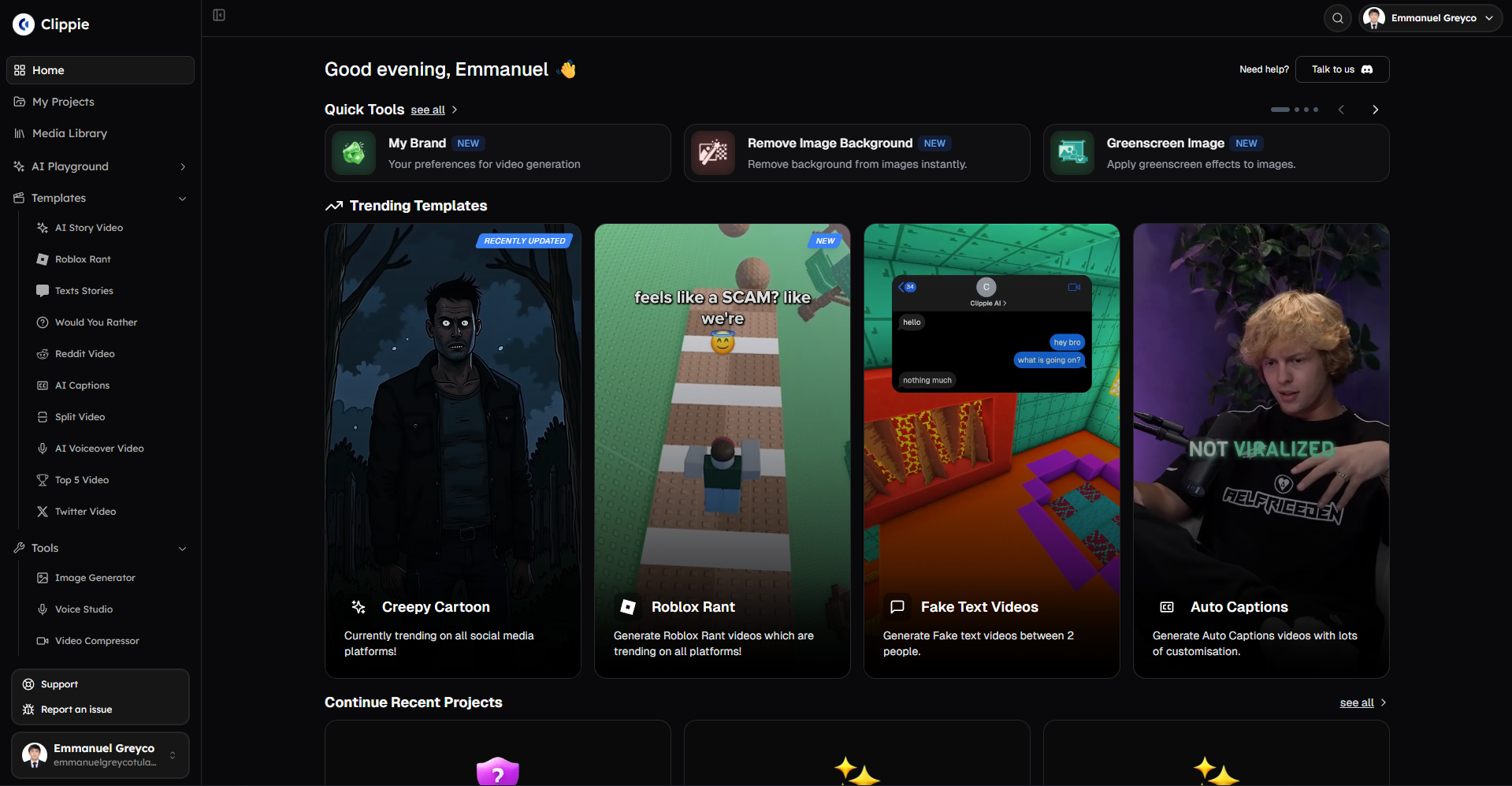
Visit clippie.ai to explore integrated workflows combining background removal with automated content generation producing 60-150 monthly videos, leveraging trending automation converting viral posts to complete scripts in 30-60 seconds, batch processing creating 5-10 videos simultaneously reducing per-video time to 12-20 minutes, premium neural voices driving 65-80% completion rates, multi-platform export saving 12-18 minutes per-platform adjustments, generating $2,000-$24,000+ monthly revenue through volume capacity (10-20x traditional output), professional quality (90-95% edge accuracy), location flexibility (film anywhere), and cost efficiency ($20-$70 monthly vs. $500-$2,000 studio infrastructure).
Make an AI story video
Write a script or let AI write one. Clippie turns it into a narrated video with AI scenes, voiceover and captions.
Read more

How to Make Top 5 Ranking Videos in 2026 (Step-by-Step)
Build ranking Shorts that can still earn: pick a debatable topic, set clear criteria, source clips you may use, script the countdown, add your commentary.

How to Create Short-Form Videos Using AI: 8 Steps (2026)
A beginner workflow for AI videos on TikTok, Reels and Shorts: pick a format, script a hook, add visuals, voice and captions, export at 9:16, label AI.

7 Free CapCut Alternatives for Short-Form Video (2026)
Compare Edits, YouTube Create, VN, Clipchamp, Canva, DaVinci Resolve and Shotcut: what each gives free users, what it caps first and where it falls short.